Introduction
Many business teams still create documents by hand. They copy details, edit templates, check figures, and send files for approval. This work takes time and can lead to mistakes.
Document automation tools help reduce this effort. They create, fill, review, send, and manage documents through set workflows. Teams can use them for contracts, invoices, reports, forms, proposals, and other business files.
These tools do more than fill in blank spaces. Some connect business data to document templates. Others help teams prepare contracts, collect electronic signatures, or manage approval steps. A few platforms cover the full process, from document creation to storage.
The best choice depends on the work you want to automate. A sales team may need fast proposals. A legal team may need approved contract clauses and review steps. A finance team may need accurate invoices and reports.
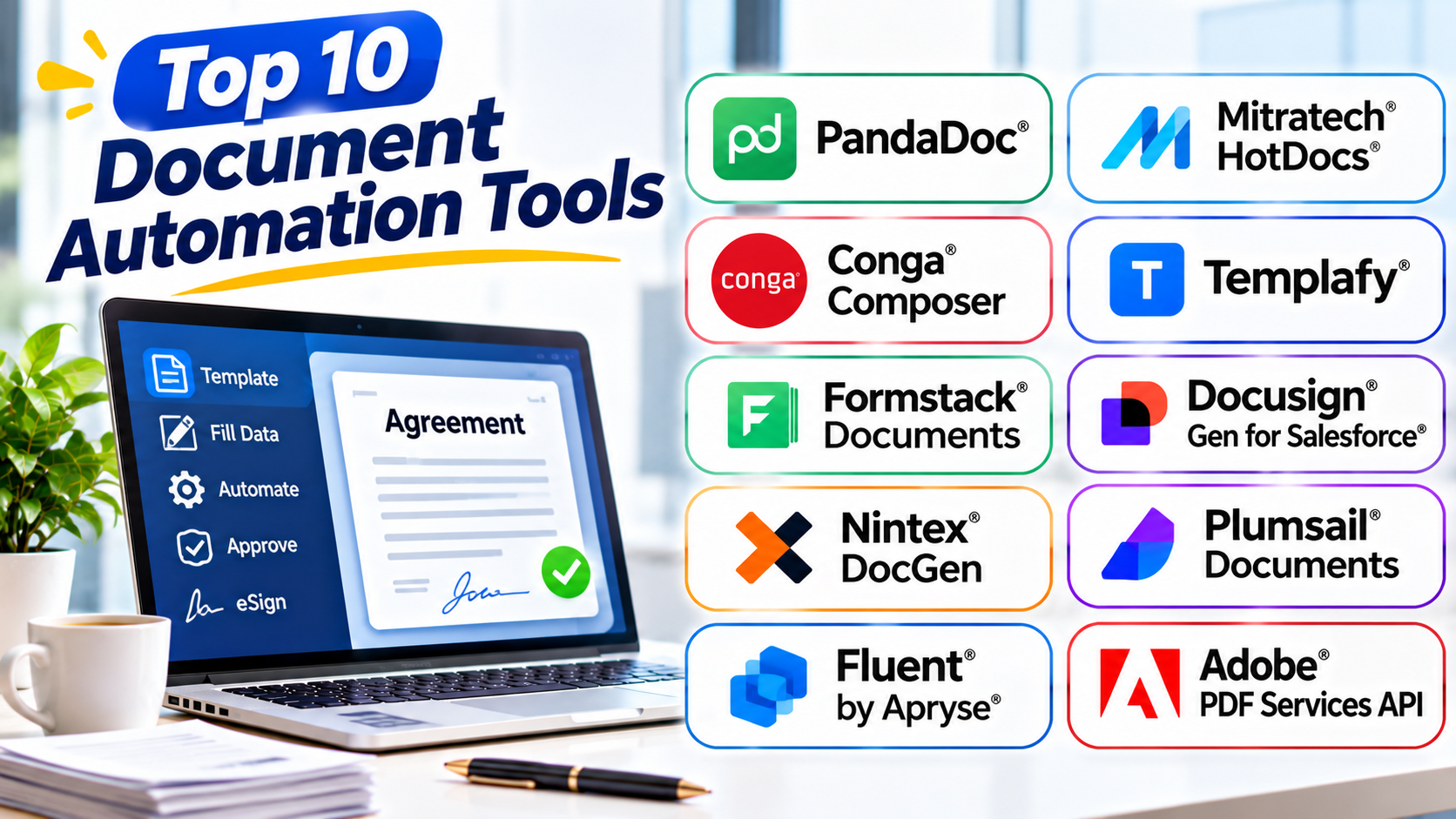
This guide compares ten useful document automation platforms. It explains their main uses, key features, Pros, and Cons. It also shows what to check before choosing one.
What Is Document Automation?
Document automation uses software to create or process documents with less manual work. It can take data from forms, spreadsheets, customer systems, or databases. The software then places that data into a document template.
For example, a company may use a template to create customer agreements. A staff member enters the customer’s name, address, service, and price. The system adds these details to the right places in the agreement.
Some tools also support document approval and electronic signatures. Others connect documents to wider business workflows. This can help teams reduce repeated typing and keep documents consistent.
Common uses include:
- Creating contracts and legal agreements
- Preparing sales proposals and quotes
- Generating invoices and purchase orders
- Producing HR letters and employee forms
- Creating reports from business data
- Preparing customer notices and renewal letters
- Collecting approvals and electronic signatures
- Managing document versions and templates
Document automation does not remove the need for human review. Teams should still check important documents before sending or signing them.
Top 10 Document Automation Tools Worth Comparing
The tools below cover different document needs. Some focus on legal documents and contracts. Others help sales teams, large companies, or developers create documents from business data.
1. PandaDoc
Best suited to: Sales teams that create proposals, quotes, and contracts
PandaDoc brings document creation and signing into one workspace. Sales teams can use it to prepare proposals, quotes, agreements, and other customer documents. It helps reduce the need to move between separate writing and signature tools.
The platform offers reusable templates and a drag-and-drop editor. Teams can add text, images, tables, pricing details, and signature fields. They can also use variables to fill in repeated details, such as customer names or company information.
PandaDoc also includes a content library. Teams can store approved text, product details, case studies, and legal clauses. Staff can add these items to documents without copying old files. This helps keep sales materials consistent.
Approval rules can route selected documents for review. For example, a proposal with a large discount may need manager approval. The platform can also track document activity, which helps sales staff see when a recipient views a proposal.
PandaDoc works well when a business wants to create, send, track, and sign documents in one process. However, it may not replace a specialist legal document assembly system. Teams with complex clauses and strict legal rules should test its template logic first.
Pros
- Combines document creation and e-signatures.
- Offers reusable templates and content blocks.
- Supports approval rules and document tracking.
- Helps sales teams create branded proposals.
- Reduces repeated data entry.
Cons
- Advanced legal document logic may need another tool.
- Some features depend on the selected plan.
- Teams must maintain templates and approved content.
- May offer more sales features than some back-office teams need.
2. Mitratech HotDocs
Best suited to: Legal, financial, insurance, and government document workflows
Mitratech HotDocs focuses on complex document assembly. It helps teams turn existing forms and documents into intelligent templates. Users answer guided questions, and the system uses their answers to build a finished document.
This approach works well for documents with many possible clauses. A legal agreement may need different wording based on location, service type, customer details, or contract value. HotDocs can use rules to select the right content.
The platform supports conditional logic and reusable templates. It can also draw information from existing data sources. This reduces the need to enter the same details again and again.
HotDocs also supports batch document generation. This can help teams that create large sets of similar documents. For example, an insurer may need to prepare many policy documents from approved templates and customer data.
Its strength lies in complex, rule-driven documents. However, teams must plan the questions, rules, and templates with care. Poor template design can create confusing interviews or incorrect results. Legal and compliance staff should review the rules before the system goes live.
Pros
- Handles complex document rules and conditional clauses.
- Supports guided questionnaires for document creation.
- Offers batch document generation.
- Helps reuse and control master templates.
- Provides API options for system connections.
Cons
- Complex templates need careful design.
- Staff may need training to manage advanced rules.
- Setup can take time for large document libraries.
- May be too advanced for simple letters and forms.
3. Conga Composer
Best suited to: Salesforce teams that generate data-driven business documents
Conga Composer creates documents from business data stored in CRM systems. It has a strong connection with Salesforce. Teams can use it to generate quotes, proposals, contracts, reports, and other customer documents.
The platform uses templates that pull information from standard and custom Salesforce objects. A Salesforce object stores a type of business record, such as an account, contact, or opportunity. Composer can use those records to fill in document fields.
Administrators create templates and define which data the system should use. They can also decide how users start a document process. Staff may launch document generation from a record, while automated processes can run it in the background.
Conga Composer supports several delivery options. Teams can send generated files by email, route them for electronic signatures, or store them in connected services. It can also support scheduled or batch document creation through related Conga tools.
This makes it useful for companies that rely on Salesforce for sales and customer data. It can reduce manual copying between CRM records and document templates. However, the setup depends on clean CRM data and well-designed templates.
Pros
- Pulls data from Salesforce records.
- Supports standard and custom CRM objects.
- Creates formatted business documents and reports.
- Supports automated and scheduled generation options.
- Offers document delivery and storage choices.
Cons
- Salesforce-focused workflows may limit its fit elsewhere.
- Template setup needs CRM knowledge.
- Complex data relationships can increase setup work.
- Buyers should check the exact product package and licensing.
4. Templafy
Best suited to: Large companies that need consistent business documents and brand control
Templafy helps organizations create business documents with approved templates, content, and company data. It works with familiar productivity tools, including Microsoft Office and Google Workspace. It can also connect with business systems such as Salesforce.
Its main value goes beyond filling in document fields. Templafy helps control how employees create proposals, reports, presentations, contracts, and other business content. A central library gives staff access to approved templates and reusable content.
The platform can use company rules and data to guide document creation. For example, a proposal may need a specific layout, approved wording, and current customer details. Templafy can help apply those requirements during the creation process.
Templafy also includes AI-assisted document creation features. Organizations can configure these tools with approved content, instructions, and business rules. This helps teams use AI while keeping control over important document standards.
The platform suits businesses with many teams, departments, and locations. It can help reduce outdated templates and inconsistent branding. However, smaller teams with only a few recurring forms may not need its wider governance features.
Pros
- Centralizes templates and approved content.
- Supports document creation within common office tools.
- Helps maintain brand and content standards.
- Connects with business data and enterprise systems.
- Combines AI assistance with rules-based controls.
Cons
- Enterprise setup may require planning and administration.
- Advanced features depend on product configuration.
- May be excessive for small document workloads.
- Teams must maintain approved templates and content.
5. Formstack Documents
Best suited to: Teams that need form-driven document generation without coding
Formstack Documents turns business data into completed documents. It can use information from forms, CRM systems, databases, and other connected applications. This helps teams create documents without typing the same details into every file.
Users can upload existing templates or create new ones. The platform supports formats such as Word, PowerPoint, PDF, and CSV. Teams can use these templates for contracts, invoices, reports, agreements, and customer documents.
Conditional content helps documents change based on the data. For example, a service agreement may show different sections for different service plans. The system can also combine files or create several documents from one data source.
Formstack Documents offers integrations and an API. Teams can connect it to business applications and automate document delivery. It can also work with Formstack’s other products for forms and electronic signatures.
This platform can suit teams that want a no-code approach. However, template formats have different editing and formatting rules. Teams should test their existing files before moving a large document process into the system.
Pros
- Supports no-code document generation.
- Accepts several common template formats.
- Connects with forms, CRMs, and other business systems.
- Supports conditional content and multiple documents.
- Offers an API for custom connections.
Cons
- Complex templates may need technical setup.
- Some template formats have different limits.
- Advanced workflows may need connected products.
- Teams should review plan and integration limits.
6. Docusign Gen for Salesforce
Best suited to: Salesforce teams that prepare agreements and sales documents
Docusign Gen for Salesforce creates documents from Salesforce data. Sales staff can generate agreements without copying customer and product details by hand. The tool can create files in Word, PDF, and Docusign document formats.
The platform uses templates with Salesforce fields. These fields can pull in customer names, product details, pricing, and other record information. This helps teams create documents that follow approved formats.
Conditional content gives templates more flexibility. A document can include or exclude sections based on Salesforce data. For example, an agreement may add a service section when a customer selects a certain product.
Docusign Gen can also support quotes, proposals, statements of work, invoices, and account statements. Users can prepare a document and send it for signature through Docusign. This keeps document generation close to the sales process.
The tool is a focused choice for Salesforce users. It is not a general-purpose document automation platform for every business system. Buyers should also check the required Docusign eSignature plan and Salesforce setup.
Pros
- Generates documents from Salesforce records.
- Supports conditional document content.
- Creates Word and PDF files.
- Connects document preparation with e-signature workflows.
- Helps reduce manual data entry for sales teams.
Cons
- Requires a Salesforce environment.
- Requires a Docusign eSignature account.
- Template design needs administrator input.
- May not suit teams that use other CRM systems.
7. Nintex DocGen
Best suited to: Organizations that connect document creation with wider business workflows
Nintex DocGen helps organizations create documents as part of business processes. Teams can use it for contracts, invoices, quotes, onboarding packs, reports, and other recurring files.
The platform uses document packages. A package contains templates and field tags that connect document fields to business data. A workflow can then run the package and create the required document.
Nintex also connects document generation with process automation. A workflow can collect information, create a document, send it for review, request approval, and route it for an electronic signature. This can reduce the need for staff to move files between separate systems.
The wider Nintex platform also supports document processing. It can extract information from incoming files and help teams use that data in later steps. This is useful for processes that involve both incoming documents and new documents.
Nintex can fit organizations with many connected processes. However, its document features depend on the platform and license in use. Teams should confirm which DocGen functions their chosen environment supports.
Pros
- Connects document generation with workflows.
- Uses reusable document packages and field tags.
- Supports business data from connected systems.
- Can route documents for review and approval.
- Supports several common business document types.
Cons
- Feature access depends on the license.
- Setup requires workflow and template planning.
- Complex processes may need skilled administrators.
- The wider platform may be more than simple users need.
8. Plumsail Documents
Best suited to: Microsoft 365 teams and businesses that use workflow connectors
Plumsail Documents creates files from templates and business data. It can generate Word, Excel, PowerPoint, PDF, and HTML documents. Teams can use it for contracts, reports, forms, invoices, and other repeated documents.
The platform offers a document generation process that fills templates with supplied information. Users can connect data through forms or other applications. They can then send completed documents by email, save them to cloud storage, or request electronic signatures.
Plumsail also connects with Microsoft Power Automate and Power Apps. This gives teams a way to start document generation from an existing business workflow. For example, a form submission could trigger a new contract or customer letter.
Its PDF tools add more value to document-heavy processes. Teams can convert, merge, split, encrypt, and protect PDF files. The REST API also gives developers a way to connect document tasks with custom applications.
Plumsail can suit teams that want flexible document generation without building everything from scratch. However, complex templates and workflows still need testing. Buyers should check the supported actions and output formats for their exact process.
Pros
- Supports several document and spreadsheet formats.
- Connects with Power Automate and Power Apps.
- Offers API access for custom workflows.
- Includes PDF conversion and processing features.
- Supports document delivery and e-signature requests.
Cons
- Complex workflows need careful configuration.
- Some integrations require extra setup.
- Template formatting can need testing.
- Teams should check plan limits for their usage.
9. Fluent by Apryse
Best suited to: Developers and businesses that generate data-rich documents at scale
Fluent by Apryse, formerly known as Windward Studios, focuses on document generation from templates and data. It lets business users design templates in familiar Microsoft Office applications. Developers can then embed the document generation engine into other applications.
The platform can use data from different sources. It can combine business information with rules and template layouts. This makes it useful for reports, statements, customer documents, and other files with changing data.
A key difference is its embedded approach. Instead of only using a standalone document editor, developers can place document generation inside an existing product or workflow. This can help software companies create documents directly from their own applications.
Fluent can work with complex templates and data structures. It supports business users who prepare templates and developers who connect the generation process. This division can help teams manage document design without making every change a coding task.
The platform is more technical than simple form-to-PDF tools. Buyers should review its data connections, deployment needs, template requirements, and developer resources. It may not be the easiest choice for a small team that only needs basic letters.
Pros
- Supports templates built with familiar Office tools.
- Can generate documents from multiple data sources.
- Offers an embedded generation engine.
- Supports complex business document workflows.
- Separates template design from application development.
Cons
- Developer support may be needed for integration.
- Setup can be more technical than no-code tools.
- May be excessive for simple document tasks.
- Buyers should test their data and template requirements.
10. Adobe PDF Services API
Best suited to: Developers who need PDF automation inside applications
Adobe PDF Services API helps developers automate common PDF tasks. It can create, convert, combine, compress, protect, and extract information from PDF files. Teams can use these functions as part of their own business applications.
This tool differs from a full document workflow platform. It does not mainly focus on managing sales proposals or legal approval steps. Instead, it provides PDF processing capabilities that developers can connect to other systems.
For example, an application may create a report from business data and then convert it into a PDF. Another workflow may combine several uploaded files into one document. Teams can also use PDF extraction functions to process information from existing files.
The API approach gives developers flexibility. They can build PDF tasks into portals, internal tools, or automated services. This can be useful when a business already has a workflow engine or document system.
However, developers must build the surrounding user experience and process logic. Organizations should also review API usage, security, data handling, and service limits before deployment.
Pros
- Supports automated PDF creation and processing.
- Offers conversion, merging, and compression functions.
- Can be embedded into custom applications.
- Helps developers automate repetitive PDF tasks.
- Works well as part of a wider software workflow.
Cons
- Requires development skills.
- Does not replace a complete document workflow platform.
- Teams must build approval and routing steps separately.
- API usage and service limits need review.
Comparison Table: Document Automation Tools
| Tool | Main purpose | Best fit | Technical needs |
|---|---|---|---|
| PandaDoc | Proposals, contracts, and e-signatures | Sales teams | Low to medium |
| Mitratech HotDocs | Complex rules-based document assembly | Legal and finance teams | Medium to high |
| Conga Composer | CRM-based document generation | Salesforce users | Medium to high |
| Templafy | Document creation and brand control | Large enterprises | Medium |
| Formstack Documents | Form and data-driven documents | Business operations teams | Low to medium |
| Docusign Gen for Salesforce | Salesforce agreement generation | Salesforce sales teams | Medium |
| Nintex DocGen | Workflow-based document generation | Enterprise operations | Medium to high |
| Plumsail Documents | Document and PDF automation | Microsoft 365 users | Low to medium |
| Fluent by Apryse | Embedded data-driven document generation | Developers and software teams | High |
| Adobe PDF Services API | Automated PDF processing | Developers | High |
The tools do not all solve the same problem. PandaDoc combines sales documents and signing. HotDocs handles complex document rules. Conga and Docusign Gen focus on Salesforce data. Templafy controls business content and brand standards.
Formstack and Plumsail support flexible document generation. Nintex connects documents to wider workflows. Fluent by Apryse and Adobe PDF Services API suit more technical projects.
How to Choose the Right Document Automation Tool
A good choice starts with your most common document task. Do not buy a large platform before you understand the problem.
1. Define the documents you want to automate
List the files your team creates often. These may include:
- Sales proposals and customer quotes
- Service contracts and legal agreements
- Invoices and purchase orders
- Employee letters and HR forms
- Reports and financial statements
- Customer onboarding documents
Choose a tool that supports your main document types. Also check its output formats.
2. Check where your business data lives
Document automation works best when it can access accurate data. Your information may sit in a CRM, ERP, spreadsheet, database, or online form.
Check whether the tool connects to these systems. Also review its API options if you need a custom connection.
3. Review template flexibility
Simple templates may only need names, dates, and prices. Complex documents may need conditional clauses, tables, calculations, and repeated sections.
Ask vendors to show how their systems handle these cases. Test your own documents rather than relying only on sample templates.
4. Decide whether you need electronic signatures
Some platforms include e-signatures. Others connect to a separate signing service.
If customers must sign documents, review the full signing process. Check identity options, signing order, reminders, and document storage.
5. Review approvals and permissions
Some documents need approval before they leave your business. A discount proposal may need a manager’s review. A legal agreement may need approval from several departments.
Look for approval rules that match these steps. Also check user roles and access controls.
6. Consider document volume
A team that creates a few letters each week has different needs from a bank that generates thousands of statements.
Check batch generation, API limits, processing speed, and file size limits. Ask how the platform handles large jobs and failed document runs.
7. Check security and data handling
Documents may contain personal, financial, or legal information. Review encryption, access controls, audit logs, data storage, and retention options.
Ask where the provider stores data. Also check whether its security terms match your business requirements.
8. Calculate the full cost
Look beyond the monthly subscription. Include user licenses, document volume, API usage, setup, training, and support.
Some platforms also require other products for signatures or workflow automation. Add these costs before comparing vendors.
9. Test with real documents
Run a small pilot before full adoption. Use real templates and sample business data.
Check formatting, calculations, conditional content, approvals, and final output. Ask staff to test the process from start to finish.
Common Document Automation Mistakes to Avoid
1. Automating a poor template
Automation cannot fix unclear wording or outdated content. Review every template before you use it.
2. Using incorrect source data
Wrong customer details can create wrong documents. Clean your CRM, database, and spreadsheets first.
3. Adding too many rules
Too many conditions can make templates hard to manage. Keep rules clear and test each important path.
4. Skipping human review
Important contracts and financial documents still need review. Set approval steps for high-risk documents.
5. Ignoring document versions
Staff may use old templates without knowing it. Keep approved versions in one controlled place.
6. Forgetting mobile and PDF output
Some documents may look different on phones or after PDF conversion. Test the final files on common devices.
7. Overlooking access controls
Sensitive documents should not be open to every employee. Set permissions based on job roles.
8. Failing to train employees
Staff need to know how to use templates and fix errors. Provide clear steps and support.
9. Ignoring failed automation runs
A workflow can fail because data is missing or a connection breaks. Set alerts and create a way to review failed jobs.
10. Choosing more software than you need
A complex enterprise platform may not suit a small team. Match the tool to your real workload and process needs.
Questions and Answers
1. What are document automation tools?
Document automation tools create and process documents with less manual work. They use templates, business data, and rules to prepare files such as contracts, invoices, and reports.
2. How does document automation work?
A user or system provides data. The software places that data into a prepared template. It can then create, send, store, or route the finished document.
3. Which documents can businesses automate?
Businesses can automate contracts, invoices, proposals, quotes, reports, HR letters, forms, and customer notices. The exact options depend on the software.
4. Can document automation reduce human errors?
Yes, it can reduce repeated typing and manual copying. However, errors can still occur when source data or templates contain mistakes. Teams should review important documents.
5. What is the difference between document generation and document automation?
Document generation creates a file from a template and data. Document automation covers more steps, such as approvals, routing, signing, delivery, and storage.
6. Do document automation tools support electronic signatures?
Some tools include electronic signatures. Others connect with separate signing platforms. Check the available signing features before choosing a product.
7. Are document automation tools suitable for small businesses?
Yes. Small businesses can automate quotes, invoices, proposals, and customer forms. They should choose a tool that fits their document volume and budget.
8. Can document automation tools connect with CRM systems?
Many platforms connect with CRM systems. They can use customer, product, and sales data to fill document templates. Check the exact CRM integration before buying.
9. Do document automation tools require coding?
Not always. Many platforms offer visual template builders and no-code workflows. Developer-focused tools and custom integrations may still need coding skills.
10. How much do document automation tools cost?
Costs vary by product, plan, user count, document volume, and features. Some tools use per-user plans. Others offer custom enterprise pricing or API-based charges.
11. Can document automation handle complex legal agreements?
Yes. Specialist tools such as Mitratech HotDocs support conditional clauses and guided document assembly. Legal teams should review all templates and rules before use.
12. What should I test before choosing a platform?
Test template accuracy, data connections, formatting, approvals, signatures, security, and output quality. Also check how the system handles errors and large document batches.
Final Thoughts
Document automation can help teams spend less time preparing repeated files. It can also improve consistency and reduce manual data entry.
The right platform depends on your workflow. PandaDoc suits sales documents and signatures. HotDocs handles complex legal templates. Conga and Docusign Gen work well with Salesforce data. Templafy helps large teams control business content.
Formstack and Plumsail offer flexible document generation. Nintex connects documents with business processes. Fluent by Apryse and Adobe PDF Services API serve more technical needs.
Before you decide, choose one important document process. Test it with real data and approved templates. Check the result, the review steps, and the total cost. Then expand automation to other documents when the first process works well.