Introduction
A missing contract can delay a deal. An old policy can cause costly mistakes. A team may also waste hours searching through folders and email attachments.
Document Management Systems help solve these problems. They give businesses a central place to store, organize, find, share, and control documents.
A good system does more than store files. It tracks document changes, controls access, and supports team workflows. Some platforms also scan paper files, read text from images, and automate approvals.
However, not every system serves the same purpose. Some focus on cloud file sharing. Others support strict records control, document capture, or complex business processes.
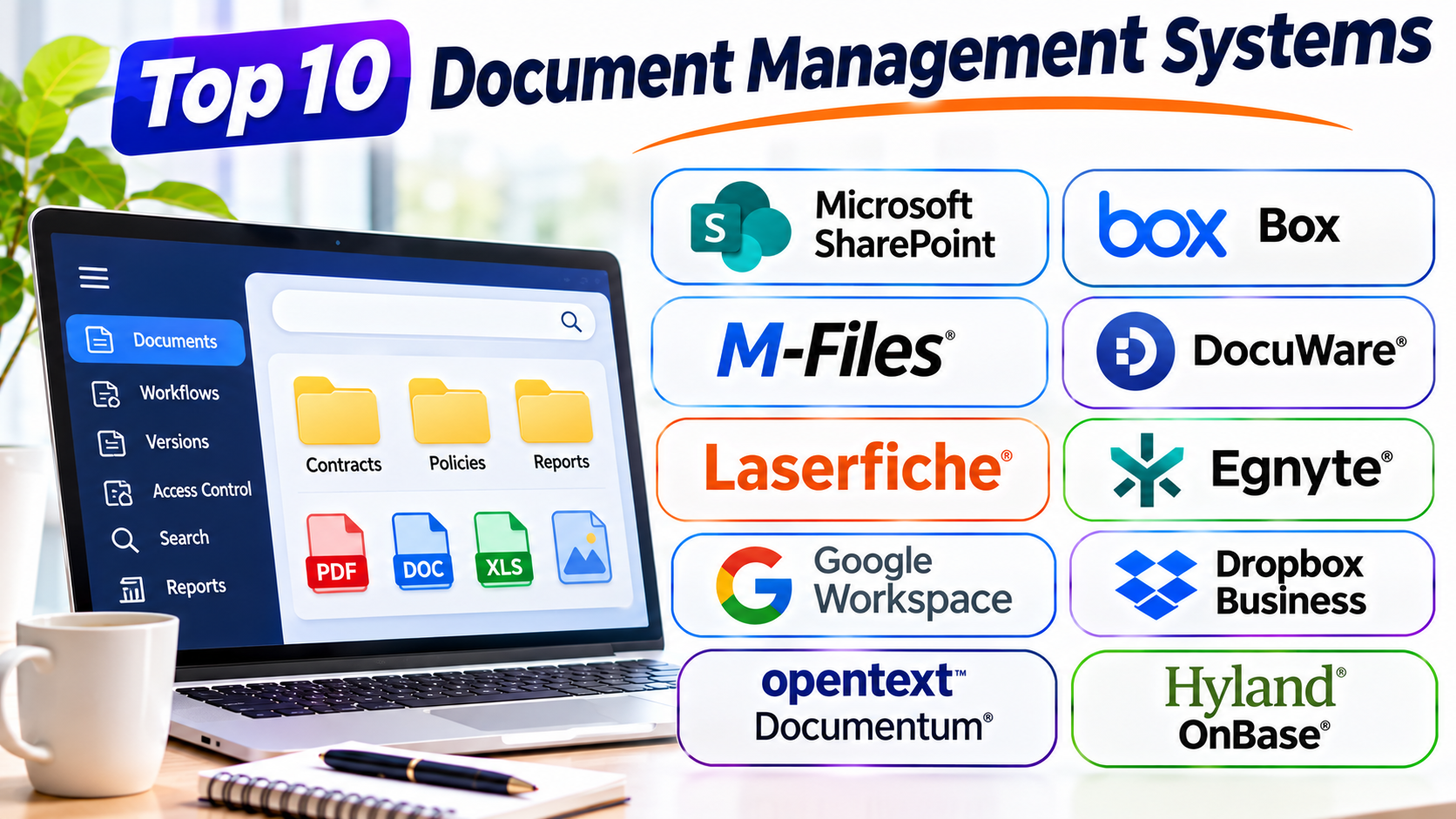
This guide explores ten Document Management Systems with different strengths. It explains their features, practical uses, Pros, and Cons. It also compares their main capabilities to help you choose the right platform.
What Is a Document Management System?
A Document Management System, often called a DMS, is software that manages digital documents throughout their working life.
It helps users create, upload, store, organize, search, share, review, approve, and archive files. It can manage many file types, including PDFs, Word documents, spreadsheets, images, forms, and scanned records.
Most business systems offer several important features:
- Central storage: Keep business files in one managed place.
- Search: Find documents by name, text, tags, or other details.
- Version control: Track changes and help users find earlier versions.
- Access control: Decide who can view, edit, download, or share files.
- Workflow automation: Send documents through review and approval steps.
- Audit history: Record important actions taken on documents.
- Document capture: Convert paper records into searchable digital files.
- Retention controls: Keep records for set periods and manage their disposal.
A basic cloud drive may handle storage and sharing well. A full DMS adds stronger control over document processes and records.
Top 10 Document Management Systems
1. Microsoft SharePoint
Microsoft SharePoint is a document and content management platform for organizations. It works closely with Microsoft 365 and supports structured document libraries, team sites, and internal information portals.
Businesses can use SharePoint to organize files by department, project, client, or business process. Document libraries support metadata, version history, access permissions, and content views. Metadata means details such as document type, owner, project name, or approval status.
SharePoint also works with Microsoft Teams, Word, Excel, Outlook, and Power Automate. Teams can work on shared files while keeping content in managed libraries. Power Automate can route documents for review, send alerts, and support approval processes.
Organizations can also use SharePoint to build internal knowledge sites. Staff can find policies, forms, guides, and project documents from one place.
However, SharePoint needs careful planning. Poor folder design, unclear permissions, and too many sites can make information hard to find. Administrators should plan the content structure before moving large amounts of data.
Pros
- Strong connection with Microsoft 365 applications.
- Supports document libraries, metadata, and version history.
- Offers detailed access and sharing controls.
- Supports collaboration and document coauthoring.
- Works with workflow automation tools.
- Can support internal portals and knowledge sharing.
Cons
- Setup and administration can become complex.
- Poor content planning can create confusing sites.
- Advanced features may need extra licensing or configuration.
- Permission management needs regular review.
- Large migrations need careful planning and testing.
Best suited for: Organizations that already use Microsoft 365 and need structured document libraries, collaboration, and workflow control.
2. Box
Box is a cloud content management platform for storing, sharing, and managing business files. It helps teams work with documents across departments, devices, and external organizations.
Users can store files in shared folders and control access through permissions. Teams can collaborate on documents, review content, and share files with clients or business partners.
Box also supports document workflows and content governance. Organizations can use its tools to manage retention, security policies, and access rules. Its integration ecosystem helps connect content with business applications.
Box is useful when a company needs more than basic file storage. It can support external collaboration while giving administrators control over company content.
However, organizations should check which security, governance, and automation features their chosen plan includes. Some advanced capabilities may depend on the subscription or add-ons.
Pros
- Strong cloud file storage and sharing features.
- Useful tools for external collaboration.
- Supports access controls and content governance.
- Offers integrations with many business applications.
- Helps teams manage documents across locations.
- Supports document workflows and automation.
Cons
- Advanced features may increase subscription costs.
- Some controls depend on the selected plan.
- Complex governance needs careful setup.
- Users may need training for advanced workflows.
- It may offer more features than a small team needs.
Best suited for: Businesses that need secure cloud content management and frequent document sharing with outside partners.
3. M-Files
M-Files uses a metadata-based approach to document management. Instead of relying only on folders, it helps users find files through information about the content.
For example, a user may search for a customer contract by client name, contract type, project, or status. The system can show matching documents without requiring users to remember the folder path.
This approach can help organizations manage large document collections. It also supports version control, permissions, workflows, and document search.
M-Files can connect with business systems and existing content repositories. This can help companies bring information together without forcing every file into one traditional folder structure.
The platform can support businesses with complex document processes. However, teams must define useful metadata fields and document rules. A poor metadata plan can make the system harder to use.
M-Files may also need more planning than a simple cloud drive. Companies should map their document types, approval steps, and access rules before deployment.
Pros
- Organizes documents through metadata.
- Helps users search by business context.
- Supports version control and permissions.
- Offers workflow automation.
- Can connect with other content repositories.
- Suits structured document processes.
Cons
- Metadata planning takes time.
- Setup can require specialist support.
- Users may need training to follow document rules.
- Complex workflows can increase implementation effort.
- Pricing may require a custom quote.
Best suited for: Organizations that manage large document collections and need metadata-based search, control, and automation.
4. DocuWare
DocuWare focuses on document management and workflow automation. It helps businesses move paper-based processes into digital workflows.
The platform can capture documents from scanners, email, and other sources. It can use document indexing and text recognition to help users find information. Optical Character Recognition, or OCR, reads text from scanned pages and images.
Businesses can use DocuWare for invoices, employee records, contracts, purchase orders, and other business documents. It can route documents to the right people for review and approval.
For example, a finance team can set up an invoice process. Staff can capture an invoice, match it with business details, and send it through an approval path.
DocuWare supports cloud and other deployment options, depending on the product setup. Organizations should check their hosting, integration, and workflow needs before choosing a plan.
Its main value comes from managing document-heavy processes. It may not be the simplest choice for teams that only need basic file sharing.
Pros
- Supports document capture and indexing.
- Offers OCR for scanned documents.
- Helps automate invoice and approval workflows.
- Supports structured document storage.
- Can reduce manual document handling.
- Suits finance and administration processes.
Cons
- Workflow design may need expert help.
- Setup can take time.
- Pricing and deployment details need vendor discussion.
- Basic teams may not need its full feature set.
- Staff may need training for automated processes.
Best suited for: Businesses that handle many invoices, forms, scanned records, and approval processes.
5. Laserfiche
Laserfiche is an enterprise content management platform. It helps organizations capture, store, manage, and process business information.
The platform supports document repositories, electronic forms, records management, and workflow automation. Businesses can use it to manage policies, employee records, applications, contracts, and customer documents.
Laserfiche can help teams move paper-based processes into digital workflows. For example, an organization can create an online form and send the submitted information through review and approval steps.
It also supports search, access controls, and records management. These features can help organizations maintain control over important business documents.
Laserfiche is useful for organizations with structured processes and many departments. However, its wide range of features can make planning important. Teams should define their records rules, user roles, and workflow needs before implementation.
Pros
- Supports document capture and records management.
- Offers electronic forms and workflow tools.
- Helps automate department processes.
- Provides tools for document search and access control.
- Can support complex organizational needs.
- Useful for government, education, and business teams.
Cons
- Implementation can require careful planning.
- Advanced workflows may need specialist skills.
- Training can take time.
- Pricing may depend on the selected solution.
- Smaller teams may find it too complex.
Best suited for: Organizations that need records management, electronic forms, and process automation across departments.
6. Egnyte
Egnyte combines cloud content management, file sharing, and data governance. It helps organizations manage business files while controlling how people access and share them.
Teams can store and share documents across offices and remote locations. Administrators can set permissions and apply policies to business content.
Egnyte also focuses on protecting sensitive information. Its tools can help organizations identify, manage, and control important data. This can matter to companies that handle confidential client files, project records, or regulated information.
The platform can support hybrid work and connect with business applications. It is also relevant to teams that work with large project files and shared content.
Egnyte is not just a basic storage service. Its governance features can help organizations manage risks around file access and sharing. However, companies should confirm that the chosen plan supports their exact security and compliance needs.
Pros
- Combines file sharing with content governance.
- Supports teams across offices and remote locations.
- Offers access controls and data protection tools.
- Supports business application integrations.
- Can suit project-based organizations.
- Helps manage sensitive business content.
Cons
- Advanced governance features may need higher plans.
- Setup requires clear access policies.
- Some users may need training.
- Costs can rise with additional services.
- Basic storage needs may not justify its full platform.
Best suited for: Businesses that need managed file sharing, content governance, and control over sensitive documents.
7. Google Workspace and Google Drive
Google Workspace provides business tools for email, document creation, storage, and collaboration. Google Drive acts as its main file storage and sharing service.
Teams can store files in shared drives and work together on Google Docs, Sheets, and Slides. Several users can edit supported documents at the same time. Changes appear during the editing process.
Google Drive supports file sharing, search, and access permissions. Shared drives help organizations keep team files under company control instead of tying them to one employee’s account.
Google Workspace can suit businesses that already use Gmail and other Google tools. Its browser-based approach also helps teams work from different devices.
However, Google Drive does not replace every specialist DMS. Organizations with complex records rules, advanced capture needs, or strict document approval processes may need extra tools or a dedicated platform.
Pros
- Supports real-time document collaboration.
- Works closely with Google Workspace applications.
- Offers shared drives for team content.
- Provides search and file-sharing controls.
- Supports browser-based access.
- Can be easy for new users to learn.
Cons
- Advanced records needs may require other tools.
- Complex approval processes may need extra setup.
- Some controls depend on the Workspace plan.
- Large file collections need clear organization.
- It may not replace a specialist enterprise DMS.
Best suited for: Teams that use Google Workspace and need simple storage, sharing, and live document collaboration.
8. Dropbox Business
Dropbox Business provides cloud file storage, synchronization, and team sharing. It helps users access business files across supported devices.
Teams can create shared folders and manage access for employees or outside partners. File synchronization helps keep work available across devices. Version history and file recovery tools can also help users restore earlier content when needed.
Dropbox Business works well for teams that value simple file access and sharing. It can support creative teams, small businesses, and distributed work groups.
However, file synchronization is not the same as full document lifecycle management. Organizations with complex approvals, records retention, and detailed governance needs should check whether Dropbox meets those requirements or needs other software.
Pros
- Simple cloud storage and file synchronization.
- Supports shared folders and team access.
- Helps users work across devices.
- Offers file recovery and version features.
- Useful for external file sharing.
- Familiar workflow for many users.
Cons
- Complex records management may need another platform.
- Advanced governance depends on the plan.
- Folder structures can become difficult to manage.
- Sync conflicts may affect shared work.
- It may not suit complex approval processes by itself.
Best suited for: Small and medium-sized teams that need straightforward cloud storage, synchronization, and file sharing.
9. OpenText Documentum
OpenText Documentum is an enterprise content management platform for organizations with complex information needs. It helps manage business documents, records, and content across large operations.
Documentum can support document lifecycles, controlled access, version management, and structured business processes. These capabilities matter when organizations need clear control over important records.
Large companies may use enterprise content platforms to connect documents with business applications and internal processes. They can also apply rules for review, retention, and document handling.
Documentum is aimed at complex enterprise environments. It may suit organizations that need centralized control across departments and systems.
However, enterprise content projects can require significant planning. Teams should assess implementation effort, integration needs, administration, and long-term support before making a decision.
Pros
- Designed for complex enterprise content needs.
- Supports controlled document lifecycles.
- Helps manage records and document versions.
- Can support large-scale business processes.
- Offers enterprise integration options.
- Suits organizations with strict information controls.
Cons
- Implementation can be complex.
- Administration may need specialist skills.
- Total ownership costs need careful review.
- Custom integrations can add work.
- It may be excessive for small businesses.
Best suited for: Large organizations that need enterprise content management and structured control over important business records.
10. Hyland OnBase
Hyland OnBase is an enterprise content management platform that connects documents with business processes. It helps organizations capture, manage, and route information across departments.
The platform supports document capture, workflow automation, case management, and records control. It can bring documents and related tasks together around a business process.
For example, a finance department can manage invoices and approvals. A service team can connect customer records, forms, and case details. Staff can access relevant content while working through a process.
OnBase also offers integration options for business applications. This can help organizations connect document processes with systems they already use.
Its strength lies in process-focused content management. However, organizations should define their workflows before deployment. A large implementation may involve system design, integration work, user training, and ongoing administration.
Pros
- Combines content management with workflow automation.
- Supports document capture and case management.
- Helps connect documents with business processes.
- Offers integration options for business applications.
- Supports audit history and controlled records.
- Can serve multiple departments.
Cons
- Implementation can require significant planning.
- Custom workflows may need specialist support.
- Training can take time.
- Costs depend on the required solution.
- Smaller organizations may not need its full capabilities.
Best suited for: Large organizations that need document control, case management, and automated business processes.
Document Management Systems Comparison Table
The following table highlights each platform’s main purpose. It does not rank the products. The right choice depends on your document types, workflows, security needs, and existing software.
| Document Management System | Main Strength | Best Fit | Important Consideration |
|---|---|---|---|
| Microsoft SharePoint | Microsoft 365 integration and document libraries | Microsoft-based organizations | Needs careful site and permission planning |
| Box | Cloud content management and external sharing | Teams working with outside partners | Advanced features may depend on the plan |
| M-Files | Metadata-based document organization | Businesses with complex document collections | Requires a clear metadata structure |
| DocuWare | Document capture and workflow automation | Finance and administration teams | Workflow setup needs planning |
| Laserfiche | Records, forms, and process automation | Government and large organizations | Advanced use may need specialist support |
| Egnyte | File sharing and content governance | Teams handling sensitive business files | Check plan-level governance features |
| Google Workspace and Google Drive | Live collaboration and shared storage | Google-based teams | Complex records needs may require extra tools |
| Dropbox Business | File synchronization and sharing | Small and medium-sized teams | Not a complete solution for every records process |
| OpenText Documentum | Enterprise content and records control | Large, complex organizations | Implementation can be demanding |
| Hyland OnBase | Document-driven workflows and case management | Process-heavy organizations | Workflow design and integration need planning |
How to Choose the Right Document Management System
The right DMS should match the way your organization works. Do not choose a platform only because it offers many features.
1. Understand Your Document Needs
Start by listing the documents your team handles. These may include contracts, invoices, employee records, policies, reports, forms, and customer files.
Next, identify how often staff create, edit, approve, and share these documents. This helps you understand which features matter most.
2. Check Search and Organization
A useful DMS should help staff find documents quickly. Check whether it supports full-text search, tags, metadata, filters, and clear folder structures.
If your team manages many files, test search with real documents. Do not rely only on a product demonstration.
3. Review Access and Security Controls
Not every employee needs access to every file. Check how the platform handles user roles, sharing permissions, access reviews, and audit records.
Also review its data protection features. Ask about encryption, backups, recovery, and account security.
For regulated work, confirm the exact controls and evidence your organization needs. Do not assume that every plan includes the same features.
4. Examine Workflow Automation
Some teams only need storage and sharing. Others need documents to pass through several approval steps.
Check whether the system can route files, send reminders, track approval status, and record decisions. Make sure it supports your real process without unnecessary workarounds.
5. Check Integrations
Your DMS should work with the tools your staff already use. These may include email, office software, customer systems, finance tools, and business applications.
Check which integrations come built in. Also ask whether some connections need extra licenses or custom development.
6. Compare Total Costs
The subscription price does not show the full cost. You should also consider setup, migration, training, storage, support, integrations, and administration.
Ask vendors for a clear cost breakdown. Check how the price changes when your team grows or needs advanced features.
7. Test Before You Buy
Run a small pilot with real business files. Upload sample documents, set permissions, test search, and complete a real approval process.
Ask staff to use the system during normal work. Their feedback can reveal problems that a sales demonstration may not show.
Common Document Management Mistakes to Avoid
A DMS can improve document control, but poor planning can create new problems. Avoid these common mistakes:
- Moving files without a plan: Review old folders before migration. Remove duplicates and identify important records.
- Using too many folders: Create a clear structure. Use metadata when it makes searching easier.
- Giving everyone broad access: Set permissions based on job needs. Review access as roles change.
- Ignoring version control: Set clear rules for editing and approving important documents.
- Skipping staff training: Show users how to search, share, and manage files correctly.
- Automating broken processes: Fix confusing approval steps before turning them into workflows.
- Ignoring backups: Check how the system protects data and restores lost files.
- Choosing only by price: Compare setup, support, storage, security, and long-term costs.
- Failing to test migration: Test sample files and permissions before moving the full collection.
- Leaving old content unmanaged: Set rules for retention, review, and secure disposal.
Questions and Answers About Document Management Systems
1. What is the main purpose of a Document Management System?
A DMS helps an organization store, organize, search, share, and control documents. It also supports version tracking, access rules, and business workflows.
2. How is a DMS different from cloud storage?
Cloud storage mainly saves and shares files. A DMS adds document control features such as metadata, version history, approval workflows, audit records, and retention rules.
3. Which Document Management System is best for small businesses?
The right choice depends on the team’s needs. Google Drive and Dropbox Business can suit simple storage and sharing. SharePoint may suit small businesses that already use Microsoft 365.
4. Which DMS works well with Microsoft 365?
Microsoft SharePoint offers close integration with Microsoft 365. It supports document libraries, collaboration, permissions, and workflow connections.
5. What is metadata in document management?
Metadata means information that describes a document. It can include the file owner, customer, project, document type, or approval status. It helps users organize and find files.
6. What is OCR in a Document Management System?
OCR stands for Optical Character Recognition. It reads text from scanned pages and images. This can make scanned documents easier to search and process.
7. Can a DMS replace paper records?
A DMS can help organizations move many paper-based processes into digital systems. However, teams must check legal, business, and retention rules before disposing of original records.
8. Is document management software secure?
Security depends on the product, plan, setup, and company policies. Organizations should review access controls, encryption, backups, audit logs, and data protection terms.
9. How long does DMS implementation take?
The time depends on the number of documents, integrations, workflows, and users. A simple cloud setup may take less time than a large enterprise migration.
10. What should a business test before choosing a DMS?
Test document upload, search, permissions, version history, sharing, and approval workflows. Also check migration, backup, recovery, integrations, and total costs.
Final Thoughts
A Document Management System can help a business work with files in a more organized way. It can reduce search time, improve document control, and support better teamwork.
The best choice depends on the work your team does. SharePoint suits many Microsoft 365 environments. Box supports cloud content sharing. M-Files focuses on metadata-based organization. DocuWare and Laserfiche support document-heavy workflows.
Egnyte helps manage shared business content. Google Drive and Dropbox Business suit teams with simpler storage needs. OpenText Documentum and Hyland OnBase address complex enterprise processes.
Before choosing, test each suitable platform with real documents and real users. Check security, permissions, migration, integrations, and long-term costs. A system that fits your daily work will provide more value than one with features your team never uses.