Introduction
Good notes help you remember ideas, plan tasks, and find key details. But paper notes and scattered files can become hard to manage. Note-taking apps bring your thoughts into one place. They also help you search, sort, share, and review information.
The right app depends on how you work. Some tools focus on quick notes and simple lists. Others support research, linked ideas, team projects, and large knowledge libraries. A good choice should match your daily habits. It should also make your notes easy to find later.
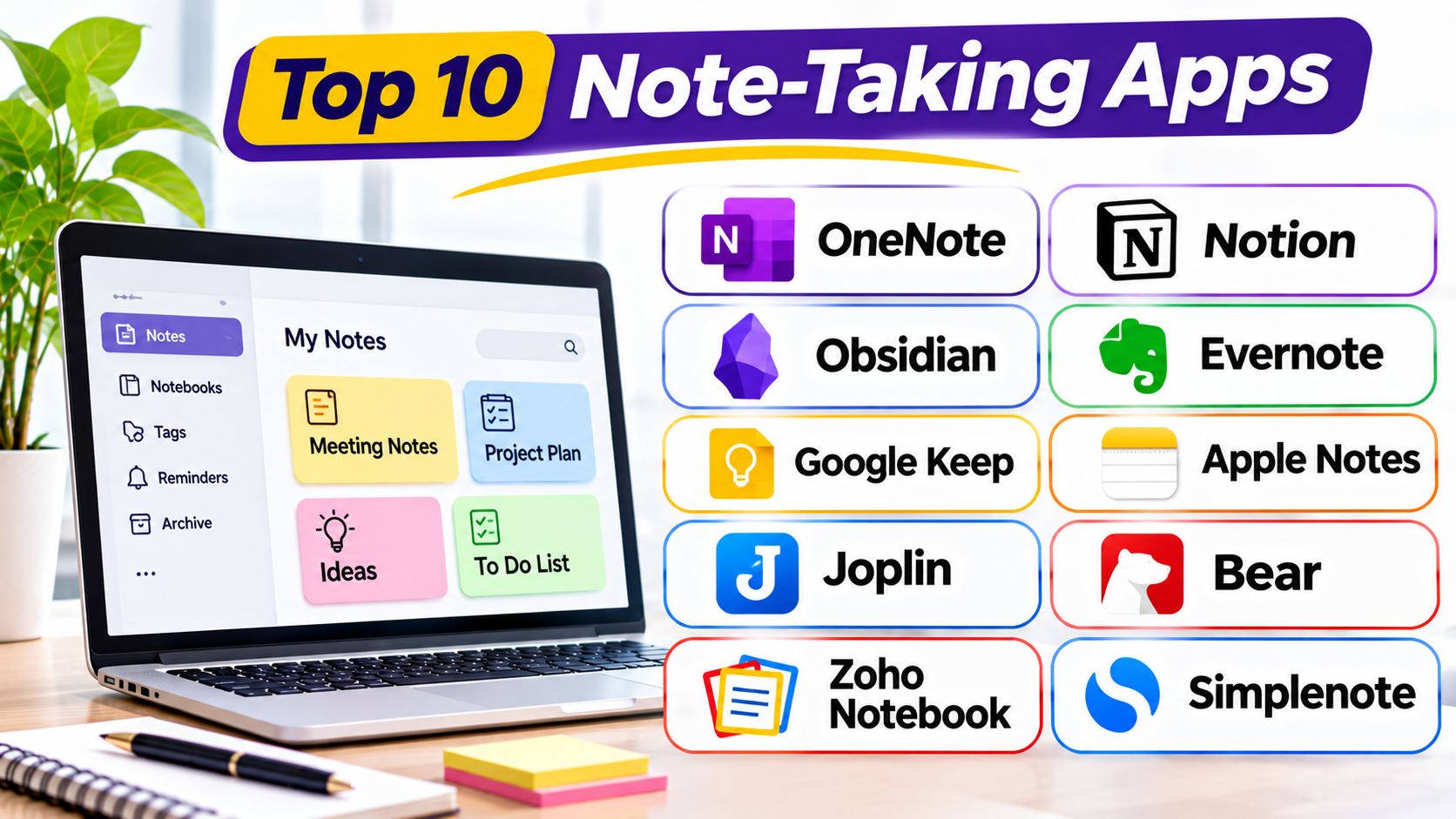
This guide compares ten well-known note-taking apps. It explains their main uses, useful features, Pros and Cons, and key differences. It also covers the points you should check before choosing one.
What Are Note-Taking Apps?
Note-taking apps are digital tools for writing and storing information. You can use them to record meeting notes, class lessons, ideas, plans, research, and personal reminders.
Many apps support more than plain text. They may let you add images, files, audio, links, tables, checklists, and drawings. Some also connect notes with tasks, calendars, or other work tools.
Different apps suit different needs:
- Simple note storage: Save short thoughts, lists, and reminders.
- Study and research: Organize lessons, sources, and detailed notes.
- Personal knowledge management: Link ideas and build a searchable library.
- Team collaboration: Share notes and work with others.
- Project planning: Connect notes with tasks, plans, and project details.
Before you choose an app, think about how you capture information. Also consider how you will search, organize, protect, and use those notes later.
Top 10 Note-Taking Apps
1. Microsoft OneNote: Flexible Digital Notebooks
Microsoft OneNote suits people who want a digital version of a paper notebook. It gives users a familiar way to group information. You can create notebooks, divide them into sections, and add pages inside each section. This structure works well for school subjects, meeting records, personal plans, and work projects.
OneNote does not force every note into a fixed layout. You can place text in different areas of a page. You can also add pictures, tables, files, drawings, and handwritten content. This freeform design helps when you need to mix different types of information.
Students can create a separate notebook for each subject. They can store class notes, reading details, and study lists together. Office teams can use sections for meeting notes, project updates, and shared information. Search tools also help users find details across their notebooks.
OneNote works well with other Microsoft services. This makes it useful for people who already use Microsoft 365. However, users should understand how notebook syncing and storage work. Large attachments and shared notebooks can affect storage needs and access.
Pros
- Offers a flexible notebook and section structure.
- Supports typed and handwritten notes.
- Lets users add images, tables, files, and drawings.
- Works across major desktop and mobile platforms.
- Fits well into Microsoft-based work environments.
Cons
- Its many options may feel complex at first.
- Freeform pages can become messy without clear rules.
- Some features differ between desktop, web, and mobile versions.
- Notebook syncing depends on the connected storage account.
2. Notion: Notes Connected With Projects and Databases
Notion goes beyond basic note storage. It combines notes, documents, databases, and project workspaces. This makes it useful for people who want one place to manage information and work.
Users can create pages for almost any purpose. A page may hold meeting notes, a project plan, a team guide, or a personal journal. Pages can also contain smaller pages. This structure helps users build a clear information system.
One of Notion’s main strengths is its database feature. A database can store tasks, projects, reading lists, contacts, and other records. Users can view the same information in different ways. For example, a task list can appear as a table, board, or calendar. This helps teams track work without keeping separate records.
Notion also supports shared pages and team workspaces. Team members can work on documents together. They can leave comments and organize information for others. This makes it useful for company guides, meeting records, and project planning.
However, Notion may feel too large for people who only want quick notes. Its many blocks, pages, and database options need some setup. Users should also review its offline access, export options, and workspace permissions before storing important information.
Pros
- Combines notes, documents, and databases.
- Supports shared workspaces and team collaboration.
- Offers flexible page layouts.
- Helps organize tasks and project information.
- Works well for team knowledge bases and internal guides.
Cons
- Takes time to build a well-organized workspace.
- May feel excessive for simple note-taking.
- Depends heavily on an internet connection for its full experience.
- Large workspaces need clear rules and regular maintenance.
3. Obsidian: Linked Notes for Building Knowledge
Obsidian suits users who want to connect ideas over time. It focuses on personal knowledge management. This means it helps people collect information and link related notes.
The app stores notes as Markdown files in a local folder. Markdown is a simple text format that uses plain symbols for headings, lists, and links. This approach gives users more control over their files. They can access their notes outside Obsidian with other compatible tools.
Internal links form a key part of Obsidian. A user can connect one note to another. For example, a note about climate science can link to notes about weather, energy, and research papers. These links help users discover relationships between ideas.
Obsidian also offers a graph view. It shows how notes connect with each other. This view can help users understand a large collection. Still, the graph does not replace good writing or clear organization. Users need useful titles, tags, folders, and links.
The app supports plugins and themes. These can add features for tasks, calendars, diagrams, and other workflows. But too many plugins can make a setup harder to maintain. Users who value control and local files may enjoy Obsidian. People who need built-in team editing may prefer another tool.
Pros
- Stores notes as local Markdown files.
- Links related notes together.
- Supports plugins and themes.
- Works well for research and long-term knowledge libraries.
- Gives users control over folder organization and files.
Cons
- Requires time to build a useful note system.
- Some advanced features depend on community plugins.
- Real-time team collaboration is not its main focus.
- Sync options may require a separate service or setup.
4. Evernote: A Central Place for Notes and Reference Material
Evernote focuses on capturing and organizing information. It can suit people who collect notes, documents, web content, and reference material throughout the day.
Users can create notes for meetings, research, personal records, and work tasks. They can group notes into notebooks and use tags to make them easier to find. Search plays an important role in the app. This can help users locate older information without opening every notebook.
Web clipping is another useful part of Evernote. It lets users save content from web pages for later reference. This can help with research, planning, and reading. Users can also attach files and images to their notes.
Evernote may appeal to people who want a central archive. For example, a freelancer could keep client notes, project details, receipts, and research in one place. A student could save reading material and organize it by subject.
However, users should check current plan limits before moving a large collection into Evernote. Free and paid plans may differ in device access, storage, and features. It is also wise to test the export process before making Evernote the only home for important notes.
Pros
- Supports notes, notebooks, and tags.
- Helps capture web content for later use.
- Offers search tools for stored information.
- Supports file and image attachments.
- Can organize personal and work reference material.
Cons
- Some useful features depend on a paid plan.
- Plan limits may affect heavy users.
- Large collections need careful organization.
- Users should review export and migration options before committing.
5. Google Keep: Quick Notes and Simple Reminders
Google Keep is designed for speed. It works well when you need to save a thought before you forget it. Its simple layout makes it easy to create short notes, checklists, and reminders.
Users can write notes, add labels, choose colors, and pin important items. They can also create checklists for shopping, travel, and daily tasks. This makes Keep useful for everyday planning.
Keep also supports voice notes and image capture. A user can record a quick thought or save a picture with a short description. This helps when typing is not convenient. Search and labels make it easier to find saved items later.
Google Keep connects with the wider Google ecosystem. Users who already use Google services may find it convenient. Notes can also help users remember simple tasks and information during a busy day.
Keep is not designed for large documents or complex knowledge systems. It does not offer the same structure as a full digital notebook. People who need long research notes, advanced formatting, or detailed project records may outgrow it.
Pros
- Makes it quick to capture short notes.
- Offers simple checklists and labels.
- Supports voice notes and image notes.
- Works well with Google services.
- Keeps the interface easy to understand.
Cons
- Offers limited tools for long documents.
- Does not provide a deep folder structure.
- Not suited to complex research libraries.
- Advanced formatting options remain limited.
6. Apple Notes: Simple Note-Taking Across Apple Devices
Apple Notes is a practical choice for people who use Apple devices. It comes built into the Apple ecosystem. Users can write notes, create folders, add checklists, and save images or documents.
The app supports more than plain text. Depending on the device and software version, users can scan documents, draw, handwrite, add attachments, and format text. These options make it useful for personal records, shopping lists, study notes, and meeting details.
Folders help users group notes by subject. Tags can add another way to sort information. Search also helps users find saved details. Users can lock selected notes when they want extra protection for private content.
Apple Notes works especially well when someone uses an iPhone, iPad, and Mac. iCloud can keep notes available across connected devices. Shared notes can also help people work together on lists and simple documents.
The main concern is platform fit. Apple Notes works best inside Apple’s ecosystem. People who use Windows or Android as their main devices should check the available access and feature limits. They should also understand that iCloud storage is shared with other Apple data.
Pros
- Comes built into Apple devices.
- Offers folders, tags, and search.
- Supports text, images, scans, drawings, and attachments.
- Syncs across supported Apple devices through iCloud.
- Makes simple note-taking easy to start.
Cons
- Works best within the Apple ecosystem.
- Some features vary across devices.
- iCloud storage is shared with other services.
- May not suit people who need advanced knowledge management.
7. Joplin: Open-Source Notes With Flexible Storage
Joplin is an open-source note-taking app. Open source means people can inspect its code and contribute to its development. It suits users who want more control over their notes and storage choices.
The app supports notebooks, notes, tags, and Markdown. Users can create a clear folder-like structure for different topics. Markdown also helps people write notes in a simple format. It can be useful for technical notes, study material, and personal records.
Joplin supports offline note access. Users can also choose a sync method that fits their needs. Options may include Joplin Cloud and supported third-party storage services. This flexibility can appeal to users who do not want to rely on one fixed storage setup.
The app also supports attachments and web clipping through its browser extension. These features help users collect information while browsing. Encryption options can protect synced data when set up correctly. Users should read the setup details and understand their account and recovery responsibilities.
Joplin may need more setup than a simple notes app. Its interface and sync choices can feel technical to new users. Still, it offers a useful balance for people who value open-source software and control.
Pros
- Uses an open-source model.
- Supports Markdown notes and notebooks.
- Offers offline access.
- Provides flexible synchronization choices.
- Supports attachments and web clipping.
Cons
- Setup may feel technical for beginners.
- Some sync options need extra configuration.
- Its interface may feel less polished than some commercial apps.
- Users must manage backup and sync settings carefully.
8. Bear: A Clean Writing Space for Apple Users
Bear focuses on writing and personal note organization. It offers a simple interface that helps users focus on words. This makes it useful for journals, drafts, research notes, and everyday writing.
Bear uses Markdown for text formatting. Users can create headings, lists, links, and other basic structures without relying on a complex toolbar. This can help writers keep notes clean and portable.
Tags help users group notes by topic. A single note can have more than one tag. This gives users a flexible way to organize information without building many folders.
Bear also supports images, sketches, and attachments. Its search and writing tools help users manage a personal library. The app is especially suited to people who write on Mac, iPhone, and iPad.
Bear is not a full team workspace. It does not aim to replace project management or company knowledge tools. Users should also check which features require a paid subscription and how sync works across devices.
Pros
- Offers a clean writing-focused interface.
- Supports Markdown formatting.
- Uses tags for flexible organization.
- Works across supported Apple devices.
- Suits journals, drafts, and personal notes.
Cons
- Focuses mainly on the Apple ecosystem.
- Does not offer broad team workspace features.
- Some features require a paid plan.
- May not suit users who need complex databases.
9. Zoho Notebook: Visual Notes in Different Formats
Zoho Notebook offers a visual way to capture and organize information. It uses notebooks and different note types. Users can create text notes, checklists, audio notes, sketches, and other content.
This format can help people who do not want every note to look the same. A shopping list may work best as a checklist. A meeting record may need text and images. A quick idea may be easier to save as an audio note.
Users can group related notes into notebooks. This helps separate personal plans, work records, travel details, and study material. The visual design also makes the app approachable for everyday use.
Zoho Notebook can suit users who want a simple personal information space. People who already use Zoho services may also find it worth considering. However, users should check how it fits with their other tools. They should also test export and backup options before moving a large note library.
Pros
- Supports several note formats.
- Offers notebooks for grouping information.
- Includes checklists, audio, and sketch options.
- Uses a visual approach to note organization.
- Suits everyday personal and work notes.
Cons
- May not offer the depth of advanced knowledge tools.
- Some users may prefer a simpler text-only layout.
- Complex team workflows may need other Zoho products.
- Users should check export options before storing large archives.
10. Simplenote: Minimal Notes Without Extra Clutter
Simplenote is made for people who want to write and find notes quickly. It keeps the experience focused on text. This makes it a good option for short thoughts, drafts, lists, and basic reference notes.
Users can create notes and organize them with tags. Search helps locate saved information. The app also supports Markdown, which gives writers a simple way to format text.
Simplenote keeps its feature set small. This can be helpful when a user does not need images, complex page layouts, or project databases. It can also reduce the time spent managing the app itself.
The app supports syncing across its available platforms. Users can access their notes on supported devices and through the web. However, its simple design also sets clear limits. People who need file-heavy notes, handwriting, or advanced collaboration should consider a more capable tool.
Pros
- Offers a simple and focused writing space.
- Supports tags and search.
- Includes Markdown support.
- Syncs notes across supported platforms.
- Works well for short text-based notes.
Cons
- Offers fewer rich-media features.
- Does not provide advanced notebook layouts.
- Not designed for complex team work.
- May feel too basic for research-heavy users.
Comparison of 10 Note-Taking Apps
Each app below serves a different style of note-taking. Some work best for quick reminders. Others help you build a large library of connected notes.
| App | Main purpose | Best suited for | Main strength |
|---|---|---|---|
| Microsoft OneNote | Digital notebooks | Students and professionals | Flexible pages and notebook sections |
| Notion | Notes and workspaces | Teams and project users | Pages, databases, and shared work |
| Obsidian | Personal knowledge management | Researchers and writers | Linked notes stored as local files |
| Evernote | Notes and information capture | People managing many documents | Search and web clipping |
| Google Keep | Quick notes and reminders | Everyday personal use | Fast capture and simple labels |
| Apple Notes | Personal notes | Apple device users | Built-in Apple integration |
| Joplin | Open-source note storage | Privacy-minded users | Markdown notes and flexible sync |
| Bear | Writing and personal notes | Mac, iPhone, and iPad users | Clean writing space and Markdown |
| Zoho Notebook | Visual note organization | Personal and small-business users | Different note formats and notebooks |
| Simplenote | Plain-text note-taking | Minimalist users | Fast notes, tags, and syncing |
How to Choose the Right Note-Taking App
The best app is the one that fits your daily work. A long list of features does not always mean better results. Start with your main need, then compare the tools that match it.
Choose Based on Your Main Need
| Your main need | Apps worth considering | Why they may fit |
|---|---|---|
| School and study notes | OneNote, Notion | Organize subjects, lessons, and study material |
| Team notes and shared documents | Notion, OneNote | Support shared information and group work |
| Research and connected ideas | Obsidian, Joplin | Link notes and build a knowledge library |
| Quick reminders and lists | Google Keep, Apple Notes | Save short notes with little effort |
| Writing and personal journals | Bear, Simplenote | Keep writing simple and focused |
| Document and web capture | Evernote, Joplin | Collect reference material and attachments |
| Visual personal notes | Zoho Notebook, OneNote | Support different note formats |
Check These Points Before You Decide
1. Device support
Check whether the app works on your phone and computer. Make sure it supports the devices you use every day.
2. Offline access
Some apps let you read and edit notes without the internet. Others need a connection for many features. Check this point if you travel or work in places with weak internet.
3. Search and organization
A large note library needs strong search tools. Look for tags, folders, notebooks, filters, and useful search options.
4. File ownership and export
Check how you can save or export your notes. Local files can offer more control. Cloud-based tools may offer easier syncing and sharing.
5. Privacy and security
Check how the app stores and protects your information. Review its sharing controls, account security, and encryption options. Do not assume every app protects all notes in the same way.
6. Cost and plan limits
Some apps offer free plans with limits. Others charge for sync, storage, or advanced tools. Check the current plan details before moving all your notes.
7. Ease of use
A complex app can slow down simple tasks. Try creating notes, finding old information, and organizing a few topics. The app should feel natural after regular use.
Common Note-Taking Mistakes to Avoid
Even a good app cannot fix a poor note-taking system. These mistakes can make your notes hard to use.
- Saving everything without sorting: Create clear notebooks, folders, or tags.
- Using too many tags: Keep tags simple and use them in a steady way.
- Writing long notes without headings: Break large notes into smaller sections.
- Keeping duplicate notes: Review your library and remove old copies.
- Ignoring backups: Keep another copy of important notes.
- Choosing features over daily needs: Pick an app that solves your real problems.
- Ignoring export options: Check how you can move your notes before you depend on one app.
- Never reviewing old notes: Set aside time to update useful information.
Questions and Answers About Note-Taking Apps
1. What are the best note-taking apps for everyday use?
Google Keep, Apple Notes, and Microsoft OneNote are useful choices. Keep suits quick reminders. Apple Notes works well for Apple users. OneNote offers a flexible notebook system.
2. Which note-taking app is best for students?
Microsoft OneNote is a strong option for class notes. It supports typed notes, handwriting, images, and sections. Notion can also help students organize subjects, assignments, and study plans.
3. Which app is best for team note-taking?
Notion offers shared pages, databases, and team workspaces. Microsoft OneNote can also support shared notebooks. The right choice depends on your team’s workflow and account setup.
4. Are free note-taking apps useful?
Yes. Many free apps handle daily notes, lists, and basic organization. However, some limit storage, syncing, or advanced features. Check the plan details before choosing one.
5. Which note-taking app works offline?
Obsidian and Joplin support local note access. Microsoft OneNote also supports offline work with synced notebooks. Offline behavior can vary by device and setup.
6. What is the difference between Notion and Obsidian?
Notion focuses on shared workspaces, pages, and databases. Obsidian focuses on local Markdown files and linked notes. Notion suits team work. Obsidian suits personal knowledge libraries.
7. Are note-taking apps safe for private information?
Safety depends on the app and your settings. Check its encryption, account security, sharing controls, and backup process. Avoid storing highly sensitive details without checking these protections.
8. Can I move my notes from one app to another?
Many apps support some form of export or import. However, formatting, attachments, and links may not transfer perfectly. Test a small group of notes before moving your full library.
9. What is the difference between a note-taking app and a task manager?
A note-taking app stores ideas, information, and written records. A task manager focuses on tasks, deadlines, and progress. Some tools combine both types of features.
10. Should I use one note-taking app or several apps?
One app is often easier to manage. It keeps your information in one place. You may need more than one app for special tasks, such as handwritten study notes or team project records.
Final Thoughts
A useful note-taking app should make it easy to save and find information. It should also fit the way you think and work.
Microsoft OneNote offers flexible digital notebooks. Notion connects notes with team projects. Obsidian helps build a library of linked ideas. Google Keep handles quick reminders, while Apple Notes suits people who use Apple devices.
Joplin offers an open-source choice. Bear and Simplenote focus on writing. Evernote supports information capture, while Zoho Notebook offers different note formats.
Before you choose, test a few apps with real notes. Try writing, searching, sorting, syncing, and exporting information. This small test can show which tool fits your needs.
The best choice is not the app with the most features. It is the one that helps you keep useful information clear, safe, and easy to find.