Introduction
People use many file types at work and at home. You may need to change a Word file into PDF. You may also need to turn a PDF into an editable document.
Document conversion tools make these tasks easier. They help users change files between common formats. Many tools also support image, spreadsheet, and presentation files.
The right tool can save time and protect your file layout. It can also make sharing and editing much easier.
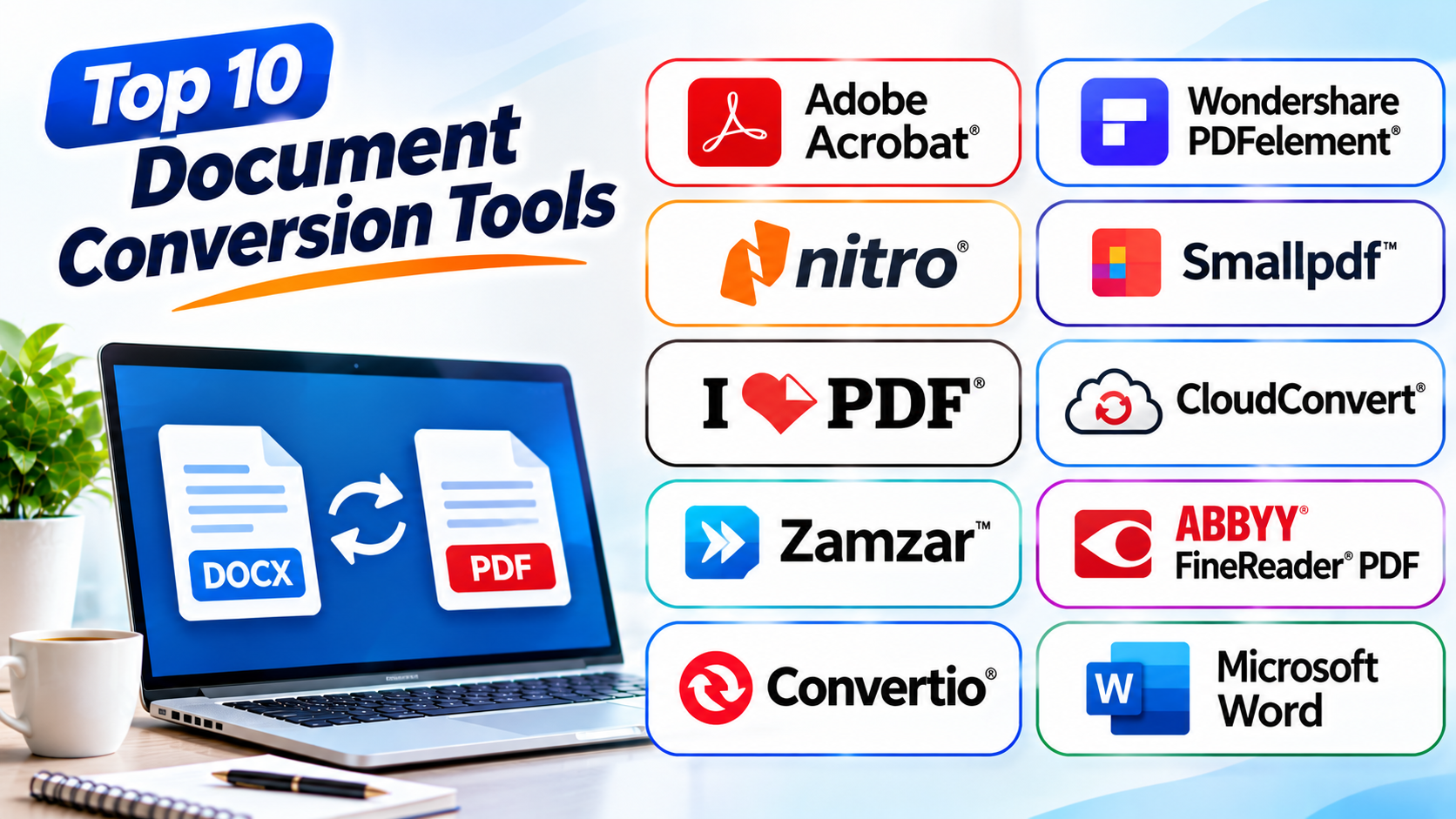
This guide covers ten useful document conversion tools. It explains their main features, best uses, pros, and cons. You will also find a comparison table and simple buying tips.
What Are Document Conversion Tools?
Document conversion tools change files from one format into another. For example, they can convert DOCX files into PDF files. Some tools can also convert PDFs into Word or Excel files.
These tools support many common formats, such as:
- DOC and DOCX
- XLS and XLSX
- PPT and PPTX
- JPG and PNG
- HTML and TXT
- EPUB and other ebook formats
Some tools work on your computer. Others run in a web browser. A few also offer APIs for developers. An API lets one software system work with another.
Top 10 Document Conversion Tools
1. Adobe Acrobat
Adobe Acrobat offers a wide range of PDF conversion features. It helps users create, edit, export, and manage PDF files.
You can convert PDFs into Microsoft Word, Excel, and PowerPoint files. You can also turn many other file types into PDFs. Its export tools aim to keep the original layout, fonts, and images.
Acrobat also includes OCR. OCR means optical character recognition. It can read text inside scanned pages and images. This helps users turn paper documents into searchable files.
The tool also supports PDF editing, page organization, compression, and electronic signatures. These features make it useful for offices and teams that work with PDFs every day.
Adobe Acrobat suits users who need more than basic file conversion. However, some advanced features require a paid plan.
Key Features
- Convert PDF files into Word, Excel, and PowerPoint.
- Create PDFs from many file types.
- Use OCR to read scanned documents.
- Edit text, images, and PDF pages.
- Organize, compress, and protect PDF files.
Pros
- Supports many common document formats.
- Offers strong PDF editing features.
- Includes OCR for scanned documents.
- Works well with other Adobe products.
- Provides tools for business document workflows.
Cons
- Many advanced tools need a paid plan.
- New users may need time to learn it.
- Some conversions may need manual layout fixes.
2. Wondershare PDFelement
Wondershare PDFelement combines PDF editing with document conversion. It helps users manage PDF files without relying on several separate apps.
The software can convert PDFs into Word, Excel, PowerPoint, and image formats. It can also create PDFs from other documents. Its batch conversion feature helps users process many files at once.
PDFelement also includes OCR for scanned files. Users can edit text, add notes, fill forms, and organize pages. These tools make it useful for students, office staff, and small businesses.
Its interface aims to keep common tasks easy to find. Users can often complete simple conversions with only a few steps.
PDFelement works well for people who want an all-in-one PDF tool. Still, users should check the output after converting complex files.
Key Features
- Convert PDFs into editable Office files.
- Create PDFs from different file types.
- Convert several files in one batch.
- Use OCR on scanned documents.
- Edit, annotate, and organize PDFs.
Pros
- Combines conversion and PDF editing.
- Supports batch conversion.
- Offers OCR features.
- Has a clear interface.
- Supports common office file formats.
Cons
- Some features require a paid plan.
- Complex layouts may need manual changes.
- Performance can vary with large files.
3. Nitro PDF Pro
Nitro PDF Pro helps users create, edit, and convert PDF documents. It focuses on business document tasks and office workflows.
Users can convert PDF files into Word, Excel, and PowerPoint formats. They can also create PDFs from common office documents. The software includes tools for combining files, changing pages, and adding comments.
Nitro also supports OCR for scanned documents. This can help users search and work with text inside scanned files. Its document tools can support teams that handle contracts, reports, and forms.
The software offers a familiar workspace for people who use office documents. It can also help businesses reduce manual document work.
Nitro PDF Pro suits teams that need PDF conversion and editing in one place. Users should test complex documents before converting large batches.
Key Features
- Convert PDFs into Word, Excel, and PowerPoint.
- Create PDFs from office files.
- Use OCR for scanned documents.
- Combine and organize PDF pages.
- Add comments and annotations.
Pros
- Useful for business document workflows.
- Supports common office formats.
- Includes PDF editing tools.
- Offers OCR support.
- Helps manage multiple PDF tasks.
Cons
- Advanced tools may require a paid license.
- Some layouts may change during conversion.
- The full feature set may feel complex for basic users.
4. Smallpdf
Smallpdf is a browser-based platform for common PDF tasks. Users can convert files without installing desktop software.
It supports PDF conversion to Word, Excel, PowerPoint, and image formats. It can also convert many documents and images into PDFs. The platform includes tools for compression, merging, splitting, and rotating files.
Smallpdf works well for quick tasks. Its simple interface helps users find tools without much training. This makes it useful for students, freelancers, and office workers.
The platform also offers desktop and mobile options. Some features and usage limits depend on the selected plan.
Smallpdf is a practical choice for people who need quick online conversions. Users should avoid uploading private files unless the service meets their security needs.
Key Features
- Convert PDFs to Word, Excel, and PowerPoint.
- Convert images and documents into PDFs.
- Compress and merge PDF files.
- Split, rotate, and organize pages.
- Use browser-based tools.
Pros
- Simple and easy to use.
- Works through a web browser.
- Offers many PDF tools.
- Requires little setup.
- Useful for quick file tasks.
Cons
- Free use may have limits.
- Internet access is needed for online tools.
- Advanced features may require a subscription.
- Large files may take longer to process.
5. iLovePDF
iLovePDF provides online tools for PDF conversion and file management. It helps users handle common PDF tasks from a browser.
Users can convert PDFs into Word, Excel, PowerPoint, and image files. They can also create PDFs from office documents and images. Other tools support compression, merging, splitting, and page editing.
The platform offers a simple workflow. Users choose a task, upload a file, and download the result. This approach suits people who want to finish basic tasks quickly.
iLovePDF also offers desktop and mobile apps. These options can help users work across different devices. Some features have limits on the free plan.
iLovePDF is useful for everyday PDF conversion. It may not offer the same level of detailed editing as larger desktop suites.
Key Features
- Convert PDF files into common office formats.
- Create PDFs from images and documents.
- Merge and split PDF files.
- Compress large PDF files.
- Rotate and organize pages.
Pros
- Easy for beginners.
- Offers many free tools with limits.
- Works in a browser.
- Supports common document formats.
- Provides desktop and mobile options.
Cons
- Free tools may have usage limits.
- Some advanced features need a paid plan.
- Complex document layouts may not convert perfectly.
6. CloudConvert
CloudConvert is an online file conversion service. It supports a wide range of file types beyond standard office documents.
Users can convert documents, images, ebooks, audio, video, and archive files. For documents, it supports many common formats. These include PDF, DOCX, XLSX, PPTX, HTML, and TXT.
CloudConvert gives users control over some conversion settings. It can also connect with cloud storage services. This can help users move files through their work process.
Developers can use its API to add file conversion to their own apps. This makes it useful for both individuals and software teams.
CloudConvert suits users who need support for many file types. However, users should review its usage limits and pricing before converting large numbers of files.
Key Features
- Supports many file types.
- Converts office documents and PDFs.
- Offers image, audio, and video conversion.
- Provides API access for developers.
- Supports cloud storage connections.
Pros
- Supports a broad range of formats.
- Works online without desktop setup.
- Offers flexible conversion settings.
- Provides developer tools.
- Useful for mixed file workflows.
Cons
- Needs an internet connection.
- Free conversion use has limits.
- Large files may take more time.
- Not a full document editing suite.
7. Zamzar
Zamzar is an online file conversion service. It helps users change documents, images, ebooks, and other files.
The platform supports many formats. Users can convert Word documents, spreadsheets, presentations, PDFs, and images. It also supports several media and archive formats.
Its simple process suits people who need occasional conversions. Users select the source file and target format. They then start the conversion and download the result.
Zamzar can help users who work with less common file types. Its broad format support makes it useful for mixed file needs.
The free service has limits. Users who convert files often may need a paid plan.
Key Features
- Converts documents and PDFs.
- Supports image and ebook formats.
- Handles several media file types.
- Offers a simple online workflow.
- Supports many less common formats.
Pros
- Supports a wide range of formats.
- Does not require desktop installation.
- Easy for occasional use.
- Handles more than office documents.
- Offers a simple conversion process.
Cons
- Free use has limits.
- Large files may need a paid plan.
- Conversion speed can vary.
- Offers fewer editing features than desktop suites.
8. ABBYY FineReader PDF
ABBYY FineReader PDF focuses on PDF work and OCR. It helps users convert scanned documents into editable and searchable files.
Its OCR technology can recognize text in scanned pages and images. Users can then export the content into formats such as Word and Excel. This can reduce the need to type information again.
FineReader PDF also supports PDF editing and comparison. Its document comparison tools can help users find changes between file versions. This is useful for legal, office, and research work.
The software can handle documents with tables and complex layouts. Still, users should review the output when accuracy matters.
ABBYY FineReader PDF is a strong option for people who work with scans. It offers more than simple format conversion.
Key Features
- Convert scanned files into editable documents.
- Use OCR to recognize printed text.
- Export content into Word and Excel.
- Edit and organize PDF files.
- Compare two document versions.
Pros
- Strong OCR capabilities.
- Useful for scanned documents.
- Supports editable output formats.
- Includes document comparison tools.
- Helps reduce manual data entry.
Cons
- Paid plans may cost more than basic converters.
- OCR results need review.
- Some advanced tools take time to learn.
9. Convertio
Convertio is an online conversion platform. It supports documents, images, ebooks, presentations, and other file types.
Users can convert files through a web browser. The service supports formats such as DOCX, PDF, XLSX, PPTX, and TXT. It also handles many image and media formats.
Convertio offers connections to cloud storage services. This can help users select files from online storage. Its interface keeps the conversion process simple.
The platform suits users who need quick conversions across different formats. It can also help people who do not want to install desktop software.
Free use comes with limits. Users who handle large files or many conversions should check the paid plans.
Key Features
- Converts documents and many other file types.
- Supports common office formats.
- Works in a web browser.
- Offers cloud storage connections.
- Provides a simple conversion process.
Pros
- Supports many file formats.
- Easy to use.
- No desktop installation needed.
- Offers cloud storage options.
- Useful for quick conversions.
Cons
- Free use has limits.
- Needs an internet connection.
- Large files may need a paid plan.
- Does not offer deep document editing.
10. Microsoft Word
Microsoft Word is best known as a word processor. It also offers useful document conversion features.
Users can open and save files in formats such as DOCX, DOC, RTF, TXT, and PDF. Word can also export documents as PDFs. This makes it useful for people who create and share text-based files.
Word supports formatting, tables, images, charts, and page layouts. Users can edit a document before saving it in another format. This helps them prepare files for different readers and systems.
The software works on desktop, web, and mobile platforms. Features can vary by version and subscription.
Microsoft Word is a practical choice for office documents. It is less suited to broad file conversion across media and specialist formats.
Key Features
- Open and save common text formats.
- Export documents as PDF files.
- Edit text, tables, and images.
- Support page layout and formatting.
- Work across desktop, web, and mobile versions.
Pros
- Familiar to many users.
- Strong document editing features.
- Supports common text formats.
- Makes PDF export easy.
- Works with other Microsoft Office apps.
Cons
- Not designed for broad file conversion.
- Some formats may lose complex formatting.
- Advanced features may need a Microsoft 365 plan.
- Does not replace a dedicated PDF converter.
Comparison Table of the Top 10 Document Conversion Tools
| Tool | Main Conversion Uses | OCR Support | Best For |
|---|---|---|---|
| Adobe Acrobat | PDF and Office formats | Yes | Full PDF workflows |
| Wondershare PDFelement | PDF and Office formats | Yes | PDF editing and conversion |
| Nitro PDF Pro | PDF and Office formats | Yes | Business document work |
| Smallpdf | PDF and common formats | Plan-dependent | Quick online tasks |
| iLovePDF | PDF and common formats | Tool-dependent | Everyday PDF tasks |
| CloudConvert | Documents and many file types | Depends on workflow | Broad format support |
| Zamzar | Documents, images, and media | Not its main focus | Occasional conversions |
| ABBYY FineReader PDF | Scans, PDF, Word, and Excel | Yes | OCR and scanned files |
| Convertio | Documents and many file types | Not its main focus | Online file conversion |
| Microsoft Word | Text formats and PDF | Limited workflow support | Editing and saving documents |
How to Choose the Right Document Conversion Tool
The best tool depends on your file types and daily tasks. Consider these points before you choose.
1. Check Supported File Formats
Make sure the tool supports your source and target formats. Some tools focus on PDFs. Others handle images, ebooks, and media files too.
2. Review Conversion Quality
A good converter should keep text, images, tables, and page layouts. Test it with a sample file before converting important documents.
3. Look for OCR Support
Choose OCR if you work with scanned pages. It can turn image-based text into editable content.
4. Check Batch Conversion
Batch conversion saves time when you process many files. It can help teams handle large document collections.
5. Review Security and Privacy
Check how the service handles uploaded files. For private business documents, consider a trusted desktop tool or approved business service.
6. Compare Pricing and Limits
Some tools offer free conversions with limits. Others charge for advanced features or larger files. Choose a plan that matches your workload.
7. Check Ease of Use
A clear interface can save time. Choose a tool that makes common tasks easy to find.
Common Mistakes to Avoid
- Choosing a tool without checking its supported formats.
- Ignoring page layout after conversion.
- Using weak OCR for important scanned documents.
- Uploading private files to unknown websites.
- Forgetting to check free plan limits.
- Converting many files without testing one first.
- Assuming every converter can edit documents.
- Ignoring file size limits and output quality.
Questions and Answers About Document Conversion Tools
1. What are document conversion tools?
Document conversion tools change files from one format into another. For example, they can turn Word files into PDFs.
2. Why do people use document conversion software?
People use these tools to share, edit, store, and open files. They also help users work with different file formats.
3. Which tool is best for PDF conversion?
Adobe Acrobat, PDFelement, Nitro PDF Pro, Smallpdf, and iLovePDF offer useful PDF conversion features. The best choice depends on your needs.
4. Can I convert PDF files into Word documents?
Yes. Many tools support PDF-to-Word conversion. Adobe Acrobat, PDFelement, Nitro PDF Pro, and Smallpdf offer this feature.
5. What is OCR in document conversion?
OCR means optical character recognition. It reads text inside scanned pages and images. It can turn that text into editable content.
6. Which tool is best for scanned documents?
ABBYY FineReader PDF and Adobe Acrobat offer OCR features. They can help users work with scanned files.
7. Are online document converters safe?
Some services offer security measures for uploaded files. Still, check their privacy terms before sharing private documents.
8. Can I convert several files at once?
Yes. Some tools support batch conversion. Check the plan and file limits before using this feature.
9. Are free document conversion tools available?
Yes. Smallpdf, iLovePDF, CloudConvert, Zamzar, and Convertio offer free use with limits. Their limits can vary.
10. Can document converters keep the original layout?
Many tools try to keep the original layout. Complex tables, fonts, and images may still need manual changes.
11. What is the difference between a PDF converter and a document converter?
A PDF converter focuses on PDF files. A document converter may support Word, Excel, PowerPoint, images, ebooks, and other formats.
12. Do I need desktop software or an online converter?
Use an online converter for quick tasks. Choose desktop software for frequent work, advanced editing, or offline access.
Final Thoughts
Document conversion tools make file sharing and editing easier. They help users work with different formats without starting from scratch.
Adobe Acrobat, PDFelement, and Nitro PDF Pro suit users who need full PDF tools. Smallpdf and iLovePDF work well for quick online tasks. CloudConvert, Zamzar, and Convertio support many file types. ABBYY FineReader PDF stands out for OCR. Microsoft Word works well for everyday text documents.
Before choosing, check format support, output quality, privacy, and price. Test each tool with a sample file first. The right choice will depend on your work and the files you use most.