Introduction
Businesses receive many documents every day. These include invoices, forms, receipts, contracts, and scanned records.
Reading each file by hand takes time. It can also lead to errors. OCR and document capture software help solve this problem.
OCR stands for optical character recognition. It reads text from scanned pages, photos, and image-based PDFs. Document capture software goes further. It can sort files, identify document types, and collect useful data.
Many modern tools also use AI. They can find names, dates, totals, tables, and other key details. Some tools send this data to business apps automatically.
This guide explores ten OCR and document capture tools. It covers their features, best uses, pros, and cons. You will also find a comparison table and practical buying tips.
What Is OCR and Document Capture Software?
OCR software reads text from images and scanned documents. It turns that text into digital content that computers can search and edit.
Document capture software collects information from incoming files. It can receive documents from scanners, email, folders, websites, and other sources.
Modern platforms often combine both functions. They may also classify files and extract data from them. This wider process often falls under intelligent document processing.
Common uses include:
- Reading invoices and receipts.
- Capturing details from forms.
- Processing bank statements.
- Extracting data from contracts.
- Creating searchable PDF files.
- Reading identity and registration documents.
- Sending captured data to business systems.
- Sorting large groups of scanned records.
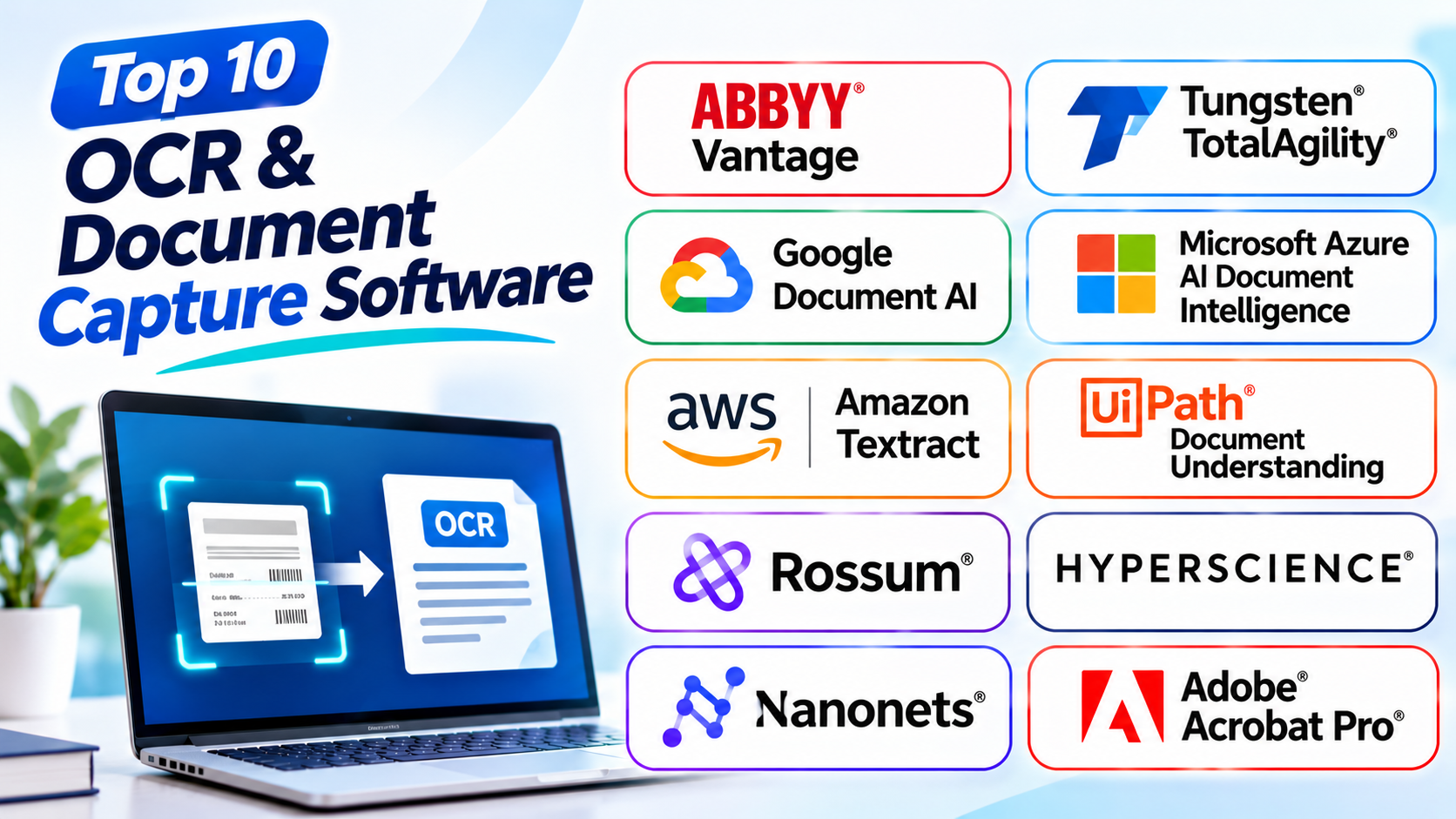
Top 10 OCR and Document Capture Software
1. ABBYY Vantage
ABBYY Vantage is an intelligent document processing platform. It helps businesses capture, classify, and extract information from documents.
The platform uses OCR and AI-based document skills. These skills help it read different document types. They can extract fields from invoices, forms, and other business records.
ABBYY Vantage also supports validation steps. Staff can review uncertain results and correct errors. This helps teams improve the quality of captured data.
Businesses can connect the platform with other systems. These may include automation tools and enterprise applications. This makes it useful for large document workflows.
ABBYY Vantage suits organizations that process many documents. It can help finance, insurance, banking, and operations teams. However, setup may need technical planning and staff training.
Key Features
- AI-based document classification and extraction.
- OCR for scanned and digital files.
- Prebuilt document skills.
- Data validation and human review.
- Integration with business workflows.
- Support for complex document processes.
Pros
- Offers broad document processing features.
- Supports many business document types.
- Combines OCR with AI extraction.
- Helps reduce manual data entry.
- Supports enterprise workflows.
Cons
- May need time to configure.
- Pricing may not suit small teams.
- Advanced workflows need planning.
- Users may need training.
2. Tungsten TotalAgility
Tungsten TotalAgility is an enterprise platform for document and process automation. It helps organizations capture information from many sources.
The platform supports document classification, OCR, data extraction, and workflow routing. It can process forms, invoices, claims, and other business records.
TotalAgility also helps teams manage work after capture. For example, it can send extracted data for review or approval. This links document processing with wider business tasks.
Organizations can use it to reduce repeated manual work. It can also help teams manage large document volumes. Its workflow tools make it useful for complex operations.
The platform suits large businesses with structured processes. Smaller teams may find its setup and management needs too large.
Key Features
- Document capture from different sources.
- OCR and data extraction.
- Document classification.
- Workflow automation and routing.
- Human review and validation.
- Enterprise system integration.
Pros
- Supports complex document workflows.
- Combines capture and process automation.
- Handles large business operations.
- Offers document classification tools.
- Helps reduce manual handling.
Cons
- Setup can be complex.
- May need specialist support.
- Smaller businesses may not need every feature.
- Costs depend on business requirements.
3. Google Document AI
Google Document AI is a cloud service for document processing. It uses machine learning to read and understand document content.
The service can extract text, tables, and fields from documents. It offers processors for common tasks. These include invoice, identity document, and other document types.
Developers can also build custom document processors. This helps teams handle forms and records with their own layouts. The service can return structured data for use in other applications.
Google Document AI works with Google Cloud services. This makes it useful for teams that already use Google’s cloud platform.
It suits developers and businesses that want cloud-based document extraction. Teams must still build the wider workflow around the service.
Key Features
- OCR and document text extraction.
- Prebuilt document processors.
- Custom document processing.
- Table and field extraction.
- Cloud-based API access.
- Integration with Google Cloud services.
Pros
- Supports many document processing tasks.
- Offers ready-made processors.
- Helps extract structured data.
- Works well with Google Cloud.
- Supports custom development.
Cons
- Requires cloud setup.
- Developers may need to build review workflows.
- Usage costs can grow with volume.
- Custom processors may need testing and tuning.
4. Microsoft Azure AI Document Intelligence
Microsoft Azure AI Document Intelligence helps users extract information from documents. It uses OCR and machine learning models.
The service can read printed text, tables, and document fields. It offers prebuilt models for common documents. Teams can also train custom models for their own forms.
Users can connect the service to business applications through APIs. It can return extracted information in structured formats. This helps developers move data into databases and workflows.
The service works within the Microsoft Azure ecosystem. It can suit organizations that already use Azure and other Microsoft services.
Azure AI Document Intelligence works best when teams can manage cloud services and integrations. It is not a complete document management system by itself.
Key Features
- OCR for digital and scanned documents.
- Prebuilt extraction models.
- Custom model training.
- Table and field recognition.
- API-based processing.
- Integration with Azure services.
Pros
- Offers flexible document extraction.
- Supports custom models.
- Works with Microsoft cloud services.
- Helps automate data collection.
- Supports different document layouts.
Cons
- Requires Azure knowledge for advanced use.
- Developers may need to build the full workflow.
- Costs depend on usage and features.
- Model quality needs testing with real documents.
5. Amazon Textract
Amazon Textract is an OCR and data extraction service from Amazon Web Services. It reads text and structure from scanned documents.
The service can detect printed text, handwriting, tables, and form fields. It also offers features for invoices, receipts, and identity documents.
Textract returns extracted information in a structured form. Developers can use this data in other applications. It can also connect with wider AWS services.
This makes it useful for businesses that already run workloads on AWS. Teams can add document reading to existing cloud systems.
Amazon Textract is mainly a cloud service for developers. Businesses may need extra tools for file intake, review, and approval.
Key Features
- Text and handwriting recognition.
- Table extraction.
- Form field extraction.
- Invoice and receipt analysis.
- Identity document processing.
- Integration with AWS services.
Pros
- Offers useful OCR features.
- Extracts tables and form data.
- Supports handwriting recognition.
- Fits into AWS workflows.
- Provides structured output for applications.
Cons
- Requires AWS setup.
- Developers may need to build user-facing workflows.
- Costs depend on document volume and features.
- Complex documents may need human review.
6. UiPath Document Understanding
UiPath Document Understanding combines document processing with automation. It helps businesses capture information and send it into automated workflows.
The platform can classify documents and extract important fields. It supports OCR, machine learning, and human validation. Users can review uncertain data before automation continues.
It works with the wider UiPath automation platform. This lets businesses connect document processing with software robots. For example, a robot can read an invoice and enter its details into another system.
The platform suits teams that already use UiPath. It can also help organizations that want document capture and process automation together.
Users should plan their automation flows before setup. Complex projects may need skilled developers and process experts.
Key Features
- OCR and document classification.
- Data extraction from business files.
- Machine learning models.
- Human validation steps.
- Integration with UiPath robots.
- Automated document workflows.
Pros
- Connects document capture with automation.
- Supports human review.
- Helps reduce repeated data entry.
- Works with wider UiPath tools.
- Supports complex business processes.
Cons
- Works best within a planned automation setup.
- Advanced projects need technical skills.
- Configuration can take time.
- Costs depend on the selected UiPath services.
7. Rossum
Rossum focuses on document processing for finance and business operations. It helps teams capture information from invoices and other transactional documents.
The platform uses AI to read and extract document data. It can handle different layouts without relying only on fixed templates. This helps when suppliers use different invoice designs.
Rossum also includes review and validation workflows. Staff can check extracted details and correct mistakes. The platform can then send approved data to connected business systems.
It suits accounts payable teams and organizations with high invoice volumes. It may be less suitable for teams that only need basic text recognition.
Key Features
- AI-based document data extraction.
- Invoice and transactional document processing.
- Support for varied document layouts.
- Data review and validation.
- Workflow automation.
- Business system integration.
Pros
- Focuses on finance document workflows.
- Handles different invoice layouts.
- Helps reduce manual data entry.
- Includes review tools.
- Supports business integrations.
Cons
- Best suited to specific business workflows.
- May be more than basic OCR users need.
- Pricing may not suit small teams.
- Complex cases can still need human review.
8. Hyperscience
Hyperscience is an intelligent document processing platform. It helps large organizations process complex and high-volume documents.
The platform uses AI to classify documents and extract data. It can work with forms, handwritten content, and unstructured records. It also supports human review when the system needs help.
Hyperscience focuses on reducing manual work in large operations. Common use cases include insurance claims, banking records, and customer onboarding.
Its tools can connect document processing with wider business systems. This helps teams move captured data into their next process.
Hyperscience suits enterprises with complex document needs. Smaller organizations may find the platform too advanced for simple scanning tasks.
Key Features
- AI-based document classification.
- OCR and data extraction.
- Processing for complex forms.
- Human review and correction.
- Workflow integration.
- Support for high-volume operations.
Pros
- Designed for complex document work.
- Supports large processing volumes.
- Combines AI with human review.
- Helps automate back-office tasks.
- Supports enterprise workflows.
Cons
- May need a detailed setup.
- Not ideal for basic personal OCR.
- Enterprise pricing may be high.
- Teams may need specialist support.
9. Nanonets
Nanonets is an AI-powered document processing platform. It helps businesses extract data from documents and automate routine tasks.
The platform can process invoices, receipts, forms, and other business files. Users can build workflows for different document types. It can also connect extracted data with other business applications.
Nanonets aims to reduce manual data entry. Its tools can help teams capture key fields and review results. This can support finance, operations, and administrative work.
The platform suits businesses that want document automation without building every feature from scratch. Users should still test its extraction results with their own documents.
Key Features
- AI-based OCR and data extraction.
- Invoice and receipt processing.
- Custom document workflows.
- Data validation and review.
- Business application integrations.
- Automated document handling.
Pros
- Supports many business document types.
- Helps reduce manual data entry.
- Offers flexible workflow options.
- Connects with other applications.
- Useful for finance and operations teams.
Cons
- Custom workflows need setup.
- Extraction results need review.
- Costs can rise with usage.
- Advanced needs may require technical help.
10. Adobe Acrobat Pro
Adobe Acrobat Pro offers OCR and PDF document capture features. It helps users turn scanned pages into searchable and editable PDF files.
Its OCR feature can recognize text inside scanned documents. Users can then search, copy, and edit the recognized content. Acrobat also supports PDF creation, conversion, page organization, and editing.
The software suits individuals and teams that work with PDFs every day. It can help digitize paper records and prepare files for sharing.
Acrobat Pro focuses on PDF workflows. It does not offer the same level of large-scale document automation as enterprise platforms.
It is a practical choice for everyday PDF OCR. Businesses with complex data extraction needs may need a dedicated document processing platform.
Key Features
- OCR for scanned PDF files.
- Searchable PDF creation.
- Text and image editing.
- PDF conversion and export.
- Page organization and document tools.
- File protection and sharing features.
Pros
- Easy for many office users to learn.
- Strong PDF editing features.
- Makes scanned PDFs searchable.
- Supports common document workflows.
- Works across desktop and web options.
Cons
- Focuses mainly on PDF files.
- Advanced features need a paid plan.
- Not built for complex enterprise capture.
- OCR results may need manual correction.
Comparison Table of the Top 10 OCR and Document Capture Software
| Software | Main Strength | OCR and Extraction | Best For |
|---|---|---|---|
| ABBYY Vantage | Enterprise document processing | OCR, classification, AI extraction | Large organizations |
| Tungsten TotalAgility | Capture and workflow automation | OCR, classification, extraction | Complex business processes |
| Google Document AI | Cloud document intelligence | OCR, tables, fields, processors | Google Cloud teams |
| Azure AI Document Intelligence | Cloud-based extraction | OCR, prebuilt and custom models | Microsoft Azure teams |
| Amazon Textract | Developer-focused OCR | Text, forms, tables, handwriting | AWS-based applications |
| UiPath Document Understanding | Automation-connected capture | OCR, classification, validation | UiPath automation users |
| Rossum | Finance document processing | AI extraction and validation | Invoice workflows |
| Hyperscience | Complex enterprise documents | OCR, AI extraction, human review | High-volume operations |
| Nanonets | Flexible document automation | AI OCR and data extraction | Business process teams |
| Adobe Acrobat Pro | PDF OCR and editing | OCR and searchable PDFs | Everyday PDF users |
How to Choose the Right OCR and Document Capture Software
The best tool depends on your documents and work process. Review these points before making a choice.
1. Identify Your Document Types
List the files your team handles each day. These may include invoices, forms, receipts, contracts, and scanned records.
Choose a tool that supports those document types. Also check whether it can read different layouts.
2. Check OCR Accuracy
OCR quality matters. Poor recognition can create wrong names, dates, totals, and other details.
Test the tool with clear scans and difficult files. Include low-quality images and handwritten pages when they matter to your work.
3. Review Data Extraction Features
Basic OCR reads text. Advanced document capture can also find fields, tables, and key values.
Choose advanced extraction if your team needs structured data. This can reduce manual work.
4. Look for Human Review
No OCR tool gets every document right. Human review helps teams check uncertain results.
Choose a platform that lets staff correct data. This matters when documents contain important financial or legal details.
5. Check Integration Options
Your team may need to send captured data to other systems. Check support for databases, accounting tools, cloud services, and business apps.
6. Review Security and Compliance
Documents may contain private business or customer data. Check access controls, encryption, storage rules, and data handling terms.
Also review any legal or industry rules that apply to your business.
7. Compare Cost and Processing Volume
Some tools charge based on pages or usage. Others use custom business plans.
Estimate your monthly document volume. Then compare the full cost of processing, review, support, and integration.
8. Consider Setup and Maintenance
Cloud APIs may need developers. Enterprise platforms may need process design and training.
Choose a tool your team can manage. A powerful platform may not help if setup becomes too difficult.
Common Mistakes to Avoid
- Choosing software based only on OCR accuracy claims.
- Ignoring the quality of scanned files.
- Forgetting to test tables and handwritten text.
- Skipping human review for important documents.
- Ignoring integration needs.
- Uploading private files without checking security.
- Overlooking page limits and usage costs.
- Buying enterprise software for simple PDF tasks.
- Failing to test real documents before purchase.
- Forgetting staff training and process changes.
Questions and Answers About OCR and Document Capture Software
1. What is OCR software?
OCR software reads text from scanned documents and images. It turns that text into digital content that users can search and edit.
2. What is document capture software?
Document capture software collects information from files. It can scan, classify, extract, and route documents.
3. What is the difference between OCR and document capture?
OCR reads text from images and scans. Document capture manages the wider process of collecting and processing documents.
4. Which OCR software is best for businesses?
ABBYY Vantage, Tungsten TotalAgility, UiPath Document Understanding, and Hyperscience support enterprise document workflows. The best choice depends on your needs.
5. Can OCR software read handwritten text?
Some tools support handwriting recognition. Results depend on handwriting quality, language, and document condition.
6. Can OCR tools extract data from invoices?
Yes. Many modern platforms can identify invoice fields. These may include supplier names, invoice numbers, dates, and totals.
7. Is OCR useful for scanned PDF files?
Yes. OCR can make scanned PDFs searchable. Some tools can also turn recognized text into editable content.
8. Are cloud OCR tools better than desktop software?
Cloud tools suit teams that need APIs and large workflows. Desktop tools can suit users who mainly process files on their computers.
9. Can OCR software process many documents at once?
Many business platforms support batch processing. Check their page limits, file limits, and workflow options.
10. Is OCR always accurate?
No. Poor scans, unusual fonts, handwriting, and complex layouts can cause errors. Always review important results.
11. Does OCR software support different languages?
Many tools support several languages. Check the language list before choosing a platform.
12. How can I improve OCR results?
Use clear scans with good lighting and straight pages. Keep text sharp and avoid shadows. Review the extracted data before using it.
Final Thoughts
OCR and document capture software can reduce manual work. These tools help businesses read, sort, and process documents faster.
ABBYY Vantage and Tungsten TotalAgility suit complex enterprise workflows. Google Document AI, Azure AI Document Intelligence, and Amazon Textract suit cloud-based development. UiPath, Rossum, Hyperscience, and Nanonets support wider business automation. Adobe Acrobat Pro works well for everyday PDF OCR.
Start by listing your document types and daily volume. Then test a few tools with real files. Check accuracy, review options, security, and cost.
The right platform should fit your workflow. It should also make document handling simpler and more reliable.