Introduction
Digital content needs protection from unauthorized use and sharing. Businesses must control who can view, copy, print, or share their files.
Digital Rights Management software helps protect this content. It gives owners more control over their digital files. It can also limit access and track document activity.
Different DRM tools protect different types of content. Some protect PDFs and business documents. Others protect videos, ebooks, and company files.
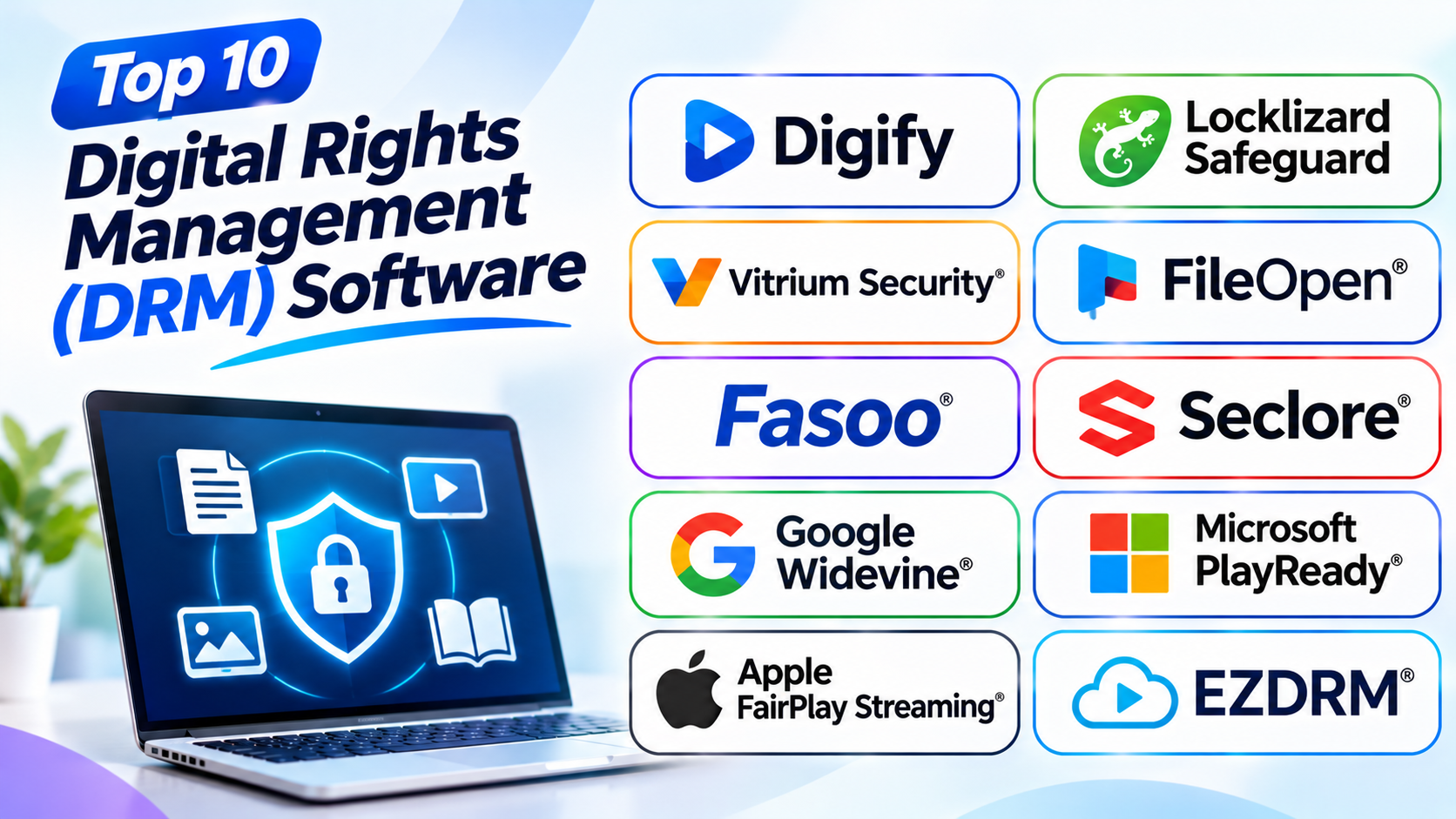
This guide explores ten popular DRM software tools. It explains their features, uses, pros, and cons. You will also find a comparison table and useful buying tips.
What Is Digital Rights Management (DRM) Software?
Digital Rights Management software protects digital content. It helps content owners control how people access and use their files.
For example, a business can limit who opens a document. It can also stop users from printing or copying certain files. Some tools let owners remove access after sharing.
DRM software can protect many types of content, including:
- Business documents and reports.
- Paid ebooks and digital books.
- Training materials and learning files.
- Online videos and movies.
- Audio and media files.
- Confidential company records.
- Product guides and manuals.
- Private customer documents.
These tools help publishers, businesses, schools, and media companies protect valuable content.
Top 10 Digital Rights Management Software
1. Digify
Best for secure document sharing and tracking
Digify helps businesses share private documents safely. It gives owners more control over files after sharing.
Users can upload documents and choose who can view them. They can also set access rules for different people.
Digify offers dynamic watermarking. A watermark can show the viewer’s details on a document. This can discourage people from sharing private files.
The platform also tracks document activity. Owners can check who viewed a file and when they opened it. They can also change permissions or remove access.
Businesses can use Digify for financial reports, legal files, contracts, and private business documents. It also suits teams that share confidential files with outside partners.
Key Features
- Secure document sharing.
- User access controls.
- Dynamic watermarks.
- Document activity tracking.
- Access removal.
- Secure document storage.
- Private data room features.
Pros
- Makes document sharing safer.
- Helps track document activity.
- Offers useful access controls.
- Supports dynamic watermarks.
- Helps protect confidential files.
- Easy to understand for common tasks.
Cons
- Focuses mainly on document protection.
- Advanced features may cost more.
- Users must set access rules carefully.
- It does not focus on video protection.
2. Locklizard Safeguard
Best for PDF and document protection
Locklizard Safeguard helps protect PDF files and business documents. It gives owners control over how people use protected files.
Businesses can limit printing and copying. They can also control who can open a document.
The platform uses file protection features to help prevent unauthorized sharing. Owners can set expiry dates and access limits. These options help manage documents after delivery.
Locklizard also supports offline document access. This helps people who need to read files without a constant internet connection.
Companies can use it for training materials, manuals, reports, and paid publications. It suits organizations that need strong document protection.
Key Features
- PDF and document protection.
- Printing and copying restrictions.
- User and device controls.
- Document expiry dates.
- Offline document access.
- File access management.
- Protected document sharing.
Pros
- Offers strong document controls.
- Helps limit copying and printing.
- Supports offline reading.
- Useful for paid publications.
- Helps protect private PDFs.
- Gives owners control after sharing.
Cons
- Focuses mainly on documents.
- Users may need a special reader.
- Setup can take time.
- Some readers may find restrictions difficult.
3. Vitrium Security
Best for documents, videos, and learning content
Vitrium Security helps organizations protect different types of digital content. It supports documents, PDFs, videos, images, and other media.
Content owners can control who views their files. They can also set rules for how people use the content.
The platform offers watermarking and access controls. These features help discourage unauthorized sharing. It also helps owners track content use.
Training providers can use Vitrium to protect course materials. Publishers can protect paid reports and digital publications. Businesses can use it for manuals and private files.
Its support for different content types makes it useful for many organizations. However, users should check which features support their chosen file types.
Key Features
- Document and PDF protection.
- Video and media protection.
- User access controls.
- Dynamic watermarking.
- Content activity tracking.
- Protected content sharing.
- Learning material protection.
Pros
- Supports several content types.
- Helps protect paid content.
- Offers watermarking features.
- Provides access controls.
- Useful for publishers and trainers.
- Supports different content needs.
Cons
- Advanced features may cost more.
- Setup depends on content needs.
- Some users may need training.
- Supported features can differ by file type.
4. FileOpen
Best for business documents and PDF protection
FileOpen helps organizations protect PDFs and other digital documents. It gives content owners more control over shared files.
Businesses can set rules for opening and using documents. These rules can limit printing, copying, and other actions.
The platform helps publishers distribute protected content. It also supports organizations that share private reports and technical documents.
FileOpen can suit companies that need document protection across many users. It helps protect training files, research reports, manuals, and business records.
Organizations should check whether the platform works well with their current document tools and reader needs.
Key Features
- PDF and document protection.
- User access controls.
- Printing and copying restrictions.
- Document usage rules.
- Protected document sharing.
- Access management.
- Business document protection.
Pros
- Focuses on document security.
- Helps control document use.
- Useful for publishers and businesses.
- Supports large document collections.
- Helps protect shared files.
- Offers document usage controls.
Cons
- Mainly supports document protection.
- Setup may need extra planning.
- Reader support needs checking.
- Advanced use may require assistance.
5. Fasoo Enterprise DRM
Best for protecting sensitive business files
Fasoo Enterprise DRM helps businesses protect private company files. It gives organizations control over how people access and use documents.
The platform can keep protection attached to files. This helps businesses manage documents even after people share them.
Companies can set access rules for different users. They can also control how people handle protected files.
Fasoo can help protect financial records, customer information, product plans, and internal reports. These features can support businesses with strict data protection needs.
Large organizations may find Fasoo useful. Smaller teams may not need all its enterprise features.
Key Features
- Business file protection.
- File encryption.
- User access controls.
- Permission management.
- Protection for shared documents.
- Sensitive data protection.
- Enterprise security controls.
Pros
- Helps protect files after sharing.
- Supports business security needs.
- Offers useful access controls.
- Helps protect private company data.
- Suitable for large organizations.
- Supports clear security rules.
Cons
- Enterprise setup can be complex.
- May need IT support.
- Users need clear access rules.
- Costs may not suit small businesses.
6. Seclore
Best for sensitive business information
Seclore helps organizations protect private information. It gives businesses more control over files shared with employees and outside partners.
The platform allows companies to set access rules. These rules can control who opens a file and how they use it.
Seclore also helps teams track file activity. Businesses can review document use and change access rules when needed.
Companies can use it to protect customer records, financial files, legal documents, and private business reports.
Seclore suits organizations that manage sensitive information. It can be useful for finance, government, and other regulated industries.
Key Features
- Sensitive file protection.
- User access controls.
- Document usage rules.
- File activity tracking.
- Permission management.
- Protection for shared files.
- Business security controls.
Pros
- Helps protect private business data.
- Offers flexible access rules.
- Supports document tracking.
- Helps control shared files.
- Useful for regulated organizations.
- Supports business security needs.
Cons
- May need specialist setup.
- Advanced features can take time to learn.
- Small teams may not need every feature.
- Costs depend on business requirements.
7. Google Widevine
Best for protecting online videos
Google Widevine protects digital video content. Streaming services use it to manage access to movies, shows, and other media.
The system helps content owners protect licensed videos. It uses access rules to control how supported devices play protected content.
Widevine works with compatible browsers and devices. This helps streaming services deliver protected videos to different users.
It also offers different levels of content protection. The available level depends on the device and its support.
Streaming services can use Widevine to protect premium content. It is not designed for everyday business documents or PDF files.
Key Features
- Online video protection.
- Protected media playback.
- Content access controls.
- Support for compatible devices.
- Different protection levels.
- Streaming service support.
- Licensed content protection.
Pros
- Widely used in video streaming.
- Supports many compatible devices.
- Helps protect licensed videos.
- Supports protected playback.
- Useful for streaming services.
- Offers different protection levels.
Cons
- Focuses mainly on video.
- Needs supported devices.
- Setup requires technical knowledge.
- Does not protect standard business documents.
8. Microsoft PlayReady
Best for protected video and audio content
Microsoft PlayReady is a digital rights management system for media. It helps content owners protect video and audio.
The system uses access rules to control protected media. These rules can decide who can play content and under what conditions.
Streaming services can use PlayReady with supported devices. It helps media companies manage access to licensed movies, shows, and other content.
PlayReady can support subscription services and other media businesses. It is useful for companies that deliver paid digital entertainment.
The system focuses on media protection. It is not intended for regular office documents or private business files.
Key Features
- Protected video playback.
- Protected audio content.
- Content access rules.
- Support for compatible devices.
- Media protection controls.
- Streaming service support.
- Licensed content management.
Pros
- Designed for media protection.
- Helps control licensed playback.
- Supports compatible devices.
- Useful for streaming services.
- Protects video and audio content.
- Supports paid media services.
Cons
- Focuses on media rather than documents.
- Needs proper setup.
- Device support can vary.
- Not suitable for general file protection.
9. Apple FairPlay Streaming
Best for video protection across Apple platforms
Apple FairPlay Streaming protects video delivered through supported Apple platforms. It helps content owners control access to protected streams.
The system uses content protection and access rules. These controls help limit playback to approved users and devices.
Streaming services can use FairPlay Streaming to protect premium videos. It is useful for services that deliver content to Apple users.
Media companies can use it to protect movies, shows, and other licensed video. It helps them manage who can watch protected content.
FairPlay Streaming suits media providers with Apple-focused audiences. It does not replace document protection software.
Key Features
- Streaming video protection.
- Protected media playback.
- Content access controls.
- Support for Apple platforms.
- Licensed video protection.
- Streaming service support.
Pros
- Designed for Apple’s media ecosystem.
- Helps protect premium video.
- Supports protected streaming.
- Useful for Apple-focused services.
- Helps manage video access.
- Supports licensed media delivery.
Cons
- Focuses on supported Apple platforms.
- Requires proper setup.
- Not designed for PDF protection.
- Media providers must manage access rules.
10. EZDRM
Best for cloud-based video protection
EZDRM helps media companies protect online video content. It offers a cloud-based service for managing digital media rights.
The platform supports different video protection systems. This helps content owners protect videos across supported devices and services.
EZDRM also helps manage access to protected media. It can support video platforms, broadcasters, and online content providers.
Businesses can use it to protect movies, shows, training videos, and other online media. It can help teams manage video protection without building every part themselves.
EZDRM focuses on video content. It is not intended for controlling access to ordinary office documents.
Key Features
- Cloud-based video protection.
- Support for multiple DRM systems.
- Protected media access.
- Video service support.
- Content protection management.
- Media distribution support.
- Online video protection.
Pros
- Focuses on video protection.
- Supports different media systems.
- Helps manage protected content.
- Useful for streaming providers.
- Offers a cloud-based service.
- Helps protect online videos.
Cons
- Focuses mainly on video.
- Needs proper setup.
- Setup depends on the video service.
- Costs depend on business needs.
Comparison Table of the Top 10 DRM Software
| Software | Main Protection Type | Best For | Main Strength |
|---|---|---|---|
| Digify | Documents and files | Secure business sharing | Tracking and access control |
| Locklizard Safeguard | PDFs and documents | Protected document sharing | Copy and print restrictions |
| Vitrium Security | Documents and media | Publishers and training teams | Multi-format protection |
| FileOpen | PDFs and documents | Business document protection | Document usage controls |
| Fasoo Enterprise DRM | Business files | Large organizations | File protection after sharing |
| Seclore | Sensitive business data | Regulated businesses | Access and usage rules |
| Google Widevine | Video | Streaming services | Device support |
| Microsoft PlayReady | Video and audio | Media providers | Protected media playback |
| Apple FairPlay Streaming | Video | Apple-focused streaming | Apple platform protection |
| EZDRM | Video | Online video services | Cloud-based media protection |
How to Choose the Right DRM Software
The best DRM tool depends on the content you want to protect. Think about your needs before choosing a platform.
1. Identify Your Content Type
First, decide what you need to protect.
You may need to protect PDFs, ebooks, videos, images, or company files. Different tools support different content types.
Choose a tool that matches your main purpose.
2. Check Access Controls
Look for simple ways to manage users and permissions.
You may need to limit access by person or device. You may also want to set an expiry date.
Choose software that supports the rules your business needs.
3. Review Copying and Printing Controls
Some documents need stronger protection.
Check whether the platform can limit printing, copying, and downloading. Test these controls before choosing the software.
4. Look for Watermarking
Watermarks can discourage people from sharing private files.
Some tools add the viewer’s name or other details to documents. This can help identify the source of a leaked file.
5. Check Access Removal Options
Some files should remain available only for a limited time.
Choose software that lets owners remove access when needed. Also check whether you can change permissions after sharing.
6. Review Device Support
People may open files on computers, phones, and tablets.
Check whether the tool supports the devices your audience uses. Also review whether users need a special app or reader.
7. Check Ease of Use
A DRM tool should not make normal work too difficult.
Choose software with clear controls and simple document access. Test it with real users before making a decision.
8. Compare Cost and Support
Some platforms offer set plans. Others provide custom prices for businesses.
Compare setup costs, user limits, and support options. Choose a plan that fits your budget.
Common Mistakes to Avoid
- Choosing a tool before deciding what content to protect.
- Treating document DRM and video DRM as the same.
- Ignoring device support.
- Overlooking user access rules.
- Forgetting to test copying and printing controls.
- Ignoring watermarking needs.
- Failing to check access removal options.
- Choosing a tool that does not fit daily work.
- Overlooking setup and support costs.
- Making access rules too strict for normal users.
Questions and Answers About Digital Rights Management Software
1. What is Digital Rights Management software?
Digital Rights Management software protects digital content. It controls who can access files and how people can use them.
2. Why do businesses use DRM software?
Businesses use DRM to protect private files and paid content. It helps reduce unauthorized copying, sharing, and access.
3. What types of content can DRM protect?
DRM can protect PDFs, ebooks, videos, audio, images, and business files. The supported content depends on the tool.
4. What is the difference between document DRM and video DRM?
Document DRM controls how people use files such as PDFs. Video DRM protects media during playback on supported devices.
5. Can DRM stop people from copying a document?
Some DRM tools can limit copying and printing. However, no system can prevent every possible way of capturing content.
6. What is digital watermarking?
A digital watermark adds identifying details to content. It can help show who received or viewed a protected file.
7. Can a business remove access after sharing a file?
Some DRM tools support access removal. This lets owners change or remove access after sharing.
8. Is DRM useful for ebooks?
Yes. Publishers use DRM to control access to paid ebooks. Some tools also manage reading permissions and distribution.
9. Do streaming services use DRM?
Yes. Streaming services use systems such as Widevine, PlayReady, and FairPlay Streaming to protect licensed media.
10. Is DRM software suitable for small businesses?
Yes. Small businesses can use document DRM to protect reports, contracts, and paid content. They should choose a tool that fits their needs and budget.
11. Does DRM affect the user experience?
It can. Strict rules may make files harder to open or use. Businesses should balance protection with ease of access.
12. How do I choose the best DRM tool?
Start with your content type and security needs. Then compare access controls, device support, ease of use, and cost.
Final Thoughts
Digital Rights Management software helps protect valuable content. It gives owners more control over access, sharing, and use.
Digify and Locklizard suit teams that protect documents. Vitrium supports several content types. FileOpen focuses on document protection. Fasoo and Seclore help protect sensitive business files.
Widevine, PlayReady, and FairPlay Streaming protect online media. EZDRM helps streaming providers protect video content.
No single tool fits every DRM need. Choose a platform based on the content you protect. Test it with real users and devices. Also review its cost and access rules.
The right DRM system should protect your content. It should also keep normal work simple.