Introduction
Notebook environments help people write code, test ideas, explore data, and share results. They combine code, text, charts, and output in one workspace.
These tools support many tasks. Developers use them to test code. Data scientists use them to explore datasets and build models. Students use them to learn programming and practice new skills.
Some notebook environments run on your computer. Others work in a web browser or cloud platform. Many support Python, R, SQL, and other languages.
The right choice depends on your work, team size, coding skills, and budget. Some tools suit beginners. Others support large data projects and team workflows.
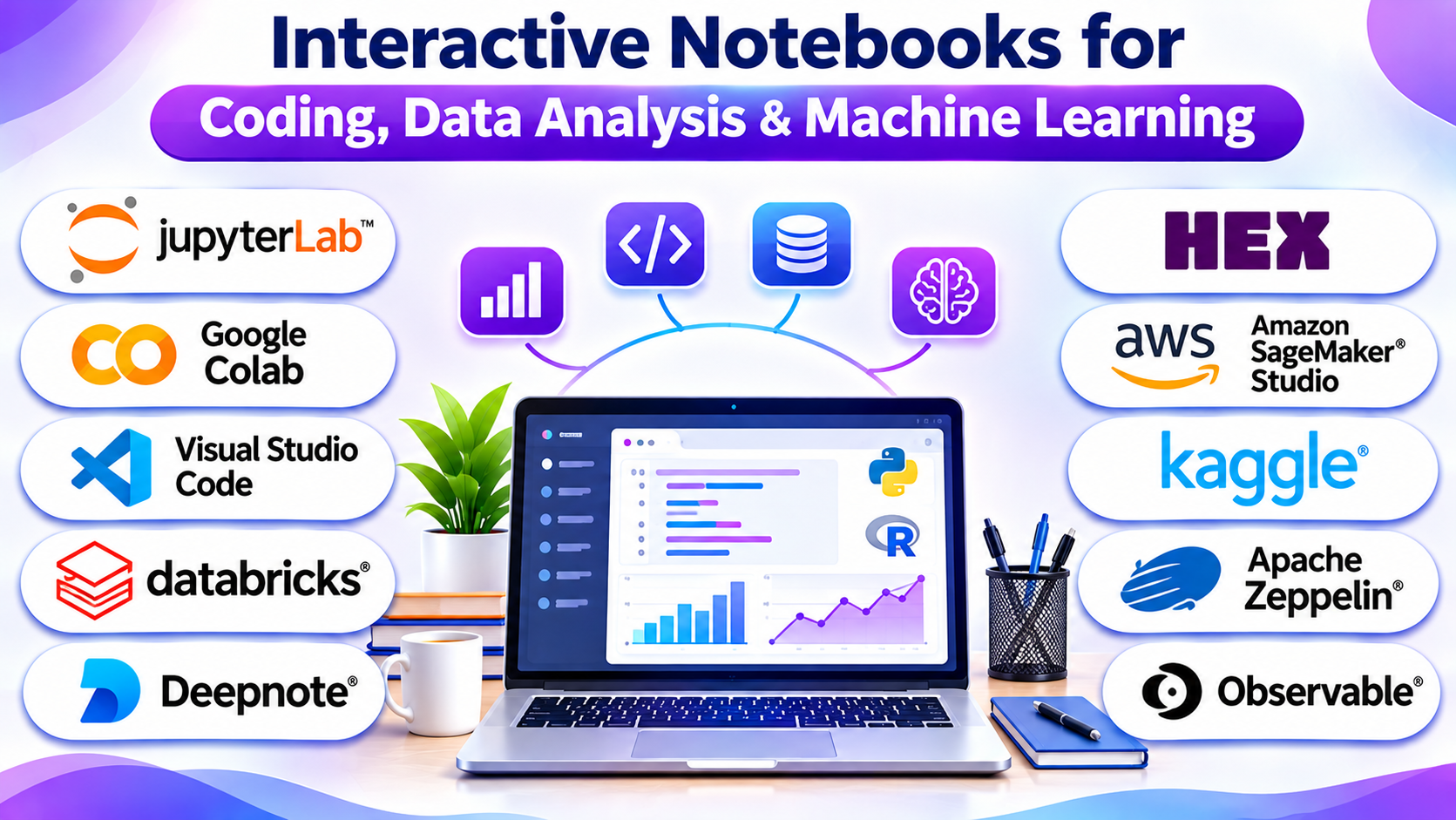
This guide covers ten popular notebook environments. It explains their key features, Pros, Cons, and common uses. A comparison table and selection guide will help you choose the right option.
Top 10 Notebook Environments
1. JupyterLab
JupyterLab is an open-source web-based environment for interactive computing. It gives users one place to create notebooks, edit files, run code, and explore data.
It supports notebooks that combine code, text, charts, and output. Users can work with Python, R, Julia, and other languages through suitable kernels.
JupyterLab also offers a flexible interface. Users can open several notebooks, terminals, text editors, and data files at the same time. Extensions can add more features to the workspace.
Data scientists, researchers, teachers, and developers often use JupyterLab for experiments, data analysis, and machine learning.
Key Features
- Interactive notebook creation and editing.
- Support for multiple programming languages through kernels.
- Code, Markdown, charts, and output in one document.
- File browser and terminal access.
- Multiple tabs and workspaces.
- Extension support.
- Integration with Python data science libraries.
- Local and remote server options.
Pros
- Free and open source.
- Flexible interface for different tasks.
- Supports many programming languages.
- Offers a large extension ecosystem.
- Works well for data exploration and research.
Cons
- Setup may require technical knowledge.
- Performance depends on the host system.
- Large notebooks can become difficult to manage.
- Team collaboration may need extra tools.
2. Google Colab
Google Colab is a hosted notebook environment that runs in a web browser. It lets users write and execute Python code without setting up a local development environment.
Colab supports data science libraries and machine learning workflows. Users can load datasets, create visualizations, and train models inside notebooks.
It also offers access to hosted computing resources. Depending on the plan and current availability, users may access GPUs and other accelerators.
Colab works well for students, educators, researchers, and developers who want to experiment quickly or share notebook projects.
Key Features
- Browser-based notebook workspace.
- Python code execution.
- Preconfigured data science libraries.
- Notebook sharing and collaboration.
- Integration with Google Drive.
- GPU and accelerator access subject to availability.
- Data visualization support.
- Notebook export and import options.
Pros
- Easy to start using.
- Does not require local installation.
- Useful for learning and experiments.
- Supports notebook sharing.
- Offers access to hosted computing resources.
Cons
- Free resources have usage limits.
- Sessions may disconnect or expire.
- Resource availability can change.
- Not ideal for every production workflow.
3. Visual Studio Code Notebooks
Visual Studio Code supports interactive notebooks through its notebook interface and extensions. Users can create, open, and run Jupyter notebooks inside the code editor.
This setup combines notebook features with a full development environment. Developers can edit source files, manage projects, use version control, and run notebook cells in one workspace.
The Python and Jupyter extensions provide notebook support. Users can also connect to local or remote Jupyter servers.
VS Code suits developers and data scientists who want notebooks alongside regular software development tools.
Key Features
- Jupyter notebook support.
- Interactive cell execution.
- Python development tools.
- Code editing and debugging.
- Git and version control integration.
- Local and remote notebook connections.
- Extension marketplace.
- Support for project-based development.
Pros
- Combines notebooks and code editing.
- Offers strong development features.
- Supports version control.
- Provides many useful extensions.
- Works with local and remote environments.
Cons
- Notebook support may require extensions.
- Initial setup can take time.
- The interface may feel complex to beginners.
- Some workflows need additional configuration.
4. Databricks Notebooks
Databricks Notebooks provide a collaborative workspace for data engineering, analytics, and machine learning. They run within the Databricks environment and connect to its data processing services.
Users can write code, run queries, create visualizations, and document their work. The environment supports languages such as Python, SQL, Scala, and R, subject to workspace capabilities.
Databricks notebooks can work with distributed data processing. This makes them useful for teams that handle large datasets and complex data pipelines.
Organizations often use them for data exploration, ETL development, analytics, and machine learning projects.
Key Features
- Collaborative notebook workspace.
- Support for multiple languages.
- Integration with Apache Spark.
- Data visualization.
- Shared access to data and compute.
- Machine learning workflow support.
- Version history and collaboration tools.
- Integration with the Databricks platform.
Pros
- Supports large-scale data processing.
- Combines analytics and engineering workflows.
- Offers team collaboration features.
- Supports several programming languages.
- Connects notebooks with machine learning tools.
Cons
- Requires understanding of the Databricks platform.
- Costs depend on compute and usage.
- Some features depend on workspace configuration.
- May be more than small projects need.
5. Deepnote
Deepnote is a collaborative notebook environment designed for data teams. It provides a browser-based workspace where users can write code, explore data, and share results.
Teams can work together on notebooks and connect to databases and other data sources. Deepnote supports Python and SQL workflows, along with interactive visualizations.
Its interface focuses on teamwork and clear presentation. Users can create notebooks that explain analysis steps and show results in a readable format.
Deepnote can suit analytics teams, data scientists, and organizations that want a shared notebook workspace.
Key Features
- Cloud-based notebook environment.
- Collaborative editing.
- Python and SQL support.
- Database and data source connections.
- Interactive charts and visualizations.
- Project and workspace management.
- Notebook sharing.
- Integration with data science tools.
Pros
- Built for team collaboration.
- Runs in a browser.
- Supports common data workflows.
- Helps users share analysis clearly.
- Connects to external data sources.
Cons
- Some capabilities depend on subscription plans.
- Cloud use may raise data governance questions.
- Large workloads need suitable compute resources.
- Teams should review available integrations before adoption.
6. Hex
Hex is a collaborative data workspace that combines notebooks, SQL, Python, and interactive data applications. It helps teams explore data and turn analysis into shareable reports.
Users can write SQL queries, run Python code, create charts, and build interactive projects. The platform supports a mix of technical and business-focused workflows.
Hex can connect to supported databases and data warehouses. Teams can use it to investigate business questions, create reports, and share findings.
It is useful for analytics teams that want to move from data exploration to clear, reusable outputs.
Key Features
- SQL and Python notebook cells.
- Interactive data applications.
- Charts and visualizations.
- Database and warehouse connections.
- Collaborative projects.
- Reusable analysis workflows.
- Sharing and publishing features.
- Data exploration tools.
Pros
- Combines SQL and Python workflows.
- Helps teams share analysis.
- Supports interactive reporting.
- Connects to data platforms.
- Useful for analytics and business questions.
Cons
- Some advanced features require paid plans.
- Users need suitable data access.
- Complex projects may need governance rules.
- It may not replace a full software development environment.
7. Amazon SageMaker Studio Notebooks
Amazon SageMaker Studio provides a cloud-based environment for machine learning development. It offers notebook experiences that help users prepare data, write code, train models, and review results.
Data scientists can work with Python and popular machine learning frameworks. The environment connects with other AWS services and SageMaker tools.
Teams can use notebooks to explore datasets, test algorithms, and build machine learning workflows. They can also connect notebook work with model training and deployment tasks.
SageMaker Studio suits organizations that use AWS for data science and machine learning.
Key Features
- Managed notebook experiences.
- Integration with AWS services.
- Support for Python and ML frameworks.
- Data preparation and exploration.
- Model training workflows.
- Access to cloud computing resources.
- Experiment and model development tools.
- Team and resource management options.
Pros
- Fits AWS-based machine learning projects.
- Offers managed cloud resources.
- Connects notebooks with ML services.
- Supports popular frameworks.
- Can scale with project needs.
Cons
- AWS knowledge helps with setup.
- Costs depend on compute and storage.
- Service configuration can be complex.
- The environment may be excessive for simple coding tasks.
8. Kaggle Notebooks
Kaggle Notebooks provide a hosted environment for writing and running data science code. Users can work with datasets, build machine learning models, and share their projects.
The platform connects notebooks with Kaggle datasets and competitions. This makes it useful for learning, practice, and community projects.
Users can write Python or R code and create visualizations. Hosted computing options may include accelerators, subject to platform limits and availability.
Kaggle Notebooks are popular with students, hobbyists, and data scientists who want to learn from public datasets and shared projects.
Key Features
- Browser-based notebook editor.
- Python and R support.
- Access to Kaggle datasets.
- Machine learning libraries.
- Notebook sharing and publishing.
- Competition integration.
- Hosted computing options.
- Community examples and projects.
Pros
- Easy access through a web browser.
- Useful for learning and practice.
- Connects notebooks with public datasets.
- Supports community sharing.
- Helps users explore machine learning projects.
Cons
- Compute resources have limits.
- Sessions may have time restrictions.
- Not designed for every private enterprise workflow.
- Data access rules require attention.
9. Apache Zeppelin
Apache Zeppelin is an open-source notebook platform for data analytics. It provides an interactive interface for writing code, running queries, and creating visualizations.
It supports several interpreters, which allow users to work with different languages and data systems. Common uses include SQL analysis, Spark jobs, and large-scale data exploration.
Zeppelin notebooks can combine code, explanations, and charts. Teams can use them to document analysis and share results.
It is especially useful in environments that already use Apache Spark and related big data technologies.
Key Features
- Open-source notebook environment.
- Multiple interpreter support.
- Apache Spark integration.
- SQL and data exploration.
- Interactive visualizations.
- Shared notebook access.
- Paragraph-based execution.
- Integration with big data systems.
Pros
- Free and open source.
- Supports several interpreters.
- Useful for big data analytics.
- Integrates with Apache Spark.
- Combines code and visual output.
Cons
- Setup and administration need technical skills.
- The interface may feel less familiar to some users.
- Interpreter configuration can take time.
- Smaller ecosystems may offer fewer ready-made integrations.
10. Observable
Observable is a notebook environment focused on interactive data visualization and exploration. It helps users create dynamic charts, explain ideas, and share data-driven stories.
Its notebook model supports JavaScript and reactive programming. When one value changes, related parts of a notebook can update automatically.
Users can build interactive visualizations and publish projects for others to explore. This makes Observable useful for data journalism, dashboards, research, and visual storytelling.
It is a strong option for people who want to communicate data insights through interactive web-based experiences.
Key Features
- Interactive notebook environment.
- JavaScript support.
- Reactive programming model.
- Data visualization tools.
- Interactive charts and graphics.
- Notebook sharing and publishing.
- Web-based development.
- Reusable visualization components.
Pros
- Strong focus on interactive visualization.
- Helps explain complex data.
- Supports shareable web projects.
- Useful for data storytelling.
- Encourages reusable visual components.
Cons
- JavaScript knowledge helps users get the most from it.
- Not a direct replacement for every Python notebook workflow.
- Some features depend on the service plan.
- Large projects need careful organization.
Comparison of the Top 10 Notebook Environments
| Notebook Environment | Best For | Main Languages | Deployment Style |
|---|---|---|---|
| JupyterLab | Research and data science | Python, R, Julia | Local or hosted |
| Google Colab | Learning and experiments | Python | Hosted |
| Visual Studio Code Notebooks | Coding and development | Python and supported kernels | Local or remote |
| Databricks Notebooks | Large-scale analytics | Python, SQL, Scala, R | Cloud platform |
| Deepnote | Team data science | Python, SQL | Cloud |
| Hex | Collaborative analytics | SQL, Python | Cloud |
| Amazon SageMaker Studio Notebooks | AWS machine learning | Python and supported frameworks | Cloud |
| Kaggle Notebooks | Learning and competitions | Python, R | Hosted |
| Apache Zeppelin | Big data analytics | Multiple interpreters | Self-hosted or managed |
| Observable | Interactive visualization | JavaScript | Web-based |
Important Features to Look for in a Notebook Environment
1. Programming Language Support
Check which languages the environment supports. Python, R, SQL, and JavaScript are common choices. Make sure the tool fits your team’s main languages.
2. Ease of Use
A clear interface helps users focus on their work. Beginners may prefer hosted notebooks with simple setup. Experienced developers may want advanced editing and debugging tools.
3. Collaboration
Team projects need shared workspaces and clear access controls. Look for real-time editing, comments, sharing, and version history.
4. Computing Resources
Some projects need more memory or processing power. Check whether the environment supports CPUs, GPUs, remote servers, or distributed computing.
5. Data Connections
A useful notebook should connect to your data sources. Review support for databases, cloud storage, files, and data warehouses.
6. Visualization Tools
Charts help users understand results. Look for support for popular visualization libraries and interactive graphics.
7. Version Control
Version control helps teams track notebook changes. It also makes it easier to review work and restore earlier versions.
8. Security and Access Control
Check authentication, permissions, encryption, and data protection features. These controls matter when notebooks contain private business information.
9. Export and Sharing
Users may need to share notebooks with colleagues or publish results. Review export formats, sharing options, and publishing controls.
10. Cost and Resource Limits
Review subscription fees, compute charges, storage costs, and usage limits. Free tools can work well for small projects, but large teams may need paid services.
Benefits of Using Notebook Environments
Faster Experimentation
Users can run small sections of code without running an entire program. This helps them test ideas and find errors faster.
Clear Documentation
Notebooks combine code with explanations. Teams can record their methods and explain results in the same document.
Better Data Exploration
Users can load datasets, inspect values, and create charts in one workspace. This makes it easier to find patterns and unusual results.
Easier Learning
Students can write code and view results step by step. This makes notebooks useful for teaching and practice.
Improved Teamwork
Shared notebook environments help people review and discuss analysis. Teams can build on each other’s work.
Interactive Visualizations
Many notebook tools support charts and interactive graphics. These features help users explain complex information.
Reusable Workflows
Teams can save notebooks and reuse code. This helps reduce repeated work across similar projects.
Common Challenges of Notebook Environments
1. Messy Notebooks
Long notebooks can contain repeated code and unclear steps.
How to address it: Use clear headings, short cells, and helpful comments. Move reusable code into separate modules.
2. Hidden Execution Order
Users may run cells in a different order. This can create confusing results.
How to address it: Restart the kernel and run all cells before sharing. Keep notebook steps in a clear order.
3. Large Data Workloads
A local notebook may struggle with large datasets.
How to address it: Use suitable cloud resources or distributed processing. Test performance before scaling a project.
4. Dependency Conflicts
Different projects may need different library versions.
How to address it: Use separate environments. Record package versions and setup steps.
5. Collaboration Conflicts
Multiple users may change the same notebook.
How to address it: Use version control and clear editing rules. Consider a collaborative notebook platform.
6. Security Risks
Notebooks may expose passwords, private data, or access tokens.
How to address it: Keep secrets outside notebook files. Use secure credentials and review notebooks before sharing.
7. Hard-to-Maintain Code
Notebooks often begin as experiments. They can become difficult to maintain when they grow.
How to address it: Move stable code into reusable scripts and packages. Keep notebooks focused on exploration and explanation.
How to Choose the Right Notebook Environment
Step 1: Define Your Main Use
Decide whether you need notebooks for learning, research, analytics, software development, or machine learning.
Step 2: Choose Your Main Languages
Check whether your team mainly uses Python, R, SQL, JavaScript, or other languages. Select a tool that supports those needs.
Step 3: Decide Where Notebooks Should Run
Choose between local installation, self-hosted servers, and cloud services. Consider your security and infrastructure needs.
Step 4: Review Collaboration Needs
Decide whether users need shared editing, comments, access controls, and project workspaces.
Step 5: Check Data Connections
Make sure the environment connects to your databases, files, and cloud storage.
Step 6: Test Performance
Run a sample project with realistic data. Check memory use, execution speed, and available computing resources.
Step 7: Review Security
Check authentication, permissions, secret management, and data protection.
Step 8: Compare Costs
Include subscription fees, compute charges, storage, and administration. Check free-tier limits before choosing.
Step 9: Test the User Experience
Ask team members to try the tool. A platform should support their work without adding unnecessary steps.
Step 10: Plan for Future Growth
Choose an environment that can support larger projects and more users. Check its integration and deployment options.
Best Practices for Working with Notebooks
- Give each notebook a clear purpose.
- Use meaningful names for files and sections.
- Add short explanations to important steps.
- Keep code cells focused.
- Avoid repeating the same code.
- Use separate environments for different projects.
- Track important changes with version control.
- Keep passwords and tokens out of notebooks.
- Check data quality before analysis.
- Restart and run all cells before sharing.
- Remove unused output when it makes files too large.
- Document required packages and setup steps.
- Move production code into reusable modules.
- Review access permissions before publishing.
- Back up important notebooks and data.
Frequently Asked Questions
1. What is a notebook environment?
A notebook environment lets users write and run code in small sections. It can also display text, charts, tables, and results in one document.
2. What is the best notebook environment?
The best choice depends on your needs. JupyterLab is a flexible open-source option. Google Colab suits browser-based Python work. VS Code supports notebooks alongside software development.
3. Are notebook environments free?
Some are free and open source, such as JupyterLab and Apache Zeppelin. Hosted services may offer free access with usage limits and paid plans.
4. Which notebook is best for Python?
JupyterLab, Google Colab, VS Code Notebooks, and Kaggle Notebooks are popular choices for Python development.
5. Can I use notebooks without installing software?
Yes. Google Colab, Kaggle Notebooks, Deepnote, and other hosted services run in a browser. Some may require an account.
6. What is the difference between Jupyter Notebook and JupyterLab?
Jupyter Notebook provides an interactive notebook interface. JupyterLab offers a broader workspace with notebooks, terminals, file tools, and multiple tabs.
7. Can notebook environments support machine learning?
Yes. Many support machine learning libraries and computing resources. Users can prepare data, train models, test results, and explore predictions.
8. Are notebook environments suitable for teams?
Yes. Tools such as Deepnote, Hex, and Databricks support collaborative workflows. Other environments can use version control and shared servers.
9. What is a notebook kernel?
A kernel runs the code inside a notebook. It connects the notebook interface to a programming language or execution environment.
10. Can I use SQL in notebook environments?
Yes. Some environments support SQL directly or through database connections and extensions. Databricks, Hex, and Apache Zeppelin support SQL-based workflows.
11. Are notebooks suitable for production applications?
Notebooks work well for exploration and experiments. Teams should move stable code into tested, reusable modules for many production systems.
12. How do I share a notebook?
You can share a notebook file, use a hosted platform, or publish it through a supported service. Check access settings before sharing private data.
13. What is the difference between a notebook and an IDE?
A notebook focuses on interactive code cells and visible output. An IDE provides broader tools for editing, debugging, testing, and managing software projects. Some tools support both.
14. Can notebook environments use GPUs?
Some hosted and cloud environments offer GPU access. Availability, pricing, and usage limits depend on the service and plan.
15. How can I keep notebooks organized?
Use clear file names, headings, short code cells, and version control. Move repeated code into reusable scripts or packages.
Final Thoughts
Notebook environments make coding, analysis, and learning more interactive. They help users test ideas, explore data, and explain results in one place.
JupyterLab offers a flexible open-source workspace. Google Colab and Kaggle Notebooks make browser-based experiments easy. VS Code connects notebooks with software development tools.
Databricks and Amazon SageMaker Studio support larger data and machine learning workflows. Deepnote and Hex focus on collaboration. Apache Zeppelin supports big data work, while Observable helps users create interactive visual stories.
No single environment fits every project. Compare language support, computing resources, collaboration, security, and cost.
Start with a small project. Test the tools that match your needs. Then choose the notebook environment that helps you work clearly and efficiently.