Introduction
Every business uses software, computers, and network devices. These systems need regular updates to stay safe and reliable.
But updating many devices takes time. IT teams must find missing patches, test updates, and install them across the company.
Patch management tools make this work easier. They help teams find outdated software and apply updates from one place.
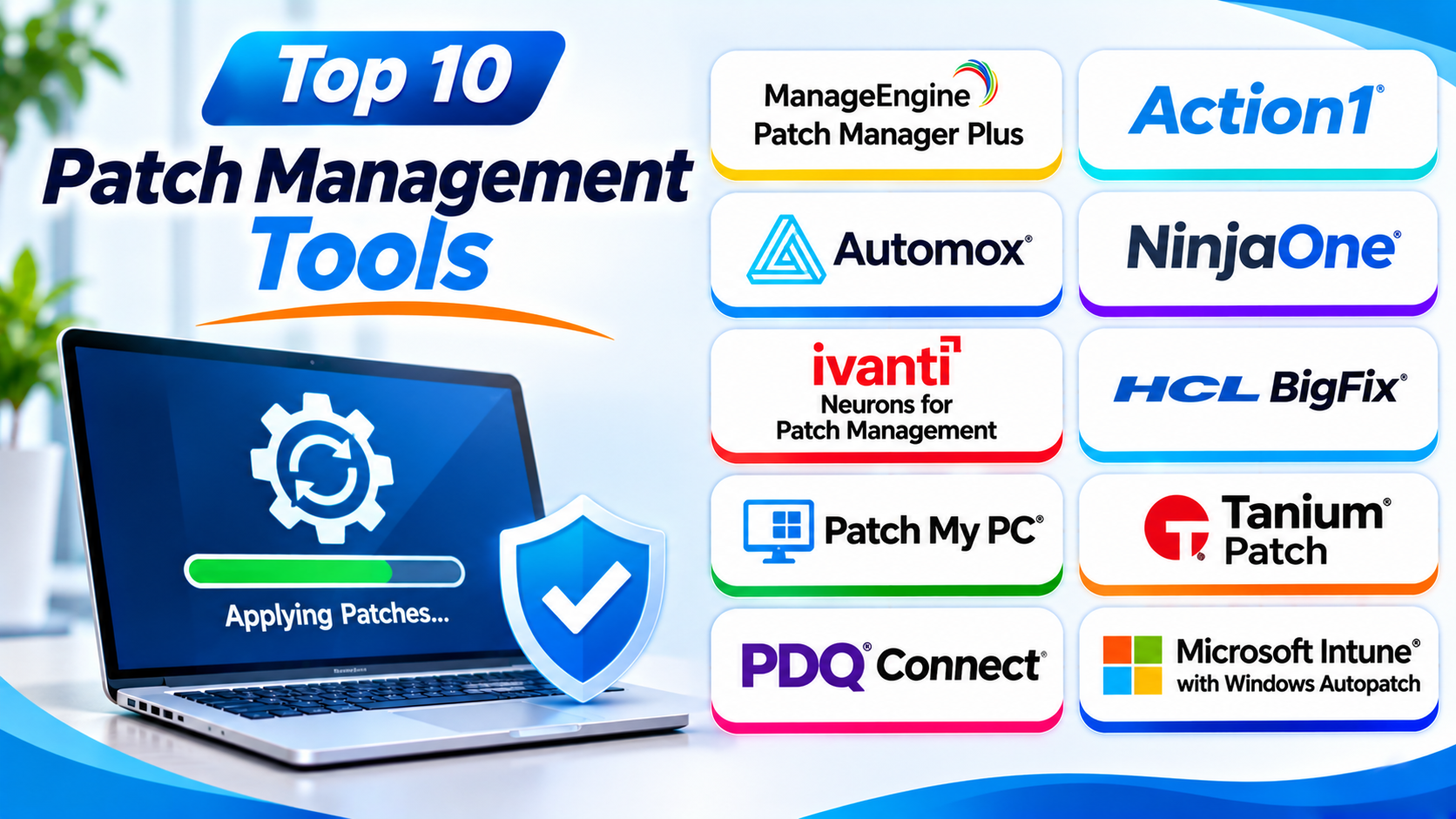
This guide covers ten popular patch management tools. You will learn their features, Pros, Cons, and best uses. You will also find a comparison table and tips for choosing the right platform.
What Is Patch Management?
Patch management is the process of finding, testing, and installing software updates. These updates fix security problems and improve system performance.
A patch may fix a software bug. It may also close a security weakness that attackers could exploit.
Patch management tools help IT teams handle this process. They can find missing updates, schedule installations, and track results.
A good patch management process usually includes:
- Discovery: Find devices and installed software.
- Assessment: Identify missing patches and security risks.
- Testing: Check updates before wide deployment.
- Deployment: Install approved patches on target devices.
- Verification: Confirm that updates installed correctly.
- Reporting: Track patch status and failed installations.
Top 10 Patch Management Tools
These tools support different operating systems and IT environments. Some focus on patching alone. Others combine patching with wider endpoint management.
1. ManageEngine Patch Manager Plus
Best for businesses that need broad patch coverage
ManageEngine Patch Manager Plus helps IT teams update computers and applications. It supports Windows, macOS, and Linux environments.
The platform can detect missing patches and deploy updates. IT teams can also schedule patch jobs and review deployment reports.
It supports updates for many third-party applications. This helps companies manage more than operating system patches.
Businesses can choose cloud or on-premises deployment. This gives IT teams flexibility when they plan their patching setup.
Key Features
- Automate operating system patch deployment.
- Manage supported Windows, macOS, and Linux devices.
- Patch supported third-party applications.
- Schedule patch scans and deployments.
- Test and approve patches before rollout.
- View patch compliance reports.
- Manage failed patch deployments.
Pros
- Supports several operating systems.
- Offers cloud and on-premises options.
- Handles operating system and third-party patches.
- Provides scheduling and reporting tools.
- Suits different business sizes.
Cons
- Setup can take time.
- Advanced features may need technical knowledge.
- The interface may feel busy to new users.
- Teams must review patch policies regularly.
Best For: Businesses that need broad patch management with flexible deployment options.
2. Action1
Best for small and medium-sized businesses
Action1 offers cloud-based patch management for business endpoints. It helps IT teams find vulnerabilities and deploy updates remotely.
The platform supports Windows, macOS, and Linux patching. It also provides tools for managing third-party application updates.
Action1 can help teams prioritize patch work by risk. This helps IT staff focus on important security problems first.
Its cloud-based design suits distributed teams. Administrators can manage remote devices without relying on a traditional office network.
Key Features
- Discover missing patches across endpoints.
- Deploy operating system updates.
- Manage supported third-party applications.
- Prioritize vulnerabilities by risk.
- Schedule patch deployments.
- Monitor patch status.
- Support remote endpoint management.
Pros
- Cloud-based management.
- Supports multiple operating systems.
- Offers vulnerability prioritization.
- Helps manage remote endpoints.
- Provides a free tier for eligible small environments.
Cons
- Some advanced needs may require paid plans.
- Teams should verify support for specific applications.
- Cloud-based management may not suit every policy.
- Large environments need careful rollout planning.
Best For: Small and medium-sized businesses that need cloud-based patching.
3. Automox
Best for cloud-first, cross-platform patching
Automox helps IT teams manage updates across different operating systems. It focuses on automated endpoint patching and policy-based management.
The platform supports Windows, macOS, and Linux environments. IT teams can create policies to control update schedules and deployment actions.
Automox also offers scripting and automation tools. These help administrators manage tasks across distributed devices.
Its cloud-first approach can suit businesses with remote employees. Teams can manage endpoints without depending on a local management server.
Key Features
- Automate operating system patching.
- Manage supported Windows, macOS, and Linux endpoints.
- Apply policy-based update schedules.
- Automate selected IT tasks with scripts.
- Monitor endpoint status.
- Manage third-party application updates.
- Support remote device management.
Pros
- Cloud-based management.
- Supports multiple operating systems.
- Offers policy-driven automation.
- Helps manage distributed endpoints.
- Reduces manual patching work.
Cons
- Cloud-only management may not fit every company.
- Scripting can require technical skills.
- Feature access depends on the selected plan.
- Teams should test policies before broad deployment.
Best For: Organizations that want automated patching across remote and mixed-device environments.
4. NinjaOne Patch Management
Best for IT teams that want patching with RMM
NinjaOne combines patch management with remote monitoring and endpoint management. It gives IT teams one place to manage many daily support tasks.
The platform helps find missing patches and automate deployments. It also supports third-party application patching.
NinjaOne supports Windows, macOS, and Linux endpoints. This makes it useful for businesses with mixed operating systems.
Its wider remote monitoring and management features can help IT teams support users. They can also check endpoint health and review patch status.
Key Features
- Automate operating system patching.
- Manage supported Windows, macOS, and Linux endpoints.
- Patch supported third-party applications.
- Schedule patch deployments.
- Monitor device health and patch status.
- Manage endpoints remotely.
- Generate patch reports.
Pros
- Combines patching with endpoint management.
- Supports multiple operating systems.
- Helps automate routine IT work.
- Offers remote monitoring features.
- Useful for distributed teams.
Cons
- May include more features than patch-only teams need.
- Pricing requires a vendor quote.
- Some advanced workflows need configuration.
- Businesses should test application coverage.
Best For: IT departments and managed service providers that want patching within a wider RMM platform.
5. Ivanti Neurons for Patch Management
Best for enterprise patching and risk control
Ivanti Neurons for Patch Management helps organizations manage patches across their IT environments. It supports automated patching and vulnerability-focused workflows.
IT teams can identify missing updates and plan deployments. They can also use policies to manage patch timing and reduce manual work.
The platform fits organizations with large endpoint fleets. Its wider Ivanti ecosystem can also support endpoint security and IT management tasks.
Businesses should review the required modules and licenses. This helps them understand which patching features their chosen package includes.
Key Features
- Identify missing software patches.
- Automate patch deployment.
- Manage supported operating systems.
- Support third-party application patching.
- Schedule patching policies.
- Monitor patch compliance.
- Connect patching with wider endpoint workflows.
Pros
- Designed for enterprise environments.
- Supports automated patch workflows.
- Helps manage patch compliance.
- Fits wider Ivanti management tools.
- Supports structured patch policies.
Cons
- Enterprise setup may require planning.
- Some features need technical expertise.
- Licensing can be complex.
- Smaller teams may find it more than they need.
Best For: Large organizations that need structured patch management and enterprise controls.
6. HCL BigFix
Best for large and complex IT environments
HCL BigFix helps organizations manage endpoints across large IT environments. Its patch management features help teams deploy updates and track compliance.
The platform supports several operating systems and device types. It can help manage servers, desktops, and other endpoints.
BigFix gives administrators tools to automate patch tasks. It can also help teams identify systems that need attention.
Its broad capabilities suit complex organizations. However, teams may need skilled administrators to plan and manage deployments.
Key Features
- Manage patches across supported operating systems.
- Automate patch deployment.
- Monitor endpoint compliance.
- Manage large endpoint environments.
- Support patch policies and schedules.
- Track update status.
- Provide centralized endpoint visibility.
Pros
- Suits large and complex environments.
- Offers broad endpoint management.
- Supports patch automation.
- Helps track compliance.
- Supports multiple operating systems.
Cons
- Setup can be complex.
- Requires trained administrators.
- May be too broad for small businesses.
- Deployment planning can take time.
Best For: Large enterprises with complex endpoint and server environments.
7. Patch My PC
Best for Microsoft Configuration Manager and Intune users
Patch My PC helps organizations manage third-party application updates. It works with Microsoft management tools such as Configuration Manager and Intune.
Many businesses already use Microsoft tools for endpoint management. Patch My PC extends those environments with third-party application patching.
IT teams can publish and deploy supported application updates. They can also use automated workflows to reduce manual packaging work.
This makes it useful for organizations that want to improve their Microsoft-based patching process. It is not a complete replacement for every operating system patching need.
Key Features
- Publish third-party application updates.
- Integrate with Microsoft Configuration Manager.
- Support Microsoft Intune workflows.
- Automate application update packaging.
- Manage supported application catalogs.
- Schedule application deployments.
- Help reduce manual update work.
Pros
- Fits Microsoft endpoint environments.
- Automates third-party app updates.
- Reduces manual packaging tasks.
- Supports established deployment workflows.
- Useful for Microsoft-focused IT teams.
Cons
- Works best with supported Microsoft tools.
- Focuses mainly on third-party application patching.
- Not a full cross-platform patch management suite.
- Teams should verify catalog coverage.
Best For: Organizations that use Microsoft Intune or Configuration Manager and need third-party application patching.
8. Tanium Patch
Best for large enterprises with complex endpoint needs
Tanium Patch helps IT teams manage patches across large endpoint environments. It forms part of the wider Tanium endpoint management platform.
The solution helps administrators identify systems that need updates. They can then deploy patches and check the results.
Tanium focuses on real-time endpoint visibility and control. This can help large organizations understand patch status across many devices.
Its broader platform may also support security and IT operations teams. Companies should review their licensing and deployment needs before choosing it.
Key Features
- Discover endpoints that need patches.
- Deploy updates across supported systems.
- Monitor patch deployment status.
- Support patch policies.
- Provide endpoint visibility.
- Help track patch compliance.
- Connect with wider Tanium workflows.
Pros
- Designed for large endpoint environments.
- Provides broad endpoint visibility.
- Supports centralized patch operations.
- Fits wider security workflows.
- Helps teams track update status.
Cons
- May be complex for small IT teams.
- Requires careful deployment planning.
- Advanced use may need specialist skills.
- Pricing generally requires a vendor discussion.
Best For: Large organizations that need patching within a broader endpoint security platform.
9. PDQ Connect
Best for Windows and macOS endpoint teams
PDQ Connect helps IT teams manage endpoints and deploy software updates. It offers cloud-based device management for supported Windows and macOS environments.
Administrators can use it to deploy packages and manage applications. It also helps teams monitor devices and perform remote IT tasks.
PDQ Connect suits teams that want a focused endpoint management experience. Organizations with Linux-heavy environments should review other options.
Key Features
- Manage supported Windows and macOS endpoints.
- Deploy software packages.
- Automate application updates.
- Manage endpoint inventory.
- Support remote device actions.
- Monitor device status.
- Use prebuilt and custom deployment packages.
Pros
- Offers a focused management experience.
- Supports Windows and macOS.
- Helps automate software deployment.
- Provides endpoint inventory tools.
- Useful for lean IT teams.
Cons
- Does not focus on Linux patching.
- Some features depend on the selected plan.
- Teams may need custom packages for certain apps.
- Large deployments need careful policy design.
Best For: IT teams that manage Windows and macOS devices and want simple deployment workflows.
10. Microsoft Intune with Windows Autopatch
Best for businesses that use Microsoft 365 and Windows
Microsoft Intune helps organizations manage devices, applications, and security policies. Windows Autopatch works with eligible Microsoft environments to help automate Windows updates.
IT teams can manage update policies and device compliance. They can also control how updates reach different groups of devices.
Intune supports Windows, macOS, Android, and Apple mobile devices. However, its patching capabilities differ across operating systems.
This solution fits businesses that already use Microsoft services. Companies with broad third-party or Linux patching needs may need another tool.
Key Features
- Manage supported Windows and mobile devices.
- Use Windows Autopatch in eligible environments.
- Configure update policies.
- Manage device compliance.
- Control update deployment groups.
- Connect with Microsoft security services.
- Monitor device management status.
Pros
- Works closely with Microsoft 365.
- Helps automate Windows updates.
- Supports endpoint and device management.
- Offers policy and compliance controls.
- Fits Microsoft-based organizations.
Cons
- Windows Autopatch has eligibility requirements.
- Third-party patching may need additional tools.
- Linux patch management is not its main focus.
- Setup can require licensing and policy planning.
Best For: Organizations that use Microsoft 365 and mainly manage Windows endpoints.
Comparison Table of the Top 10 Patch Management Tools
| Tool | Main Strength | Platform Focus | Best For |
|---|---|---|---|
| ManageEngine Patch Manager Plus | Broad patch coverage | Windows, macOS, Linux | Businesses of different sizes |
| Action1 | Cloud-based patching | Windows, macOS, Linux | Small and medium businesses |
| Automox | Policy-based automation | Windows, macOS, Linux | Remote and mixed-device teams |
| NinjaOne | Patching with RMM | Windows, macOS, Linux | IT teams and MSPs |
| Ivanti Neurons | Enterprise patch management | Multiple platforms | Large organizations |
| HCL BigFix | Large-scale endpoint control | Multiple platforms | Complex IT environments |
| Patch My PC | Third-party application updates | Microsoft environments | Intune and Configuration Manager users |
| Tanium Patch | Enterprise endpoint visibility | Multiple platforms | Large enterprises |
| PDQ Connect | Software deployment | Windows and macOS | Lean IT teams |
| Microsoft Intune with Windows Autopatch | Windows update automation | Mainly Windows patching | Microsoft-based businesses |
Platform support and features can vary by product edition and license. Check vendor documentation before making a purchase. Expert Insights+3
How to Choose the Right Patch Management Software
The best tool depends on your devices and IT environment. Review these points before making your choice.
1. Check Operating System Support
First, list the operating systems in your company. Include Windows, macOS, and Linux.
Check whether the tool supports your exact versions. Also review its support for servers and remote devices.
2. Review Third-Party Application Support
Operating system updates are only one part of patching. Business applications also need regular updates.
Check which applications the tool can patch. Make sure it supports the software your employees use.
3. Look for Automation
Manual patching takes time. Choose a platform that can scan devices and deploy updates automatically.
Also check whether you can create different schedules. This helps teams manage updates across departments.
4. Check Testing and Staged Deployment
Some updates can affect business applications. Testing helps teams find problems before wide deployment.
Look for pilot groups and staged rollout options. These features help reduce unexpected downtime.
5. Review Reporting Features
IT teams need clear patch status reports. Choose software that shows missing, installed, and failed patches.
Reports also help teams review security progress. They can support internal audits and compliance work.
6. Check Remote Device Support
Many employees work outside the office. Your patch management tool should reach remote devices reliably.
Check how it handles offline devices. Also review how it reports devices that miss scheduled updates.
7. Review Reboot Controls
Some patches need a system restart. Poor restart planning can interrupt employee work.
Look for restart schedules and user notifications. Check whether administrators can control reboot timing.
8. Compare Pricing and Licensing
Patch management costs can depend on users, devices, and features. Some vendors offer per-device pricing, while others provide custom quotes.
Check for extra costs related to support and integrations. Compare the total cost before choosing a platform.
9. Test Before Buying
Request a trial or product demonstration. Test the tool with real devices and applications.
Check how easily your IT team can create policies. Also test patch deployment and reporting.
Common Uses of Patch Management Tools
Businesses use patch management software across many IT environments.
- Desktop computers: Install security and software updates.
- Laptop fleets: Keep employee laptops up to date.
- Servers: Apply important updates to business systems.
- Remote devices: Manage updates outside office networks.
- Third-party applications: Update browsers and business software.
- Security operations: Fix known software vulnerabilities.
- IT compliance: Track patch status and update records.
- Data centers: Manage patches across server environments.
- Managed IT services: Update devices for multiple customers.
- Enterprise networks: Coordinate patching across large device fleets.
Benefits of Patch Management Software
Patch management tools can make IT work easier. They also help businesses reduce software security risks.
Better Security
Software patches often fix known security weaknesses. Regular updates can reduce the time systems remain exposed.
Less Manual Work
Automation helps IT teams deploy updates across many devices. This saves time and reduces repetitive tasks.
Faster Vulnerability Response
Patch tools help teams find missing updates. They can then focus on important security fixes.
Better Compliance
Businesses can use patch reports to track update status. These records can support internal security reviews.
Reduced Downtime
Planned patch schedules help teams avoid unexpected interruptions. Testing also helps identify problems before broad deployment.
Centralized Control
Administrators can manage many endpoints from one dashboard. This makes patching easier to track.
Improved Device Reliability
Updates can fix bugs and improve software stability. This helps devices work more smoothly.
Challenges of Patch Management
Patch management is important, but it needs careful planning. Businesses should prepare for these common challenges.
Update Compatibility
Some patches may conflict with business applications. Teams should test important updates before wide deployment.
System Downtime
Some updates need a restart. Poor scheduling can interrupt employee work.
Remote Devices
Some devices may remain offline during patch windows. IT teams need a process for finding and updating them later.
Large Device Fleets
Managing thousands of endpoints can become difficult. Teams need clear policies and reliable reporting.
Third-Party Software
Different applications use different update methods. A tool may not support every application in the company.
Failed Updates
Some installations may fail because of network or device problems. IT teams need reports and recovery steps.
Limited IT Resources
Small teams may struggle to manage patching manually. Automation can help, but teams still need to review policies and results.
Questions and Answers About Patch Management Tools
1. What is patch management software?
Patch management software helps IT teams find and install software updates. It also tracks missing patches and deployment results.
2. Why is patch management important?
Patches can fix security weaknesses and software bugs. Regular updates help protect business systems and improve reliability.
3. What types of patches do these tools manage?
They may manage operating system, application, and server updates. Support depends on the selected product.
4. Can patch management tools update third-party applications?
Yes. Many platforms support third-party application patching. Check the vendor’s application catalog before choosing a tool.
5. Can patch management software support remote workers?
Yes. Many cloud-based tools can manage remote endpoints. This helps IT teams update devices outside the office.
6. What is automated patch management?
Automated patch management uses policies and schedules to deploy updates. It reduces the need for manual installation.
7. How often should businesses install patches?
Businesses should follow risk-based update schedules. Critical security fixes may need faster action than routine updates.
8. What is the difference between patch management and vulnerability management?
Patch management focuses on finding and installing updates. Vulnerability management identifies, assesses, and helps prioritize security weaknesses.
9. Are free patch management tools available?
Yes. Some vendors offer free plans or limited editions. Check their device limits and feature restrictions.
10. Which patch management tool is best?
ManageEngine offers broad patch management features. Action1 suits cloud-first teams, while Automox supports cross-platform automation. The right choice depends on your IT environment.
Final Thoughts
Patch management helps businesses keep systems updated and secure. It also reduces manual work for IT teams.
ManageEngine Patch Manager Plus offers broad patch coverage. Action1 and Automox suit cloud-based environments. NinjaOne combines patching with wider IT management.
Ivanti, HCL BigFix, and Tanium support larger enterprise needs. Patch My PC works well with Microsoft management tools. PDQ Connect suits Windows and macOS teams.
Microsoft Intune with Windows Autopatch fits Microsoft-focused organizations.
The best patch management tool depends on your operating systems and software. Compare the features, test deployment workflows, and review the total cost.
A clear patch management plan can reduce security risks. It can also help your IT team keep devices reliable and up to date.