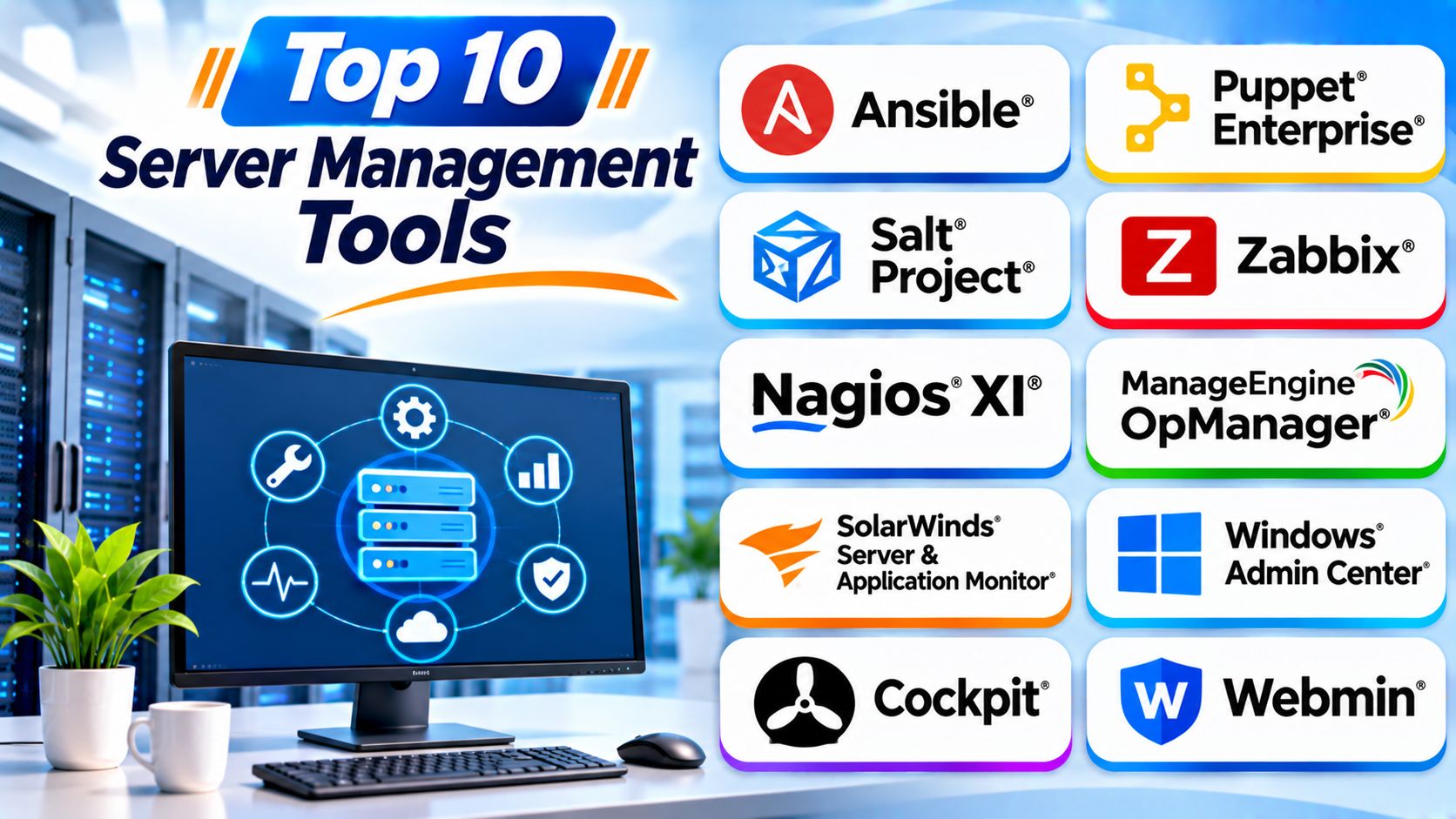
Server management tools help IT teams keep servers healthy, secure, and reliable. They make daily tasks easier. Teams can monitor server performance, manage updates, fix problems, and automate repeated work.
The right tool depends on your server setup and goals. Some tools focus on monitoring. Others handle configuration, automation, or remote administration. This guide compares ten useful options and explains their key features, Pros, Cons, and best uses.
What Is Server Management Software?
Server management software helps administrators control and maintain servers from one place. It can support tasks such as:
- Checking CPU, memory, disk, and network use.
- Watching server uptime and service health.
- Installing updates and managing software.
- Managing users, permissions, and security settings.
- Automating repeated setup and maintenance tasks.
- Finding problems before they cause long outages.
Some platforms focus on one job. Others combine several server management tasks. You may need more than one tool to cover your full setup.
Top 10 Server Management Tools
1. Ansible
Best for server automation and configuration management
Ansible helps teams automate server tasks. It uses simple YAML files called playbooks. These files describe the tasks that servers should perform.
Ansible can install packages, create users, update settings, and deploy applications. It can manage many servers from one control machine. Its agentless design uses common remote access methods, such as SSH.
Key Features
- Agentless server management.
- YAML-based automation playbooks.
- Software installation and deployment.
- Configuration management.
- Support for Linux and Windows systems.
- Reusable automation roles and collections.
Pros
- Easy-to-read playbooks.
- No agent required on managed servers in common setups.
- Strong community and module support.
- Helps reduce repeated manual work.
Cons
- Large environments may need careful tuning.
- Complex playbooks can become hard to maintain.
- Teams need basic YAML and command-line skills.
Best For: IT teams that manage many servers and want to automate daily tasks.
Ansible’s documentation explains its agentless design, playbooks, and configuration workflows. Ansible Community Documentation+1
2. Puppet Enterprise
Best for consistent server configurations
Puppet Enterprise helps organizations keep server settings consistent. Administrators define the desired state of their systems. Puppet then checks and helps maintain that state.
This approach can reduce configuration errors. It can also help teams manage large groups of Linux and Windows servers. Its reports help administrators review changes and configuration activity.
Key Features
- Automated configuration management.
- Desired-state enforcement.
- Configuration drift correction.
- Agent-based and agentless options.
- Audit and activity logs.
- Patching and reporting features.
Pros
- Helps keep server settings consistent.
- Useful for large infrastructure environments.
- Supports audit and reporting needs.
- Reduces manual configuration work.
Cons
- Takes time to learn and set up.
- Requires planning for large deployments.
- Advanced features may need paid plans.
Best For: Businesses that need consistent server settings, policy control, and compliance records.
Puppet documents continuous desired-state enforcement, configuration reporting, and flexible management options. Comparison+1
3. Salt Project
Best for remote execution and event-driven automation
Salt Project helps administrators manage systems across large networks. It supports remote commands, configuration management, and automation.
Teams can run tasks across many servers from a central point. Salt also uses an event-driven approach. This lets teams trigger actions when certain events occur.
Key Features
- Remote command execution.
- Configuration management.
- Event-driven automation.
- Infrastructure orchestration.
- Server provisioning.
- Support for mixed IT environments.
Pros
- Handles large groups of systems.
- Supports fast remote task execution.
- Offers flexible automation options.
- Works across different infrastructure types.
Cons
- Setup can be complex for new users.
- Teams need time to learn its architecture.
- Large deployments need careful design.
Best For: IT teams that manage many servers and need flexible automation.
Salt’s documentation describes remote execution, configuration management, and orchestration as core functions. Salt user guide+1
4. Zabbix
Best for open-source server monitoring
Zabbix helps teams watch server health and performance. It can track CPU use, memory, disk space, network traffic, and uptime.
Zabbix supports physical, virtual, container, and cloud environments. It can send alerts when a server crosses a set limit. Teams can also use dashboards and reports to study server performance.
Key Features
- Server and network monitoring.
- CPU, memory, and disk tracking.
- Alert rules and notifications.
- Log monitoring.
- Automatic discovery.
- Custom dashboards and reports.
Pros
- Open-source core software.
- Supports many server types.
- Offers detailed monitoring options.
- Provides flexible alerts and dashboards.
Cons
- Initial setup can take time.
- Advanced dashboards need configuration.
- Large deployments need database and server planning.
Best For: Businesses that want flexible server monitoring without starting with a commercial license.
Zabbix supports Windows and Unix-like systems, several monitoring methods, and automatic problem alerts. Zabbix+1
5. Nagios XI
Best for customizable infrastructure monitoring
Nagios XI helps administrators monitor servers, applications, and network devices. It checks system health at regular intervals. It then compares results with the warning and critical limits set by administrators.
Nagios XI offers dashboards, reports, alerts, and configuration tools. Its plugin system also helps teams monitor specific services and applications.
Key Features
- Server and service monitoring.
- Warning and critical alerts.
- Custom monitoring plugins.
- Dashboards and performance graphs.
- Auto-discovery and configuration wizards.
- Reporting and notification tools.
Pros
- Highly customizable monitoring.
- Supports Linux and Windows environments.
- Large plugin ecosystem.
- Offers detailed alerts and reports.
Cons
- Advanced setup may require technical skills.
- Plugin management can add work.
- Commercial features require a paid license.
Best For: IT teams that need detailed monitoring and custom checks across mixed environments.
Nagios documents host checks, service thresholds, alerts, dashboards, and plugin-based monitoring. Nagios Enterprises+1
6. ManageEngine OpManager
Best for combined server and network monitoring
ManageEngine OpManager gives IT teams a central view of their infrastructure. It monitors server availability, performance, services, and processes.
The platform supports Windows and Linux servers. It can also monitor virtual infrastructure and network devices. Its dashboards help teams spot performance issues and review server health.
Key Features
- Server uptime monitoring.
- CPU, memory, and disk tracking.
- Process and service monitoring.
- Hardware health checks.
- Network and server dashboards.
- Automated troubleshooting workflows.
Pros
- Combines server and network monitoring.
- Offers useful dashboards.
- Supports agent-based and agentless monitoring.
- Helps teams track server availability.
Cons
- Setup needs access credentials and planning.
- Large environments may need license planning.
- Some advanced features require extra products or editions.
Best For: Small, medium, and large IT teams that monitor servers and network devices together.
ManageEngine lists availability, performance, process, service, and log monitoring among OpManager’s server capabilities. ManageEngine OpManager+1
7. SolarWinds Server & Application Monitor
Best for detailed server and application performance monitoring
SolarWinds Server & Application Monitor helps administrators track server health and application performance. It gives teams a view of important system metrics and application dependencies.
The platform can help identify performance problems across server and application layers. This makes it useful when a slow application may depend on several servers or services.
Key Features
- Server performance monitoring.
- Application health monitoring.
- Resource and availability tracking.
- Application dependency visibility.
- Alerts and performance reports.
- Support for hybrid infrastructure monitoring.
Pros
- Combines server and application visibility.
- Helps investigate performance issues.
- Offers dashboards and alerting.
- Useful for complex IT environments.
Cons
- Commercial licensing can raise costs.
- Setup may require monitoring knowledge.
- Large deployments need careful configuration.
Best For: Organizations that need deeper visibility into server and application performance.
8. Microsoft Windows Admin Center
Best for Windows Server administration
Windows Admin Center gives administrators a browser-based way to manage Windows servers. It brings many common management tasks into one interface.
Teams can review server resources, manage services, inspect event logs, and handle storage. It also supports tasks related to Hyper-V and Windows updates. Administrators can manage servers in local, virtual, hosted, and Azure environments.
Key Features
- Browser-based server management.
- Service and process management.
- Event log inspection.
- Storage and network settings.
- Windows update management.
- Hyper-V and cluster administration.
Pros
- Designed for Windows Server environments.
- Provides a familiar graphical interface.
- Supports remote server administration.
- Available at no additional cost.
Cons
- Focuses mainly on Microsoft environments.
- Does not replace every Windows administration tool.
- Some advanced tasks still need PowerShell or other tools.
Best For: IT teams that manage Windows Server systems and Hyper-V environments.
Microsoft describes Windows Admin Center as a remote management tool for physical, virtual, on-premises, and Azure-based Windows servers. Microsoft Learn+2
9. Cockpit
Best for simple Linux server administration
Cockpit gives administrators a graphical way to manage Linux servers. Users can open it in a web browser and review important system details.
Cockpit helps users manage storage, networks, services, containers, and logs. It works alongside the Linux command line. This means administrators can use both graphical and command-based tools.
Key Features
- Browser-based Linux management.
- Service and system monitoring.
- Storage administration.
- Network configuration.
- Log inspection.
- Container management.
Pros
- Free and open source.
- Simple web-based interface.
- Works alongside command-line tools.
- Useful for everyday Linux tasks.
Cons
- Focuses on Linux systems.
- Advanced tasks may still need terminal commands.
- Available features can depend on installed system components.
Best For: Linux administrators who want a simple graphical interface for routine server tasks.
The Cockpit project describes its interface as a way to manage storage, containers, networks, and server logs. Cockpit Project+1
10. Webmin
Best for web-based Unix and Linux server control
Webmin provides a browser-based control panel for Unix-like systems. Administrators can use it to manage users, services, packages, and system settings.
Webmin offers a module-based design. This lets users access different administration tasks through separate sections. It can help teams manage routine server work without relying only on terminal commands.
Key Features
- Web-based server control panel.
- User and group management.
- Service and process administration.
- Package and software management.
- System configuration modules.
- Server status and log access.
Pros
- Open-source tool.
- Covers many common Linux administration tasks.
- Browser-based management.
- Modular design supports different tasks.
Cons
- Interface may feel less modern than newer tools.
- Administrators need to secure remote access carefully.
- Some advanced tasks still require command-line knowledge.
Best For: Administrators who want a web control panel for Linux and Unix server management.
Server Management Tools Comparison Table
| Tool | Main Purpose | Best For | Main Strength |
|---|---|---|---|
| Ansible | Automation | DevOps teams | Agentless playbooks |
| Puppet Enterprise | Configuration management | Large businesses | Desired-state control |
| Salt Project | Automation | Large server fleets | Remote execution |
| Zabbix | Monitoring | Budget-conscious teams | Flexible monitoring |
| Nagios XI | Monitoring | Technical IT teams | Custom checks |
| ManageEngine OpManager | Server and network monitoring | IT departments | Unified dashboards |
| SolarWinds SAM | Performance monitoring | Enterprises | Application visibility |
| Windows Admin Center | Server administration | Windows teams | Browser-based control |
| Cockpit | Linux administration | Linux administrators | Simple graphical interface |
| Webmin | Linux and Unix administration | Small IT teams | Modular control panel |
How to Choose the Right Server Management Tool
The best tool depends on what you need to manage. Consider these points before making a choice.
1. Identify Your Server Operating Systems
Check whether you use Linux, Windows, Unix, or a mix. Some tools focus on one operating system. Others support several platforms.
2. Decide What You Need to Manage
Do you need monitoring, automation, configuration control, or remote administration? Choose a tool that solves your main problem.
3. Check Your Infrastructure Size
A tool for five servers may not suit five hundred servers. Review its scaling options before you deploy it.
4. Review Security Features
Look for access controls, secure connections, audit logs, and role-based permissions. These features help protect important systems.
5. Compare Costs
Some tools offer open-source versions. Others use paid licenses or subscriptions. Check the full cost of setup, support, and future growth.
6. Test Before Full Deployment
Use a test environment before managing production servers. This helps your team learn the tool and avoid unexpected changes.
Common Uses of Server Management Tools
Server management tools support many daily IT tasks.
- Server monitoring: Track CPU, memory, storage, and uptime.
- Configuration management: Keep server settings consistent.
- Patch management: Plan and apply software updates.
- Remote administration: Manage servers from another location.
- Automation: Run repeated tasks with scripts and workflows.
- Troubleshooting: Find errors and performance problems.
- Security management: Review access, settings, and system activity.
- Capacity planning: Understand when servers need more resources.
Benefits of Server Management Software
Server management tools can make IT operations more reliable. They also help teams use their time better.
- Reduce repeated manual tasks.
- Find server problems earlier.
- Improve system visibility.
- Support consistent server settings.
- Help teams manage more servers.
- Reduce avoidable downtime.
- Improve maintenance planning.
- Support better use of server resources.
Challenges to Consider
Server management tools also bring some challenges. Teams should plan for them before deployment.
- Some tools need technical setup skills.
- Large environments may need extra resources.
- Paid licenses can increase operating costs.
- Too many alerts can distract IT teams.
- Poor access settings can create security risks.
- Automation mistakes can affect many servers at once.
Use clear access rules and test every major change. Also, review alerts often and remove checks that no longer help.
Best Practices for Server Management
Follow these simple practices to keep your server environment healthy.
- Monitor important server metrics every day.
- Apply security updates on a planned schedule.
- Use strong passwords and secure access methods.
- Give users only the access they need.
- Automate tasks after testing them.
- Keep backups and test recovery steps.
- Review server logs and alerts regularly.
- Document important system changes.
- Remove unused accounts and services.
- Test updates before applying them widely.
Questions and Answers
1. What is a server management tool?
A server management tool helps IT teams control, monitor, and maintain servers. It can support updates, automation, security, and troubleshooting.
2. Which server management tool is best overall?
There is no single best tool for every team. Ansible suits automation. Zabbix suits monitoring. Windows Admin Center suits Windows Server administration.
3. Are server management tools free?
Some tools offer free and open-source versions. Others require paid licenses or subscriptions. Always check the current pricing and feature limits.
4. Can I manage Linux and Windows servers with one tool?
Yes. Tools such as Ansible, Zabbix, and Nagios support mixed environments. Check each product’s operating system support before deployment.
5. What is the difference between server monitoring and server management?
Monitoring tracks server health and performance. Management also includes configuration, updates, access, automation, and maintenance.
6. Why should businesses automate server management?
Automation reduces repeated manual work. It also helps teams apply the same settings across many servers.
7. Do small businesses need server management software?
Yes, if they run important servers. A simple tool can help small teams monitor systems and handle routine tasks.
8. Can server management tools improve security?
They can help teams manage updates, access, settings, and system activity. However, they cannot replace a complete security plan.
9. What should I check before buying a server management tool?
Review operating system support, features, security, ease of use, scaling, integrations, and total cost.
10. Can I use more than one server management tool?
Yes. Many teams combine tools for different tasks. For example, they may use Ansible for automation and Zabbix for monitoring.
Final Thoughts
Server management tools help businesses keep their systems stable and secure. They also make daily IT work easier.
Ansible works well for automation. Puppet helps maintain consistent settings. Zabbix and Nagios XI focus on monitoring. Windows Admin Center and Cockpit make server administration easier.
Before you choose, review your server types, team skills, and budget. Then test a suitable tool in a safe environment. The right choice can save time and help prevent costly server problems.