Introduction
Software teams need to test their products before users find problems. Manual testing helps, but it takes time. It also becomes harder as software grows.
Automated testing makes this work faster. It uses tools and test scripts to check software. These tools repeat tests and report errors with less manual effort.
Teams use automated testing to check websites, mobile apps, APIs, and desktop software. It also helps teams find bugs early. This saves time and supports better software quality.
However, every tool works in a different way. Some tools need coding skills. Others offer simple visual steps. Some focus on websites, while others support many types of apps.
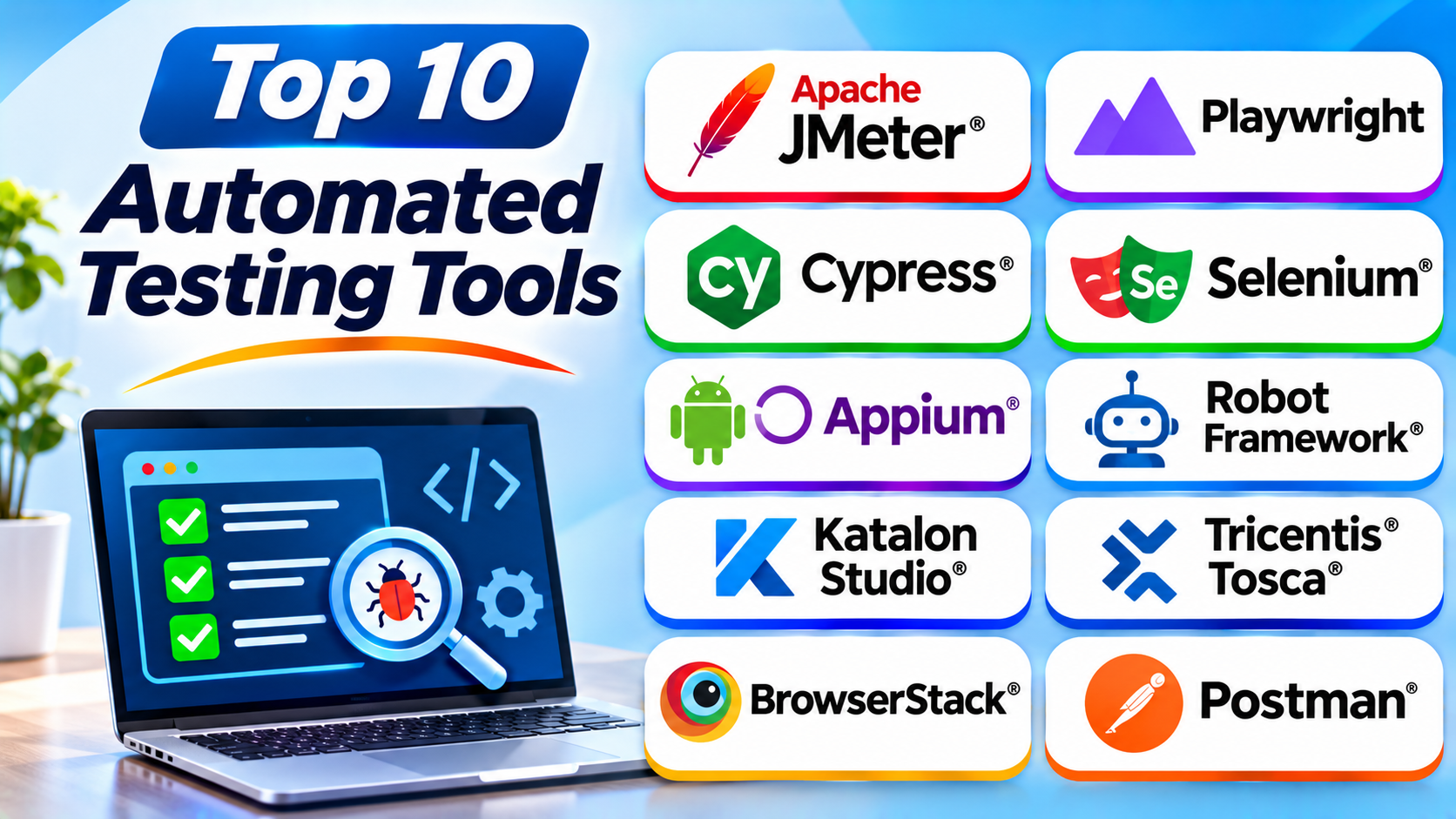
This guide covers ten popular automated testing tools. It explains their features, Pros, Cons, and best uses. It also includes a comparison table to help you choose.
What Is Automated Testing?
Automated testing uses software to run tests without repeating every step by hand. A tester creates test cases and sets the expected results. The tool then runs those tests and checks the results.
For example, a test can open a website, enter login details, and click a button. It can then check whether the user reaches the correct page.
Automated tests can run many times. Teams often connect them to their development process. This helps them check software after each update.
Top 10 Automated Testing Tools
1. Selenium
Selenium is one of the best-known tools for web browser automation. It helps testers check how websites work across different browsers. Teams can use it with languages such as Java, Python, C#, Ruby, and JavaScript.
Selenium WebDriver controls browsers through code. Testers can use it to open pages, click buttons, enter text, and check results. Selenium Grid also helps teams run tests across different machines and browsers.
Selenium works well for teams that want control over their test setup. It also has a large user community and many learning resources.
Key Features
- Supports major web browsers.
- Works with several programming languages.
- Automates common browser actions.
- Supports parallel testing through Selenium Grid.
- Connects with many testing frameworks.
- Works with common CI/CD tools.
Pros
- Free and open source.
- Supports many browsers and languages.
- Has a large community.
- Offers strong flexibility.
- Works with many development tools.
Cons
- Requires programming knowledge.
- Needs extra tools for test reports.
- Test scripts need regular care.
- Setup can take time.
- Poor waits can cause unstable tests.
Best For: Development teams that need flexible web browser automation.
2. Playwright
Playwright is an open-source testing framework for modern web applications. It helps teams test websites across Chromium, Firefox, and WebKit browsers.
It supports JavaScript, TypeScript, Python, Java, and .NET. This gives teams several ways to write test scripts.
One useful feature is automatic waiting. Playwright waits for many page actions to become ready before it continues. This can reduce failures caused by slow page updates.
Playwright also offers tools for screenshots, browser tracing, and parallel test runs. Teams can use these features to find and fix problems.
Key Features
- Supports Chromium, Firefox, and WebKit.
- Offers automatic waiting for many actions.
- Supports several programming languages.
- Includes screenshots and video recording options.
- Supports parallel test execution.
- Provides API testing features.
- Includes tools for debugging test failures.
Pros
- Free and open source.
- Works across major browser engines.
- Offers useful debugging tools.
- Supports fast test execution.
- Handles modern web applications well.
Cons
- Requires coding skills.
- Teams must learn its testing approach.
- Does not replace native mobile testing tools.
- Large test suites still need good planning.
Best For: Developers and QA teams that test modern websites and web applications.
3. Cypress
Cypress is a web testing tool built for developers and QA teams. It supports end-to-end and component testing. It works mainly with JavaScript and TypeScript.
Cypress provides a visual test runner. Testers can watch each test step as it runs. This makes it easier to understand what happened during a failure.
The tool also offers automatic waiting and useful error messages. Teams can use Cypress Cloud for features such as test recording and parallel runs.
Cypress suits teams that build modern front-end applications. It also fits well into many JavaScript development workflows.
Key Features
- Supports end-to-end testing.
- Supports component testing.
- Works with JavaScript and TypeScript.
- Offers a visual test runner.
- Provides screenshots and video recording options.
- Supports CI/CD workflows.
- Offers cloud features through Cypress Cloud.
Pros
- Easy to start for JavaScript developers.
- Offers clear test feedback.
- Includes helpful debugging tools.
- Provides automatic waiting.
- Has a strong developer community.
Cons
- Focuses mainly on web applications.
- Uses a limited set of programming languages.
- Some browser and multi-tab tasks need extra work.
- Advanced cloud features may require payment.
Best For: Front-end teams that build and test JavaScript web applications.
4. Appium
Appium is an open-source tool for mobile application testing. It helps teams automate tests for Android and iOS apps.
The tool supports native, hybrid, and mobile web applications. Native apps run directly on a mobile operating system. Hybrid apps combine web content with native app features.
Appium uses the WebDriver approach. This helps teams reuse some skills from Selenium. Testers can write scripts in languages such as Java, Python, and C#.
Appium also supports different drivers for different platforms. Teams can use it to test app screens, buttons, forms, and other user actions.
Key Features
- Supports Android and iOS testing.
- Tests native and hybrid apps.
- Supports mobile web testing.
- Works with several programming languages.
- Uses the WebDriver protocol.
- Connects with CI/CD tools.
- Supports real devices and emulators.
Pros
- Free and open source.
- Supports major mobile platforms.
- Works with several coding languages.
- Supports different app types.
- Has a strong testing community.
Cons
- Setup can be complex.
- Mobile platform settings need care.
- Test speed depends on the device and setup.
- Some advanced tests need extra configuration.
Best For: Teams that build and test Android and iOS applications.
5. Robot Framework
Robot Framework is an open-source automation framework. It uses a keyword-based approach to write tests. This makes test cases easier to read.
A keyword represents an action or task. For example, a test can use keywords to open a browser, enter text, and check a page title.
Robot Framework supports web, API, mobile, and desktop testing through libraries. SeleniumLibrary and other extensions add more testing options.
The framework works well for teams that want readable test cases. However, users may still need Python skills to create custom libraries and handle complex tasks.
Key Features
- Uses readable keyword-based test cases.
- Supports many testing libraries.
- Works with web and API testing.
- Supports mobile and desktop testing through extensions.
- Creates test reports and logs.
- Supports reusable test keywords.
- Connects with CI/CD systems.
Pros
- Free and open source.
- Easy-to-read test structure.
- Supports reusable test steps.
- Offers a wide library ecosystem.
- Helps teams organize test cases.
Cons
- Advanced work may need Python skills.
- Some libraries need separate setup.
- Large projects need clear test design.
- Debugging complex tests can take time.
Best For: QA teams that want readable and reusable automated test cases.
6. Katalon Studio
Katalon Studio is a low-code test automation platform. It helps teams test websites, mobile apps, APIs, and desktop applications.
The platform offers a visual interface for creating test cases. Users can record actions and reuse them in other tests. They can also write scripts when they need more control.
Katalon brings test creation, execution, and reporting into one environment. This can help teams manage several types of testing in one place.
It suits both new testers and experienced automation engineers. However, some features and team needs may require a paid plan.
Key Features
- Supports web testing.
- Supports mobile application testing.
- Includes API testing features.
- Offers desktop application testing.
- Provides record-and-playback features.
- Supports scripted and low-code testing.
- Includes test reports and integrations.
Pros
- Supports several application types.
- Offers visual test creation.
- Helps mixed-skill teams work together.
- Includes useful reporting features.
- Provides reusable test components.
Cons
- Some features require paid plans.
- Advanced customization may need coding.
- Teams need time to learn the platform.
- Large test projects need good organization.
Best For: Teams that need one platform for web, mobile, API, and desktop testing.
7. Tricentis Tosca
Tricentis Tosca is an enterprise test automation platform. It uses a model-based approach to create and manage tests.
Model-based testing means the tool builds tests from models of an application. Testers can create many test cases without writing every step as code.
Tosca supports business applications, web systems, APIs, mobile apps, and enterprise software. It is useful for organizations that test complex business processes.
The platform also helps teams manage test coverage and test execution. Large companies can use it to organize testing across departments.
Key Features
- Uses model-based test automation.
- Supports web and desktop applications.
- Supports API testing.
- Offers mobile testing features.
- Helps test enterprise applications.
- Supports reusable test components.
- Provides test management and reporting options.
Pros
- Suitable for large testing projects.
- Reduces the need for coding in many workflows.
- Supports complex business processes.
- Helps manage test coverage.
- Offers broad enterprise application support.
Cons
- Commercial licensing can be costly.
- New users need training.
- Setup can take time.
- Some advanced features need specialist knowledge.
Best For: Large organizations that test complex business and enterprise applications.
8. TestComplete
TestComplete is a commercial testing tool from SmartBear. It helps teams automate tests for desktop, web, and mobile applications.
The platform offers record-and-replay features. Testers can record actions and turn them into test steps. They can also create keyword tests or write scripts.
TestComplete supports several scripting options, including JavaScript and Python. Its object recognition features help the tool find buttons, fields, and other interface elements.
It is useful for teams that need to test desktop software along with websites. However, the main TestComplete development environment runs on Windows.
Key Features
- Supports desktop application testing.
- Supports web application testing.
- Offers mobile testing options.
- Includes record-and-replay features.
- Supports keyword-based tests.
- Supports scripting.
- Provides test reports and integrations.
Pros
- Offers visual test creation.
- Supports different application types.
- Combines keyword tests and scripts.
- Helps test desktop applications.
- Includes useful object recognition features.
Cons
- Requires a commercial license for full use.
- The main development environment needs Windows.
- Some mobile workflows need extra setup.
- Advanced testing may require scripting skills.
Best For: Teams that need automated desktop, web, and mobile UI testing.
9. BrowserStack
BrowserStack is a cloud testing platform. It gives teams access to browsers and real devices through the cloud.
Teams can use it to test websites and mobile apps without maintaining a large device lab. It supports automated testing with frameworks such as Selenium, Playwright, and Cypress.
BrowserStack is not a replacement for every test automation framework. Instead, it provides the browser and device environments where teams can run tests.
This helps teams check how applications work on different devices, browsers, and operating systems. It can also help reduce problems that only appear on certain devices.
Key Features
- Provides cloud browser testing.
- Offers real mobile device testing.
- Supports popular automation frameworks.
- Supports cross-browser checks.
- Connects with CI/CD tools.
- Offers parallel test execution options.
- Provides test results and debugging details.
Pros
- Reduces the need for a physical device lab.
- Supports many browser and device combinations.
- Works with popular testing frameworks.
- Helps teams test from different locations.
- Supports larger test runs through cloud infrastructure.
Cons
- Paid plans may be needed for regular use.
- Internet access affects test work.
- Cloud tests can face waiting times.
- It does not replace the need to write good test cases.
Best For: Teams that need cloud-based browser and real-device testing.
10. Postman
Postman is a popular platform for API development and testing. APIs allow different software systems to exchange data. Postman helps teams send requests and check the responses.
Testers can create collections of API requests. They can add scripts to check response codes, data, and other conditions. The Collection Runner can run groups of requests in a planned order.
Postman also supports API documentation and team collaboration. This makes it useful for teams that build services and connect different systems.
Postman focuses on API workflows. It does not replace browser or mobile UI automation tools.
Key Features
- Supports API request testing.
- Works with REST and GraphQL APIs.
- Allows automated response checks.
- Supports reusable request collections.
- Offers test scripts.
- Provides API documentation features.
- Supports team collaboration and CI/CD workflows.
Pros
- Easy to start with API testing.
- Offers a clear visual interface.
- Supports reusable request collections.
- Helps test API responses.
- Combines testing and API documentation.
Cons
- Focuses mainly on API workflows.
- Complex test logic may need coding.
- Some collaboration features depend on the plan.
- Does not replace full browser UI testing.
Best For: Developers and QA teams that test APIs and connected services.
Automated Testing Tools Comparison Table
| Tool | Main Testing Area | Coding Needed | Best For |
|---|---|---|---|
| Selenium | Web | Yes | Flexible browser automation |
| Playwright | Web and API | Yes | Modern web testing |
| Cypress | Web | Yes | JavaScript application testing |
| Appium | Mobile | Yes | Android and iOS testing |
| Robot Framework | Web, API, mobile, desktop through libraries | Low to high | Readable test automation |
| Katalon Studio | Web, mobile, API, desktop | Low to high | Mixed-skill QA teams |
| Tricentis Tosca | Enterprise, web, API, desktop, mobile | Low-code | Large business systems |
| TestComplete | Desktop, web, mobile | Low to high | UI testing across application types |
| BrowserStack | Cloud browser and device testing | Uses existing frameworks | Cross-browser and real-device checks |
| Postman | API | Low to high | API testing and validation |
How to Choose the Right Automated Testing Tool
Choosing a testing tool depends on your software, team skills, and testing goals. Consider these points before you decide.
1. Identify What You Need to Test
Start with your application type. Choose a web testing tool for websites. Choose a mobile testing tool for Android and iOS apps. Use an API testing tool to check services and data exchange.
Some platforms support several application types. These can help teams that need one shared testing environment.
2. Check Your Team’s Skills
Some tools need strong programming skills. Selenium, Playwright, Cypress, and Appium often require code.
Other tools offer visual or keyword-based testing. Katalon Studio, TestComplete, and Tricentis Tosca can help teams with different skill levels.
3. Review Browser and Device Support
Your software may work differently across browsers and devices. Check whether the tool supports the environments your users need.
Cloud platforms such as BrowserStack can help teams test many combinations without buying every device.
4. Compare Integration Options
Your testing tool should fit your development process. Check whether it works with your code repository, build system, and CI/CD pipeline.
Good integrations help teams run tests after code changes. They also make test results easier to share.
5. Check Reports and Debugging
A useful tool should show why a test failed. Look for clear reports, screenshots, logs, and debugging features.
These features help testers find the cause of a problem. They also reduce the time spent checking failed tests.
6. Review Cost and Maintenance
A free tool can still need time and technical support. A paid tool may include useful reporting, cloud testing, and team features.
Compare the full cost, not just the license price. Also consider training, setup, test maintenance, and infrastructure.
Benefits of Automated Testing
Automated testing offers several benefits to software teams.
Faster Repeated Tests: Teams can run the same tests after each update. This saves time during regular checks.
Better Test Coverage: Automated tests can check many features and conditions. Teams can cover more cases with a planned test suite.
Early Bug Detection: Tests can run during development. This helps teams find problems before release.
Consistent Results: Automated tests follow the same steps each time. This reduces differences caused by manual work.
Support for Continuous Delivery: Teams can connect tests to their CI/CD pipelines. This helps them check changes before they reach users.
More Time for Complex Testing: Automation handles repeated tasks. Testers can spend more time on usability, exploration, and complex user needs.
Challenges of Automated Testing
Automated testing also has some challenges. Teams should plan for them before building a large test suite.
Initial Setup: Teams need time to install tools and create test cases. Some tools also need special devices or environments.
Test Maintenance: Software changes often. Test scripts may need updates when pages, buttons, or workflows change.
Technical Skills: Some tools require programming knowledge. Teams may need training or experienced automation engineers.
False Test Failures: A test can fail because of timing, network issues, or unstable test data. Teams must check the cause before reporting a software bug.
Tool Costs: Some platforms charge for advanced features or cloud execution. Teams should review their long-term needs and budget.
Best Practices for Automated Testing
Follow these practices to get better results from test automation.
- Start with tests that teams repeat often.
- Automate stable and important workflows first.
- Keep test cases short and clear.
- Use separate test data when possible.
- Run tests during development and before releases.
- Review failed tests before reporting bugs.
- Remove old tests that no longer add value.
- Store test code in version control.
- Track test results over time.
- Update tests when the application changes.
Frequently Asked Questions
1. What are automated testing tools?
Automated testing tools run software tests with less manual work. They follow planned steps and check whether an application gives the expected results.
2. Which automated testing tool is best?
There is no single best tool for every team. Playwright suits modern web testing. Selenium offers broad browser support. Appium focuses on mobile apps. Katalon supports several application types.
3. Are automated testing tools free?
Some tools are free and open source. Selenium, Playwright, Cypress, Appium, and Robot Framework offer free core tools. Commercial platforms may charge for advanced features and cloud services.
4. Which tool is best for web application testing?
Selenium, Playwright, and Cypress are popular web testing choices. The best option depends on your programming language, browser needs, and test design.
5. Which tool is best for mobile application testing?
Appium is a popular choice for Android and iOS automation. Katalon Studio and other commercial platforms also offer mobile testing features.
6. Can beginners use automated testing tools?
Yes. Beginners can start with visual tools and simple test cases. Katalon Studio, TestComplete, and Robot Framework offer ways to create readable tests. Basic testing knowledge still helps.
7. What is the difference between Selenium and Playwright?
Both tools automate web browsers. Selenium uses the WebDriver standard and supports many languages. Playwright offers built-in waiting, browser contexts, and modern debugging features.
8. Can automated testing replace manual testing?
No. Automated testing handles repeated checks well. Manual testing still helps people explore software, review usability, and find unexpected problems.
9. What is the difference between API testing and UI testing?
API testing checks how software services exchange data. UI testing checks what users see and do on the screen. Teams often use both methods.
10. How do I start with test automation?
Choose one stable and important workflow. Select a tool that fits your application and team skills. Write a small test, run it, review the result, and improve it over time.
Final Thoughts
Automated testing helps teams build more reliable software. It reduces repeated work and finds many problems early. It also supports faster development and regular software updates.
However, the right tool depends on your needs. Selenium and Playwright suit many web projects. Appium helps with mobile testing. Postman focuses on APIs. Katalon Studio and Tricentis Tosca support wider testing needs.
Start with your application type and team skills. Then compare features, costs, and maintenance needs. Run a small test project before making your final choice.
A good testing tool should fit your workflow. It should also help your team deliver better software with confidence.