Introduction
Making music takes more than good ideas. You also need the right tools to record, edit, arrange, and mix sound. A Digital Audio Workstation (DAW) brings these tasks together in one place.
A DAW lets you record vocals, add instruments, create beats, edit audio, and mix complete songs. Some tools focus on electronic music. Others support studio recording, film scoring, sound design, and live performance.
However, every DAW follows a different workflow. Some use simple patterns and loops. Others offer detailed audio editing and advanced mixing controls. Your choice can affect how quickly you work and how easily you finish a project.
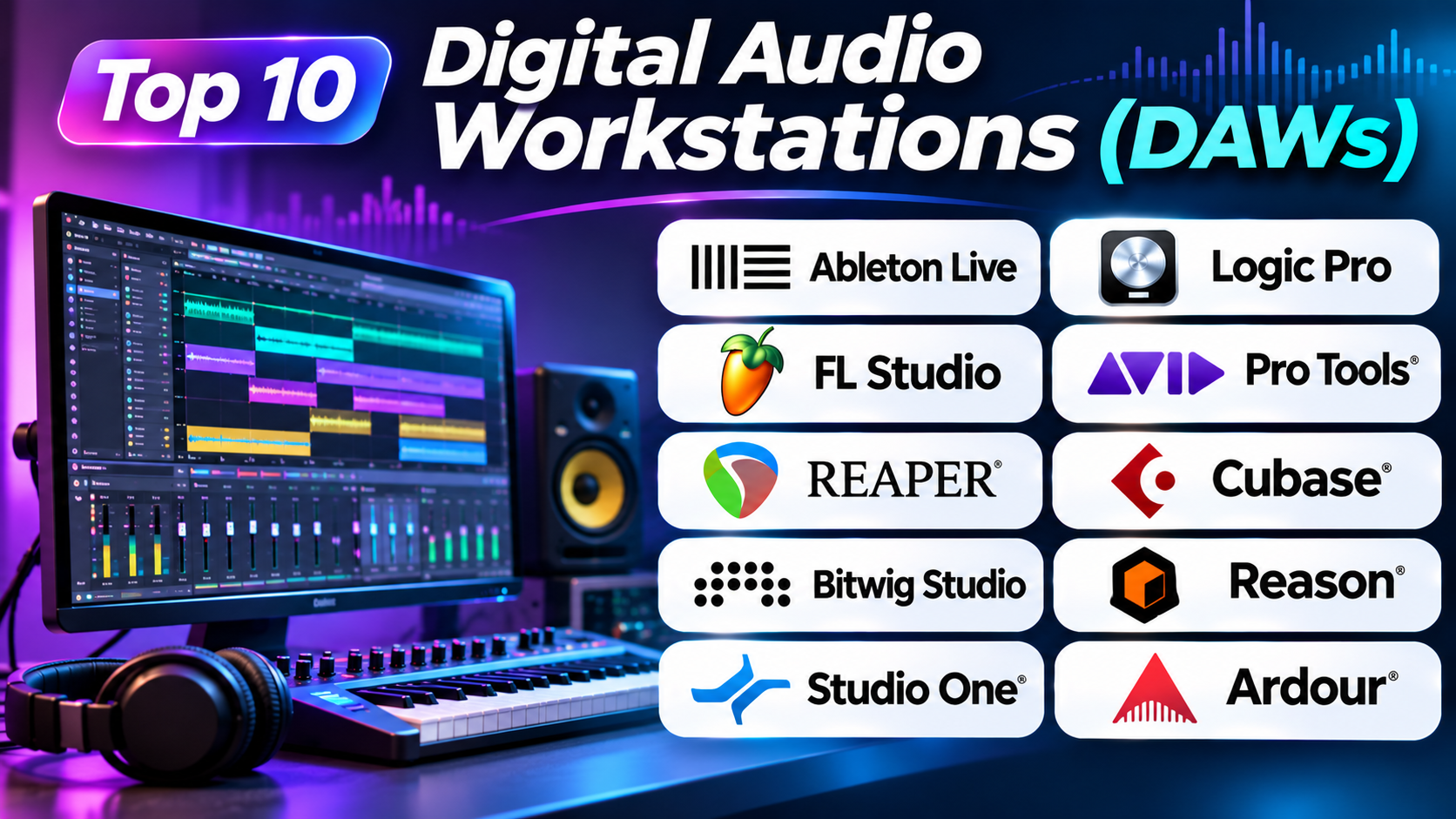
This guide explores 10 well-known DAWs. It explains their main features, ideal users, Pros, and Cons. You will also find a comparison table and answers to common questions.
What Is a Digital Audio Workstation?
A Digital Audio Workstation is software for creating and working with digital sound. It acts like a music studio inside your computer.
You can use a DAW to record live instruments, capture vocals, and create music with virtual instruments. You can also edit recordings, arrange songs, add effects, and mix audio tracks.
Most DAWs include tools such as:
- Audio recording: Capture vocals, guitars, drums, and other live sounds.
- MIDI editing: Create and edit notes for virtual instruments.
- Virtual instruments: Play digital pianos, drums, synthesizers, and other sounds.
- Audio effects: Add reverb, delay, equalization, and compression.
- Mixing tools: Control volume, panning, and sound balance.
- Automation: Change volume, effects, and other settings over time.
- Export tools: Save finished music in common audio formats.
A DAW can support one part of music production or the entire process. The best choice depends on your work, computer, budget, and experience.
Top 10 Digital Audio Workstations Worth Exploring
1. Ableton Live
Ableton Live gives music creators a flexible way to produce songs and perform live. It has two main working areas called Session View and Arrangement View.
Session View lets you launch audio and MIDI clips without following a fixed song order. This makes it useful for trying new ideas, building loops, and creating live music sets. You can test different sounds before arranging them into a complete track.
Arrangement View gives you a traditional timeline. You can place clips, record audio, edit notes, and build a song from start to finish. You can also move between both views during a project.
Ableton Live includes virtual instruments, audio effects, MIDI tools, and sound libraries. Its device racks help users combine instruments and effects. Max for Live also lets users add custom devices and build new creative tools.
The software works well for electronic music, beat production, sampling, and live performance. It also supports traditional recording and mixing tasks.
Pros
- Session View supports flexible music creation.
- Arrangement View offers a clear song timeline.
- Built-in instruments and effects support many styles.
- Max for Live adds room for custom tools.
- It works well with MIDI controllers and live setups.
Cons
- New users may need time to learn its workflow.
- Some advanced tools require higher editions.
- The full package can cost more than basic DAWs.
- Traditional recording users may prefer another layout.
2. Apple Logic Pro
Apple Logic Pro offers a complete music production environment for Mac users. It combines recording, MIDI editing, virtual instruments, sound libraries, and mixing tools.
The software supports both live audio recording and digital music creation. Musicians can record vocals and instruments, edit performances, and arrange tracks on a timeline. Its Piano Roll editor gives users detailed control over MIDI notes.
Logic Pro also includes a wide range of virtual instruments. Users can create sounds with synthesizers, keyboards, drums, and sampled instruments. Its built-in effects help shape recordings without relying on extra plug-ins.
The software includes tools for songwriting and arrangement. Drummer can create virtual drum performances. Live Loops lets users build music with clips and patterns. Flex Time helps adjust the timing of audio recordings.
Logic Pro suits songwriters, composers, musicians, and home studios. It offers many tools in one package. However, it runs on Apple’s supported platforms, so Windows users must consider another option.
Pros
- Includes many instruments and audio effects.
- Supports recording, editing, arranging, and mixing.
- Offers useful tools for songwriting and composition.
- Live Loops supports clip-based music creation.
- Provides detailed MIDI editing features.
Cons
- It does not offer a Windows version.
- New users may need time to learn its many tools.
- Its workflow may not suit every studio.
- Users who need cross-platform projects may face limits.
3. FL Studio
FL Studio is popular among beatmakers and electronic music producers. Its pattern-based workflow helps users create drums, melodies, and complete tracks.
The Channel Rack lets users build patterns with instruments and samples. The Piano Roll provides detailed control over notes, chords, and melodies. Users can create a musical idea quickly and arrange it into a larger song.
FL Studio also includes virtual instruments, sound effects, mixers, and sample tools. Producers can use these features to create electronic music, hip-hop, dance tracks, and other styles.
Its Playlist gives users a timeline for arranging patterns and recordings. The Mixer helps control levels and apply effects to different tracks. Users can also add third-party plug-ins to expand their setup.
FL Studio works well for beginners and experienced producers. Its pattern tools make beat creation easy to understand. However, users who record large live sessions may prefer a DAW built around traditional studio recording.
Pros
- Pattern-based tools make beat creation simple.
- Piano Roll offers detailed MIDI editing.
- Includes many instruments and effects.
- Supports third-party plug-ins.
- Lifetime free updates apply to eligible purchases.
Cons
- The interface can feel busy at first.
- Large recording projects may need a different workflow.
- Some instruments and features depend on the edition.
- Users may need time to understand its routing and mixer.
4. Avid Pro Tools
Avid Pro Tools is a professional DAW for recording, editing, mixing, and audio post-production. Many recording studios use it for projects that involve large numbers of tracks and detailed audio work.
Its editing tools help users work with vocals, instruments, dialogue, and sound effects. Users can record multiple tracks, edit performances, arrange clips, and prepare sessions for mixing.
Pro Tools also supports advanced routing and mixing. Engineers can send audio between tracks, use buses, and build complex signal paths. Playlist tools help users compare different takes and create polished performances.
The software also supports professional audio plug-ins and studio hardware. This makes it useful for teams that share sessions and work with established studio setups.
Pro Tools suits recording engineers, music studios, film sound teams, and post-production professionals. Its workflow may feel complex for beginners who only want to make simple beats.
Pros
- Offers detailed audio recording and editing.
- Supports complex routing and mixing workflows.
- Playlist tools help manage multiple recording takes.
- Fits many professional studio environments.
- Supports large and complex audio projects.
Cons
- Beginners may face a steep learning curve.
- Some workflows depend on specific plug-in formats.
- Licensing plans can add ongoing costs.
- Its advanced features may exceed the needs of casual users.
5. REAPER
REAPER is a flexible DAW for recording, editing, mixing, and producing music. It supports Windows, macOS, and Linux, which makes it a useful option for users who want more platform choice.
The software offers multitrack recording, MIDI editing, audio processing, and detailed routing. Users can create tracks for vocals, instruments, effects, and virtual instruments. They can also build custom signal paths for complex projects.
REAPER keeps its installation relatively small. It also gives users many ways to change the interface and workflow. Scripts, actions, and custom toolbars help users set up the software around their needs.
The DAW supports many third-party plug-ins. It also includes its own audio effects and tools. However, it does not focus on providing a huge collection of ready-made instruments. Users may need extra plug-ins for certain music styles.
REAPER works well for home studios, audio editors, independent producers, and users who want control over their setup. Its flexibility makes it powerful, but beginners may need time to configure it.
Pros
- Supports Windows, macOS, and Linux.
- Offers flexible audio and MIDI routing.
- Includes useful recording and editing tools.
- Supports scripts and custom workflows.
- Uses a lightweight installation.
Cons
- The interface may look less polished than some rivals.
- Beginners may need time to set up their workspace.
- Its built-in instrument selection is limited.
- Some advanced workflows require extra configuration.
6. Steinberg Cubase
Steinberg Cubase is a DAW for music production, recording, MIDI composition, and audio editing. It has a strong set of tools for composers and producers who work with complex arrangements.
Its MIDI tools help users create detailed musical parts. The Key Editor lets users adjust notes, timing, and velocity. Expression Maps help composers manage instrument articulations in supported sample libraries.
Cubase also supports audio recording and editing. Users can record vocals, guitars, and other instruments. They can arrange tracks, apply effects, and mix their work in the same project.
The software includes virtual instruments and audio processing tools. It also offers features for scoring and orchestral work. These tools make it useful for film composers, game audio creators, and music producers.
Cubase supports both Windows and macOS. It suits users who need strong MIDI editing and detailed composition tools. Its many features may take time to learn.
Pros
- Offers detailed MIDI editing tools.
- Supports complex musical arrangements.
- Includes audio recording and mixing features.
- Provides useful tools for film and game scoring.
- Works on Windows and macOS.
Cons
- New users may find its interface complex.
- Some advanced features depend on the edition.
- Large projects can require strong computer hardware.
- Its workflow may feel detailed for simple beatmaking.
7. Bitwig Studio
Bitwig Studio focuses on electronic music, sound design, and creative music production. It offers a flexible environment for building sounds and changing them during a performance.
Its Clip Launcher supports loop-based music creation. Users can trigger clips and experiment with different arrangements. The Arranger provides a timeline for building complete songs.
Bitwig’s device system gives users many ways to shape sound. They can connect instruments and effects in different ways. Its modulation tools let users control many settings with signals such as envelopes, LFOs, and other sources.
The Grid offers a modular environment for building custom instruments and effects. Users can connect different modules to create new sounds. This makes Bitwig useful for people who enjoy sound design and experimentation.
Bitwig Studio supports Windows, macOS, and Linux. It suits electronic producers and sound designers who want creative control. Traditional recording users may prefer a DAW with a more familiar studio layout.
Pros
- Offers flexible clip and timeline workflows.
- The Grid supports modular sound design.
- Modulation tools allow detailed sound control.
- Works on Windows, macOS, and Linux.
- Supports creative electronic music production.
Cons
- Its modular tools can take time to learn.
- Some users may prefer a traditional recording layout.
- The interface can feel unfamiliar to new producers.
- Its advanced creative features may not suit basic projects.
8. Reason
Reason is a DAW known for its virtual rack design. It brings instruments, effects, and sound tools into a visual space that resembles a hardware studio.
Users can connect instruments and effects through virtual cables. This makes it easier to understand how sound moves through a project. Producers can also change the signal path to create different sounds.
Reason includes synthesizers, samplers, drum tools, and audio effects. Its rack devices support electronic music and sound design. The software also works with external plug-ins and can fit into a wider music production setup.
The sequencer provides a timeline for recording and arranging music. Users can create MIDI parts, record audio, and mix tracks. The rack remains a key part of its workflow.
Reason suits producers who enjoy synthesizers and hands-on sound design. Its visual rack can inspire creative work. However, users who prefer a simple interface may find it crowded.
Pros
- The virtual rack offers a clear signal-flow view.
- Includes instruments, samplers, and effects.
- Supports creative sound design.
- Allows users to connect devices in flexible ways.
- Works with external plug-ins.
Cons
- The rack layout can feel crowded.
- Beginners may need time to understand its routing.
- Some users may prefer a simpler mixer workflow.
- Its unique design may take time to learn.
9. Studio One
Studio One offers tools for recording, arranging, editing, and mixing music. It brings many studio tasks into one workspace. This can help musicians manage a project without moving between several applications.
Its timeline supports audio and MIDI tracks. Users can record vocals and instruments, arrange musical parts, and edit performances. The software also provides tools for mixing and mastering.
Studio One includes virtual instruments and audio effects. Its drag-and-drop workflow helps users move sounds and effects into a project. The mixer provides control over track levels, buses, and signal processing.
The software supports third-party plug-ins and common studio workflows. It can suit songwriters, bands, home studios, and producers who want an all-in-one environment.
Before choosing it, check the current product name, edition, licensing terms, and support details. Product branding and ownership can change over time, so buyers should confirm the version offered in their region.
Pros
- Combines recording, editing, and mixing tools.
- Supports audio and MIDI workflows.
- Offers drag-and-drop features.
- Includes instruments and effects.
- Works for home and project studios.
Cons
- Some features depend on the edition.
- New users may need time to learn the mixer.
- The range of tools can feel broad at first.
- Buyers should check current product and license details.
10. Ardour
Ardour is an open-source DAW for recording, editing, and mixing audio. It is a useful option for users who want a flexible music production tool without relying on a traditional paid license.
The software supports multitrack recording and audio editing. Users can record live instruments, edit clips, and arrange tracks on a timeline. It also supports MIDI tracks and plug-ins for music production.
Ardour includes a mixer with routing and processing tools. Users can control track levels, connect buses, and add effects. Its flexible routing can support more advanced recording and mixing setups.
The software works on Linux, macOS, and Windows. Its open-source model gives users more control over the software. However, users may need to handle more setup and troubleshooting than they would with some commercial DAWs.
Ardour suits Linux users, independent musicians, and people who value open-source software. It can also work for home recording and smaller studio projects.
Pros
- Open-source software.
- Supports Windows, macOS, and Linux.
- Offers multitrack recording and editing.
- Includes flexible routing and mixing tools.
- Supports plug-ins for added functionality.
Cons
- Setup may take more effort for new users.
- The interface may feel less familiar.
- Some workflows need extra configuration.
- Users may need to find their own instruments and sounds.
Digital Audio Workstations Comparison Table
The table below highlights the main focus of each DAW. It can help you narrow your choices before testing the software.
| DAW | Main Use | Supported Platforms | Standout Strength |
|---|---|---|---|
| Ableton Live | Electronic music and live performance | Windows, macOS | Session View and clip-based workflow |
| Apple Logic Pro | Songwriting and music production | macOS | Built-in instruments and MIDI tools |
| FL Studio | Beatmaking and electronic music | Windows, macOS | Pattern workflow and Piano Roll |
| Avid Pro Tools | Studio recording and post-production | Windows, macOS | Detailed audio editing and routing |
| REAPER | Recording, editing, and mixing | Windows, macOS, Linux | Customization and flexible routing |
| Steinberg Cubase | Composition and music production | Windows, macOS | MIDI editing and scoring tools |
| Bitwig Studio | Electronic music and sound design | Windows, macOS, Linux | Modulation and modular tools |
| Reason | Sound design and music production | Windows, macOS | Virtual rack and device connections |
| Studio One | Recording, arranging, and mixing | Windows, macOS | Integrated studio workflow |
| Ardour | Recording and open-source production | Windows, macOS, Linux | Open-source design and routing |
Platform support, editions, and licensing can change. Check the current product details before you buy.
How to Choose the Right DAW
The right DAW should match the way you create music. A large feature list does not always mean a better experience. Focus on the tools you will use most often.
Choose Based on Your Music Style
Your music style can help narrow the list.
- Electronic music: Ableton Live and Bitwig Studio offer flexible clip-based workflows.
- Beatmaking: FL Studio provides pattern tools and a detailed Piano Roll.
- Songwriting: Logic Pro and Cubase offer useful tools for arranging music.
- Studio recording: Pro Tools, REAPER, and Cubase support detailed recording work.
- Sound design: Reason and Bitwig Studio offer creative ways to shape sounds.
- Open-source production: Ardour offers a flexible option for users who prefer open-source software.
These are starting points, not strict rules. You can create many music styles with most modern DAWs.
Check Your Computer and Operating System
Before buying, check whether the DAW supports your computer. Logic Pro requires Apple’s supported platforms. Other tools offer Windows support, while REAPER, Bitwig Studio, and Ardour also support Linux.
Also check the hardware needs. Large projects with many tracks and plug-ins can use more memory and processing power. A stronger computer can help with demanding sessions.
Review the Recording and MIDI Tools
Audio recording and MIDI editing serve different needs. Audio recording captures real sound from microphones and instruments. MIDI editing controls digital notes and virtual instruments.
If you record a band, check the audio editing and routing tools. If you create electronic music, review the Piano Roll, sequencer, and virtual instruments.
Consider Plug-In Support
Plug-ins add instruments and effects to a DAW. They can help you create sounds, improve recordings, and shape a final mix.
Check which plug-in formats the DAW supports. Also review the plug-ins you already own. This can help you avoid extra costs and compatibility problems.
Compare the Full Cost
Do not look only at the starting price. Some DAWs offer different editions. Others may use subscriptions or separate paid upgrades.
Also consider the cost of extra instruments, effects, sound libraries, and hardware. A less expensive DAW may need more add-ons for your work.
Test the Workflow Before You Commit
Use a trial or free version when one is available. Create a small project with your own recordings and instruments.
Try these tasks:
- Record a vocal or instrument.
- Create a MIDI part.
- Add an effect.
- Arrange a short song.
- Balance the tracks in the mixer.
- Export the finished audio.
This simple test can show whether the DAW feels right for your work.
Common Mistakes When Choosing a DAW
Buying Too Many Features
Some users choose software because it offers many advanced tools. But they may never use most of them.
Start with your main needs. You can move to a more advanced DAW when your work requires it.
Ignoring the Learning Curve
A powerful DAW can still slow you down if you find it hard to use. Spend time learning its basic workflow before buying extra tools.
Forgetting Plug-In Compatibility
Your favorite instruments and effects may not work in every DAW. Check plug-in support before moving your projects.
Choosing Only by Price
A free or low-cost DAW can offer great value. But you should also consider support, workflow, included tools, and extra costs.
Ignoring Project Compatibility
Different DAWs use different project formats. Moving a complete project between them may not preserve every instrument, effect, or setting.
If you work with other studios, ask which software and file formats they use.
Questions and Answers About Digital Audio Workstations
1. What is a DAW used for?
A DAW helps users record, edit, arrange, and mix audio. Musicians use it to create songs, beats, podcasts, soundtracks, and other audio projects.
2. Which DAW is good for beginners?
FL Studio, GarageBand, and REAPER can suit different beginners. The right choice depends on your computer, music style, and learning needs. GarageBand is another option for users in Apple’s ecosystem.
3. Can I make professional music with a free DAW?
Yes. A free DAW can support serious music production. Ardour and other free tools offer recording and editing features. Your skills, recordings, and mixing choices matter more than the software price.
4. Which DAW is good for beatmaking?
FL Studio is a strong option for beatmaking. Its pattern tools and Piano Roll support quick rhythm and melody creation. Ableton Live also works well for loop-based production.
5. Which DAW is useful for live performance?
Ableton Live is known for its Session View and clip-based performance workflow. Bitwig Studio also offers flexible tools for electronic music and live setups.
6. Can one DAW record vocals and instruments?
Yes. Most full DAWs support audio recording. You can connect a microphone or instrument through an audio interface and record it into a track.
7. What is the difference between audio and MIDI?
Audio stores recorded sound. MIDI stores performance instructions, such as notes, timing, and velocity. A DAW can use both in the same project.
8. Do I need an audio interface to use a DAW?
You can use many DAWs with your computer’s built-in audio system. However, an audio interface can improve recording quality and provide better connections for microphones and instruments.
9. Can I move a project from one DAW to another?
You can often move audio files and MIDI data. However, plug-ins, automation, and project settings may not transfer fully. Check the export options before moving a large project.
10. Do I need expensive plug-ins for music production?
No. Many DAWs include useful instruments and effects. Start with the tools you already have. Add paid plug-ins only when they solve a real problem.
Final Thoughts
A good DAW should help you turn ideas into finished audio. It should also match your music style, computer, and daily workflow.
Ableton Live suits clip-based production and live performance. FL Studio works well for beatmaking. Logic Pro offers a broad music production setup for Mac users. Pro Tools supports detailed studio and post-production work. REAPER gives users flexible control, while Cubase supports detailed composition.
Bitwig Studio and Reason offer creative sound design tools. Studio One brings recording and mixing tasks together. Ardour gives users an open-source option.
Do not choose a DAW only because other producers use it. Test a few options with your own music. Compare their workflow, tools, cost, and plug-in support. The right DAW is the one that helps you work well and finish more projects.