Introduction
Video editing can turn raw clips into clear, engaging stories. But the right software can make that work much easier. Some editors focus on films and TV shows. Others help creators make social videos, tutorials, business content, and short films.
The best choice depends on your work. You may need simple cutting tools, advanced color control, motion effects, or team editing features. Your computer, budget, and skill level also matter.
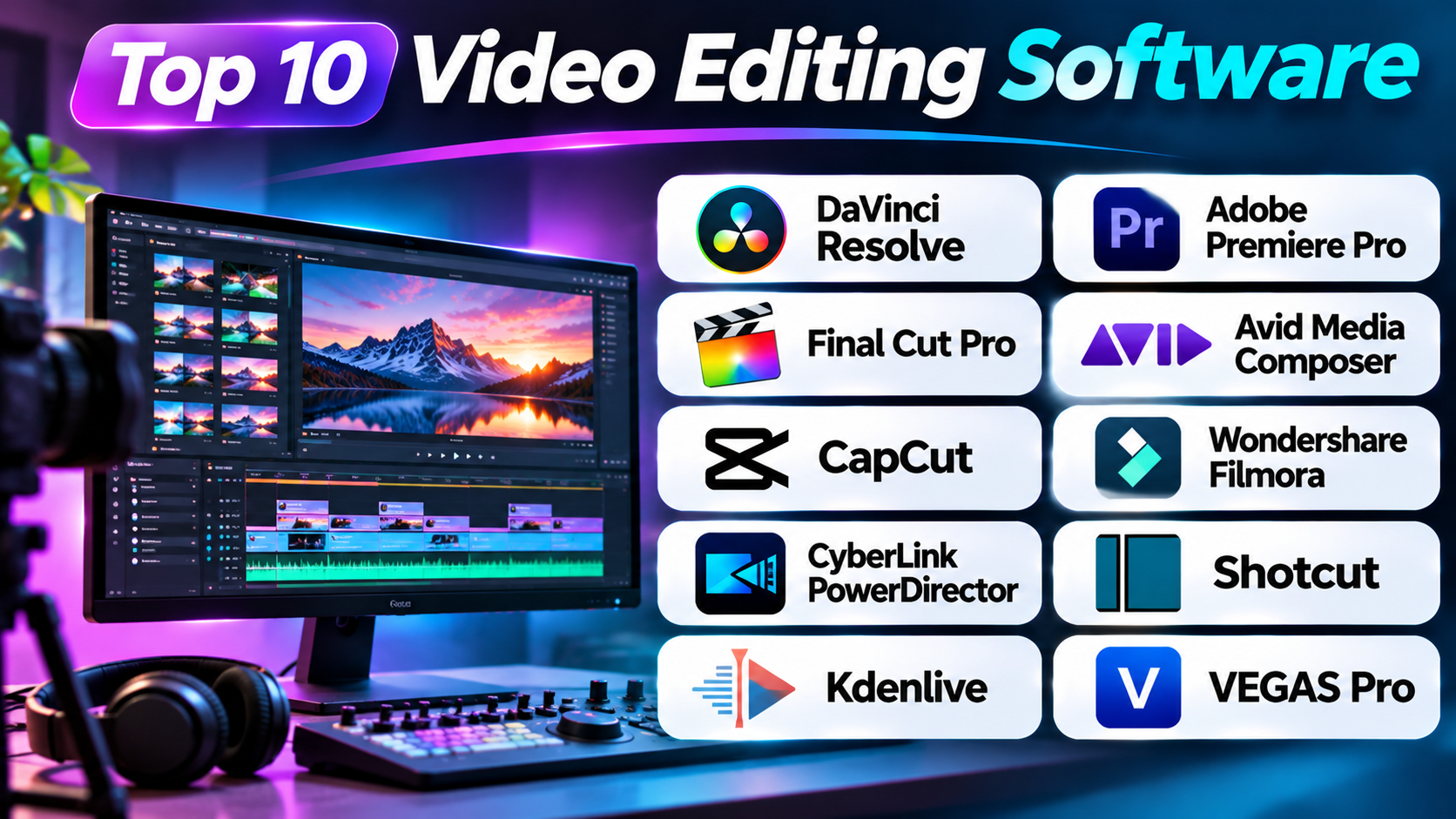
This guide explores 10 video editing tools with different strengths. It explains what each tool does, who may benefit from it, and where it may fall short. You will also find a comparison table and answers to common questions.
What Should You Look for in Video Editing Software?
Before choosing an editor, think about the videos you plan to make. A tool for short social clips may not suit a long film project.
Consider these important points:
- Editing tools: Check how easily you can cut, trim, move, and arrange clips.
- Video quality: Look for support that matches your footage, such as 4K or higher.
- Audio tools: Check whether the software can clean, mix, and balance sound.
- Color control: Good color tools help your clips look clear and consistent.
- Effects and titles: These tools help you add text, transitions, and visual effects.
- Export options: Check the file types, sizes, and quality settings you need.
- Hardware needs: Large video files can require a strong processor, graphics card, and enough memory.
- Cost: Compare free plans, paid licenses, subscriptions, and extra costs.
- Learning time: Some editors suit beginners, while others need more practice.
A good editor should fit your workflow. It should not make simple tasks harder.
Top 10 Video Editing Software Tools Worth Exploring
1. DaVinci Resolve
DaVinci Resolve brings video editing, color correction, visual effects, motion graphics, and audio work into one application. This makes it useful for creators who want to handle many post-production tasks in one place.
Its editing workspace supports both quick cuts and detailed timeline work. You can arrange clips, trim scenes, add titles, and manage complex projects. The Cut page offers a simple layout for fast editing. The Edit page gives you more control over detailed timelines.
Color work is one of its strongest areas. The Color page offers tools for adjusting exposure, contrast, skin tones, and the overall look of a video. You can also match shots so scenes feel more consistent. This can help when footage comes from different cameras or lighting conditions.
The Fusion page handles visual effects and motion graphics. It uses a node-based system. This means you connect tools together to build an effect. The Fairlight page provides tools for audio editing, mixing, and sound work.
DaVinci Resolve offers a free version and a paid Studio edition. The free version gives many creators a strong place to start. Studio adds more advanced tools and features. Users should check the current system needs before starting large projects.
Pros
- Combines editing, color, effects, and audio tools.
- Offers a capable free version.
- Provides detailed color correction controls.
- Supports advanced visual effects through Fusion.
- Includes a dedicated audio workspace.
- Works well for complex post-production projects.
Cons
- The large feature set can feel hard for new users.
- Advanced work may need a powerful computer.
- Fusion has a learning curve.
- Some features require the paid Studio edition.
- Large projects need careful media management.
Best suited for: Video editors, filmmakers, colorists, and creators who want an all-in-one post-production tool.
2. Adobe Premiere Pro
Adobe Premiere Pro is a professional video editor used for many types of content. It supports short videos, interviews, documentaries, adverts, online content, and film projects.
Its timeline gives editors detailed control over video and audio tracks. You can trim clips, move scenes, add transitions, and arrange many layers. You can also work with footage from several cameras. This helps when editing interviews, events, and other multi-camera projects.
Premiere Pro also supports text-based editing. It can create a transcript from spoken content. Editors can then use the text to find and remove unwanted sections. This can save time when working with long interviews or talking-head videos.
The software works with other Adobe creative tools. Editors can move between Premiere Pro, After Effects, and Adobe Audition for different tasks. This setup can help teams that already use Adobe products.
Premiere Pro uses a subscription model. Users should consider the ongoing cost before choosing it. They should also check the hardware needs for their footage and effects.
Pros
- Offers detailed timeline editing.
- Supports multi-camera workflows.
- Provides text-based editing tools.
- Works with other Adobe creative applications.
- Handles many types of video projects.
- Supports flexible export settings.
Cons
- Requires a paid subscription.
- The interface may take time to learn.
- Large projects can demand strong hardware.
- Advanced effects may require other applications.
- Frequent updates may change parts of the workflow.
Best suited for: Professional editors, content teams, agencies, and creators who use Adobe applications.
3. Final Cut Pro
Final Cut Pro is Apple’s professional video editing software for Mac users. It offers a fast editing workflow and a timeline design that differs from many traditional editors.
Its Magnetic Timeline helps clips move together as you edit. When you add, remove, or move a clip, connected clips can adjust around it. This can help prevent unwanted gaps and keep related audio in sync.
The software supports multi-camera editing. Editors can sync footage from several cameras and switch between angles. This makes it useful for events, interviews, music videos, and other projects with several camera views.
Final Cut Pro also offers tools for titles, effects, color changes, and audio adjustments. It works with Apple’s wider creative setup. Users can add Compressor for more export control and Motion for motion graphics.
The software is designed for Apple’s system. This is a key point for anyone who uses Windows or Linux. Mac users should also check their device’s storage and memory before editing large files.
Pros
- Offers a fast editing workflow on supported Macs.
- Uses the Magnetic Timeline to manage clips.
- Supports multi-camera editing.
- Provides built-in effects and title tools.
- Works with other Apple creative applications.
- Offers proxy media tools for easier project handling.
Cons
- Does not offer a Windows or Linux desktop version.
- The Magnetic Timeline may feel unusual at first.
- Some advanced tasks may need extra Apple tools.
- Large projects still need enough memory and storage.
- The workflow may not suit editors who prefer track-based timelines.
Best suited for: Mac-based editors, independent filmmakers, event creators, and video professionals.
4. Avid Media Composer
Avid Media Composer focuses on professional editing workflows. It has a long history in film, television, and broadcast production. It suits projects where many people need to manage large amounts of footage.
Its timeline offers detailed control over clips, tracks, and edits. Editors can use trimming tools to adjust scenes with precision. They can also manage complex sequences and work with large media collections.
Media Composer supports multi-camera editing. It can sync footage from different cameras using audio or timecode. This helps editors handle long shoots with many camera angles.
Team features are another important part of its design. Shared projects and bins can help editors work together. Some plans also offer tools that search dialogue and help editors find spoken words in footage.
However, Media Composer may feel complex to new users. Its workflow can also require planning, especially in a shared production setup. Teams should check the storage, system, and licensing needs before they adopt it.
Pros
- Supports professional film and TV editing workflows.
- Offers detailed timeline and trimming controls.
- Handles multi-camera projects.
- Includes tools for shared editing workflows.
- Helps teams search dialogue in large projects.
- Supports complex production needs.
Cons
- Has a steep learning curve.
- May feel complex for simple social videos.
- Some team features depend on the plan and setup.
- Professional workflows may need extra storage planning.
- Licensing costs can be high for some users.
Best suited for: Film editors, television teams, broadcast studios, and large post-production groups.
5. CapCut
CapCut focuses on quick video creation for social media and online content. It offers desktop, mobile, and web-based editing options. This gives creators different ways to work with their footage.
Its editing tools support common tasks such as cutting clips, adding text, placing music, and using transitions. Creators can also work with templates and visual effects. These tools can help users make short videos without building every element from scratch.
CapCut also includes features for captions and speech-based editing. These can help creators prepare videos for viewers who watch without sound. Its tools for vertical video also suit platforms that use phone-shaped content.
The software can work well for quick edits. However, creators should check the available features in their region and plan. Some tools and assets may require a paid plan. Users should also review the terms for music, templates, and other included media before publishing commercial work.
Pros
- Offers desktop, mobile, and web editing options.
- Makes short-form video editing accessible.
- Includes templates, text, and effects.
- Supports captions and social video workflows.
- Helps creators prepare vertical videos.
- Offers a quick way to make simple edits.
Cons
- Some features and assets require payment.
- Advanced timeline work may feel limited.
- Templates can make videos look similar.
- Online features may depend on an internet connection.
- Users should check media rights before commercial use.
Best suited for: Social media creators, beginners, mobile editors, and people who make short videos.
6. Wondershare Filmora
Wondershare Filmora aims to make video editing easier for everyday creators. It combines a clear timeline with ready-made effects, titles, transitions, and other creative tools.
Users can place clips on the timeline and arrange them in order. They can trim scenes, add music, insert text, and adjust the look of footage. The interface gives users access to common editing tasks without requiring a complex setup.
Filmora also offers AI-assisted features. Depending on the current plan and version, these may help with tasks such as captions, audio cleanup, background removal, and other editing work. These tools can reduce manual steps, but users should still review the results.
The software suits creators who want a balance between ease of use and creative control. It may not offer the same depth as advanced film and broadcast editors. Still, it can handle many videos for online channels, small businesses, lessons, and personal projects.
Filmora uses paid plans, and some features or resources may have separate limits. Check the license terms and export options before choosing a plan.
Pros
- Offers a beginner-friendly editing layout.
- Includes many titles, transitions, and effects.
- Supports common video editing tasks.
- Provides AI-assisted tools.
- Works well for online and business videos.
- Helps users create videos without a complex workflow.
Cons
- Advanced editors may find some tools limited.
- Some effects and resources may need extra payment.
- The ready-made style can look familiar across projects.
- AI results may need manual changes.
- Large projects may need a capable computer.
Best suited for: Beginners, small businesses, teachers, and online video creators.
7. CyberLink PowerDirector
CyberLink PowerDirector combines a traditional timeline with tools for fast video creation. It supports projects such as family videos, social clips, tutorials, presentations, and promotional content.
The timeline gives users control over clips, audio, titles, and effects. It also supports multi-camera editing, keyframes, and green-screen work. These tools help users build more detailed videos without moving to a complex professional editor.
PowerDirector also places strong focus on AI-assisted editing. Its feature set can include speech tools, automatic edits, object removal, background removal, and other enhancements. The exact tools depend on the product edition and plan.
Its range of features makes it useful for creators who want many editing options in one application. However, the number of tools may take time to explore. Users should also check which features need an internet connection or paid access.
Pros
- Combines timeline editing with quick-edit tools.
- Supports multi-camera projects.
- Includes green-screen and keyframe tools.
- Offers AI-assisted editing features.
- Provides tools for titles and visual effects.
- Suits many personal and business video projects.
Cons
- The large feature set may feel busy.
- Some AI tools depend on the plan.
- Advanced professional workflows may need another editor.
- Some creative assets may require extra payment.
- Users may need time to learn the full interface.
Best suited for: YouTubers, home video creators, small businesses, and users who want many tools in one editor.
8. Shotcut
Shotcut is a free, open-source video editor for Windows, Mac, and Linux. It gives users a way to edit videos without paying for a standard software license.
The editor supports many video and audio formats. It uses FFmpeg for media support and can work with clips on a multi-track timeline. Users can cut footage, arrange scenes, add filters, and adjust audio.
Shotcut includes color tools, transitions, keyframes, and video effects. It also supports different resolutions and frame rates within a project. This can help when a project contains footage from different cameras or sources.
The interface uses panels that users can arrange to suit their workflow. This flexibility is useful, but the layout may feel less simple than a beginner-focused editor. New users may need time to understand the filters and timeline controls.
Shotcut is a strong option for people who want a free desktop editor. It may not offer the same built-in team workflow or advanced finishing tools as high-end paid software.
Pros
- Free and open-source.
- Works on Windows, Mac, and Linux.
- Supports many audio and video formats.
- Offers multi-track timeline editing.
- Includes filters, transitions, and color tools.
- Supports high-resolution video workflows.
Cons
- The interface may feel less polished to beginners.
- Some advanced tasks need extra effort.
- Built-in collaboration tools are limited.
- Users may need time to learn the filter system.
- It may not suit large studio workflows.
Best suited for: Budget-conscious creators, hobby editors, students, and users who prefer open-source software.
9. Kdenlive
Kdenlive is another open-source video editor. It gives users a multi-track timeline and a range of tools for editing video and audio. It works across major desktop platforms.
Users can arrange clips, add titles, apply effects, and control audio tracks. Its timeline supports several layers, which helps when a video needs background footage, voiceovers, music, and text.
Kdenlive also offers keyframe controls. These let users change effect settings over time. For example, an editor can adjust the size, position, or opacity of a clip as the video plays.
The software suits people who want more control than a basic editor provides. Its open-source nature also makes it attractive to users who want to avoid subscription costs.
However, the editing experience can depend on the computer and media files. Some users may need proxy files to work smoothly with large footage. New editors should also spend time learning its interface and effect controls.
Pros
- Free and open-source.
- Supports multi-track video and audio editing.
- Offers keyframe controls.
- Includes titles and visual effects.
- Works across major desktop platforms.
- Does not require a paid subscription.
Cons
- The interface may take time to learn.
- Performance can depend on media and hardware.
- Some advanced workflows may need extra tools.
- Large projects may benefit from proxy editing.
- It may not match the shared production features of studio editors.
Best suited for: Open-source users, students, hobby filmmakers, and independent creators.
10. VEGAS Pro
VEGAS Pro offers timeline-based video editing for creators who want detailed control over their projects. It supports editing, audio work, effects, and color adjustments within a desktop workflow.
Its timeline lets editors arrange clips across tracks. Users can trim scenes, add transitions, place titles, and adjust sound. This approach can suit people who prefer a traditional editing layout.
VEGAS Pro also offers tools for color correction, visual effects, and audio editing. These features help creators handle many parts of a project without switching between several applications. Its workflow can suit music videos, online content, promotional clips, and independent productions.
The software provides a range of tools, but new users may need time to learn its controls. Users should also check current hardware support, file formats, and plan details before starting a major project.
VEGAS Pro can be a good fit for editors who want a flexible desktop timeline. It may not be the first choice for teams that depend on large shared editing systems.
Pros
- Offers a detailed timeline editing workflow.
- Includes video and audio editing tools.
- Provides color correction and effects.
- Supports titles and transitions.
- Suits many independent video projects.
- Gives editors control over clip arrangement.
Cons
- The interface may take time to learn.
- Advanced projects can need strong hardware.
- Some workflows may require third-party tools.
- Team collaboration may not match large studio systems.
- Users should check the current license and feature terms.
Best suited for: Independent editors, content creators, and users who prefer traditional timeline editing.
Video Editing Software Comparison Table
| Software | Main Strength | Best Use | Cost Approach |
|---|---|---|---|
| DaVinci Resolve | Editing, color, effects, and audio in one app | Professional post-production | Free version and paid Studio edition |
| Adobe Premiere Pro | Flexible editing and Adobe workflow | Agencies and professional creators | Subscription |
| Final Cut Pro | Magnetic Timeline and Mac performance | Mac-based editing | Paid license or available subscription option |
| Avid Media Composer | Team editing and production workflows | Film, TV, and broadcast | Paid plans and other license options |
| CapCut | Quick edits and social video tools | Short-form social content | Free and paid features |
| Wondershare Filmora | Easy editing with creative effects | Beginner and business videos | Paid plans |
| CyberLink PowerDirector | Timeline tools and AI-assisted features | YouTube and personal projects | Free options and paid plans |
| Shotcut | Open-source editing and format support | Free desktop editing | Free and open-source |
| Kdenlive | Multi-track editing and keyframes | Independent and open-source projects | Free and open-source |
| VEGAS Pro | Flexible timeline editing | Independent video production | Paid plans and license options |
How to Choose the Right Video Editing Software
The right editor depends on the work you need to finish. A beginner who makes short videos has different needs from a film editor.
For Beginners
Start with CapCut or Filmora if you want a simple way to edit clips. Both offer tools that help you add text, music, effects, and transitions.
Shotcut and Kdenlive are also worth exploring if you prefer free desktop software. They offer more control than many basic editing apps, but their interfaces may take time to learn.
For Professional Video Production
DaVinci Resolve, Adobe Premiere Pro, and Avid Media Composer suit more demanding workflows. Each has a different focus.
Choose DaVinci Resolve if you want editing, color, effects, and audio tools in one application. Consider Premiere Pro if your work depends on Adobe applications. Look at Avid Media Composer if your team needs structured film or broadcast editing workflows.
For Mac Users
Final Cut Pro is a strong option for Mac-based editing. Its Magnetic Timeline offers a different way to manage clips. DaVinci Resolve and Premiere Pro are also available on Mac.
For Social Media Videos
CapCut can help with short vertical videos and quick edits. PowerDirector and Filmora also offer tools for titles, effects, and social content.
For Free Video Editing
Shotcut and Kdenlive offer open-source desktop editing. DaVinci Resolve also has a free version with many advanced tools.
Before you choose, test the editor with your own footage. A tool may look simple in a demo but feel different with large files.
Common Mistakes to Avoid When Choosing an Editor
A software purchase can become costly if you ignore your real needs. Watch out for these mistakes:
- Choosing only by popularity: A famous editor may not fit your workflow.
- Ignoring hardware needs: Large files and effects can slow down weak systems.
- Overlooking export settings: Check whether the editor supports your delivery format.
- Paying for unused features: Do not buy advanced tools if you only make simple clips.
- Ignoring audio quality: Clear sound matters as much as good video.
- Forgetting project backups: Keep copies of project files and original media.
- Skipping a real test: Edit a short sample before moving a large project.
- Not checking license terms: Review subscription rules and commercial-use rights.
Questions and Answers About Video Editing Software
1. What is video editing software?
Video editing software helps users arrange and improve video clips. It lets them cut scenes, add music, place text, adjust colors, and export finished videos.
2. Which video editing software is best for beginners?
CapCut and Filmora offer accessible editing workflows. Shotcut and Kdenlive are good choices for users who want free desktop tools. The best option depends on your device and the type of video you make.
3. Is free video editing software good enough?
Yes. Free tools can handle many common editing tasks. Shotcut and Kdenlive offer open-source editing. DaVinci Resolve also has a free version with advanced features.
4. Which video editor do professionals use?
Professional editors use tools such as DaVinci Resolve, Adobe Premiere Pro, Final Cut Pro, and Avid Media Composer. The choice depends on the project, team, and production workflow.
5. Can I edit 4K videos with free software?
Yes. Some free editors support 4K footage. However, smooth editing also depends on your computer, storage speed, graphics hardware, and video format.
6. What computer do I need for video editing?
The right computer depends on your footage and software. Large projects often need a strong processor, enough memory, a capable graphics card, and fast storage. Check the software’s system requirements before buying a computer.
7. What is the difference between video editing and color grading?
Video editing focuses on arranging clips and building the story. Color grading changes the look and feel of the footage. It can improve consistency, mood, and visual style.
8. Can one software handle editing, audio, and visual effects?
Yes. DaVinci Resolve combines editing, color, visual effects, motion graphics, and audio tools. Other editors may also include several of these features, but their depth can differ.
9. Should I choose subscription software or a one-time license?
A subscription may include ongoing updates and access to services. A one-time license can reduce recurring costs. Compare the full cost, update policy, and features before you decide.
10. How can I choose the right video editor?
List the tasks you perform most often. Check platform support, editing tools, export options, hardware needs, and cost. Then test your top choices with real footage.
Final Thoughts
Video editing software should match the way you work. A simple editor can be enough for short social clips. A film or broadcast project may need deeper editing and team tools.
DaVinci Resolve offers a broad post-production workspace. Premiere Pro fits well with Adobe-based teams. Final Cut Pro serves Mac users who like its timeline approach. Avid Media Composer focuses on structured professional production.
CapCut, Filmora, and PowerDirector suit many everyday creators. Shotcut and Kdenlive offer free open-source options. VEGAS Pro gives independent editors another timeline-based choice.
Do not choose a tool just because it has the longest feature list. Test it with your own footage, check the export quality, and make sure it fits your budget. The right editor is the one that helps you finish better videos with less friction.