Introduction
A good live stream needs more than a camera and a microphone. You also need software that can bring video, sound, graphics, and guests together. The right studio software helps you control the show while viewers watch.
Some tools focus on gaming and screen sharing. Others help businesses host webinars, interviews, and live events. Some run on your computer, while others work in a web browser.
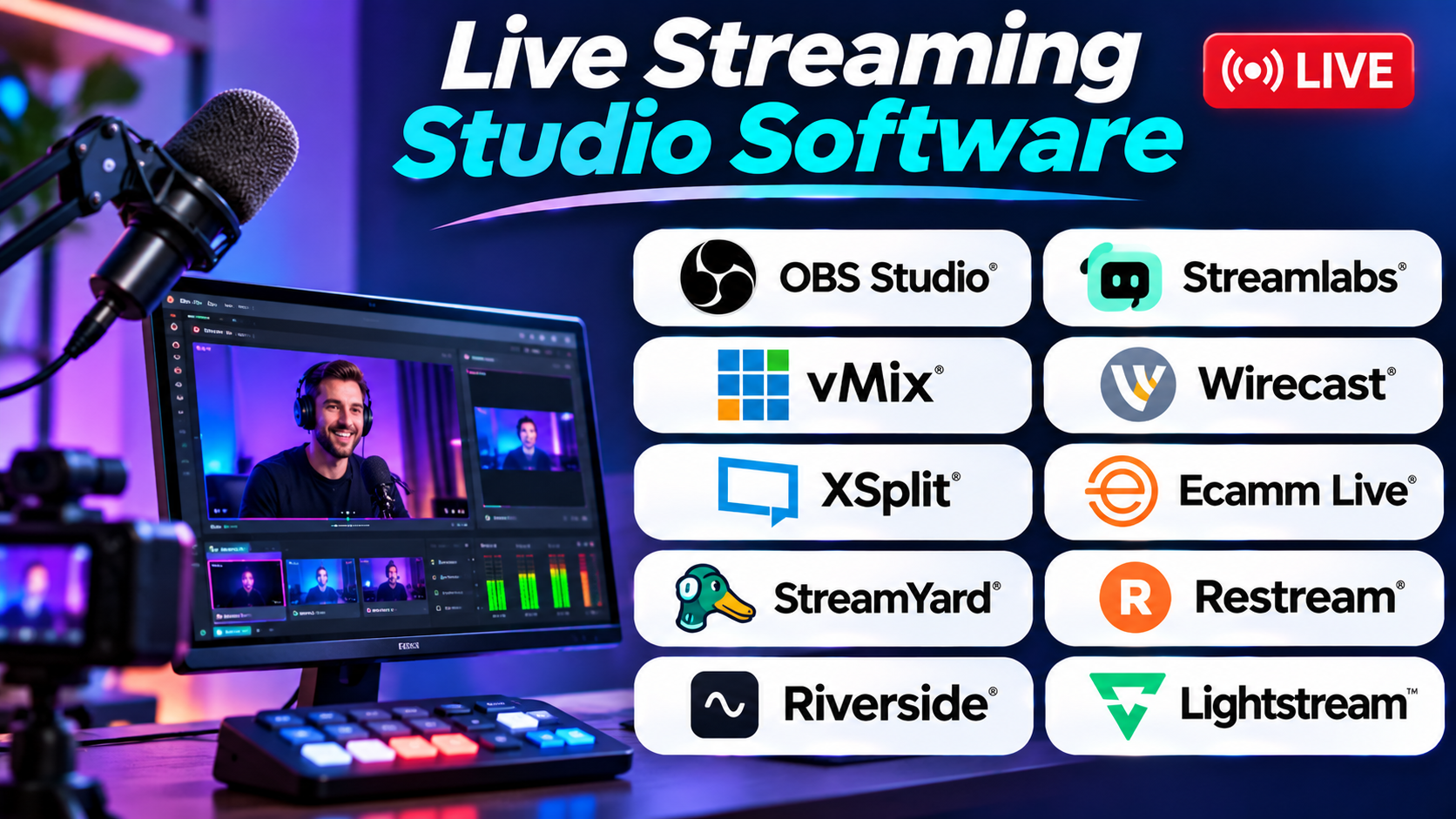
This guide compares 10 live streaming studio tools. It explains their main uses, key features, Pros, and Cons. It also helps you choose software that fits your setup and streaming goals.
What Is Live Streaming Studio Software?
Live streaming studio software helps you create and control a live video show. It brings different media sources into one broadcast.
These sources can include:
- Webcam and camera feeds.
- Microphones and other audio devices.
- Screen shares and computer displays.
- Images, videos, and presentation slides.
- Titles, logos, and lower-third graphics.
- Remote guests and live comments.
The software combines these sources into one finished stream. It then sends the video to a streaming service or platform.
Two main types of studio software serve different needs.
Desktop streaming software runs on your computer. It often gives you more control over scenes, cameras, audio, and video effects. OBS Studio, vMix, and Wirecast fit this group.
Browser-based studio software runs online. It often makes guest interviews and multi-platform streaming easier. StreamYard and Restream Studio are examples.
Some products combine both approaches. So, check how each tool handles video production and stream delivery. These are separate tasks, even when one product offers both.
Top 10 Live Streaming Studio Tools
1. OBS Studio
Best for: Free streaming with detailed production control
OBS Studio is a free, open-source application for live streaming and video recording. It works on Windows, macOS, and Linux. It gives creators control over how their broadcasts look and sound.
OBS uses scenes and sources to build a stream. A scene can show a webcam, game, screen share, logo, and other media. You can create separate scenes for an introduction, main show, break, and closing screen. Then you can switch between them during a live broadcast.
The software also includes an audio mixer and filters. These tools help you adjust microphone levels, reduce unwanted noise, and manage sound from different sources. You can add text, images, browser content, and video files to your scenes. Its Studio Mode lets you prepare a scene before showing it to viewers.
OBS also supports plugins and scripts. These can add features or connect the software to other tools. However, you may need to install and configure them yourself. This gives experienced users more freedom, but beginners may need time to learn the setup.
OBS works well for gaming, tutorials, online classes, church services, and creator broadcasts. It does not provide every cloud service inside the app. For example, users who want simple guest interviews or built-in multistreaming may need extra tools.
Pros
- Free and open-source software.
- Supports Windows, macOS, and Linux.
- Offers flexible scenes and sources.
- Includes audio controls and video filters.
- Supports plugins and custom scripts.
- Useful for both streaming and recording.
Cons
- Beginners may find the setup difficult.
- Some features need third-party plugins.
- Users must manage their own computer resources.
- Built-in guest and cloud production tools are limited.
OBS documents its scene, source, Studio Mode, and filter workflows in its official guides. OBS+2
2. Streamlabs Desktop
Best for: Gaming streamers and creators who want built-in extras
Streamlabs Desktop focuses on creator-friendly live streaming. It brings broadcast controls, overlays, alerts, and audience tools into one application. This makes it useful for people who want a branded stream without building every part themselves.
The software helps you arrange scenes with cameras, gameplay, images, and other sources. You can add alerts for events such as new followers or viewer support. These alerts can make a live show feel more interactive. You can also use overlays and widgets to display useful information on screen.
Streamlabs appeals to gaming creators because it brings common streaming tasks together. Instead of setting up every element separately, users can start with available themes and tools. It also offers features that support chat and audience engagement.
The free desktop app provides a starting point. Some additional features and services require a paid subscription. You should check the current plan details before relying on a premium feature. Also consider how many tools you really need. A simple stream may not require every extra widget or design option.
Streamlabs Desktop can suit creators who value convenience and ready-made presentation tools. However, users who want deep control over every production detail may prefer OBS Studio or professional broadcast software.
Pros
- Offers a creator-focused streaming workflow.
- Includes overlays, alerts, and widgets.
- Helps gaming streamers build branded scenes.
- Provides tools for audience interaction.
- Offers a free core application.
Cons
- Some features require a paid plan.
- Extra widgets can make the interface feel busy.
- Users may need a capable computer for complex scenes.
- Advanced production users may want more detailed controls.
3. vMix
Best for: Professional broadcasts and multi-camera productions
vMix is live production software for Windows computers. It combines video switching, recording, audio mixing, and streaming in one production system. It suits teams that need more control than a basic creator setup can offer.
The software can bring together cameras, capture cards, video files, images, audio devices, and network video sources. It also supports NDI, which lets compatible devices send video and audio across a local network. This can help a production team connect cameras and computers without running a separate cable for every source.
vMix offers tools for live interviews and remote guests. Its vMix Call feature lets producers bring remote participants into a show. It also provides instant replay features for productions such as sports and live events. These tools can help teams create a broadcast with several camera angles and planned segments.
The software includes overlays, titles, playlists, and audio controls. Producers can prepare content before the show and switch between inputs during the broadcast. It also supports different output formats and recording workflows. Some advanced features depend on the edition you choose.
vMix is powerful, but it needs planning. Users should check the supported hardware and system requirements before building a production computer. Its Windows focus also rules it out for teams that need a native Mac application.
Pros
- Designed for professional live production.
- Supports multiple camera and media inputs.
- Includes NDI support.
- Offers remote guest and video call tools.
- Provides instant replay and audio mixing.
- Supports recording and multiple outputs.
Cons
- Runs on Windows rather than macOS or Linux.
- Advanced workflows take time to learn.
- Professional setups may need powerful hardware.
- Higher editions can add significant cost.
vMix lists camera inputs, NDI, remote calls, replay, overlays, and audio mixing among its production features. vMix+2
4. Wirecast
Best for: Business broadcasts, events, and multi-camera shows
Wirecast is a live video production application from Telestream. It helps users create broadcasts with several video and audio sources. It is aimed at creators and production teams that need a more structured studio workflow.
A Wirecast production can combine cameras, video clips, images, titles, and other media. Producers can arrange these elements into shots and switch between them during a show. This approach helps teams prepare a broadcast before going live.
Wirecast can support business events, interviews, presentations, worship services, and online programs. Its production tools help users add branded graphics and manage different parts of a show. This can make a broadcast look more organized than a simple webcam stream.
The software is more production-focused than many browser studios. That can be useful when you need direct control over video sources and layouts. However, a larger production setup takes time to prepare. You also need to check the computer, capture hardware, and camera connections before an event.
Wirecast may suit teams that produce regular live events. A solo creator who only needs a webcam and screen share may find it more complex than necessary. Compare its editions and hardware requirements with your actual production plan.
Pros
- Supports multi-source live production.
- Helps create structured scenes and shots.
- Offers tools for titles and branded graphics.
- Suitable for business and event broadcasts.
- Provides a more advanced production workflow.
Cons
- Paid software may not suit every budget.
- New users may need training.
- Multi-camera setups require careful hardware planning.
- Simple broadcasts may not need its full feature set.
5. XSplit Broadcaster
Best for: Windows creators who want a guided streaming workflow
XSplit Broadcaster helps users create live streams and recordings from a Windows computer. It provides tools for arranging scenes, adding media sources, and managing a broadcast. Its focus on an integrated desktop workflow can appeal to creators who want more structure than a basic setup.
You can add cameras, screen captures, images, and other sources to a scene. You can also prepare different layouts for different parts of a show. For example, a gaming stream may use one layout for gameplay and another for a full-screen camera view.
XSplit offers tools for video production and presentation. Its features can help creators add overlays and manage a broadcast without building every part from scratch. It also supports recording, which lets users save content for later editing or sharing.
The software can suit streamers who want a dedicated Windows application. However, it is not the best fit for every operating system. Users should check the current system requirements and license options before choosing it.
XSplit may be useful for gaming, tutorials, and regular creator shows. If you need advanced broadcast switching or a large multi-camera setup, compare it with vMix and Wirecast. If you want a free and highly flexible option, OBS Studio is also worth considering.
Pros
- Offers a dedicated Windows streaming application.
- Supports scenes and multiple media sources.
- Provides recording tools.
- Helps creators arrange overlays and layouts.
- Can suit gaming and screen-sharing broadcasts.
Cons
- Windows-focused availability limits some users.
- Some features may require a paid license.
- Advanced event workflows may need more specialized tools.
- Users should check current plan terms before buying.
6. Ecamm Live
Best for: Mac creators, interviews, and polished business streams
Ecamm Live is a live streaming studio built for macOS. It gives Mac users tools to produce broadcasts without relying on a Windows-based production system. Its workflow suits creators, educators, coaches, and businesses that use Apple computers.
The software supports cameras, screen sharing, video clips, images, and audio sources. You can build scenes with text, graphics, and picture-in-picture layouts. This helps you move between a presenter view, a slide presentation, and a guest interview.
Ecamm also supports remote guests and integrations with several streaming destinations. Its overlays can include comments, countdowns, animations, and other visual elements. You can also use a Stream Deck to control parts of your production.
For users who need more advanced output, Ecamm offers higher-tier features. These may include additional recording options, isolated tracks, and higher-resolution workflows. Check the current feature comparison before choosing a plan.
Ecamm is a strong option for people who work on Macs. But it is not a cross-platform choice for teams that use Windows or Linux. You should also check whether your Mac can handle your cameras, overlays, and recording needs at the same time.
Pros
- Built specifically for macOS.
- Supports cameras, screen sharing, and video clips.
- Offers guest interviews and scene switching.
- Includes overlays and viewer comment features.
- Supports Stream Deck control.
- Provides advanced recording features on eligible plans.
Cons
- Does not offer a native Windows or Linux version.
- Requires a paid subscription after the trial.
- Some advanced features need the Pro plan.
- Complex productions still require a capable Mac.
Ecamm’s feature list includes camera switching, overlays, screen sharing, remote guests, recording, and streaming integrations. Ecamm Network+2
7. StreamYard
Best for: Interviews, webinars, and browser-based shows
StreamYard is a browser-based live streaming studio. It helps people host shows without installing a full desktop production application. This makes it useful for interviews, online events, business updates, and panel discussions.
The studio focuses on a clear presenter workflow. Hosts can invite guests, manage the screen layout, and show comments during a broadcast. They can also add branding elements such as logos, banners, and background designs.
A browser studio can make guest participation easier. Guests can often join through a link rather than setting up complex streaming software. This helps when you interview people who have different computers or technical skills.
StreamYard also supports multistreaming on eligible plans. This lets users send a broadcast to more than one destination. The exact number of destinations and available features depend on the plan.
The browser-based approach has trade-offs. Your production depends on a stable internet connection and supported browser. Users who need advanced camera routing, complex audio processing, or detailed local production controls may prefer desktop software.
Pros
- Works through a web browser.
- Makes remote guest interviews easier.
- Offers branding tools and on-screen comments.
- Supports multistreaming on eligible plans.
- Useful for webinars and business broadcasts.
Cons
- Needs a stable internet connection.
- Some features depend on paid plans.
- Offers less detailed production control than advanced desktop tools.
- Browser and plan limits may affect larger productions.
8. Restream Studio
Best for: Creators and businesses that stream to several platforms
Restream Studio combines a browser-based production space with tools for distributing live streams. It can help creators reach audiences on more than one platform from a single broadcast setup.
The studio lets users arrange their live presentation. You can bring in a camera, microphone, screen share, and remote guests. You can also add branding elements and show audience comments. This can help keep a live show organized while you interact with viewers.
Restream’s main strength is its multistreaming workflow. Instead of sending separate streams from your computer to every destination, the service can handle distribution through its cloud system. This can reduce the work involved in reaching several platforms. Destination limits and other features depend on the plan.
Restream can also work alongside desktop encoders. This is useful if you prefer to build your production in OBS Studio or another application and use Restream for distribution. It gives users more than one way to set up a broadcast.
However, cloud-based distribution does not remove every network concern. Your upload connection still matters when sending the original stream. You should also check which platforms, destinations, and features your plan supports.
Pros
- Supports multistreaming to several destinations.
- Offers a browser-based studio.
- Supports guests, screen sharing, and branding.
- Can work with external streaming encoders.
- Helps manage distribution from one workflow.
Cons
- Destination limits vary by plan.
- Requires a reliable internet connection.
- Some production controls may be less advanced than desktop tools.
- Users should check platform support before planning a broadcast.
9. Riverside
Best for: Live interviews and high-quality recording
Riverside combines remote recording with live streaming features. It is useful for podcasters, interviewers, and creators who want to broadcast a conversation and keep recordings for later use.
The platform focuses on remote guest sessions. Hosts can invite participants to join online and record their audio and video. Riverside’s local recording approach helps capture each participant’s media on their own device before uploading it. This can help protect recording quality when internet conditions change during a conversation.
Riverside also offers production features for live sessions. Users can manage participants and present a show to supported destinations. After the session, they can use the recordings for editing and content reuse.
This combination can save time for creators who publish interviews in several formats. One conversation may become a live broadcast, an edited podcast, or shorter video clips. However, Riverside is not a full replacement for every professional broadcast switcher.
Check the recording limits, export options, and live destination support for your plan. If your main need involves sports replay, complex camera routing, or large event production, vMix or Wirecast may fit better.
Pros
- Combines live sessions with remote recording.
- Useful for interviews and podcasts.
- Supports separate participant recordings.
- Helps creators reuse recorded content.
- Offers tools for managing remote guests.
Cons
- Some features depend on paid plans.
- Needs a stable connection for live broadcasts.
- Not designed to replace every advanced broadcast switcher.
- Recording and export limits need review.
10. Lightstream Studio
Best for: Cloud-based streaming with a simple setup
Lightstream Studio is a cloud-based live streaming tool. It lets users build a broadcast layout through a web-based workflow. This can help creators who do not want to manage a full desktop production application.
The service focuses on scenes, overlays, and stream layouts. Users can prepare visual elements and control how their broadcast appears. Since much of the studio work happens online, it can reduce the need for a powerful local production setup.
Lightstream can appeal to console streamers and creators who want a simpler way to add branded elements. It can also help users who prefer browser-based production rather than installing and configuring desktop software.
Cloud production has limits. Your experience depends on internet quality, service availability, and the features included in your plan. Users should check supported streaming destinations and current device requirements before building a workflow around it.
Lightstream is not intended to replace every advanced production system. If you need many camera inputs, detailed audio routing, or instant replay, consider a desktop tool such as vMix or Wirecast.
Pros
- Uses a cloud-based studio workflow.
- Helps users build scenes and overlays.
- Can reduce local setup demands.
- Useful for simple branded streams.
- Can suit creators who prefer browser-based tools.
Cons
- Depends on a reliable internet connection.
- Cloud features and limits depend on the plan.
- Offers less detailed control than advanced desktop systems.
- Complex multi-camera productions may need another tool.
Live Streaming Studio Software Comparison Table
| Software | Main use | Setup type | Main strength | Main drawback |
|---|---|---|---|---|
| OBS Studio | Flexible streaming and recording | Desktop | Free, open-source, and customizable | Needs manual setup |
| Streamlabs Desktop | Gaming and creator streams | Desktop | Alerts, overlays, and widgets | Some extras cost more |
| vMix | Professional live production | Desktop | Multi-camera tools and instant replay | Windows-only |
| Wirecast | Business and event broadcasts | Desktop | Structured live production | Paid and more complex |
| XSplit Broadcaster | Windows creator streams | Desktop | Scenes and recording tools | Windows-focused |
| Ecamm Live | Mac broadcasts and interviews | Desktop | Mac-native production tools | Mac-only |
| StreamYard | Interviews and webinars | Browser | Easy remote guest workflow | Less detailed production control |
| Restream Studio | Multiplatform broadcasting | Browser and cloud | Multistreaming | Plan-based destination limits |
| Riverside | Interviews and recorded shows | Browser | Remote recording and live sessions | Not a full broadcast switcher |
| Lightstream Studio | Simple cloud streaming | Browser and cloud | Cloud-based scene setup | Fewer advanced production controls |
These tools do not all serve the same role. OBS Studio, vMix, and Wirecast focus on production control. StreamYard and Restream Studio focus more on browser workflows and distribution. Riverside gives extra attention to remote recording. This difference matters when you compare them. OBS+4
How to Choose the Right Live Streaming Studio Software
The right tool depends on your content, equipment, and skill level. Use these points to narrow your choices.
1. Decide What You Want to Stream
Start with the type of show you plan to create.
- Gaming streams may need alerts, overlays, and chat tools.
- Interviews need guest invitations and clear audio controls.
- Webinars need screen sharing, slides, and audience interaction.
- Sports broadcasts may need several cameras and instant replay.
- Business events may need branded graphics and planned scenes.
- Online classes may need screen capture and presentation tools.
Choose software that supports your main format. Do not pay for advanced features you will rarely use.
2. Check Your Computer and Operating System
Desktop streaming software uses your computer to process video and audio. A complex scene can place a heavy load on your processor and graphics card.
Check the software’s system requirements before you install it. Also consider your cameras, capture cards, microphone, and other devices.
Your operating system matters too. Ecamm Live focuses on Mac users. vMix and XSplit Broadcaster focus on Windows workflows. OBS Studio supports Windows, macOS, and Linux.
3. Understand Desktop and Browser Studios
Desktop tools give you direct control over your local production. They can suit detailed camera setups and custom scenes.
Browser studios can make guest interviews and simple shows easier. They also reduce the need to install production software on every guest’s computer.
But browser tools rely on your internet connection. A weak connection can affect the experience.
Choose the approach that matches your production needs. You can also combine a desktop encoder with a cloud distribution service.
4. Review Camera and Audio Support
Your video quality depends on more than the software. Check whether the tool supports your cameras, capture cards, microphones, and audio interfaces.
Look for features such as:
- Multiple camera inputs.
- Separate microphone controls.
- Noise reduction and audio filters.
- Screen and window capture.
- Video clips and image sources.
- Picture-in-picture layouts.
- Remote guest support.
Test your devices before an important broadcast. This can help you find connection or sound problems early.
5. Check Multistreaming Support
Multistreaming sends one live show to several platforms. It can help you reach viewers in different places.
Some tools handle this through their own service. Others need plugins or external services.
Check how many destinations your plan supports. Also confirm that your chosen platforms allow the stream format and account connection you need.
6. Compare Graphics and Branding Tools
A clear visual style helps viewers recognize your show. Look for tools that support logos, titles, banners, and overlays.
Some software includes ready-made themes. Other tools give you more control but need extra setup.
Prepare your graphics before the show. Use readable text and avoid placing too much information on screen.
7. Review Recording Options
A live broadcast can also become content for later use. Recording helps you save the show for editing, clips, or future viewing.
Check whether the software records the final stream or separate camera and audio tracks. Separate recordings can offer more editing control.
Also review the available file formats and storage needs. High-quality video files can take up a lot of space.
8. Compare the Full Cost
Free software can be enough for many creators. Paid tools may save time or provide features that your workflow needs.
Check more than the starting price. Review subscription terms, feature limits, recording limits, guest limits, and extra services.
Also consider hardware costs. A professional production may need cameras, capture cards, lighting, microphones, and a suitable computer.
Common Live Streaming Mistakes to Avoid
Even good software cannot fix every production problem. Avoid these common mistakes before you go live.
Choosing Software With Too Many Features
A long feature list does not always mean a better fit. Extra controls can make simple broadcasts harder to manage.
Start with the features your show needs. Add more tools when your production grows.
Ignoring Audio Quality
Viewers may accept a simple camera setup. Poor sound can make them leave quickly.
Use a suitable microphone. Check sound levels and reduce background noise before the show.
Skipping a Test Broadcast
Do not wait until the live event to test your setup. Check your camera, microphone, internet connection, and stream destination.
Run a private or unlisted test when possible. Review the recording and fix problems before the real show.
Building Too Many Scenes
Too many scenes can slow down your workflow. They can also make it harder to find the right layout during a live show.
Create only the scenes you need. Give each scene a clear name.
Forgetting About Internet Speed
Live streaming needs a steady upload connection. A fast download speed does not guarantee a stable stream.
Test your upload speed and connection stability. Use a wired connection when possible.
Not Planning for Technical Problems
Cameras can disconnect. Software can freeze. Guests can lose their connection.
Prepare a backup scene and a simple recovery plan. Keep important media files ready so you can continue the show.
Questions and Answers About Live Streaming Studio Software
1. What is live streaming studio software?
Live streaming studio software helps you create and manage live video broadcasts. It combines cameras, microphones, screen shares, graphics, and other media. It then sends the finished show to a streaming platform.
2. Which live streaming studio software is free?
OBS Studio is free and open-source. Streamlabs Desktop also offers a free core application. Some other tools provide free plans or trials with limits.
3. Which software is best for beginners?
StreamYard can suit beginners who want to host interviews in a browser. OBS Studio can also work for beginners who want free software and are willing to learn its setup. Your choice depends on how much control you need.
4. Can I stream to more than one platform at once?
Yes. This is called multistreaming. Restream Studio offers tools for sending broadcasts to several destinations. Other tools may support multistreaming directly or through integrations.
5. Do I need a powerful computer for live streaming?
Not always. A simple webcam stream needs fewer resources than a multi-camera production. High-resolution video, complex scenes, and many sources can use more computer power.
6. Can I use live streaming software on a Mac?
Yes. OBS Studio supports macOS, and Ecamm Live is built for Mac users. Other browser-based tools can also work on supported Mac browsers.
7. What is the difference between OBS Studio and Streamlabs Desktop?
OBS Studio focuses on flexible scenes, sources, filters, and plugins. Streamlabs Desktop adds creator-focused tools such as overlays, alerts, and widgets. OBS may suit users who want more manual control. Streamlabs may suit users who prefer built-in extras.
8. Can live streaming studio software record videos?
Many live streaming tools also support recording. Some save the final broadcast. Others offer separate audio or video tracks. Check the recording options before choosing a platform.
9. Which software is suitable for professional live events?
vMix and Wirecast can suit professional productions with multiple cameras and media sources. They offer more advanced production controls than simple browser studios. Your hardware and production needs should guide the final choice.
10. Can I invite guests to a live stream?
Yes. Several tools support remote guests. StreamYard, Riverside, Ecamm Live, and vMix offer guest workflows. Check guest limits and recording options before you plan an interview.
Final Thoughts
Live streaming studio software can shape the quality and flow of your broadcast. The right choice depends on what you want to create.
OBS Studio offers free production control. Streamlabs Desktop helps gaming creators add alerts and overlays. vMix and Wirecast suit more advanced productions. XSplit Broadcaster offers a Windows-focused workflow. Ecamm Live serves Mac creators. StreamYard and Restream Studio help with browser-based shows. Riverside supports interviews and recording. Lightstream Studio offers a cloud-based approach.
Before you choose, test the software with your real equipment. Check its camera support, audio controls, recording options, and stream destinations. Also review its cost and plan limits.
A simple, stable setup often works better than a complex studio. Choose the tool that helps you deliver a clear and reliable show.