Introduction
A great game world does more than give players places to explore. It guides movement, creates challenges, and supports the story. Every room, path, wall, and open space can shape the player’s experience.
Level designers need the right tools to build these spaces. Some tools help create large 3D worlds. Others focus on terrain, indoor maps, or 2D levels. The best choice depends on the game style, design process, and team skills.
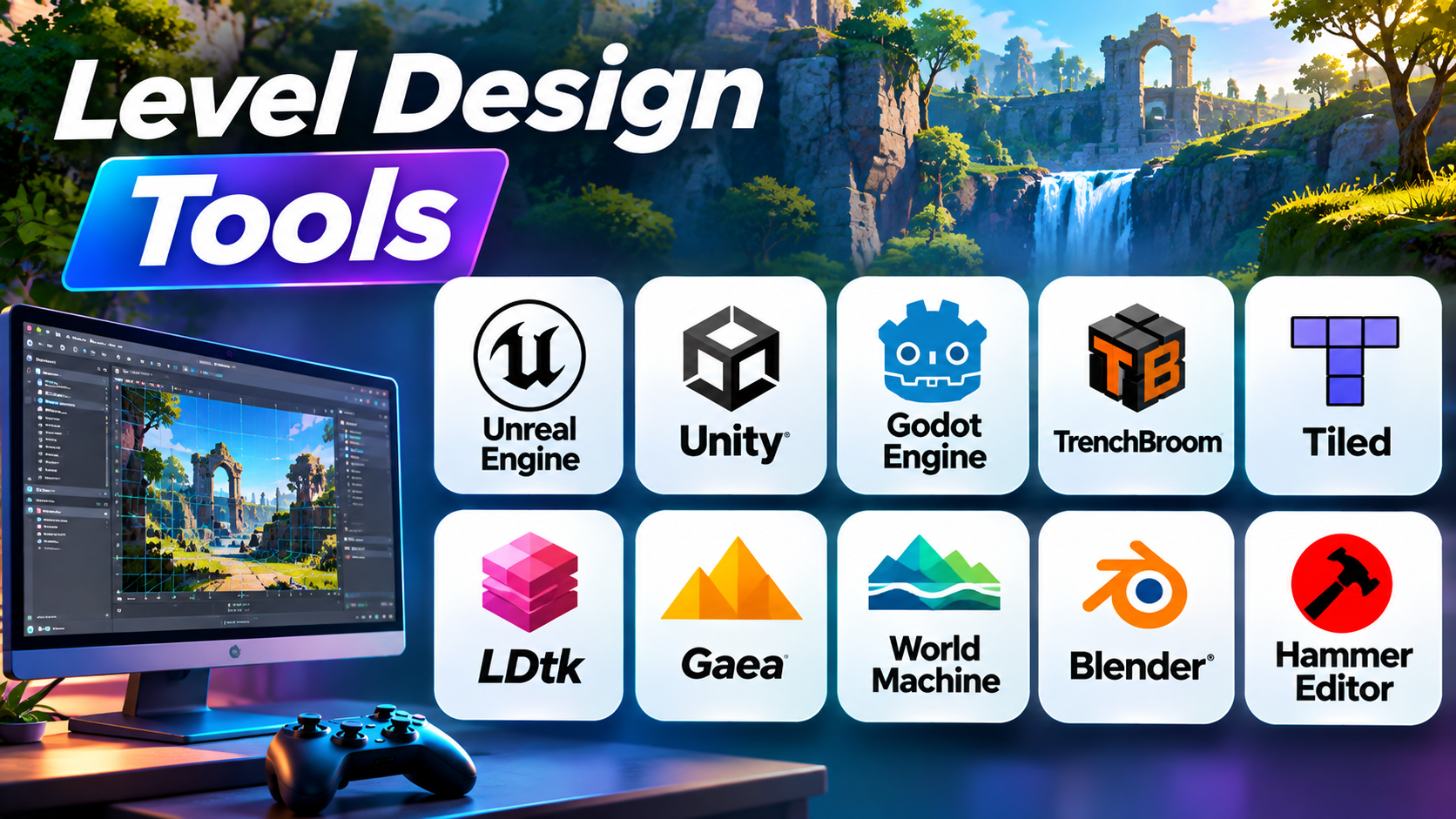
This guide explores ten useful level design tools. It explains their main features, strengths, and limits. It also compares their uses and answers common questions.
1. Unreal Engine
Best for: Detailed 3D environments and large open worlds
Type: Full game engine with integrated level editing tools
Main strength: Large-world design and procedural content workflows
Unreal Engine gives level designers a complete 3D environment editor. They can build rooms, outdoor spaces, roads, buildings, and complex game areas. The editor also supports lighting, materials, collision, and gameplay testing.
Its World Partition system helps teams manage large maps. It divides a world into smaller grid cells. The engine can load and unload these areas based on distance. This helps teams work with large environments without treating the entire world as one active space. Epic Developer Community
Unreal also includes a Procedural Content Generation framework. Designers can use it to create repeated elements such as trees, rocks, grass, and other environment details. This can reduce manual placement across large scenes. Epic Developer Community
The engine works well for first-person games, action games, and open-world projects. Teams can build a rough layout first. They can then add materials, lighting, sound, and interactive elements.
However, Unreal Engine has a learning curve. Large scenes can also demand strong hardware and careful performance planning. Smaller projects may not need all its systems.
Pros
- Powerful 3D environment editor.
- Supports large-world workflows.
- Includes procedural content tools.
- Combines level design with gameplay testing.
Cons
- Takes time to learn.
- Large projects need careful performance planning.
- May feel excessive for small 2D games.
Unreal Engine is a strong choice for teams building detailed 3D worlds. Its world management tools also help with large environments.
2. Unity with ProBuilder
Best for: 3D level prototyping and interactive environments
Type: Game engine with a geometry editing package
Main strength: Fast in-engine blockouts and playable tests
Unity gives developers a flexible editor for building game scenes. Its ProBuilder package adds tools for creating and editing 3D geometry. Designers can build walls, floors, platforms, ramps, and other level shapes inside the editor.
ProBuilder works well during the early design stage. Designers can create simple shapes before final art assets exist. This process is often called greyboxing. It helps teams test movement, scale, routes, and gameplay before they spend time on detailed models.
The package also supports texture editing, UV work, vertex colors, and parametric shapes. Designers can test their layouts while they build. They can also export geometry for further work in external 3D software. Manual: ProBuilder+1
Unity suits many types of projects. Teams can use it for platform games, action games, mobile games, and interactive experiences. ProBuilder is especially useful when designers want to build and test levels in one place.
However, ProBuilder is not a full terrain-generation system. Designers may need extra tools for natural landscapes and advanced environment assets. Large projects also need good scene organization.
Pros
- Fast 3D blockout workflow.
- Supports in-scene geometry editing.
- Allows quick play-testing.
- Exports models for external editing.
Cons
- Requires the Unity editor.
- ProBuilder is not a complete terrain tool.
- Complex environments may need extra packages.
Unity with ProBuilder suits teams that value quick design changes. It helps designers test a level before building its final look.
3. Godot Engine
Best for: 2D levels and independent game projects
Type: Open-source game engine with built-in level editing
Main strength: Integrated 2D scene and tilemap tools
Godot Engine offers a built-in editor for creating game levels. Its 2D workspace helps designers arrange sprites, objects, backgrounds, and interactive elements. It also includes a dedicated 2D rendering system and physics features.
The TileMap system helps designers create large 2D environments. They can paint tiles onto a grid instead of placing each object one by one. Tile layers can also support collision, visibility, and navigation shapes. Godot Engine (stable) documentation in English+1
Godot also supports 3D scenes. Designers can place objects, build environments, set up lights, and test gameplay. The scene system helps teams organize levels into reusable parts.
One useful feature is its integrated workflow. The editor includes tools for animation, scripting, shaders, and debugging. Developers can build many parts of a game without switching between several applications. Godot Engine (stable) documentation in English
Godot suits small studios, solo developers, and teams that prefer open-source software. It can support platformers, puzzle games, top-down games, and 3D projects.
However, some advanced workflows may need custom tools or plugins. Large commercial teams should test their required features before committing to a full production pipeline.
Pros
- Free and open-source engine.
- Built-in 2D tilemap tools.
- Supports 2D and 3D projects.
- Includes scripting and debugging tools.
Cons
- Some workflows need custom plugins.
- Advanced production needs may require extra setup.
- Large teams should test pipeline needs early.
Godot is a practical choice for developers who want level design and game development in one editor. Its 2D tools are especially useful for tile-based games.
4. TrenchBroom
Best for: Brush-based 3D maps and classic first-person levels
Type: Dedicated standalone level editor
Main strength: Precise geometry and brush editing
TrenchBroom focuses on building levels for brush-based game engines. It supports games and formats connected to Quake and related engines. Designers can create rooms, corridors, platforms, walls, and other map geometry.
Its interface provides both 2D and 3D views. This helps designers position objects with precision. They can edit vertices, faces, and edges. They can also clip, resize, rotate, and shape brushes.
TrenchBroom includes entity editing tools. Designers can place game objects and adjust their properties. It also supports materials, texture alignment, groups, and map organization. The editor can launch external compilers and game engines. trenchbroom.github.io+1
The tool is free and cross-platform. It can suit developers who build classic shooter maps or work with compatible custom engines. Its focused interface makes it useful for direct geometry editing.
However, TrenchBroom does not act as a complete modern game engine. Teams need a compatible engine and build process. It is also less suitable for designers who want visual terrain sculpting or broad cinematic environment tools.
Pros
- Free and cross-platform.
- Strong brush and vertex editing.
- Offers both 2D and 3D views.
- Supports entity and material workflows.
Cons
- Focuses on compatible brush-based engines.
- Needs a separate game engine.
- Not designed for general open-world terrain work.
TrenchBroom is a strong specialist tool for brush-based level design. It suits teams that need direct control over map geometry.
5. Tiled
Best for: 2D tile-based games and map layouts
Type: Dedicated 2D level editor
Main strength: Flexible tile and object placement
Tiled is a popular editor for designing 2D game maps. It helps designers create platform levels, top-down maps, and isometric environments. Its flexible design also supports maps that do not rely only on a regular tile grid.
Designers can create rectangular, isometric, staggered, and hexagonal tile maps. They can also place images freely. This helps when a level needs large objects or decorative elements that do not fit standard tiles.
Tiled includes painting, selection, line, and circle tools. Its terrain tools can help create smooth transitions between different tile types. Designers can also add custom information to map objects. A game can then use this information for doors, enemy locations, triggers, and other gameplay details. Tiled 1.12.2 documentation+1
The editor works well with games that use external map data. Developers can export maps and read that data inside their own game engine. This gives teams more freedom when choosing their development platform.
However, Tiled does not run the game itself. Developers must build or use an engine that reads its map data. Teams should also check that their importer supports the map features they use.
Pros
- Supports several 2D map layouts.
- Offers flexible tile and image placement.
- Includes terrain painting tools.
- Supports custom map information.
Cons
- Does not include a game runtime.
- Needs an importer or engine integration.
- Not intended for direct 3D environment editing.
Tiled is a useful choice for 2D games with tile-based worlds. It gives designers control over map layout and game-related object data.
6. LDtk
Best for: 2D platformers and top-down games
Type: Dedicated 2D level editor
Main strength: Organized levels, custom entities, and easy exports
LDtk is a level editor built for 2D game development. It focuses on platform and top-down perspectives. Designers can create levels, organize them into worlds, and manage game objects.
Its entity system lets designers define objects with custom properties. For example, a designer can create an enemy entity with health, patrol paths, and other settings. They can also create player starts, items, and triggers.
LDtk includes visual rules for automatic tile placement. This can reduce repeated manual work when designing terrain. It also supports direct Aseprite file loading. That helps pixel-art teams keep their art workflow simple.
The editor exports level images and entity data. It can produce JSON data that game engines and custom tools can read. It also offers a Tiled-compatible export option. ldtk.io
LDtk is free and open source. It suits small teams that want a focused 2D design tool. Its world organization can also help when a game contains many connected levels.
Its main limitation is its 2D focus. It does not aim to create 3D maps or isometric 3D environments. Teams must also connect its exported data to their game.
Pros
- Free and open source.
- Designed for 2D platform and top-down games.
- Supports custom entities and properties.
- Offers JSON and Tiled-compatible exports.
Cons
- Focuses on 2D level design.
- Needs an engine or importer to run maps.
- Not intended for full 3D world creation.
LDtk is a strong option for focused 2D level production. It is especially useful when designers need organized levels and custom game objects.
7. Gaea
Best for: Realistic natural terrain and large landscapes
Type: Procedural terrain creation software
Main strength: Node-based terrain shaping and natural erosion
Gaea helps artists create natural landscapes for games and other visual projects. It focuses on terrain rather than complete playable levels. Designers can use it to build mountains, valleys, cliffs, rivers, and other landforms.
Its node-based workflow lets users connect terrain operations. A node is a building block that changes the landscape. Designers can combine generators, shaping tools, erosion, masks, and surface effects. This approach makes it easier to adjust a terrain without starting again.
Gaea includes tools for erosion and surface creation. It can help produce realistic landforms and material details. Its build and export workflow can prepare terrain for game engines and other 3D tools. It also supports tiled builds for large environments. QuadSpinner+1
Gaea works well as part of a wider level design process. Artists can create the landscape in Gaea, then bring it into a game engine. They can add roads, buildings, gameplay areas, and interactive objects there.
However, Gaea does not replace a full game editor. It does not handle the complete playable level, gameplay logic, or player testing. Teams need another tool for those tasks.
Pros
- Strong procedural terrain tools.
- Supports erosion and surface workflows.
- Offers node-based editing.
- Supports large and tiled terrain exports.
Cons
- Focuses on terrain rather than full levels.
- Requires another tool for gameplay setup.
- Advanced node workflows take practice.
Gaea is a good fit for teams that need detailed natural landscapes. It works best alongside a game engine or scene editor.
8. World Machine
Best for: Procedural landscapes and terrain generation
Type: Procedural terrain generation software
Main strength: Terrain simulation and export workflows
World Machine helps artists generate natural terrain for game worlds. It uses a node-based workflow instead of relying only on manual sculpting. Designers can create landforms and refine them through connected operations.
The software supports fractal terrain creation and erosion simulation. These processes can shape ridges, valleys, gullies, and river systems. Artists can also create terrain textures and export heightmaps, masks, and other outputs.
World Machine provides a 3D view for reviewing terrain. Its visual tools help artists inspect slope, elevation, and terrain detail. It also supports export workflows for engines and 3D applications. world-machine.com+1
This tool can help teams build large outdoor environments. Artists can generate the base landscape before adding roads, buildings, vegetation, and gameplay features in another application.
World Machine is not a full level editor. It does not provide the same gameplay, object placement, or scripting tools as a game engine. Teams should also review its license options and export limits before choosing a plan.
Pros
- Supports procedural terrain creation.
- Includes erosion simulation.
- Offers terrain viewing and comparison tools.
- Exports terrain data for other applications.
Cons
- Focuses on landscape generation.
- Needs another tool for playable levels.
- Some export options depend on the license.
World Machine suits teams that need natural landscapes with repeatable generation workflows. It is most useful as a terrain tool within a wider production pipeline.
9. Blender
Best for: Custom 3D assets and environment modeling
Type: 3D creation suite used as a supporting level design tool
Main strength: Flexible modeling and asset preparation
Blender is a 3D creation suite, not a dedicated game level editor. However, it can play an important role in level design. Artists use it to create buildings, props, modular environment pieces, and custom structures.
Its modeling tools help artists shape objects for game environments. They can build walls, doors, stairs, bridges, rocks, and decorative assets. They can also unwrap models for textures and prepare assets for export.
Blender supports a wide range of 3D production tasks. Artists can use it for modeling, UV editing, materials, animation, and scene work. This makes it useful when a game needs custom assets that the engine does not provide.
A common workflow involves creating assets in Blender and importing them into a game engine. Designers then arrange those assets into playable spaces. This keeps detailed modeling separate from gameplay and level assembly.
Blender is not a direct replacement for Unreal Engine, Unity, or a dedicated map editor. It does not provide the same game-specific systems for player navigation, gameplay testing, or level streaming. Teams should use it as part of a larger workflow.
Pros
- Free and open source.
- Strong 3D modeling tools.
- Useful for modular environment assets.
- Supports asset preparation for game engines.
Cons
- Not a dedicated game level editor.
- Needs a game engine for playable testing.
- Requires a separate workflow for gameplay logic.
Blender is valuable when level designers need custom 3D assets. It works best alongside a game engine rather than as the only level design tool.
10. Hammer Editor
Best for: First-person shooter maps and Source-engine projects
Type: Dedicated map editor for Valve’s Source development tools
Main strength: Building and arranging detailed shooter environments
Hammer Editor is a map creation tool associated with Valve’s Source game development ecosystem. Level designers use Hammer to build spaces for compatible games and projects. Its workflow focuses on placing geometry, setting up entities, and preparing maps for the game.
Designers can create rooms, corridors, outdoor spaces, and connected areas. They can add objects that support gameplay. These may include player starts, doors, lights, triggers, and other map entities.
Hammer is especially relevant to first-person shooter level design. Designers can plan sightlines, cover, movement routes, and combat spaces. They can also test how players move through a map and adjust the layout.
The exact features and workflow depend on the Source toolset and game being used. Teams should confirm which Hammer version and game configuration their project supports before starting. It is not a general-purpose editor for every game engine.
Hammer can be a good fit for modders and teams working with compatible Valve technology. However, it is less useful for projects built around unrelated engines or modern 2D workflows.
Pros
- Designed for compatible Source game projects.
- Useful for first-person shooter maps.
- Supports geometry and entity placement.
- Helps designers shape player routes and combat spaces.
Cons
- Tied to supported Source workflows.
- Not a general-purpose level editor.
- Tool features can differ by game and toolset.
Hammer Editor suits designers who work within the Source ecosystem. It is not the right choice for teams that need a flexible editor across many engines.
Comparison of Level Design Tools
Each tool serves a different part of level production. Some build playable spaces. Others create terrain or prepare 3D assets.
| Tool | Main focus | Best use | Main advantage | Main limitation |
|---|---|---|---|---|
| Unreal Engine | 3D level creation | Large 3D worlds | World management and procedural tools | Steeper learning curve |
| Unity with ProBuilder | 3D geometry editing | Greyboxing and prototyping | Fast in-engine testing | Needs extra tools for advanced terrain |
| Godot Engine | 2D and 3D levels | Indie game projects | Built-in level design features | Some workflows need extra setup |
| TrenchBroom | Brush-based mapping | Classic shooter maps | Precise brush editing | Supports specific engine workflows |
| Tiled | 2D tile maps | Tile-based games | Flexible map layouts | Needs a game engine |
| LDtk | 2D level creation | Platformers and top-down games | Custom entities and organized levels | Focuses on 2D |
| Gaea | Terrain generation | Natural landscapes | Procedural terrain and erosion | Does not build complete playable levels |
| World Machine | Terrain generation | Large outdoor environments | Landscape simulation | Needs another level editor |
| Blender | 3D modeling | Custom environment assets | Flexible modeling tools | Not a dedicated level editor |
| Hammer Editor | Source map editing | First-person shooter maps | Shooter-focused map workflows | Limited to supported Source projects |
How to Choose the Right Level Design Tool
The right tool depends on your game and production needs. Use these points to narrow your options.
Choose by game type
- Large 3D games: Consider Unreal Engine.
- 3D indie games: Consider Unity or Godot.
- 2D platform games: Consider LDtk, Tiled, or Godot.
- Classic shooter maps: Consider TrenchBroom or Hammer.
- Natural outdoor worlds: Consider Gaea or World Machine.
- Custom 3D objects: Use Blender with a game engine.
Choose by workflow
Think about how your team builds levels. Some teams start with simple shapes. Others begin with terrain or tile maps.
If you need quick playable tests, use an engine with in-scene editing. Unity and Unreal Engine support this kind of work. If you need a dedicated 2D map editor, Tiled or LDtk may fit better.
Check export and engine support
A level editor must fit your game engine. Check its export formats before you build a large project. Also confirm that your engine can read custom object data and map information.
Test a small level before you commit. Import it into your game. Check collision, scale, materials, lighting, and gameplay objects. This simple test can prevent costly changes later.
Think about the whole production cost
A free tool may still need extra software and setup. A paid tool may save time in a larger production. Compare the full workflow rather than the license price alone.
10 Frequently Asked Questions About Level Design Tools
1. What are level design tools?
Level design tools help developers create game spaces. They support tasks such as building rooms, placing objects, shaping terrain, and arranging paths. Some also help designers test gameplay inside the level.
2. Which level design tool is best for beginners?
Godot, Tiled, and LDtk can suit beginners. Godot combines level editing with game development. Tiled and LDtk focus on 2D map creation. The best choice depends on the type of game you want to build.
3. Which tool is best for 3D level design?
Unreal Engine and Unity are strong options for 3D level design. Unreal offers tools for large worlds. Unity with ProBuilder helps designers create and test geometry inside the editor.
4. Which tools are best for 2D level design?
Tiled, LDtk, and Godot are useful choices. Tiled supports several tile map layouts. LDtk focuses on platform and top-down games. Godot includes tilemap tools within its game editor.
5. What is greyboxing in level design?
Greyboxing means building a simple version of a level before adding final art. Designers use basic shapes to test size, movement, routes, and gameplay. This helps teams find design problems early.
6. Are level design tools different from game engines?
Yes. A level design tool helps create or arrange game spaces. A game engine also runs the game and handles systems such as graphics, sound, physics, and input. Some engines include their own level editing tools.
7. Can I create realistic terrain with level design tools?
Yes. Tools such as Gaea and World Machine help create natural landscapes. They support terrain shaping and erosion workflows. You can then import the terrain into a game engine.
8. Can Blender create game levels?
Blender can create 3D assets and environment models. Designers can build objects such as walls, buildings, and props. However, Blender does not replace a dedicated game engine for gameplay testing and level management.
9. Are free level design tools good enough for professional projects?
Yes. Free tools such as Godot, Tiled, LDtk, TrenchBroom, and Blender can support serious projects. The right choice depends on project needs. Teams should test export, collaboration, and engine compatibility first.
10. What should I check before choosing a level design tool?
Check the game type, engine support, export formats, and learning curve. Also review performance, team workflows, and licensing. Build a small test level before using the tool in full production.
Final Thoughts
Level design shapes how players explore and enjoy a game. The right tools can make that work faster and more organized. But no single tool handles every part of the process.
Unreal Engine and Unity suit many 3D workflows. Godot, Tiled, and LDtk help with 2D levels. TrenchBroom and Hammer serve more focused mapping needs. Gaea and World Machine create natural terrain, while Blender supports custom environment assets.
Start with the type of game you want to build. Then choose tools that match your engine and workflow. Test a small level before making a long-term choice.
A strong level does not depend on software alone. Clear paths, good pacing, useful challenges, and thoughtful player movement matter just as much.