Introduction
Vector illustration plays an important role in modern graphic design. Designers use it to create logos, icons, posters, product graphics, diagrams, and digital artwork. Unlike regular pixel images, vector graphics use paths, points, and curves. This means they can grow or shrink without losing sharpness.
However, not every vector design tool works in the same way. Some focus on detailed illustration. Others support print production, interface design, or quick browser-based editing. Your choice can affect how easily you create artwork, share files, and prepare designs for different uses.
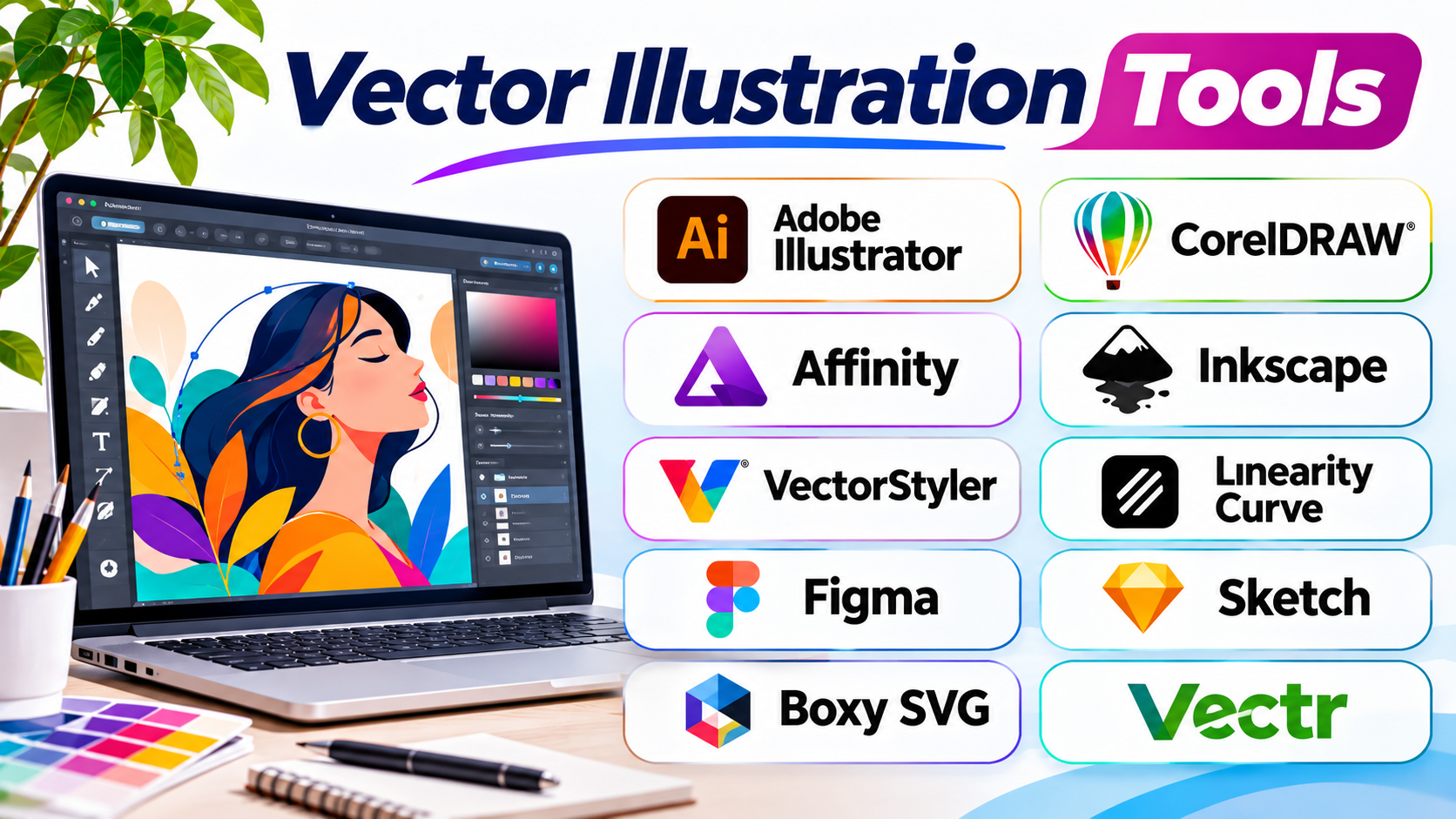
This guide explores ten vector illustration tools with different strengths. It explains their main features, practical uses, Pros, and Cons. A comparison table and common questions will also help you choose a suitable option.
What Are Vector Illustration Tools?
Vector illustration tools are software applications that help users create artwork with editable shapes, lines, paths, and curves. They store drawing instructions instead of fixed pixels. As a result, vector artwork stays clear when you resize it.
For example, a company can use one vector logo on a business card, website, shop sign, and large banner. The designer does not need to redraw the logo for every size.
These tools also support tasks such as:
- Creating company logos and brand graphics.
- Drawing icons and user interface elements.
- Designing posters, labels, and brochures.
- Making maps, charts, and technical illustrations.
- Creating digital characters and decorative artwork.
- Preparing graphics for print and online use.
Common vector file formats include SVG, EPS, PDF, and AI. Each format serves a different purpose. So, check file support before choosing a tool.
Top 10 Vector Illustration Tools Worth Considering
1. Adobe Illustrator
Adobe Illustrator is a professional vector design application. It gives designers detailed control over shapes, paths, colors, and typography. Many creative teams use it for brand identity, advertising graphics, packaging, and complex illustrations.
Illustrator offers tools for both precise drawing and freehand artwork. Its Pen Tool helps users create accurate paths with anchor points and handles. The Pencil Tool supports freehand drawing. The Shape Builder Tool helps combine or remove parts of overlapping objects.
The software also supports gradients, patterns, brushes, symbols, and advanced text controls. Designers can use these features to create artwork with many layers and visual details. Artboards help users keep several design versions in one document.
Illustrator also supports image tracing. This feature converts suitable pixel images into editable vector shapes. It can save time when designers need to rebuild simple artwork. However, detailed images may need manual cleanup after tracing.
Its wider Adobe ecosystem can also help creative teams. Users can move artwork between compatible Adobe applications. This can support projects that combine vector graphics, photo editing, and page layout.
Illustrator suits professionals who need detailed control and broad design features. It may feel complex to new users. Its subscription model also adds an ongoing cost.
Pros
- Offers precise drawing and path editing tools.
- Supports detailed logos and complex illustrations.
- Includes advanced typography and color controls.
- Provides many brushes, shapes, effects, and gradients.
- Works well with other Adobe creative applications.
- Supports several common design and print formats.
Cons
- Requires time and practice to master.
- Subscription costs may not suit every user.
- Advanced features can feel overwhelming to beginners.
- Large projects may need a capable computer.
- Some workflows depend on Adobe file compatibility.
2. CorelDRAW Graphics Suite
CorelDRAW Graphics Suite is a graphic design package with strong vector illustration and print design features. It serves designers who create signs, logos, labels, packaging, promotional graphics, and other production artwork.
The application offers drawing tools for lines, curves, shapes, and custom paths. Users can edit nodes to change the form of an object. They can also combine shapes, apply fills, adjust outlines, and create layered designs.
CorelDRAW places strong attention on text and page layout. Designers can arrange text around objects, control spacing, and prepare artwork for print. These features help when a project includes both illustrations and written content.
The suite also supports workflows for sign making and other print-focused work. Designers can prepare artwork for different output sizes. They can also manage colors and page settings before sending files to a production team.
CorelDRAW may suit businesses that create printed materials every day. It can also help freelancers who work with branding and promotional design. However, users should check their required file formats and production workflow before moving from another application.
The package includes several design features, but new users may need time to learn its tools. The cost can also matter for small teams and independent designers.
Pros
- Offers strong vector drawing and editing tools.
- Supports logo, sign, and print design work.
- Provides useful text and page layout features.
- Includes tools for combining and editing shapes.
- Helps prepare artwork for different production needs.
- Supports professional graphic design workflows.
Cons
- The full suite may cost more than basic alternatives.
- Beginners may need training to use advanced tools.
- Some users may prefer a different interface.
- Team workflows may require format checks.
- Not every user needs the full feature set.
3. Affinity
Affinity brings vector design, photo editing, and page layout tools into one creative application. Its vector features help users create logos, icons, illustrations, and marketing graphics. It also supports projects that mix vector and pixel artwork.
The Vector Studio includes tools for drawing paths, editing nodes, and building shapes. Users can create curves with the Pen Tool and refine them with node controls. Shape tools help build common objects, while Boolean operations combine or divide shapes.
Affinity also supports gradients, brushes, text, and image tracing. These features give designers several ways to create and refine artwork. Non-destructive editing helps users adjust parts of a design without permanently changing the original content.
A useful part of Affinity is its ability to combine vector and pixel work. A designer can create a vector illustration and add pixel-based texture in the same project. This can reduce the need to move between separate applications.
The application also supports common design formats. Users should still check how complex files behave when they move work between different programs. Some advanced features may not transfer exactly.
Affinity can suit freelancers, small studios, and designers who want a broad creative workspace. Its range of tools may also help users who work across illustration, photo editing, and page layout.
Pros
- Combines vector, photo, and layout workflows.
- Provides precise pen and node editing.
- Includes shape building and Boolean operations.
- Supports non-destructive editing.
- Offers gradients, brushes, and image tracing.
- Supports common creative file formats.
Cons
- Some workflows may differ from Adobe applications.
- Advanced tools still require practice.
- Complex file transfers may need checking.
- Users may need time to adjust to its workspace.
- Some features may not match specialist tools.
4. Inkscape
Inkscape is a free, open-source vector graphics editor. It is a strong choice for users who want to create scalable artwork without paying for a commercial design application.
The software focuses on SVG, a common format for vector graphics. Users can create shapes, paths, text, and illustrations. Its Pen and Pencil tools support different drawing styles. Node editing gives users control over curves and object outlines.
Inkscape also includes tools for path operations, gradients, patterns, and object alignment. Users can combine shapes, cut paths, and adjust object positions. These features support logo design, icons, diagrams, and detailed illustrations.
The application runs on major desktop operating systems. Its open-source nature also allows a community to contribute to its development. Users can access documentation and community learning resources.
Inkscape works well for students, hobbyists, freelancers, and small teams. It can also serve professionals who mainly use SVG files. However, users who depend on specific commercial formats should test their files before adopting it for client work.
Its interface may feel different from paid design applications. Some advanced workflows can also require extra steps. Still, its wide range of vector features makes it a useful option for many design tasks.
Pros
- Free to download and use.
- Open-source software with community support.
- Offers detailed path and node editing.
- Focuses on the widely used SVG format.
- Supports logos, icons, and digital illustrations.
- Runs on Windows, macOS, and Linux.
Cons
- The interface may take time to learn.
- Some commercial file workflows need extra checks.
- Certain advanced tasks may feel less direct.
- Performance can vary with complex artwork.
- Professional users may miss some specialist features.
5. VectorStyler
VectorStyler is a vector illustration application built for users who want detailed control over shapes, paths, brushes, and effects. It supports professional artwork for screen and print projects.
The software includes several tools for creating and editing paths. Its Path Sketch Tool lets users modify shapes through freehand strokes. The Shape Builder Tool helps combine parts of objects. Users can also apply path operations to create more complex forms.
VectorStyler offers advanced brush controls. Designers can work with variable-width strokes, calligraphic brushes, and other vector brush styles. Its effects include shape distortion, mesh gradients, and other ways to change artwork while keeping objects editable.
The application also provides tools for typography and object styling. Users can work with text along paths and adjust object attributes. These features can help with decorative lettering, branding, and complex illustrations.
VectorStyler supports several import and export formats. It also offers compatibility with Illustrator artwork. Still, designers should test important files before using it in a shared production workflow.
This tool may suit experienced illustrators who want many editing options. Its large feature set can take time to understand. Beginners may find a simpler application easier to learn.
Pros
- Offers many advanced vector drawing tools.
- Includes path sketching and shape building.
- Supports detailed vector brush controls.
- Provides non-destructive effects and shape editing.
- Includes advanced typography and styling options.
- Supports several common design file formats.
Cons
- Beginners may face a steep learning curve.
- Its large feature set can feel complex.
- Some users may need time to build a workflow.
- Team file compatibility should be tested.
- It may offer more features than simple projects need.
6. Linearity Curve
Linearity Curve is a vector design application for creating illustrations, icons, logos, and other visual assets. It focuses on a modern drawing workflow and supports designers who work across compatible Apple devices.
The application offers tools for drawing paths and editing shapes. Users can create artwork with curves, nodes, and geometric objects. They can also add colors, gradients, and text to build complete designs.
Curve supports workflows for both hand-drawn and structured artwork. This makes it useful for people who create icons, social graphics, and digital illustrations. Designers can use its drawing tools to create clean shapes and refine small details.
The application also includes features for exporting finished artwork. This helps users prepare assets for websites, presentations, and other digital projects. Before choosing it for a team, check the supported devices and file formats that match your workflow.
Linearity Curve may suit illustrators and designers who prefer a focused interface. It can also help users who create graphics on an iPad. However, teams with mixed operating systems should review compatibility before they adopt it.
Pros
- Provides vector drawing and curve editing tools.
- Supports logos, icons, and digital illustrations.
- Offers a focused creative workspace.
- Works well for touch-based drawing workflows.
- Includes export options for digital artwork.
- Can suit users who prefer Apple devices.
Cons
- Platform support may not fit every team.
- Some advanced print workflows may need another tool.
- Users should check file compatibility before adoption.
- Complex projects may require more specialized features.
- Workflow options may differ from desktop-first applications.
7. Figma
Figma is a collaborative design platform best known for interface and product design. It also includes vector editing features that help teams create icons, illustrations, diagrams, and other visual elements.
Its vector tools allow users to draw shapes and paths. Designers can edit points, apply fills, adjust strokes, and combine objects. These features work alongside frames, components, and layout tools.
Figma stands out through shared design work. Multiple team members can work in the same file and review changes. Designers can leave comments and share prototypes with colleagues. This can reduce the need to send separate design files back and forth.
Figma works well when vector artwork forms part of a website or app design. Teams can build icons and interface graphics alongside buttons, screens, and reusable components. This helps keep visual assets close to the product design.
However, Figma does not replace every specialist illustration application. Artists who need complex brush work or detailed print preparation may prefer a dedicated vector editor. Its strongest value comes from collaboration and interface design.
Pros
- Supports real-time team collaboration.
- Combines vector editing with interface design.
- Offers reusable components and shared assets.
- Makes feedback and review easier.
- Supports browser-based access.
- Works well for icons and product graphics.
Cons
- Not designed for every complex illustration workflow.
- Advanced print preparation may need another application.
- Some work depends on internet access.
- Team plans and permissions need careful management.
- Detailed drawing tools may feel limited to illustrators.
8. Sketch
Sketch is a design application for creating user interfaces and digital products. It also supports vector editing for icons, illustrations, symbols, and other interface assets.
The application provides tools for drawing and editing vector shapes. Users can create paths, adjust points, and arrange objects. They can also use shared styles and reusable components to keep designs consistent.
Sketch focuses on screen-based design. This makes it useful for website layouts, mobile app screens, and product interface work. Designers can create icons and other vector assets in the same workspace as their interface layouts.
Its component and library features help teams reuse design elements. A change to a shared component can support consistency across many screens. This can save time when a product has a large interface.
Sketch is mainly suited to teams working within its supported Apple-focused environment. It may not fit every Windows-based workflow. It also lacks the full illustration depth of specialist vector applications.
Pros
- Offers useful vector editing for interface design.
- Supports reusable symbols and components.
- Helps teams maintain consistent design systems.
- Works well for website and app graphics.
- Provides tools for shared design libraries.
- Keeps interface assets and layouts together.
Cons
- Best suited to supported Apple workflows.
- Not a full replacement for advanced illustration software.
- Print-focused tools may be limited.
- Some teams may need extra collaboration tools.
- Users should check platform needs before choosing it.
9. Boxy SVG
Boxy SVG is a vector graphics editor focused on SVG files. It supports users who need to create and edit scalable graphics for websites and other digital projects.
The application provides tools for drawing shapes, paths, and text. Users can adjust fills, strokes, gradients, and object positions. These features support common tasks such as creating icons, badges, diagrams, and simple illustrations.
SVG is useful for web graphics because it can scale across screen sizes. It can also keep shapes and text editable. Boxy SVG gives users a focused place to work with this format without needing a large creative suite.
The editor may suit web designers, developers, and people who work with SVG assets. It can also help users make quick changes to existing vector files. However, it is not the strongest choice for complex print production or highly detailed illustration work.
Users should check its current platform and licensing options before starting a project. They should also test exports in the browsers or applications where the artwork will appear.
Pros
- Focuses on SVG editing and creation.
- Supports common vector drawing tasks.
- Useful for icons and web graphics.
- Offers a focused editing workspace.
- Can help users modify existing SVG artwork.
- Suitable for simple digital illustration projects.
Cons
- Not intended for every advanced illustration task.
- Print production features may be limited.
- Users may need another tool for complex artwork.
- Workflow options differ from larger design suites.
- File behavior should be checked in target applications.
10. Vectr
Vectr is a vector graphics editor aimed at simple design tasks. It can help users create basic logos, icons, shapes, and social graphics without learning a large professional application.
Its main appeal is a straightforward approach to vector editing. Users can create shapes, add text, adjust colors, and arrange objects. These tools cover many basic design needs.
Vectr may suit beginners, students, and people who need simple graphics. It can also help users who want to make quick changes without using a complex desktop editor. A simple interface can make the first steps easier.
However, basic tools cannot replace the depth of a professional illustration suite. Users who need complex path editing, advanced brushes, detailed typography, or print production controls may outgrow it.
Before starting a larger project, check its current access model, supported features, and export options. These details can affect whether it fits a personal or business workflow.
Pros
- Offers a simple approach to vector design.
- Can suit beginners and casual users.
- Supports basic shapes and text.
- Useful for simple logos and icons.
- Has a smaller learning demand than complex suites.
- Can help with quick graphic tasks.
Cons
- Advanced illustration controls may be limited.
- Not ideal for complex professional artwork.
- Print production features may not meet specialist needs.
- Users may need another application for advanced editing.
- Current feature and access options should be checked.
Comparison Table of Vector Illustration Tools
| Tool | Best Suited For | Main Strength | Main Consideration |
|---|---|---|---|
| Adobe Illustrator | Professional illustration and branding | Detailed drawing and editing controls | Subscription and learning curve |
| CorelDRAW Graphics Suite | Print, signs, and promotional design | Vector and production workflows | Cost and feature complexity |
| Affinity | Mixed vector, pixel, and layout work | Creative tools in one application | File workflow checks |
| Inkscape | Free vector illustration | Open-source SVG editing | Some commercial workflow differences |
| VectorStyler | Advanced vector artwork | Extensive path, brush, and effect tools | Steeper learning curve |
| Linearity Curve | Digital illustration | Focused vector drawing workflow | Platform compatibility |
| Figma | Interface and product design | Team collaboration and components | Not a specialist illustration suite |
| Sketch | App and website design | Reusable interface assets | Platform and illustration scope |
| Boxy SVG | SVG-based web graphics | Focused SVG editing | Limited specialist production features |
| Vectr | Basic vector graphics | Simple editing workflow | Fewer advanced controls |
How to Choose the Right Vector Illustration Tool
The right application depends on the artwork you create and the way you work. A logo designer may need different tools from a web developer or print shop.
1. Identify Your Main Design Work
Start by listing the projects you create most often. Logo design needs precise paths and typography. Digital illustration may need brushes and shape effects. Web graphics often need clean SVG exports.
Choose a tool that supports your main work. Do not pay for features you will rarely use.
2. Check File Format Support
File compatibility matters when you work with clients or other designers. Ask which formats your team needs. Common formats include SVG, PDF, EPS, AI, and PNG.
Also check whether the software keeps layers and editable paths during export. A file that opens but loses important design details may create extra work.
3. Review Drawing and Editing Features
Look at the tools you use every day. These may include the Pen Tool, node editing, brushes, gradients, shape building, and text controls.
Try a sample project before choosing a paid application. This will show whether the drawing process feels natural.
4. Consider Your Device and Operating System
Some applications support several desktop systems. Others focus on specific devices. Check system support before moving your work to a new tool.
Also review hardware needs. Large illustrations with many effects may need more memory and processing power.
5. Think About Teamwork
A solo designer may work well with local files. A design team may need shared libraries, comments, and real-time collaboration.
Choose a tool that matches the way your team reviews and approves artwork. Also check file access and permission controls.
6. Compare the Total Cost
A free tool can offer strong value. A paid tool may save time through advanced features and production controls.
Look beyond the starting price. Consider subscriptions, upgrades, training, storage, and other costs. Choose based on the value the software brings to your work.
Common Mistakes When Choosing Vector Illustration Software
A poor software choice can slow down design work. Avoid these common mistakes:
- Choosing by popularity alone: A popular tool may not fit your daily workflow.
- Ignoring export formats: Your client or printer may need a specific file type.
- Overlooking learning time: Advanced software can take time to master.
- Buying too many features: A simple project may not need a large creative suite.
- Skipping a real project test: A short trial task can reveal workflow problems.
- Ignoring team needs: Shared work may require collaboration and file controls.
- Confusing vector and raster tools: Pixel editing and vector drawing solve different problems.
Questions and Answers About Vector Illustration Tools
1. What are vector illustration tools used for?
Vector illustration tools help users create logos, icons, posters, diagrams, and digital artwork. They use editable paths and shapes. This keeps designs sharp at different sizes.
2. What is the difference between vector and raster graphics?
Vector graphics use paths, points, and curves. Raster graphics use pixels. Vector artwork can scale without losing sharpness, while raster images may become blurry when enlarged.
3. Which vector illustration tool is best for professional designers?
Adobe Illustrator and CorelDRAW offer broad professional design features. Affinity and VectorStyler also provide strong vector tools. The best choice depends on the work, budget, and required file formats.
4. Is there free vector illustration software?
Yes. Inkscape is a free, open-source vector editor. It supports SVG drawing and many common illustration tasks. Check its file support against your project needs.
5. Can beginners use vector illustration software?
Yes. Beginners can start with simple tools such as Vectr or Inkscape. They can learn shapes, paths, colors, and text first. More advanced applications become easier with practice.
6. Which vector tool is useful for logo design?
Adobe Illustrator, CorelDRAW, Affinity, and Inkscape can all support logo design. Look for precise path editing, shape tools, typography, and reliable export options.
7. Can vector illustration tools create web graphics?
Yes. Designers use vector tools to create icons, logos, buttons, and other web assets. SVG is especially useful because it scales well across different screen sizes.
8. Do vector illustration tools support printing?
Many professional tools support print-ready formats and color settings. However, print features differ between applications. Check CMYK, spot colors, bleed, and PDF export before sending artwork to a printer.
9. Can I edit a vector image after exporting it?
That depends on the export format. SVG, AI, and some PDF files can preserve editable vector content. PNG and JPEG exports become pixel images, so they do not keep the original paths.
10. Should I use one tool for every design project?
Not always. One application may handle logos and illustrations well. Another may work better for photo editing or interface design. Choose tools based on the needs of each project.
Final Thoughts
Vector illustration software gives designers control over shapes, curves, colors, and scalable artwork. However, each application serves a different type of user.
Adobe Illustrator and CorelDRAW suit many professional design and print tasks. Affinity brings several creative workflows together. Inkscape offers a capable free option. VectorStyler provides advanced editing controls. Figma and Sketch focus more on interface design and team workflows.
Linearity Curve, Boxy SVG, and Vectr can also suit specific digital design needs. The best choice depends on your budget, device, skill level, and project goals.
Before you commit, create a small sample project in your preferred tool. Test its drawing controls, file exports, and editing workflow. This simple step can help you choose software that supports your work without adding avoidable cost or complexity.