Introduction
A clear screenshot can explain a problem faster than a long message. It can show a software error, highlight a button, or guide someone through a task. But basic screenshot tools do not always offer the features that people need.
Some users only need to capture a small part of the screen. Others need scrolling screenshots, arrows, notes, blur effects, or text recognition. Teams may also need to save, organize, and share captures with others.
That is where dedicated screen capture tools help. They offer more control than a simple Print Screen command. Some focus on fast screenshots, while others support detailed editing and repeatable work.
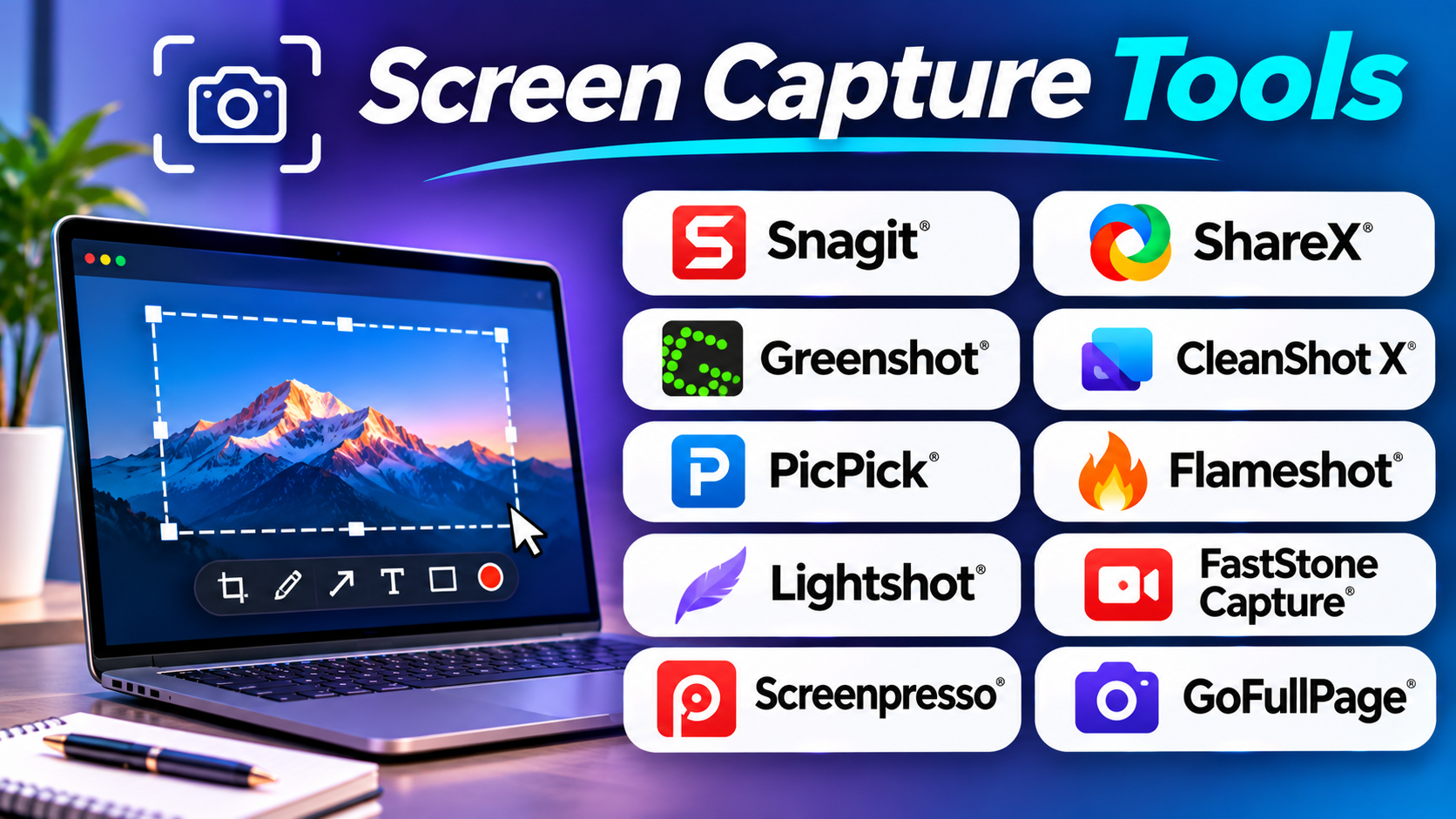
This guide explores 10 screen capture tools. It explains their main features, best uses, Pros, and Cons. It also compares their strengths and answers common questions.
What Are Screen Capture Tools?
Screen capture tools let you save what appears on a computer screen. They can capture the full display, one window, or a selected area. Some can also capture long web pages that extend beyond the visible screen.
Most tools include basic editing options. You can crop an image, add text, draw arrows, or highlight important areas. Some also let you blur private details before sharing a screenshot.
More advanced tools can recognize text inside images. This feature is called optical character recognition, or OCR. It lets you copy words from a screenshot instead of typing them again.
Screen capture tools serve many users:
- Office teams: Capture reports, forms, and work instructions.
- Software developers: Show bugs, errors, and interface changes.
- Teachers: Create lessons and step-by-step learning guides.
- Designers: Share layouts, color details, and visual feedback.
- Customer support teams: Explain problems with marked-up screenshots.
- Writers: Capture examples for guides and product reviews.
- Students: Save notes, diagrams, and useful online information.
A screenshot tool should make these tasks easier. It should not add extra steps to a simple job.
Top 10 Screen Capture Tools
1. Snagit
Best for: Professional screenshots, visual guides, and workplace documentation
Snagit is a screen capture and image editing tool from TechSmith. It helps people create clear screenshots for guides, training materials, support messages, and business documents. It offers more control than a basic screenshot utility.
You can capture a full screen, a window, a menu, or a selected region. Its scrolling capture feature can capture content that extends beyond the visible screen. This helps when you need to save a long web page, large report, or tall application window as one image.
Snagit also offers a useful set of editing tools. You can add arrows, text, shapes, highlights, and callouts. These features help readers understand where to look. You can also blur or redact private details before sharing an image.
Its step capture features can help create visual instructions. Instead of writing every action by hand, you can capture steps as you work. This can save time when you prepare software guides or internal training documents.
Snagit also supports screen recording. You can capture short videos when a still image cannot explain a process. Its editing tools help you trim and prepare those recordings.
Snagit suits people who create screenshots often and need polished results. It may feel too expensive for someone who only takes an occasional screenshot. Users should also check the current plan and licensing terms before choosing it.
Pros
- Offers several screen capture modes.
- Supports scrolling screenshots.
- Includes strong annotation and editing tools.
- Helps create step-by-step visual guides.
- Can capture short screen recordings.
- Provides tools to hide sensitive screenshot details.
Cons
- Paid licensing may not suit every budget.
- New users may need time to explore its tools.
- It may offer more features than casual users need.
- Advanced image editing may still require another application.
2. ShareX
Best for: Free screen capture, automation, and advanced Windows workflows
ShareX is a free, open-source screen capture tool for Windows. It combines screenshots, image editing, screen recording, file sharing, and workflow automation. It suits users who want more control over their daily capture tasks.
You can capture the full screen, an active window, a monitor, or a selected region. ShareX also supports scrolling capture and automatic capture tasks. These options help when you need to capture the same type of content again and again.
Its annotation tools offer several ways to explain an image. You can add arrows, shapes, text, step numbers, and highlights. You can also blur or pixelate private information. This helps prepare screenshots before you send them to customers or colleagues.
ShareX stands out because of its automation features. After a capture, it can save the image, copy it to the clipboard, open an editor, or send it to a selected upload destination. You can create custom workflows for repeated tasks.
It also supports OCR, which can recognize text inside images. Screen recording and GIF capture add more options for users who need short visual demonstrations.
ShareX offers many features without a purchase cost. However, its large number of settings can confuse new users. It also focuses on Windows, so users of other systems should consider another option.
Pros
- Free and open-source software.
- Supports several screenshot capture modes.
- Includes scrolling capture and GIF recording.
- Offers strong annotation tools.
- Supports OCR and custom workflows.
- Can automate saving, copying, and uploading.
Cons
- Windows-focused software.
- The interface can feel complex to beginners.
- Advanced settings need time to learn.
- Upload destinations require careful privacy checks.
3. Greenshot
Best for: Quick screenshots and simple workplace instructions
Greenshot is a lightweight screenshot tool that focuses on fast capture and easy editing. It suits office workers, support teams, writers, and people who need to explain something on their screens.
You can capture a selected region, a window, or the full screen. After capture, Greenshot can open the image in its editor. You can then add arrows, text, shapes, and highlights.
The editor helps you make a screenshot easier to understand. For example, you can draw a box around an error message or add a short note beside a button. You can also hide private details before sharing the image.
Greenshot supports several ways to send or save a capture. You can save it as a file, copy it to the clipboard, print it, or send it to another application. This helps users fit screenshots into their normal work.
Its simple design is one of its main strengths. It does not try to become a full image editing suite. Instead, it focuses on the common tasks that people perform after taking a screenshot.
Greenshot works well for quick visual communication. However, it does not offer the same wide range of advanced features as Snagit or ShareX. Users should also check the available version and platform support before installing it.
Pros
- Lightweight and simple to use.
- Supports region, window, and full-screen capture.
- Includes useful annotation tools.
- Helps hide private information.
- Offers several export and sharing options.
- Works well for everyday documentation.
Cons
- Advanced editing features are limited.
- It is not designed for complex image work.
- Screen recording is not its main purpose.
- Platform support and features can vary by version.
4. CleanShot X
Best for: Mac users who want a polished screenshot workflow
CleanShot X is a screen capture application designed for macOS. It combines screenshots, scrolling capture, annotation, screen recording, and sharing features. It suits Mac users who take screenshots throughout the workday.
You can capture a full screen, a window, or a selected area. The scrolling capture feature helps save long pages and other content that extends beyond the visible screen. This is useful for product reviews, web design feedback, and online research.
CleanShot X also offers tools for editing screenshots. You can add arrows, text, shapes, and highlights. You can blur private details and use other visual tools to prepare an image before sharing it.
Its capture history helps users find recent screenshots. This can save time when you need to reuse an image or return to an earlier capture. The application also supports screen recording and sharing workflows.
CleanShot X focuses on a smooth Mac experience. Its design and shortcuts can help users capture and edit images without opening several separate applications.
The main limitation is its platform focus. Windows and Linux users cannot use the Mac application as their main capture tool. Some sharing and cloud features may also depend on the selected plan or service.
Pros
- Built for macOS workflows.
- Supports full-screen, window, and area capture.
- Offers scrolling screenshots.
- Includes annotation and redaction tools.
- Provides screen recording features.
- Keeps recent captures easy to find.
Cons
- Mac-focused software.
- Some features may require a paid plan.
- Cloud sharing may not suit every privacy policy.
- Users who need only basic screenshots may not need its full feature set.
5. PicPick
Best for: Screenshots, image notes, and simple design tasks
PicPick combines screen capture with a collection of image and design utilities. It suits Windows users who want a screenshot tool with extra tools for everyday visual work.
You can capture the full screen, an active window, a selected region, or a scrolling window. These options help with reports, web pages, software guides, and design feedback.
PicPick includes an image editor with tools for adding text, arrows, shapes, and other notes. You can crop and adjust images before saving them. This helps users prepare screenshots without opening a separate image editor.
It also includes utilities such as a color picker, pixel ruler, magnifier, and color palette tools. These features can help designers and web developers inspect colors and screen elements. For example, a designer can use the color picker to identify a shade from an on-screen design.
PicPick offers more than simple screenshot capture. It can serve as a small visual toolkit for people who work with images and interface layouts.
However, it remains a Windows-focused application. Users should also review the license terms because personal and commercial use may follow different rules. Its extra design utilities may not matter to people who only need quick screenshots.
Pros
- Combines screen capture and image editing.
- Supports scrolling screenshots.
- Includes arrows, text, and annotation tools.
- Offers color picker and screen measurement utilities.
- Useful for designers and office users.
- Provides several capture methods.
Cons
- Windows-focused software.
- Commercial use may require a paid license.
- Some users may not need its extra utilities.
- It does not replace a full professional design application.
6. Flameshot
Best for: Open-source screenshot annotation across desktop systems
Flameshot is a free, open-source screenshot tool. It focuses on capturing a selected area and adding notes before saving or sharing the image. It suits people who want a direct and simple annotation workflow.
When you start a capture, Flameshot lets you select an area of the screen. Its editing controls then appear around the selection. You can draw arrows, lines, boxes, and other marks without opening a separate editor.
This approach works well for support messages and bug reports. You can capture an error, point to the problem, and save the result. It keeps the process short and easy to follow.
Flameshot also offers keyboard shortcuts and settings that help users adjust the capture process. Its open-source model makes it attractive to people who prefer community-developed software.
It supports major desktop operating systems, including Windows, macOS, and Linux. However, exact features and behavior can differ across platforms and versions.
Flameshot focuses on still screenshots. It does not aim to replace a full screen recorder or advanced image editor. Users who need automated upload workflows, detailed image editing, or long video capture may need another tool.
Pros
- Free and open-source.
- Supports major desktop operating systems.
- Offers quick area capture.
- Includes built-in annotation tools.
- Supports keyboard shortcuts.
- Suits bug reports and quick visual notes.
Cons
- Focuses mainly on still screenshots.
- Advanced editing options are limited.
- Does not replace a full screen recorder.
- Some features may vary across operating systems.
7. Lightshot
Best for: Fast screenshots and simple sharing
Lightshot focuses on quick screenshot capture. It suits users who want to select part of the screen, make a few changes, and share the result.
After starting a capture, you can select the area you want to save. Lightshot provides basic editing tools for adding arrows, lines, text, and other marks. These options help you point out a detail without opening another application.
Its sharing workflow can make it easy to send a screenshot to someone else. This can help with quick feedback, simple support requests, and everyday communication.
Lightshot keeps the process simple. It does not try to offer the large collection of editing and automation features found in ShareX or Snagit. That makes it easier for users who only need a quick capture.
However, its simplicity also limits its use for complex work. It does not offer the same depth for scrolling capture, image editing, or advanced workflows. Users should also review the privacy settings and sharing behavior before uploading screenshots that contain sensitive information.
Lightshot is best for simple captures. It may not suit teams that need organized screenshot libraries or detailed documentation tools.
Pros
- Simple screenshot workflow.
- Supports selected-area capture.
- Offers basic annotation tools.
- Helps users share screenshots quickly.
- Easy to understand for casual users.
Cons
- Limited advanced editing options.
- Not designed for complex screenshot workflows.
- Sharing features need privacy awareness.
- Does not offer the depth of larger capture suites.
8. FastStone Capture
Best for: Windows users who need screenshots and screen recording
FastStone Capture is a Windows capture utility that supports screenshots and screen recording. It suits users who need more capture options than a basic screenshot tool provides.
You can capture windows, menus, full screens, selected regions, and scrolling pages. This range helps when you work with long documents, software menus, or web content.
FastStone Capture also includes an editor. You can add text, arrows, shapes, highlights, and other marks. You can crop images and prepare them for reports or tutorials.
Its screen recorder can capture activity on the display. It can also record microphone audio and speaker sound. Depending on the setup, it can capture webcam footage and mouse actions. This makes it useful for simple software demonstrations.
Another helpful feature is its capture destination control. You can send an image to the editor, clipboard, file, printer, or supported application. This gives users several ways to continue working after a capture.
FastStone Capture offers a focused desktop workflow. It is not a full video editor, and it does not target every operating system. Windows users who want screenshots and basic recordings in one small application may find it useful.
Pros
- Supports several screenshot capture modes.
- Includes scrolling capture.
- Offers built-in image annotation.
- Can record screen activity.
- Supports microphone and system audio capture.
- Provides several output destinations.
Cons
- Windows-focused software.
- Paid licensing applies after the trial.
- Video editing features are limited.
- Its interface may feel dated to some users.
9. Screenpresso
Best for: Business screenshots and organized visual documentation
Screenpresso combines screenshot capture, image editing, and screen recording. It suits business users who create instructions, reports, and support documents.
You can capture a region, a window, or the full screen. It also supports scrolling capture for long pages and documents. This helps when a normal screenshot would leave out important information.
Screenpresso includes an editor for adding arrows, text, shapes, and numbered steps. These tools help create visual guides that readers can follow. You can also crop and adjust screenshots before sharing them.
Its workspace helps users manage captured images and recordings. This can be useful when you create many screenshots for different projects. Instead of searching through unrelated folders, you can work from a capture-focused library.
Screenpresso also supports screen recording. This gives users another way to explain a process when a still image is not enough.
Its features and limits can vary by edition. Some advanced options may require a paid license. Users should compare the free and paid versions before choosing it for a business team.
Pros
- Combines screenshots and screen recording.
- Supports scrolling capture.
- Includes annotation and step-number tools.
- Offers a workspace for organizing captures.
- Helps create business documentation.
- Provides several ways to export content.
Cons
- Some features require a paid edition.
- Windows-focused software.
- Advanced editing may need another application.
- New users may need time to explore the workspace.
10. GoFullPage
Best for: Capturing complete web pages in a browser
GoFullPage is a browser extension designed to capture full web pages. It suits people who need to save long pages that extend beyond the visible browser window.
A normal screenshot captures only what appears on the screen. GoFullPage can scroll through a page and combine the visible sections into one tall image. This makes it useful for saving articles, product pages, online reports, and design references.
The extension focuses on browser content. You do not need a full desktop capture suite for this task. You can start a capture from the browser and save the result for later use.
This approach can help writers, researchers, designers, and support teams. For example, a designer can capture a complete landing page to review its layout. A writer can save a long reference page for offline reading.
GoFullPage has a narrower purpose than tools such as ShareX or Snagit. It does not aim to manage every type of screen capture. It also depends on browser support and the way a website loads its content.
Some pages use dynamic elements, sticky menus, or unusual layouts. These can affect the final image. You should check the captured result before using it in a report or presentation.
Pros
- Captures complete web pages.
- Works through a browser extension.
- Helps save long articles and online reports.
- Reduces the need for manual scrolling and stitching.
- Useful for research and design reviews.
Cons
- Focuses on browser page capture.
- Does not replace a full desktop screenshot tool.
- Dynamic page layouts can affect capture results.
- Editing and annotation options are more limited than dedicated suites.
Screen Capture Tools Comparison Table
The table below highlights the main role of each tool. It can help you narrow your choices before testing them.
| Tool | Main Use | Key Strength | Main Consideration |
|---|---|---|---|
| Snagit | Professional documentation | Editing, scrolling capture, and step guides | Paid license |
| ShareX | Advanced Windows capture | Automation and many capture options | Learning curve |
| Greenshot | Everyday screenshots | Simple capture and annotation | Fewer advanced features |
| CleanShot X | Mac screen capture | Polished capture and sharing workflow | Mac-focused |
| PicPick | Screenshots and design tasks | Capture tools and visual utilities | Windows-focused |
| Flameshot | Quick annotated screenshots | Open-source annotation workflow | Limited video features |
| Lightshot | Fast screenshot sharing | Simple selected-area capture | Basic editing |
| FastStone Capture | Windows capture and recording | Screenshots and screen recording | Windows-focused |
| Screenpresso | Business documentation | Capture workspace and step guides | Some features need a paid edition |
| GoFullPage | Full web-page capture | Long browser screenshots | Browser-focused |
How to Choose the Right Screen Capture Tool
The right tool depends on what you capture and what you do next. A simple screenshot may need only a few controls. A training guide may need editing, numbered steps, and a way to hide private details.
Choose based on your operating system
Start by checking platform support. ShareX, PicPick, FastStone Capture, and Screenpresso focus on Windows workflows. CleanShot X is built for Mac users. Flameshot supports several desktop systems.
Snagit offers a broader desktop option for users who work across supported Windows and Mac systems. Always check the current system requirements before installing any tool.
Decide whether you need scrolling capture
A normal screenshot cannot show an entire long page at once. Scrolling capture solves this problem by joining content from different screen positions.
This feature matters when you save long reports, web pages, or application windows. Snagit, ShareX, CleanShot X, PicPick, FastStone Capture, and Screenpresso offer scrolling capture features. GoFullPage focuses on full web-page capture.
Check the editing tools
Think about what you need to do after taking a screenshot.
- Use arrows when you need to point to an item.
- Add text when you need to explain a detail.
- Use step numbers for instructions.
- Highlight important sections.
- Blur or redact private information before sharing.
Snagit, ShareX, Greenshot, Flameshot, and Screenpresso offer useful annotation workflows. Lightshot provides a simpler set of editing tools.
Consider OCR support
OCR can recognize text inside an image. It helps when you need to copy text from a screenshot or extract information from an image.
This feature can save time when you work with reports, error messages, or scanned content. Check whether the tool processes text locally or sends content to an online service. That choice can matter when screenshots contain private data.
Decide whether you need screen recording
Some capture tools also record video. This can help when a process includes movement or several actions.
FastStone Capture, Snagit, ShareX, CleanShot X, and Screenpresso offer recording features. If you need advanced video production, a dedicated screen recorder or video editor may serve you better.
Review sharing and privacy
Some tools save captures locally. Others can upload images and create shareable links.
Local saving can offer more control over private files. Online sharing can help teams work together. Before you upload a screenshot, check whether it shows customer details, passwords, messages, or internal business data.
Also check link access settings. A shareable link should not expose private information to people who do not need it.
Common Mistakes to Avoid
A screenshot can still confuse readers if you prepare it poorly. Keep these points in mind:
- Capturing too much: Select only the area that matters.
- Leaving out context: Include enough of the window to explain what viewers see.
- Using unclear arrows: Point directly to the item you want people to notice.
- Adding too many notes: Keep labels short and useful.
- Sharing private details: Blur or remove sensitive information first.
- Ignoring image quality: Check that text remains easy to read.
- Forgetting scrolling content: Use full-page capture when one screen is not enough.
- Saving files without clear names: Use names that help you find images later.
- Choosing a complex tool for simple work: A basic utility may be enough for occasional screenshots.
- Skipping a final review: Open the saved image before sending it to others.
Questions and Answers
1. What are screen capture tools used for?
Screen capture tools save images of what appears on a computer screen. People use them to create instructions, report software errors, share feedback, and save online information.
2. Which screen capture tool is best for professional work?
Snagit is a strong option for professional documentation. It offers capture, annotation, scrolling screenshots, and step-based guides. ShareX can also suit advanced Windows users who want automation and flexible workflows.
3. Which screen capture tools are free?
ShareX and Flameshot are free, open-source options. Greenshot also offers a free screenshot workflow. Check each tool’s current license and platform details before using it for business work.
4. What is a scrolling screenshot?
A scrolling screenshot captures content that extends beyond the visible screen. The tool moves through the page and combines the captured sections into one long image. This helps save full web pages and long documents.
5. Can screen capture tools record video?
Some screen capture tools also record screen activity. Snagit, ShareX, CleanShot X, FastStone Capture, and Screenpresso offer recording features. Their editing and recording controls differ.
6. What is OCR in a screenshot tool?
OCR means optical character recognition. It helps software detect and read text inside an image. You can then copy or use that text without typing it by hand.
7. Which screen capture tool works well on Mac?
CleanShot X is designed for Mac users. Snagit also offers a Mac version. Flameshot supports macOS as well as other desktop systems.
8. Which tool should I use to capture a full web page?
GoFullPage focuses on full-page browser capture. ShareX, Snagit, and several other desktop tools also offer scrolling capture. The best choice depends on whether you need browser-only capture or a wider desktop workflow.
9. How can I hide private information in a screenshot?
Use blur, pixelation, or redaction tools before sharing the image. Review the full screenshot at normal size and zoom in on sensitive areas. Do not rely on a quick visual check alone.
10. What should I check before choosing a screen capture tool?
Check operating system support, capture modes, scrolling capture, annotation, OCR, recording, export options, and licensing. Also review privacy and sharing settings. Choose a tool that fits your normal tasks instead of paying for features you rarely use.
Final Thoughts
Screen capture tools help people explain ideas with clear images. They can save time, reduce confusion, and make work instructions easier to follow.
Snagit suits users who create polished guides. ShareX offers a wide range of free tools and automation options. Greenshot keeps everyday screenshots simple. CleanShot X serves Mac users who want a smooth capture workflow. PicPick adds useful design utilities, while Flameshot focuses on quick open-source annotation.
Lightshot works for basic captures. FastStone Capture combines screenshots with recording. Screenpresso helps organize business documentation. GoFullPage focuses on long browser pages.
Before choosing, think about your daily work. Test the capture process, editing tools, and sharing options. Also check the platform and license details.
The best screen capture tool is the one that makes your next task easier. Choose based on the work you need to do, not the number of features on the product page.