Introduction
A good image can lose its impact without careful editing. Colors may look dull, backgrounds may distract, and small details may need repair. Image editing software helps fix these problems and turn simple pictures into polished visuals.
Some tools focus on photo retouching. Others help photographers manage large image collections. A few make it easy to create social media posts, banners, and other designs. So, the right choice depends on the work you want to do.
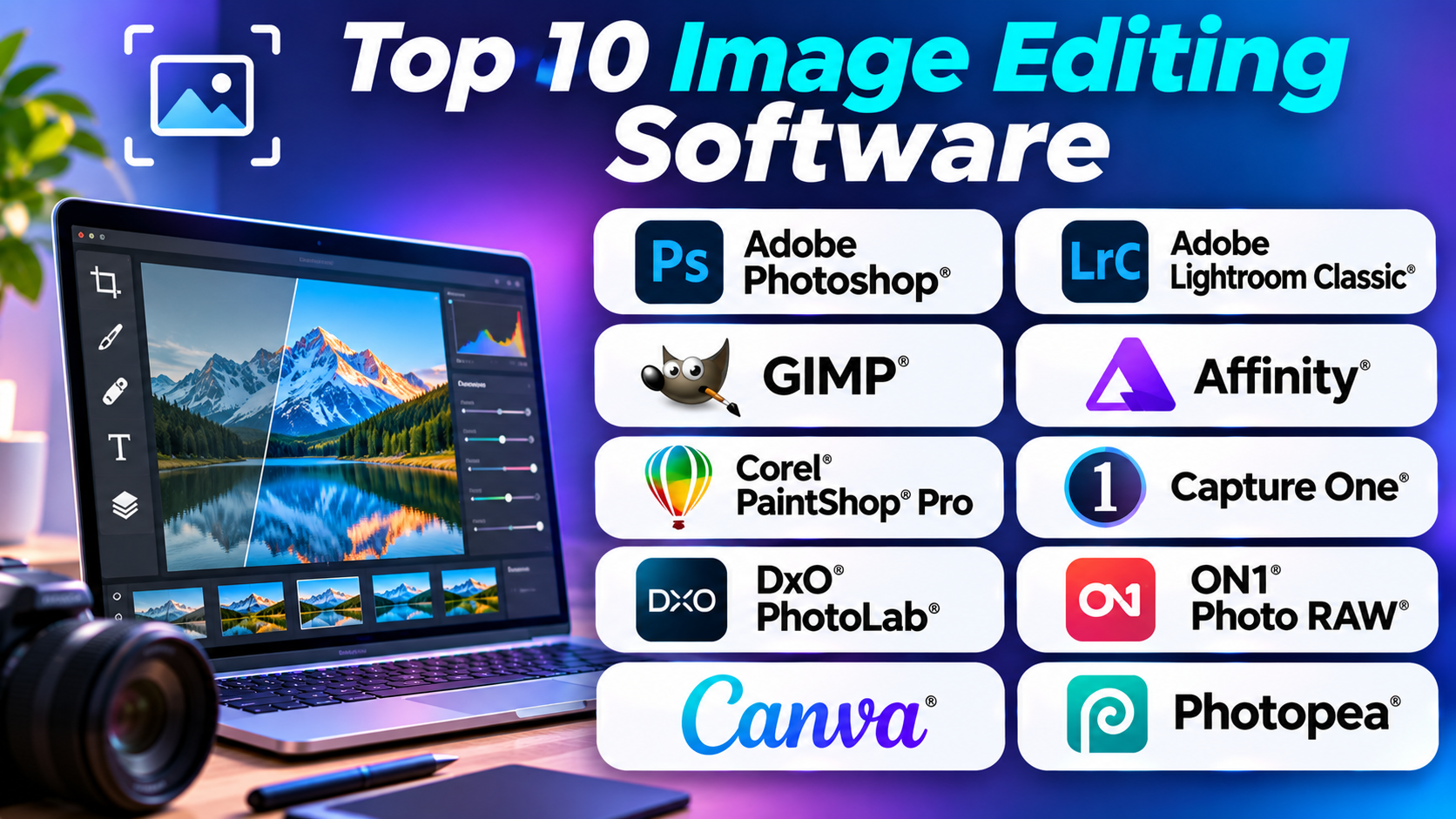
This guide covers ten image editing tools for different needs. It includes professional editors, free desktop apps, RAW photo tools, and browser-based options. Each tool has its own strengths and limits.
What Is Image Editing Software?
Image editing software lets people change, improve, and create digital images. Users can crop photos, adjust light, change colors, remove unwanted objects, and add text or effects.
Many tools also support layers. Layers let users place images, text, and effects on separate levels. This makes complex edits easier to manage.
Some editors work with RAW files from digital cameras. These files keep more image data than common JPEG files. Photographers can use that extra data to adjust light, color, and detail.
Other tools focus on quick edits. They help users create graphics for websites, online stores, social media, and presentations.
Top 10 Image Editing Software
1. Adobe Photoshop
Adobe Photoshop is a leading choice for detailed image editing and graphic design. It gives users control over almost every part of an image. Photographers, designers, artists, and marketing teams use it for many types of creative work.
Photoshop supports layers, masks, selections, filters, text, and advanced retouching. These tools help users remove objects, repair photos, change backgrounds, and combine several images into one scene. Users can also work with PSD files and many common image formats.
Its selection and masking tools help users edit one part of an image without changing the rest. For example, a designer can change a product background while keeping the product itself untouched. This level of control makes Photoshop useful for product photos, posters, website graphics, and advertising work.
Photoshop also includes AI-assisted features. These can help users create or change image content and speed up some editing tasks. However, users should review the results carefully. AI edits may need manual fixes, especially around hair, hands, edges, and fine details.
Photoshop works best for people who need deep editing control. New users may need time to learn its many tools. Its subscription model also makes long-term costs worth checking before choosing it.
Pros
- Offers detailed photo editing and retouching tools.
- Supports layers, masks, and complex image compositions.
- Works with many common image formats.
- Provides advanced selection and background editing tools.
- Supports a wide range of creative workflows.
Cons
- Requires time and practice to master.
- Uses a paid subscription plan.
- Advanced features may feel complex to new users.
- Needs a capable computer for demanding projects.
2. Adobe Lightroom Classic
Adobe Lightroom Classic focuses on photo editing and image library management. It suits photographers who work with many pictures from cameras or phones. Instead of focusing on complex graphic design, it helps users organize, adjust, and export photos.
Its catalog system helps users sort large photo collections. Users can add keywords, ratings, labels, and collections. They can also search for images and group photos by project or event. This helps photographers manage work from weddings, travel, events, and product shoots.
Lightroom Classic offers tools for exposure, contrast, color, sharpness, and lens correction. It also supports RAW photo editing. Users can make changes without directly changing the original image file. This non-destructive method makes it easier to try different looks and return to earlier edits.
Its batch editing tools save time. A photographer can apply similar settings to many photos at once. This helps when a full shoot needs a consistent look.
Lightroom Classic is not a full replacement for Photoshop. It does not offer the same depth for complex image composites or detailed graphic design. Users who need both workflows may choose to use the two apps together.
Pros
- Helps organize large photo collections.
- Offers strong RAW photo editing tools.
- Supports batch edits for faster work.
- Provides useful color and light controls.
- Keeps editing changes separate from original files.
Cons
- Uses a paid subscription plan.
- Does not match Photoshop for complex composites.
- Its catalog system may take time to learn.
- Works best for photo workflows rather than general design.
3. GIMP
GIMP is a free, open-source image editor for users who want strong editing tools without a paid license. It works on Windows, macOS, and Linux. Its open-source nature also allows developers to study and adapt its code.
GIMP supports layers, masks, paths, brushes, filters, and selection tools. Users can retouch photos, remove backgrounds, create banners, and make digital artwork. It also supports many common image formats.
The tool offers useful control over image details. Users can adjust color levels, remove marks, combine images, and work with separate layers. Its tools can handle many tasks that people often use paid editors for.
GIMP also supports plug-ins and scripts. These can add features or help automate repeated tasks. However, users may need to search for the right add-ons and learn how to set them up.
Its interface may feel less familiar to people who have used commercial editors. Some workflows also need more manual steps. Still, GIMP remains a strong choice for people who want a capable desktop editor at no software cost.
Pros
- Free to use.
- Open-source and community-supported.
- Runs on Windows, macOS, and Linux.
- Supports layers, masks, filters, and plug-ins.
- Handles many photo editing and graphic tasks.
Cons
- The interface may take time to learn.
- Some advanced workflows need extra plug-ins.
- Does not match every feature in leading paid editors.
- Beginners may find some tools hard to locate.
4. Affinity
Affinity is a creative design and image editing app from Canva. It brings photo editing, vector design, and layout work into one creative environment. It can suit users who want more control than a basic online editor offers.
Its photo editing tools support layers, masks, selections, retouching, and image adjustments. Users can work on detailed edits and combine different visual elements. The app also supports professional design work that goes beyond simple photo correction.
Affinity can help users create product visuals, posters, social graphics, and other creative assets. Its mix of photo and design tools may reduce the need to switch between separate applications for some projects.
The app’s wide range of tools can take time to learn. Users who only need quick crops or color fixes may not need its full feature set. Before starting a project, users should also check file compatibility and the features available in their chosen setup.
Affinity is worth considering for people who want a broad creative workspace. It can be useful for designers, photographers, and users who handle several kinds of visual work.
Pros
- Combines photo editing and design tools.
- Supports layers, masks, and detailed image work.
- Offers tools for both raster and vector workflows.
- Can handle many professional creative tasks.
- Provides an alternative to subscription-focused creative suites.
Cons
- Its broad feature set may feel complex.
- Users may need time to learn its different work areas.
- Some workflows may differ from other editing apps.
- Compatibility should be checked before moving existing projects.
5. Corel PaintShop Pro
Corel PaintShop Pro is a Windows image editor for photo correction and creative design. It offers tools for users who want more than basic photo filters but do not need every feature in a large professional suite.
The software includes photo adjustments, retouching, layers, selection tools, and effects. Users can correct colors, remove unwanted details, add text, and create graphics. It also provides guided tools that can help users complete common editing tasks.
PaintShop Pro supports creative projects such as posters, cards, product images, and social media graphics. Its layer tools help users keep different parts of a design separate. This makes later changes easier.
The software also includes automated editing features. These can speed up routine tasks, but users should still review the final image. Automatic changes may not suit every photo or style.
PaintShop Pro is designed for Windows users. People who work across Mac and Windows devices may need another option. Its interface also has many tools, so new users should allow time to explore the workspace.
Pros
- Offers photo correction and graphic design tools.
- Supports layers and selection tools.
- Includes guided editing options.
- Handles common creative projects.
- Provides a desktop workflow for Windows users.
Cons
- Does not support macOS.
- Some advanced tools take time to learn.
- Its workflow may not suit users who need a large photo catalog.
- Users should check current license terms before buying.
6. Capture One
Capture One is a professional photo editing tool built around RAW processing and studio photography. It is especially useful for photographers who need careful control over color and image quality.
The software offers exposure adjustments, color tools, layers, masks, and image organization features. Its color controls help photographers fine-tune skin tones, product colors, and other important details. This can matter in commercial shoots where images need a consistent look.
Capture One also supports tethered shooting. This lets a camera connect to a computer during a photo session. Images can appear on the computer as the photographer takes them. Studio teams can review shots on a larger screen and make changes during the shoot.
The tool can support product photography, portraits, fashion work, and other professional photo sessions. Its workflow may be more than a casual user needs. People who mainly edit phone pictures may find a simpler app easier to use.
Capture One is best suited to photographers who value RAW control, color work, and studio features. Users should check camera support and plan options before they commit.
Pros
- Offers detailed RAW photo processing.
- Provides advanced color adjustment tools.
- Supports tethered camera shooting.
- Includes layers and masking features.
- Suits professional studio workflows.
Cons
- May feel complex to casual users.
- Costs more than many basic photo editors.
- Some users may not need its studio features.
- Camera and file support should be checked.
7. DxO PhotoLab
DxO PhotoLab focuses on RAW photo processing, image detail, and lens correction. It suits photographers who want to improve camera images with careful technical adjustments.
The software offers tools for exposure, color, contrast, sharpening, and noise reduction. Noise reduction helps reduce grain in photos taken in low light or at high camera settings. DxO also uses camera and lens data to support image corrections.
Its lens correction tools can help fix issues such as distortion, softness, and color fringing. These corrections can improve the look of images from supported camera and lens combinations. Users should check whether their own equipment has the required support.
PhotoLab also includes local adjustment tools. These let users change selected areas instead of applying every edit to the full image. This helps when a photo has a bright sky and a dark foreground, for example.
PhotoLab focuses more on photo development than graphic design. It is not the best choice for making complex posters or combining many images. Photographers who need RAW quality and lens corrections may find it a better fit.
Pros
- Offers strong RAW photo processing.
- Includes noise reduction and sharpening tools.
- Provides camera and lens correction features.
- Supports local image adjustments.
- Helps improve photos taken in difficult light.
Cons
- Focuses on photography rather than graphic design.
- Supported camera and lens profiles can vary.
- Some advanced tools need practice.
- May not replace a layer-based design editor.
8. ON1 Photo RAW
ON1 Photo RAW combines photo editing, RAW processing, layers, effects, and photo organization in one application. It aims to help photographers complete more work without moving between several separate tools.
Users can browse images, adjust exposure, change colors, retouch photos, and apply effects. The software also supports layers and masking. These features help users make local changes and build more complex edits.
Its AI-assisted tools can help with tasks such as noise reduction, subject selection, and removing unwanted objects. These features can save time, but results may vary by image. Users should inspect important details before exporting finished work.
ON1 Photo RAW supports a range of image formats and works on desktop systems. Its all-in-one approach can suit photographers who want editing and organizing tools in one place. However, the number of features may feel crowded at first.
The software offers different purchase and subscription options. Users should compare the included features and update terms before choosing a plan.
Pros
- Combines photo organization and editing.
- Supports RAW files, layers, and masks.
- Includes AI-assisted editing tools.
- Offers effects and local adjustments.
- Provides different purchase options.
Cons
- The interface may take time to learn.
- Some AI tools may need careful review.
- Large projects can require a capable computer.
- Features can differ between editions.
9. Canva
Canva is an online design platform with simple image editing tools. It works well for people who need attractive visuals without learning a complex desktop editor.
Users can crop images, adjust colors, remove backgrounds with supported features, add text, and apply filters. Canva also offers templates for social posts, presentations, flyers, banners, and other design work.
Its drag-and-drop editor makes it easy to place images and text. Teams can also work together on shared designs. This can help businesses and content teams create visuals with a consistent style.
Canva is not designed for every advanced photo editing task. It does not offer the same detailed control as Photoshop or specialist RAW editors. Photographers who need deep retouching or careful RAW development may need another tool.
Canva works best for quick design work and everyday image changes. Its free and paid plans may offer different tools, storage, and content options. Users should check plan details before relying on a specific feature.
Pros
- Easy for beginners to use.
- Offers many ready-made design templates.
- Combines image editing with graphic design.
- Supports team collaboration.
- Works through a web browser and mobile apps.
Cons
- Advanced photo editing control is limited.
- Some features and assets require a paid plan.
- Internet access is important for its online workflow.
- Not ideal for detailed professional retouching.
10. Photopea
Photopea is a browser-based image editor that supports many common image formats. It can open PSD files and offers an interface that may feel familiar to users of layer-based desktop editors.
The tool includes layers, masks, selections, brushes, text, and adjustment features. Users can crop images, remove backgrounds, combine pictures, and make basic design layouts. It can also handle formats such as PSD, JPEG, PNG, and other common file types.
Because Photopea runs in a browser, users can edit images without installing a full desktop application. This can help people who use shared computers or need a quick editing tool while away from their main device.
Photopea can support many everyday editing tasks. However, browser performance depends on the computer, browser, and size of the image. Large files and complex projects may feel slower than they do in a dedicated desktop app.
It is a useful option for students, casual users, and designers who need quick access to layer-based editing. People who work with large professional projects may prefer a desktop application.
Pros
- Runs in a web browser.
- Opens PSD and many common image formats.
- Offers layers, masks, and selection tools.
- Does not require a full desktop installation.
- Useful for quick edits on different computers.
Cons
- Performance depends on the browser and device.
- Large projects may feel slow.
- The interface can feel busy to beginners.
- Some advanced desktop workflows may not be available.
Image Editing Software Comparison Table
| Software | Best For | Main Strength | Main Limitation |
|---|---|---|---|
| Adobe Photoshop | Professional editing and design | Detailed layers, masks, and retouching | Learning curve and subscription |
| Adobe Lightroom Classic | Photographers and large photo libraries | RAW editing and photo organization | Limited complex design tools |
| GIMP | Free desktop image editing | Open-source editing features | Interface takes practice |
| Affinity | Photo editing and creative design | Combined creative tools | Broad feature set takes time to learn |
| Corel PaintShop Pro | Windows photo editing | Photo correction and design tools | Windows-focused |
| Capture One | Studio and professional photography | RAW processing and color control | More than casual users may need |
| DxO PhotoLab | RAW processing and lens correction | Noise reduction and image correction | Limited graphic design tools |
| ON1 Photo RAW | All-in-one photo workflows | Editing, layers, and organization | Many features to learn |
| Canva | Social media and marketing visuals | Templates and simple design | Limited advanced photo control |
| Photopea | Browser-based image editing | PSD support and layer tools | Browser performance can vary |
How to Choose the Right Image Editing Software
The best tool depends on the images you work with and the edits you need. Before choosing one, think about your main tasks.
Think About Your Main Work
If you edit product photos, remove objects, or combine several images, look at Photoshop or Affinity. These tools offer detailed control over layers and masks.
If you work with large photo collections, Lightroom Classic may suit your workflow. Capture One can be a good fit for studio photography. DxO PhotoLab is worth a look when RAW quality and lens correction matter.
For social media graphics and simple marketing visuals, Canva offers an easier start. Photopea can help when you need browser-based editing. GIMP is a strong free option for desktop users.
Check Your Budget
Some tools use subscriptions. Others offer free access or different license options. Check what each plan includes before you pay.
Also consider the cost of extra storage, plug-ins, cloud services, and future upgrades. A low starting price may not cover every feature you need.
Check File Support
Make sure the software supports your image formats. This matters if you use RAW files, PSD projects, TIFF images, or files from a specific camera.
If you work with other designers or clients, check whether the tool can open and save the file types they use.
Consider Your Computer
Large images and complex edits can use a lot of memory and processing power. Check the software’s system needs before installing it.
Browser-based tools also depend on your device and internet connection. Try a sample project before moving your full workflow.
Test the Editing Process
A free trial or free version can help you judge the software. Try the tasks you do most often.
For example, edit a portrait, remove a background, adjust a RAW photo, or export a design. This gives you a better idea of how the tool fits your work.
Questions and Answers About Image Editing Software
1. What is the best image editing software for beginners?
Canva is a simple choice for basic image edits and graphic designs. Photopea can also help beginners who want to learn layers. The best choice depends on the type of images they want to edit.
2. Which image editing software is free?
GIMP is a free, open-source desktop editor. Photopea offers browser-based editing, while Canva provides a free plan with limits. Always check the current feature limits.
3. Is Adobe Photoshop good for professional image editing?
Yes. Photoshop offers detailed retouching, layers, masks, selections, and image composition tools. It suits many professional design and photo editing tasks.
4. What is the difference between Photoshop and Lightroom Classic?
Photoshop focuses on detailed image editing and design. Lightroom Classic focuses on RAW photo editing and organizing large photo libraries. Many photographers use both for different tasks.
5. Which software is best for RAW photo editing?
Lightroom Classic, Capture One, DxO PhotoLab, and ON1 Photo RAW all support RAW photo workflows. Your camera, editing style, and preferred tools should guide your choice.
6. Can I edit images online without installing software?
Yes. Canva and Photopea offer browser-based editing. They can handle many common tasks without a full desktop installation.
7. Is GIMP a good alternative to Photoshop?
GIMP can handle many photo editing and design tasks. It supports layers, masks, filters, and plug-ins. However, its workflow and features differ from Photoshop.
8. Which image editor is best for social media posts?
Canva is a useful choice because it offers ready-made layouts and simple editing tools. It helps users create posts, banners, and other online graphics.
9. Do I need a powerful computer for image editing?
Not always. Basic edits can run on many everyday computers. Large RAW files, complex layers, and AI tools may need more memory and processing power.
10. How do I choose between free and paid image editing software?
Start with the tasks you need to complete. Free tools may cover basic edits and many advanced tasks. Paid tools may offer features, support, or workflows that matter to your work.
Final Thoughts
Image editing software can help anyone create clearer and more useful visuals. But one tool will not suit every type of work.
Photoshop offers deep control for complex edits. Lightroom Classic helps photographers manage and improve large photo collections. GIMP gives users a capable free desktop option. Canva and Photopea make everyday editing easier to access.
Capture One, DxO PhotoLab, and ON1 Photo RAW serve more focused photography needs. Affinity and PaintShop Pro offer other paths for creative editing and design.
Before you choose, test the tools with real images. Check their file support, system needs, and costs. The right software is the one that fits your work and helps you get the results you want.