Introduction
Desktop publishing software helps turn text, photos, and graphics into polished publications. People use it to create books, magazines, brochures, newsletters, catalogs, reports, and other layouts.
The right tool can make a big difference. A book designer may need precise page controls and long-document features. A small business may need quick brochures and simple templates. A print shop may need reliable color and PDF output.
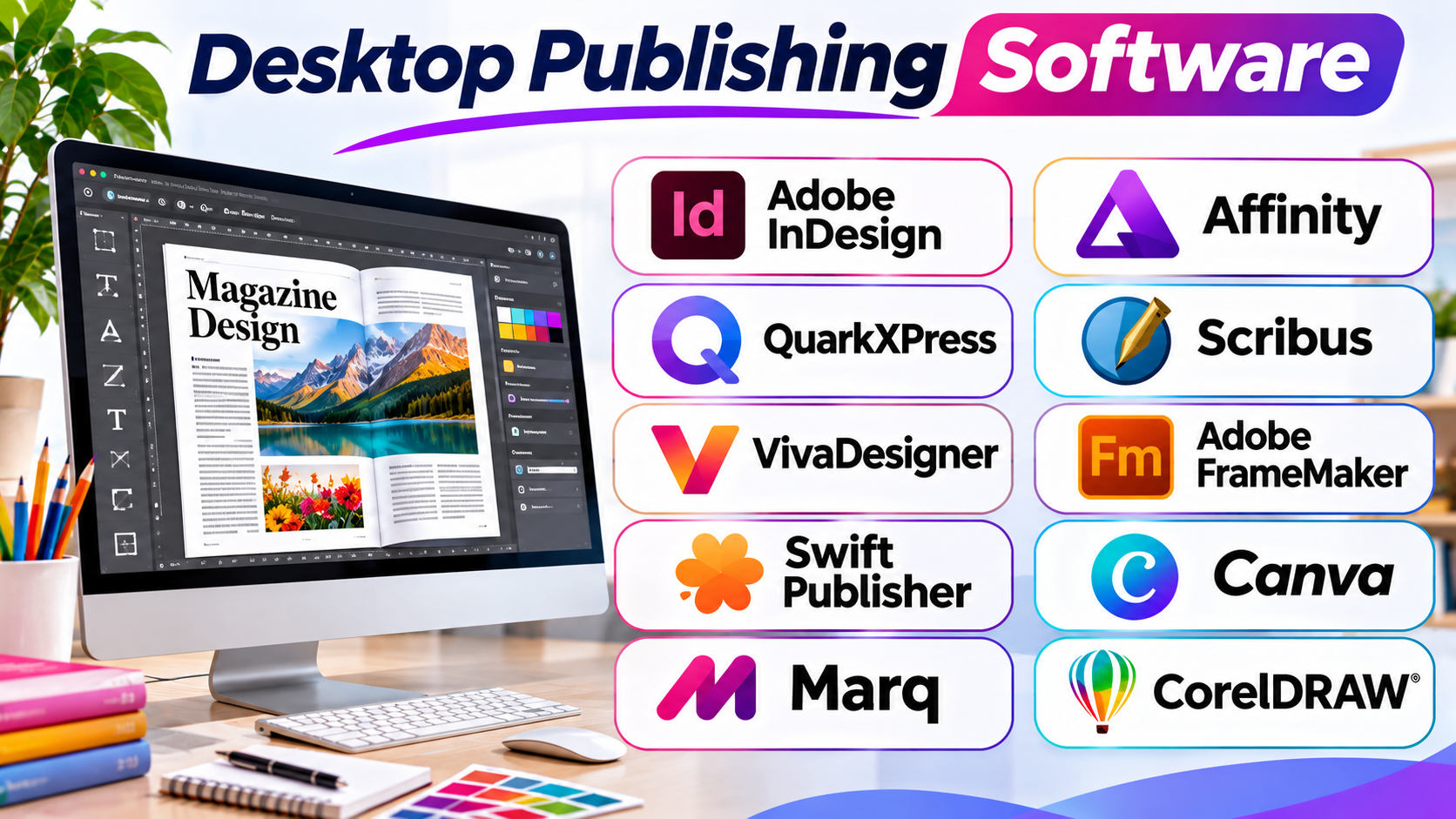
This guide compares ten desktop publishing tools. It explains what each one does, where it fits, and what to consider before choosing it. You will also find a comparison table, Pros and Cons, and answers to common questions.
What Desktop Publishing Software Does
Desktop publishing software gives users control over page layout. It lets them place text, images, tables, shapes, and other content on a page. Users can then prepare the design for print or digital sharing.
A word processor mainly helps people write and edit text. A desktop publishing tool focuses more on how content looks on the page. It offers more control over columns, page size, margins, image placement, text flow, and typography.
Most publishing projects follow a simple process:
- Plan the publication and choose its page size.
- Add text, images, and other design assets.
- Arrange content with columns, frames, and layout guides.
- Review fonts, spacing, page numbers, and image quality.
- Export the finished file for print or digital use.
Print projects need extra care. Designers may need bleed settings, color controls, embedded fonts, and print-ready PDF files. Digital publications may need links, interactive elements, or screen-friendly layouts.
10 Desktop Publishing Software Tools to Consider
1. Adobe InDesign
Adobe InDesign is a professional page layout application for print and digital publishing. Publishers, design agencies, marketing teams, and production studios use it for books, magazines, brochures, catalogs, reports, and interactive documents.
Its main strength lies in detailed control over complex layouts. Designers can manage pages, columns, margins, grids, and text frames. They can also link text frames so long stories flow across several pages. This helps when a book or magazine needs frequent edits.
InDesign offers paragraph and character styles. These tools keep headings, body text, captions, and other elements consistent. A designer can change one style and update many parts of a document. Parent pages also help maintain repeated elements, such as page numbers, headers, and background designs.
The software supports professional print preparation. Its Preflight panel can flag missing fonts, missing links, low-resolution images, and overset text. Users can also set bleeds and export print-ready PDFs. For digital work, InDesign supports interactive documents and online publishing features.
InDesign also connects with other Adobe applications. Designers can place artwork from Illustrator and images from Photoshop. This helps teams manage projects that need several types of creative work.
However, InDesign takes time to learn. Its subscription cost may also matter to freelancers and small businesses. It makes the most sense when users need advanced page controls and a professional publishing workflow.
Pros
- Offers precise control over page layouts and typography.
- Handles long books, magazines, and multi-page documents.
- Provides parent pages and reusable text styles.
- Includes preflight checks for print preparation.
- Supports interactive and digital publishing.
- Connects with Photoshop, Illustrator, and other Adobe tools.
Cons
- Requires time and practice to master.
- Uses a paid subscription model.
- Can feel complex for simple flyers or basic documents.
- Professional workflows may need other Adobe applications.
- Large projects require careful file and asset management.
2. Affinity
Affinity provides a creative workspace that brings page layout, vector design, and photo editing together. Its layout tools support books, magazines, brochures, reports, and other multi-page publications.
The layout workspace gives users control over pages, spreads, text frames, images, and design elements. Designers can create master pages, set guides, and apply consistent text styles. These features help them manage publications with repeated layouts.
Affinity also supports linked text frames. This feature lets text flow from one frame to another. It helps when a story runs across several pages or columns. Users can adjust the layout without rebuilding every page from scratch.
A key difference is its connection with vector and pixel editing tools. Designers can work with illustrations and images inside the same creative environment. This can reduce the need to switch between separate applications during a project.
Affinity supports common publishing formats and professional print workflows. However, teams should test imported files before moving large projects from another application. Complex layouts may need manual adjustments after import.
Affinity can suit freelancers, independent publishers, and small creative teams. It offers a broad set of design tools without the same subscription-first approach as some competitors. Still, teams that exchange files with agencies should check their required formats and workflows.
Pros
- Combines page layout, vector, and photo editing tools.
- Supports multi-page publishing projects.
- Provides master pages and text-flow features.
- Offers detailed typography and layout controls.
- Helps reduce switching between creative applications.
- Can suit users who prefer to avoid recurring software subscriptions.
Cons
- Imported files may need manual cleanup.
- Some team collaboration features depend on other services.
- Users may need time to learn its full workspace.
- Complex publishing workflows need careful compatibility checks.
- Some agency workflows may still depend on Adobe file formats.
3. QuarkXPress
QuarkXPress is a long-established desktop publishing application for professional print and digital design. It supports books, magazines, newspapers, brochures, catalogs, and other publications.
The software gives designers control over page layout, typography, images, and graphic elements. Users can create detailed page designs and manage large publications. Its text and style controls help keep layouts consistent across many pages.
QuarkXPress also supports digital publishing. Designers can prepare content for print and create digital publications from the same general workflow. This can help publishers who need to serve readers across different formats.
Another useful feature is its support for both perpetual licenses and subscription options. This gives buyers a choice in how they pay for the software. A perpetual license may appeal to users who prefer to own a specific software version. A subscription may suit teams that want ongoing updates.
QuarkXPress can also support complex design and production tasks. However, its advanced controls may take time to learn. Teams should check how its files fit with printers, clients, and other publishing partners.
It can suit professional publishers and designers who need detailed control over print and digital layouts. It may be excessive for people who only create simple flyers or occasional business cards.
Pros
- Supports complex print and digital publications.
- Provides detailed typography and page layout controls.
- Works for books, magazines, newspapers, and catalogs.
- Offers both perpetual license and subscription choices.
- Includes tools for editing and arranging graphic elements.
- Supports professional publishing workflows.
Cons
- Advanced features can take time to learn.
- May be more than casual users need.
- Teams should check compatibility with existing production files.
- Professional workflows may require training.
- Licensing choices need careful review before purchase.
4. Scribus
Scribus is a free, open-source desktop publishing application. It helps users create brochures, newsletters, books, posters, magazines, and other page-based documents.
The software uses separate frames for text, images, and other page elements. Users can place and resize these frames with control. This approach gives them more layout freedom than a basic word processor.
Scribus includes tools for typography, color, layers, and page management. It also supports master pages and text frames. These features help users create consistent designs across several pages.
One of its main strengths is print preparation. Scribus supports CMYK color workflows and PDF export for print production. It also offers color management and print preview features. These tools can help designers prepare files for commercial printing.
Its open-source model makes it attractive to students, nonprofits, small businesses, and independent designers. Users can work without paying for a commercial license. However, the interface may feel less familiar to people who have used commercial publishing applications.
Scribus is a practical choice for users who need real page layout tools without a software subscription. It may not suit every large publishing workflow, especially when a team depends on specific commercial file formats.
Pros
- Free and open-source software.
- Supports multi-page publications.
- Provides text frames, image frames, and layers.
- Includes CMYK color and print preparation features.
- Exports PDF files for print workflows.
- Supports Windows, macOS, and Linux.
Cons
- The interface may take time to learn.
- Some workflows may feel less polished than paid tools.
- Complex commercial files may need conversion or cleanup.
- Advanced users may miss some specialist features.
- Team workflows need careful file compatibility checks.
5. VivaDesigner
VivaDesigner is a desktop publishing application for print and digital layout work. It supports users who create brochures, magazines, books, catalogs, and other structured documents.
The software offers page layout controls, text formatting, and image placement tools. Users can work with master pages, styles, and linked text frames. These features help them build consistent publications and manage changes across several pages.
VivaDesigner also offers desktop and web-based workflows. This can help teams that need different ways to access and edit publishing projects. Its setup may suit organizations that want to combine local design work with browser-based access.
The application supports professional layout tasks and common publishing formats. Users should still check its file exchange options before using it in a production team. File compatibility matters when designers work with printers, agencies, or clients who use other applications.
VivaDesigner may suit publishers and organizations that need cross-platform publishing features. It can also be useful when teams want more layout control than simple online design tools provide.
Its range of features may require training. Buyers should test the interface and collaboration setup before moving a large publication workflow into it.
Pros
- Supports professional page layout and publishing.
- Includes master pages and linked text frames.
- Offers desktop and web-based workflow options.
- Can handle books, brochures, magazines, and catalogs.
- Provides tools for structured document design.
- May suit teams with varied publishing needs.
Cons
- The interface may take time to understand.
- Users should test file compatibility with partners.
- Some teams may need training before adoption.
- Advanced features may be unnecessary for simple projects.
- Collaboration needs depend on the chosen setup.
6. Adobe FrameMaker
Adobe FrameMaker focuses on long and structured technical documents. It serves teams that create manuals, product guides, policy documents, training materials, and complex reference publications.
Unlike a general design tool, FrameMaker places strong attention on structured content. Writers can organize information into sections and apply consistent formatting. This helps teams manage large documents that contain many chapters and repeated content.
FrameMaker supports structured authoring workflows. Teams can use XML and DITA to organize technical information. These formats help separate content from presentation. This can make it easier to reuse the same information in different outputs.
The software also supports long-document features such as book files, cross-references, indexes, and tables of contents. These tools matter when a manual contains hundreds of pages. A change to one section can affect references and navigation elsewhere.
FrameMaker is not the first choice for creative magazine layouts or highly visual brochures. Its value comes from managing technical content with structure and consistency.
It can suit engineering companies, technical publishers, and organizations that maintain large documentation libraries. New users may need training because structured authoring has its own rules and processes.
Pros
- Handles long and complex technical documents.
- Supports structured authoring with XML and DITA.
- Provides book files, indexes, and cross-references.
- Helps maintain consistent technical documentation.
- Supports content reuse across publications.
- Suits manuals and product reference materials.
Cons
- Not designed mainly for creative magazine layouts.
- Structured authoring requires training.
- May be excessive for short marketing documents.
- Advanced workflows need careful setup.
- Subscription costs may affect smaller teams.
7. Swift Publisher
Swift Publisher is a desktop publishing application for Mac users. It focuses on practical print projects such as brochures, flyers, business cards, newsletters, labels, calendars, and booklets.
The application offers ready-made templates for common publishing tasks. Users can start with a template and change its text, colors, images, and layout. This helps people create simple materials without building every page from the beginning.
Swift Publisher includes text boxes, linked text frames, image masks, layers, and drawing tools. Users can also work with guides and grids to place elements accurately. Its text tools support styles, spacing, and text flow between boxes.
The application also includes features for print projects. Users can set page sizes, add bleeds, and export files in formats such as PDF and EPS. It supports CMYK output options for certain exports. These settings can help when preparing artwork for a print shop.
Swift Publisher works best for smaller print projects. It may not offer the same depth as applications built for complex books or large magazines. Its Mac-only focus also limits teams that use different operating systems.
Pros
- Offers templates for many common print projects.
- Supports linked text boxes and multi-page layouts.
- Includes layers, grids, and layout guides.
- Provides tools for labels, cards, and booklets.
- Exports common image and document formats.
- Offers a focused workflow for Mac users.
Cons
- Available for Mac rather than all desktop platforms.
- Less suited to complex publishing projects.
- May not match the advanced controls in larger DTP tools.
- Template-based workflows may limit some design needs.
- Teams using Windows or Linux need another option.
8. Canva
Canva is an online design platform that helps users create visual content. It is not a traditional desktop publishing application, but it can handle many simple publication tasks. Users create brochures, newsletters, reports, presentations, flyers, and social media documents.
Its main strength is its template-based workflow. Users can choose a design and change the text, images, colors, and layout. This can save time for people who do not have formal design training.
Canva also includes a large collection of design elements and templates. Teams can share designs, leave comments, and work together. Brand tools can help organizations keep colors, fonts, and logos consistent across their materials.
The platform supports PDF exports and other formats. This makes it useful for basic print and digital projects. However, users should check print settings and output quality before sending a file to a professional printer.
Canva works well for small businesses, teachers, marketing teams, and individuals. It is less suitable for complex book production or detailed prepress work. Designers who need precise typography and advanced page controls may prefer a dedicated DTP application.
Pros
- Offers many ready-made publication templates.
- Works through a web browser and supported apps.
- Makes simple design tasks easier for beginners.
- Supports team editing and feedback.
- Includes brand tools for consistent materials.
- Exports designs for digital use and printing.
Cons
- Less control than specialist page layout software.
- Some features and assets require paid plans.
- Complex books and magazines may be difficult to manage.
- Print production controls may not meet every printer’s needs.
- Internet access may be needed for many workflows.
9. Marq
Marq is a browser-based design and publishing platform for organizations. It helps teams create branded documents such as brochures, sales sheets, newsletters, reports, and marketing materials.
Its main focus is brand consistency. Organizations can create templates and set rules for how staff use them. This helps prevent people from changing key brand elements by mistake.
Marq can help marketing and sales teams produce materials without asking a designer to build every document. Staff can work from approved templates and update the content they need. This can support teams that create many similar documents.
The platform also supports collaboration and content management workflows. Teams can review designs and manage shared assets. This can make it easier to keep documents consistent across departments.
Marq is not a full replacement for a professional desktop publishing application. It focuses more on controlled templates and team publishing than advanced page design. A designer who needs detailed typography or complex print production may need another tool.
Marq can suit businesses that create large volumes of branded documents. Before choosing it, teams should review template controls, user permissions, export options, and plan features.
Pros
- Helps teams maintain brand consistency.
- Supports reusable document templates.
- Works through a browser-based workflow.
- Helps non-designers create approved materials.
- Supports collaboration and content review.
- Can reduce repeated design work for common documents.
Cons
- Not a full replacement for advanced DTP software.
- Some features depend on the selected plan.
- Complex print layouts may need another application.
- Teams must set up templates and rules carefully.
- May be unnecessary for individual designers.
10. CorelDRAW Graphics Suite
CorelDRAW Graphics Suite is a graphic design package with vector illustration and page layout features. It can help users create brochures, flyers, signs, catalogs, business cards, and promotional materials.
CorelDRAW focuses strongly on vector design. Users can create shapes, logos, illustrations, and text effects. They can also arrange these elements into multi-page layouts for print and digital use.
Its page layout tools can help designers prepare marketing materials and print graphics. The application also includes color controls and export options. These features support print shops and designers who work with signs, packaging, and promotional artwork.
CorelDRAW can be useful when a project needs both illustration and layout. A designer can create a logo, add text, and build a brochure in the same workspace. This can reduce the need to move between different applications.
However, CorelDRAW is not as focused on long-form publishing as InDesign or QuarkXPress. Users who create large books or magazines may prefer a dedicated page layout tool. It can still serve businesses that produce shorter visual publications.
Pros
- Combines vector illustration with page design.
- Supports logos, brochures, signs, and marketing materials.
- Offers detailed shape and typography controls.
- Includes tools for print-oriented design.
- Helps create artwork and layouts in one workspace.
- Can suit print shops and promotional design teams.
Cons
- Not as specialized for long books and magazines.
- Advanced features may take time to learn.
- The full suite may cost more than basic layout tools.
- Some publishing tasks may need another application.
- Users should check output settings with their print provider.
Desktop Publishing Software Comparison Table
| Software | Main Use | Best Suited For | Key Strength | Main Consideration |
|---|---|---|---|---|
| Adobe InDesign | Print and digital page layout | Publishers and design agencies | Advanced layout and typography | Subscription and learning curve |
| Affinity | Page layout and creative design | Freelancers and small studios | Layout, vector, and photo tools together | File import checks |
| QuarkXPress | Professional publishing | Print and digital publishers | Detailed page and typography controls | Advanced workflow learning |
| Scribus | Open-source page layout | Budget-conscious users | Free publishing and print tools | Interface and workflow differences |
| VivaDesigner | Print and digital layout | Publishing teams | Desktop and web workflow options | Setup and learning needs |
| Adobe FrameMaker | Technical documentation | Technical writers and publishers | Structured long-document authoring | Not focused on creative layouts |
| Swift Publisher | Small print projects | Mac users and small businesses | Templates and practical print tools | Mac-only availability |
| Canva | Template-based design | Beginners and marketing teams | Fast creation and collaboration | Limited advanced print controls |
| Marq | Branded document creation | Business and marketing teams | Controlled templates and brand rules | Not a full DTP replacement |
| CorelDRAW Graphics Suite | Vector design and page graphics | Print shops and graphic designers | Illustration and layout in one package | Less suited to long-form publishing |
How to Choose Desktop Publishing Software
The best choice depends on the type of publication you create. A tool that works well for a business flyer may not suit a 400-page manual.
Match the Software to Your Publication
Start with the type of content you plan to produce.
- Choose InDesign, Affinity, or QuarkXPress for books and magazines.
- Consider Scribus if you need free desktop publishing software.
- Explore FrameMaker for structured technical manuals.
- Try Swift Publisher for small Mac-based print projects.
- Consider Canva for quick brochures and marketing materials.
- Review Marq when many employees need approved brand templates.
- Look at CorelDRAW when illustration and print graphics are central.
Check Print Production Features
Ask your printer which file formats and settings they need. Check support for bleed, crop marks, color profiles, embedded fonts, and PDF export.
A design may look correct on screen but still cause print problems. A short test export can help you catch issues early.
Review Long-Document Features
Books and manuals need more than attractive pages. Look for master pages, page numbering, styles, text flow, indexes, and cross-references.
These features save time when a publication has many pages. They also help keep the design consistent after edits.
Consider Collaboration
A solo designer may only need local files. A marketing team may need shared templates, comments, permissions, and approval steps.
Choose software that fits how your team works. Also check how it handles file sharing and version changes.
Compare Costs and Learning Time
Free software can reduce costs, but it may require more setup or training. Paid software may offer features that save time on complex projects.
Consider the full cost. Include licenses, training, templates, storage, and any extra applications your workflow needs.
Common Desktop Publishing Mistakes to Avoid
Even strong software cannot fix a poor publishing process. Watch out for these common mistakes:
- Ignoring page setup: Set page size, margins, and bleed before you design.
- Using low-quality images: Use images with enough resolution for the final output.
- Mixing too many fonts: Keep typography clear and consistent.
- Skipping preflight checks: Review missing fonts, links, and overset text.
- Forgetting print settings: Confirm color mode and PDF requirements with the printer.
- Choosing software by price alone: Check whether it supports your real publishing tasks.
- Ignoring file compatibility: Test files with clients, printers, and team members.
- Using templates without review: Adjust spacing, text, and images to fit the final content.
Questions and Answers About Desktop Publishing Software
1. What is desktop publishing software used for?
Desktop publishing software helps users create and arrange text, images, and graphics on pages. People use it for books, magazines, brochures, newsletters, catalogs, flyers, and reports.
2. What is the difference between desktop publishing software and word processing software?
A word processor focuses on writing and editing text. Desktop publishing software focuses on page design and layout. It gives users more control over columns, image placement, typography, and print settings.
3. Which desktop publishing software is best for professional book design?
Adobe InDesign, Affinity, and QuarkXPress are strong options for book layout. They offer tools for page numbering, text flow, styles, and long documents. The right choice depends on your file needs and publishing workflow.
4. Is there free desktop publishing software?
Yes. Scribus is a free, open-source desktop publishing application. It supports page layout, text and image frames, color management, and PDF export.
5. Can beginners use desktop publishing software?
Yes. Beginners can start with Canva or Swift Publisher for simple projects. Scribus and professional tools may need more practice. Start with a small brochure or flyer to learn the basics.
6. Which software is suitable for magazine design?
Adobe InDesign, Affinity, and QuarkXPress can handle magazine layouts. They offer multi-page controls, text flow, styles, and image placement. Choose one that fits your team’s file workflow.
7. Can desktop publishing software create digital publications?
Yes. Many tools support digital PDFs and other screen-based formats. Some also offer interactive features or online publishing. Check the export options before choosing a tool.
8. What is the best software for print-ready PDFs?
Adobe InDesign, QuarkXPress, Scribus, and Affinity support print-focused PDF workflows. The right choice depends on your printer’s requirements. Always check color settings, bleeds, fonts, and image quality.
9. Is Canva a desktop publishing tool?
Canva is mainly an online design platform. It can create brochures, newsletters, reports, and other simple publications. However, it does not offer the same depth as specialist DTP software.
10. What should I check before buying desktop publishing software?
Check the software’s layout tools, file formats, print controls, platform support, collaboration features, and cost. Test it with a real project before moving your work.
Final Thoughts
Desktop publishing software helps people turn content into clear, well-designed publications. But each tool serves a different purpose.
Adobe InDesign and QuarkXPress suit demanding publishing work. Affinity offers a broad creative workspace. Scribus gives users a free option. FrameMaker focuses on technical documents, while Swift Publisher helps Mac users create everyday print materials.
Canva and Marq make template-based publishing easier for teams. CorelDRAW adds strong illustration tools to page design.
Before you choose, think about the publications you create most often. Test the software with a real project. Check the exported file with your printer or publishing partner. The right tool should make your work easier, keep layouts consistent, and meet the needs of your readers.