Introduction
Good ideas often start with a simple discussion. But teams can struggle to share those ideas clearly. This becomes harder when people work from different places.
Whiteboard collaboration tools solve this problem. They give teams a shared digital space for writing, drawing, planning, and brainstorming. Everyone can add ideas and work together on the same board.
These tools do much more than replace a physical whiteboard. Many offer sticky notes, diagrams, templates, voting, comments, and task planning. Some also connect with project management and design software.
However, each platform serves a different purpose. Some focus on creative workshops. Others support product design, business planning, teaching, or technical diagrams.
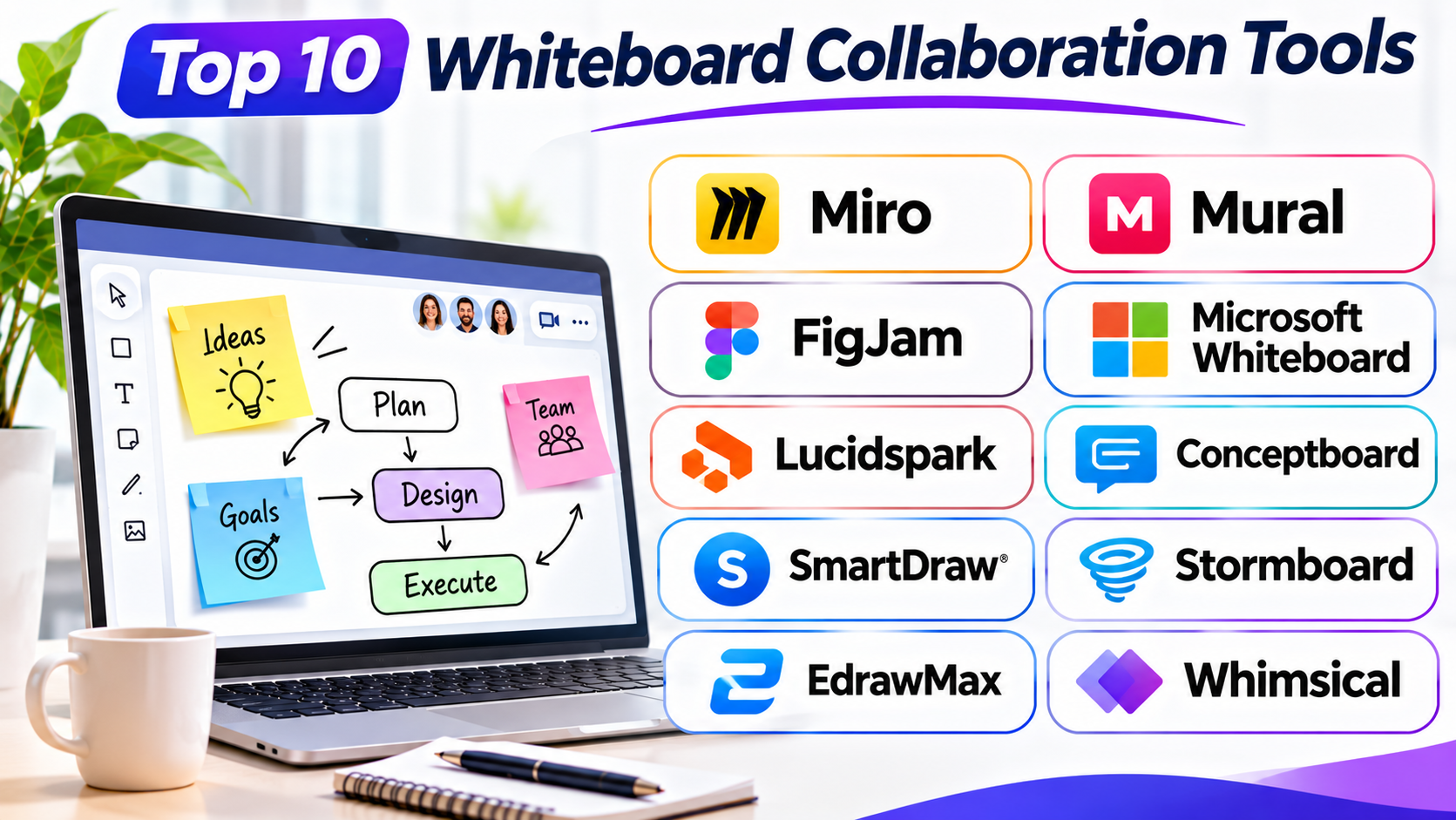
This guide explores ten useful whiteboard collaboration tools. It explains their main features, practical uses, Pros, and Cons. It also includes a comparison table to help readers choose the right platform.
What Are Whiteboard Collaboration Tools?
Whiteboard collaboration tools are digital workspaces. They help people share ideas through text, drawings, notes, images, and diagrams.
Team members can often work on the same board at once. They can also leave comments and review ideas later.
Most platforms use a large digital canvas. Users can move around the canvas and arrange content in different areas.
Common uses include:
- Team brainstorming and idea sharing
- Project planning and task discussions
- Product design and user experience planning
- Business strategy and process mapping
- Online classes and group activities
- Team meetings and workshops
- Mind maps and workflow planning
- Remote team communication
A good platform should match the team’s work style. It should also make sharing, editing, and managing boards simple.
Top 10 Whiteboard Collaboration Tools
1. Miro
Miro is a visual collaboration platform for teams and organizations. It gives users a large shared canvas for planning, brainstorming, and teamwork.
Teams can use sticky notes, shapes, text, images, and connectors. They can arrange these items to explain ideas and build clear plans. Its template library helps users start common activities without building every board from scratch.
Miro supports many types of teamwork. Product teams can map user journeys and plan product ideas. Marketing teams can prepare campaign plans. Project managers can organize tasks and discuss project stages.
The platform also supports workshops and group sessions. Teams can use activities such as voting and timers to guide discussions. Comments and collaboration features help people share feedback.
Miro also connects with several workplace tools. These connections can help teams move information between their visual workspace and other work systems.
However, its wide range of features may take time to learn. New users may need some practice before they can manage large boards with ease.
Best For: Teams that need a flexible workspace for brainstorming, planning, and project collaboration.
Pros
- Offers a large collection of templates for different activities.
- Supports real-time teamwork on shared boards.
- Provides tools for brainstorming, planning, and workshops.
- Helps teams organize complex ideas visually.
- Offers integrations with other workplace applications.
Cons
- New users may need time to learn its features.
- Large boards can become difficult to manage.
- Some advanced features require paid plans.
- Teams may need clear board rules to avoid clutter.
2. Mural
Mural focuses on visual teamwork and guided collaboration. It helps teams run workshops, plan ideas, and solve problems together.
The platform provides a shared canvas where users can add notes, images, shapes, and diagrams. Teams can arrange their content into different sections. This makes it easier to manage large discussions.
Mural is useful for design thinking and group activities. Facilitators can guide participants through planned exercises. They can also use timers, voting, and other workshop tools to keep sessions organized.
The platform works well for remote and hybrid teams. Participants can contribute from different locations. They can share ideas without needing to stand around one physical board.
Mural also offers templates for common business activities. Teams can use them for planning, customer journey mapping, brainstorming, and project discussions.
Its main strength lies in structured collaboration. It suits teams that run regular workshops and need more control over group activities.
However, people who only need a simple digital board may find its wider feature set unnecessary. Teams should also learn its facilitation tools before running larger sessions.
Best For: Remote teams, business workshops, design thinking, and guided group activities.
Pros
- Offers useful templates for workshops and planning.
- Supports structured group discussions.
- Includes tools for voting and time-based activities.
- Helps facilitators guide remote participants.
- Supports visual teamwork across different locations.
Cons
- Some features may feel complex to occasional users.
- Advanced workshop tools may require paid plans.
- New teams may need time to understand its workflow.
- It may offer more features than simple brainstorming requires.
3. FigJam
FigJam is an online whiteboard from Figma. It helps teams brainstorm, plan, and share ideas in a visual workspace.
The platform focuses on simple and creative collaboration. Users can add sticky notes, shapes, text, connectors, stamps, and other visual items. Team members can also leave comments and react to ideas.
FigJam works especially well for product and design teams. They can use it to discuss early ideas before creating detailed designs. Teams can also prepare user flows, customer journeys, wireframe plans, and project activities.
Its connection with Figma makes the workflow more useful. Design teams can move between brainstorming and design work within the same wider platform.
FigJam also supports group activities. Teams can use voting and workshop features to collect opinions. Templates help users start activities such as planning meetings and project reviews.
The interface feels approachable for many users. However, teams outside the Figma environment may not need its design-focused connections.
Best For: Product designers, UX teams, creative groups, and teams that already use Figma.
Pros
- Offers a simple visual workspace.
- Connects closely with Figma design workflows.
- Supports sticky notes, comments, and reactions.
- Includes templates for brainstorming and planning.
- Helps teams discuss early product ideas.
Cons
- Some advanced features depend on the selected plan.
- It may be less suitable for complex enterprise workshops.
- Teams outside the Figma ecosystem may gain less value.
- Large boards still need good organization.
4. Microsoft Whiteboard
Microsoft Whiteboard is a digital whiteboard for visual teamwork. It works within Microsoft’s wider productivity environment.
Users can write, draw, add sticky notes, and arrange content on a shared canvas. They can use it during meetings or open boards for later work.
Its connection with Microsoft Teams makes it useful for organizations that already use Microsoft 365. Team members can share ideas during meetings and work on common boards.
The platform supports different collaboration activities. Teachers can explain lessons. Business teams can plan projects. Employees can collect feedback during meetings.
Microsoft Whiteboard also provides templates and visual tools. These help users arrange information without starting every board from an empty canvas.
Its main strength is its connection with the Microsoft ecosystem. Organizations can consider it when they already use Microsoft accounts and workplace services.
However, it does not offer the same depth of workshop features as some specialist platforms. Teams that need advanced facilitation may prefer a dedicated collaboration tool.
Best For: Microsoft 365 users, schools, business teams, and organizations that use Microsoft Teams.
Pros
- Fits naturally into the Microsoft workplace environment.
- Supports shared boards and real-time collaboration.
- Offers drawing, writing, and sticky note tools.
- Works well for meetings and basic planning.
- Provides templates for common activities.
Cons
- Advanced workshop features are more limited than specialist tools.
- Some capabilities depend on account and plan settings.
- It may not suit complex visual planning needs.
- Teams outside Microsoft’s ecosystem may prefer another platform.
5. Lucidspark
Lucidspark is a virtual whiteboard from Lucid. It helps teams organize ideas and turn discussions into structured plans.
Users can add sticky notes, shapes, text, and connectors. They can group related ideas and arrange them into clear sections.
The platform supports brainstorming and guided activities. Teams can use voting, timers, and other tools to collect feedback. These features help groups reach decisions during meetings.
Lucidspark is especially useful when teams need to move from early ideas toward formal diagrams. Its connection with Lucidchart supports this process. Users can develop rough concepts before creating more structured diagrams.
Business analysts can use it for process discussions. Product teams can map user journeys. Project teams can organize plans and review possible solutions.
The platform offers a useful balance between open brainstorming and structured visual work. However, teams may need additional Lucid products for more advanced diagramming tasks.
Best For: Business analysts, product teams, process planners, and users of Lucidchart.
Pros
- Supports brainstorming and structured planning.
- Offers voting and group activities.
- Helps teams organize ideas into clear sections.
- Connects with Lucidchart for more formal diagrams.
- Works well for collaborative problem-solving.
Cons
- Some advanced workflows may require other Lucid products.
- New users may need time to understand its tools.
- Rough ideas may need extra work before formal documentation.
- It may not be necessary for simple whiteboard sessions.
6. Conceptboard
Conceptboard is an online collaboration platform for visual teamwork. It gives teams a shared space for reviewing content, discussing ideas, and managing visual projects.
Users can add notes, comments, shapes, images, and documents. They can place these items on a board and discuss them with other participants.
Conceptboard can support design reviews, project discussions, and workshop activities. Teams can use comments to give feedback on specific parts of a board. This helps keep discussions connected to the work.
The platform also provides tools for organizing collaboration. Teams can manage visual information and track discussions in one shared workspace.
Conceptboard is worth considering for organizations that need stronger control over their collaboration environment. Its available deployment choices can matter to businesses with specific hosting needs.
However, teams should review its deployment options, administration features, and available integrations before choosing it. Its fit depends on the organization’s technical and security requirements.
Best For: Organizations that need visual project reviews, structured feedback, and controlled collaboration.
Pros
- Supports shared visual workspaces.
- Helps teams review documents and project content.
- Provides comments and feedback tools.
- Supports workshop and planning activities.
- Offers deployment choices for different organizational needs.
Cons
- Some advanced options may require enterprise plans.
- Its template and integration ecosystem may not suit every team.
- Smaller teams may not need its wider controls.
- Organizations should review hosting and administration details before adoption.
7. Stormboard
Stormboard is a digital workspace for brainstorming and organized team planning. It uses a structured approach to help teams collect and manage ideas.
Users can add digital sticky notes and arrange them into groups. They can also organize discussions into separate areas. This helps teams manage several topics within one session.
Stormboard is useful for strategy meetings and decision-making activities. Teams can collect ideas, group similar suggestions, and vote on possible choices.
It also supports task assignments and reporting features. These can help teams move beyond brainstorming and record the results of a discussion.
Project managers can use Stormboard to organize planning sessions. Business teams can review problems and compare possible solutions. Agile teams can also use it during planning and review activities.
Its structured approach may appeal to teams that want clear outputs from meetings. However, people who prefer a completely open canvas may find its workflow less flexible.
Best For: Business planning, structured brainstorming, decision-making, and team workshops.
Pros
- Organizes ideas into clear groups.
- Supports voting and team feedback.
- Helps teams manage structured brainstorming sessions.
- Offers task and reporting features.
- Makes it easier to record meeting outcomes.
Cons
- Its structured workflow may feel restrictive to some users.
- It may not suit highly freeform creative work.
- Some business features require paid plans.
- New users may need time to understand its organization system.
8. Excalidraw
Excalidraw is a digital drawing and whiteboard tool. It focuses on simple sketches and hand-drawn-style diagrams.
The platform lets users create drawings with shapes, arrows, text, and freehand lines. Its visual style gives diagrams a casual appearance.
Excalidraw works well for technical discussions. Developers can sketch system ideas and explain software structures. Product teams can create rough layouts. Teachers can explain concepts through simple drawings.
Its open-source nature makes it different from many commercial whiteboard platforms. Users can explore its source code and consider self-hosting options. This can appeal to technical teams that want more control.
The platform focuses on drawing rather than full project management. It does not aim to replace every feature found in large collaboration suites.
Teams that need formal workshops, advanced task tracking, or complex administration may need another platform. However, Excalidraw remains a useful option for quick visual explanations.
Best For: Developers, technical teams, educators, and users who need simple visual sketches.
Pros
- Offers a simple drawing experience.
- Creates clear hand-drawn-style diagrams.
- Supports shapes, arrows, text, and freehand drawing.
- Has an open-source project.
- Works well for quick technical explanations.
Cons
- Offers fewer workshop features than larger platforms.
- It is not a full project management system.
- Complex business planning may need other tools.
- Teams should review hosting and collaboration needs before choosing a setup.
9. Canva Whiteboards
Canva Whiteboards brings visual collaboration into Canva’s wider design platform. It helps teams collect ideas and turn them into visual content.
Users can add sticky notes, text, images, shapes, and other design elements. They can arrange these items on a shared canvas and work with other people.
The platform suits teams that want both brainstorming and visual design. Marketing teams can plan campaigns. Teachers can prepare learning activities. Small businesses can discuss ideas before creating presentations.
Canva’s design resources give its whiteboards a different focus. Teams can use visual elements from the wider platform when they need attractive content.
Users can also move from brainstorming toward presentations and other design materials. This can reduce the need to switch between separate creative applications.
However, Canva Whiteboards may not provide the same depth of workshop controls as specialist platforms. Teams with complex facilitation needs should compare those features carefully.
Best For: Marketing teams, educators, small businesses, and people who use Canva for visual content.
Pros
- Combines brainstorming with visual design.
- Offers access to Canva’s design resources.
- Supports shared editing and idea collection.
- Helps teams turn plans into presentations.
- Provides templates for different activities.
Cons
- Advanced workshop controls may be limited.
- Complex process mapping may need a specialist tool.
- Some design resources depend on the selected plan.
- Large boards can become crowded without clear organization.
10. Whimsical
Whimsical is a visual workspace for flowcharts, wireframes, mind maps, and team planning. It helps users explain ideas through simple visual layouts.
The platform offers tools for creating flowcharts and diagrams. Users can connect shapes and arrange information into clear structures.
Whimsical also supports mind maps and wireframes. Product teams can use these tools to plan website layouts and user journeys. Developers can map processes. Business teams can explain workflows.
Its clean interface helps users focus on the content. Teams can create visual documents without spending too much time on decoration.
Whimsical is especially useful when a team needs more structure than a basic drawing board. It can help turn complex thoughts into organized visual information.
However, it focuses more on diagrams and visual planning than large facilitated workshops. Teams that need extensive group activities may prefer Miro or Mural.
Best For: Product teams, UX designers, developers, and people who create flowcharts and mind maps.
Pros
- Makes flowcharts and mind maps easy to organize.
- Supports wireframes and visual planning.
- Offers a clean and simple interface.
- Helps teams explain complex processes.
- Provides tools for collaborative work.
Cons
- It may offer fewer workshop features than Miro or Mural.
- Complex diagrams may need careful organization.
- Some advanced capabilities depend on paid plans.
- It may not suit teams that mainly need freeform brainstorming.
Comparison Table: Whiteboard Collaboration Tools
The following table highlights the main purpose of each platform. It can help readers create a shortlist before testing their options.
| Tool | Best For | Main Strength | Main Consideration |
|---|---|---|---|
| Miro | Large and cross-functional teams | Flexible visual workspace and templates | Can feel complex for new users |
| Mural | Workshops and group activities | Guided collaboration tools | May be more than simple teams need |
| FigJam | Product and design teams | Figma workflow connection | Less useful outside design-focused teams |
| Microsoft Whiteboard | Microsoft 365 users | Microsoft ecosystem connection | Fewer advanced workshop features |
| Lucidspark | Process planning and brainstorming | Connection with Lucidchart | Advanced work may need other Lucid products |
| Conceptboard | Visual reviews and controlled collaboration | Feedback and deployment choices | Check integrations and administration needs |
| Stormboard | Structured brainstorming | Grouping, voting, and reporting | Less suited to freeform work |
| Excalidraw | Technical sketches | Simple drawing and open-source project | Limited business workshop features |
| Canva Whiteboards | Visual content and brainstorming | Connection with Canva design tools | Less depth for complex workshops |
| Whimsical | Flowcharts and mind maps | Simple visual planning tools | Less focused on large workshops |
How to Choose the Right Whiteboard Collaboration Tool
The right tool depends on how a team works. A platform with many features may not always be the best choice.
Consider these points before making a decision.
1. Identify Your Main Purpose
Start by deciding what the team needs to do.
Do you need a space for simple brainstorming? Do you need to run large workshops? Or do you need to create detailed flowcharts?
Choose a platform that supports your main activity. Avoid paying for tools that your team will rarely use.
2. Check Real-Time Collaboration
A shared board should help people work together without confusion.
Check how users add notes and edit content. Also review comments, reactions, voting, and participant controls.
Test the platform with several team members. This can reveal problems that a solo test may not show.
3. Review Integrations
Many teams already use project management, design, and communication software.
Check whether the whiteboard connects with the tools your team uses. This can reduce repeated work and make it easier to share information.
For example, Figma users may prefer FigJam. Microsoft 365 organizations may find Microsoft Whiteboard more convenient.
4. Check Security and Access Controls
Businesses should review how each platform manages access.
Check user permissions, guest access, account controls, data storage, and available security options.
Larger organizations should also review identity management and administration. Do not assume every plan includes the same controls.
5. Consider Ease of Use
A whiteboard should help people share ideas. It should not create another learning problem.
Ask a few team members to test the platform. See whether they can create boards and add content without much help.
A simple tool may work better than a complex platform for occasional meetings.
6. Review Pricing and Team Size
Many platforms offer free and paid plans. However, plan limits can differ.
Check the number of users, available boards, storage, collaboration features, and administration options.
Also consider the total cost as the team grows. A low starting price may not remain the best value for a large group.
7. Test the Platform Before Adopting It
Use a real team activity during the trial period.
Ask team members to brainstorm, share feedback, and organize the results. This helps reveal how the platform performs during normal work.
Collect feedback before making a long-term decision.
Common Mistakes When Choosing Whiteboard Software
Teams often focus on appearance and ignore practical needs. These mistakes can lead to poor choices.
Choosing Based Only on the Number of Features
More features do not always mean better results. A small team may only need sticky notes and basic drawing tools.
Choose based on actual work needs.
Ignoring Team Experience
A platform may look impressive but feel difficult to use. If team members avoid it, the software will not provide much value.
Test the interface with people who will use it every day.
Forgetting Board Organization
Large boards can become messy. Too many notes and shapes can make information hard to find.
Use clear sections, labels, and naming rules. Keep important boards organized.
Overlooking Guest Access
Some projects involve clients, partners, or outside experts. Check how the platform handles guest users.
Review access limits and permission controls before sharing private work.
Ignoring Security Requirements
A public sharing option may create risks for business information. Review access settings before adding sensitive content.
Organizations should check their own security and data policies.
Failing to Connect Ideas With Action
Brainstorming alone does not complete a project. Teams need a way to record decisions and assign follow-up work.
Choose a tool that supports your next step. This may involve task creation, exports, or connections with other work applications.
Questions and Answers About Whiteboard Collaboration Tools
1. What are whiteboard collaboration tools?
Whiteboard collaboration tools are digital spaces for sharing ideas. They let people write, draw, add notes, and plan work together.
2. Which whiteboard tool is suitable for large teams?
Miro and Mural are useful options for large teams. Both support visual collaboration and group activities. The final choice depends on the team’s workflow and administration needs.
3. Which whiteboard tool works well for designers?
FigJam is a useful choice for design teams. It connects with Figma and supports early design discussions. Whimsical also helps teams create wireframes and flowcharts.
4. Is Microsoft Whiteboard good for business meetings?
Yes. Microsoft Whiteboard supports shared visual work during meetings. It can suit organizations that already use Microsoft Teams and Microsoft 365.
5. Are there free whiteboard collaboration tools?
Yes. Several platforms offer free plans or free access options. Excalidraw also has an open-source project. Users should check current plan limits before choosing a tool.
6. Can teams use whiteboard software for project planning?
Yes. Teams can use boards to collect ideas and organize project steps. Some platforms also offer task-related features and integrations.
7. What is the difference between Miro and Mural?
Both support visual teamwork and workshops. Miro offers a broad visual workspace for different team activities. Mural places strong emphasis on guided workshops and facilitation.
8. Can whiteboard tools support remote teams?
Yes. They give remote workers a shared space for visual discussions. Team members can add ideas and review content from different locations.
9. Are whiteboard collaboration tools safe for business use?
They can support business collaboration, but security depends on the platform and plan. Organizations should review permissions, access controls, hosting, and data policies before adoption.
10. How should a business select a whiteboard platform?
Start with the team’s main activities. Then compare collaboration features, integrations, security, ease of use, and cost. Test the shortlisted platforms with real work before making a decision.
Final Thoughts
Whiteboard collaboration tools help teams turn scattered thoughts into clear ideas. They also make remote discussions more visual and organized.
However, no single platform suits every team. Miro works well for broad visual collaboration. Mural supports guided workshops. FigJam suits design teams. Microsoft Whiteboard fits many Microsoft-based workplaces.
Lucidspark and Whimsical help organize diagrams and processes. Stormboard supports structured brainstorming. Excalidraw offers a simple drawing experience. Canva Whiteboards connects idea sharing with visual design. Conceptboard adds options for structured reviews and controlled collaboration.
The best choice depends on the work, team size, and existing software. Start with a clear goal and test a few suitable platforms.
A useful whiteboard should make teamwork easier. It should help people share ideas, reach decisions, and take the next step.