Introduction
Video conferencing tools help people meet from anywhere. They connect teams, clients, students, and businesses through online video calls. People can share screens, present ideas, and work together.
These platforms support remote work and online learning. They also help businesses save travel time and reach people worldwide.
Choosing the right platform can make meetings easier. However, each tool offers different features and benefits.
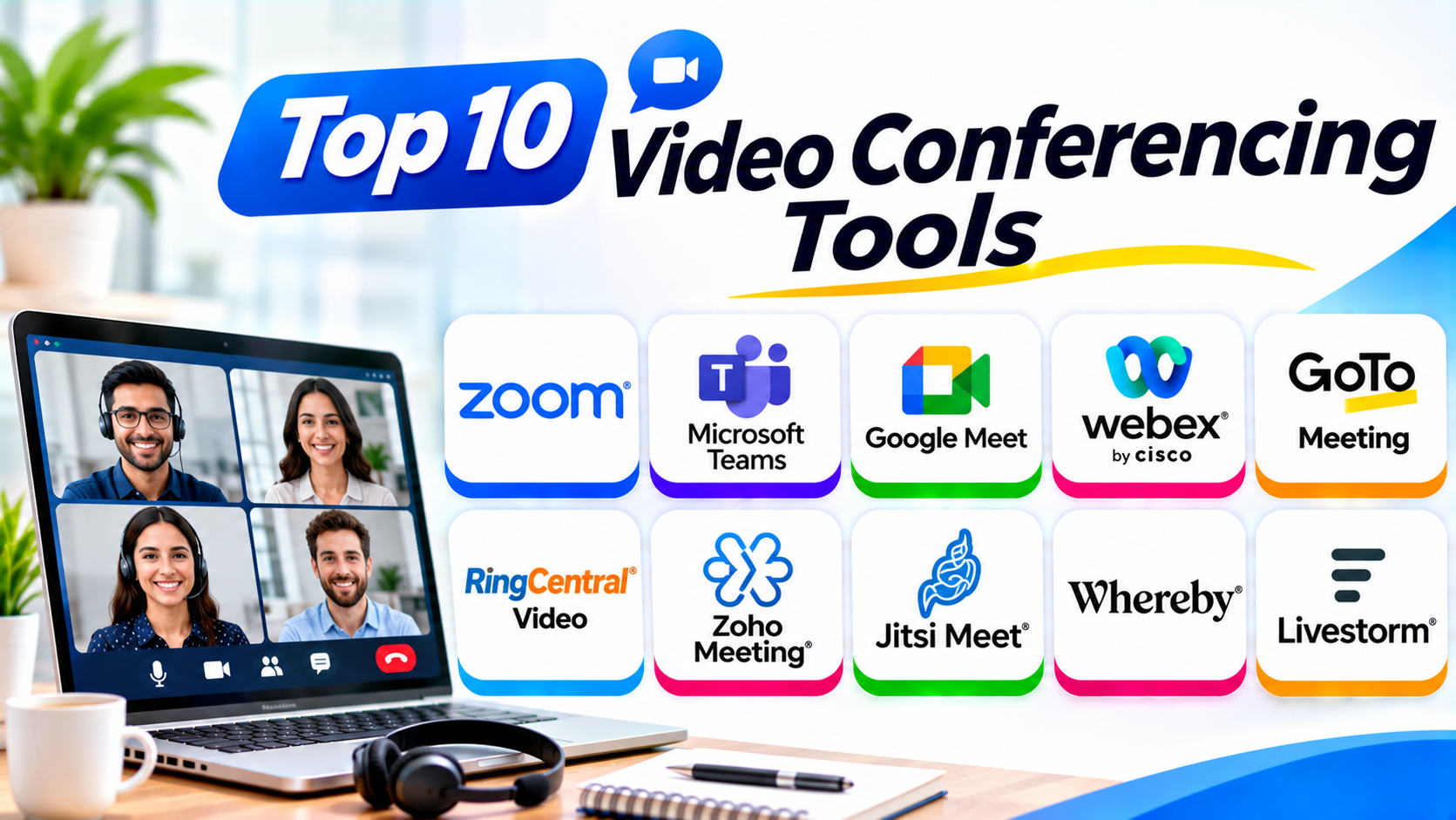
This guide explores ten popular video conferencing tools. It compares their features, Pros, Cons, and best uses.
What Is Video Conferencing Software?
Video conferencing software lets people communicate through live video and audio. It connects people in different locations through the internet.
Most platforms offer more than video calls. They include screen sharing, chat, recording, captions, and virtual backgrounds.
Some tools focus on simple meetings. Others support webinars, large events, and business collaboration.
Why Do Businesses Use Video Conferencing Tools?
Businesses use video meetings for many daily tasks. These platforms help teams work together without meeting in person.
Common uses include:
- Remote teamwork: Employees can meet from home or different offices.
- Client meetings: Sales teams can speak with customers face-to-face.
- Online training: Trainers can teach employees through live sessions.
- Presentations: Speakers can share slides and explain ideas.
- Webinars: Companies can host online events for large audiences.
- Team updates: Managers can discuss projects and share progress.
- Lower travel costs: Teams can meet without travelling to another place.
Top 10 Video Conferencing Tools
1. Zoom Workplace
Zoom Workplace offers video meetings, team chat, and collaboration features. Many businesses use it for daily meetings and client calls.
Its meeting links make it easy to invite guests. People can join through a browser or the Zoom app.
Zoom also supports webinars, breakout rooms, and meeting recordings. Hosts can manage participants and control screen sharing.
Key Features
- HD video and audio meetings.
- Screen sharing and remote control.
- Breakout rooms for small group discussions.
- Meeting recording and transcripts.
- Virtual backgrounds and meeting reactions.
- Webinar and large-event options.
- AI meeting support on eligible plans.
Pros
- Easy for new users to understand.
- Works across computers and mobile devices.
- Offers many meeting and host controls.
- Supports small and large meetings.
- Provides useful collaboration features.
Cons
- Some advanced tools need paid plans.
- Free group meetings have time limits.
- Large teams need careful license planning.
- Many features can confuse new users.
Best For: Businesses, remote teams, client meetings, webinars, and online training.
2. Microsoft Teams
Microsoft Teams combines video meetings with chat and file sharing. It works closely with Microsoft 365 applications.
Teams helps employees discuss projects and share documents. Users can also schedule meetings through Outlook.
Its channels keep team conversations organized. Meeting tools include screen sharing, captions, recordings, and background effects.
Key Features
- Video and audio meetings.
- Team chat and group channels.
- Screen and file sharing.
- Meeting recording and transcription options.
- Microsoft 365 app integration.
- Live captions and meeting controls.
- Whiteboard and collaboration tools.
Pros
- Works well with Microsoft 365.
- Combines chat, meetings, and files.
- Helps teams manage ongoing projects.
- Offers business administration tools.
- Supports internal and external meetings.
Cons
- The interface can feel crowded.
- Some features depend on the license.
- Large teams may need setup support.
- Users may need training.
Best For: Businesses that use Microsoft 365 and need one collaboration workspace.
3. Google Meet
Google Meet offers a simple way to host online video meetings. Users can join through a browser or mobile app.
It works closely with Gmail and Google Calendar. This makes meeting setup easy for Google Workspace users.
Meet includes screen sharing, captions, and meeting controls. Some plans also provide recording and advanced meeting features.
Key Features
- Browser-based video meetings.
- Google Calendar scheduling.
- Gmail meeting links.
- Screen sharing and captions.
- Background effects.
- Meeting controls and participant management.
- Recording options on supported plans.
Pros
- Simple interface for everyday meetings.
- Works well with Google Workspace.
- Guests can join through meeting links.
- Requires little setup for browser users.
- Supports computers and mobile devices.
Cons
- Some features require paid plans.
- Advanced controls may feel limited.
- A stable internet connection improves performance.
- Features vary by subscription.
Best For: Schools, small businesses, and teams that use Gmail and Google Workspace.
4. Cisco Webex
Cisco Webex provides video meetings and business collaboration tools. It serves companies that need strong meeting controls and enterprise features.
Webex supports video calls, screen sharing, and meeting recordings. It also offers noise removal and meeting room device support.
Businesses can use Webex for staff meetings and customer presentations. Its wider communication features support large organizations.
Key Features
- HD video and audio meetings.
- Screen sharing and presentation tools.
- Noise removal and audio improvements.
- Meeting recording and transcripts.
- Virtual backgrounds.
- Meeting room hardware support.
- Enterprise administration and security controls.
Pros
- Offers strong business meeting features.
- Supports enterprise communication needs.
- Provides useful audio and video tools.
- Connects with Cisco meeting room systems.
- Includes options for large organizations.
Cons
- Some plans can cost more.
- New users may need time to learn it.
- Advanced features depend on the subscription.
- The interface may feel complex for simple calls.
Best For: Large companies, enterprise teams, and organizations using Cisco communication systems.
5. GoTo Meeting
GoTo Meeting focuses on online business meetings. It gives teams tools for video calls, screen sharing, and remote presentations.
Hosts can schedule meetings and invite people through links. Participants can join from supported computers and mobile devices.
The platform also offers meeting controls and recording options. These tools help businesses manage regular online discussions.
Key Features
- Video and audio meetings.
- Screen sharing.
- Meeting scheduling.
- Meeting recording options.
- Drawing and annotation tools.
- Mobile meeting access.
- Host and participant controls.
Pros
- Focuses on business meetings.
- Offers useful presentation tools.
- Supports remote client discussions.
- Provides simple meeting scheduling.
- Works across common devices.
Cons
- Fewer collaboration features than some larger suites.
- Advanced features depend on the plan.
- Pricing may not suit every small team.
- The interface may feel basic to some users.
Best For: Small and medium businesses that need focused online meetings.
6. RingCentral Video
RingCentral Video brings online meetings into a wider business communication platform. It can work alongside business phone and messaging services.
Teams can use it for video calls and screen sharing. It also supports meeting collaboration and business communication workflows.
Companies that want fewer separate communication tools may find it useful. Its value depends on the wider RingCentral services they need.
Key Features
- Video and audio meetings.
- Screen sharing.
- Team messaging options.
- Meeting scheduling and controls.
- Recording options.
- Business phone system integration.
- Collaboration features for teams.
Pros
- Connects video with business communication.
- Helps teams using RingCentral services.
- Supports different meeting needs.
- Brings several communication tools together.
- Offers business-focused controls.
Cons
- Some features require other RingCentral services.
- Extra services can increase costs.
- Smaller teams may not need the full platform.
- Users may need time to learn its wider tools.
Best For: Businesses that want video meetings, phone services, and team communication together.
7. Zoho Meeting
Zoho Meeting supports online meetings and webinars. It helps businesses host discussions, presentations, and online events.
Users can schedule meetings and invite participants. Hosts can share screens and manage attendees.
It also connects with other Zoho business applications. This helps companies that already use Zoho for sales or customer support.
Key Features
- Video and audio meetings.
- Webinar hosting.
- Screen sharing.
- Meeting scheduling.
- Recording options.
- Participant management.
- Zoho app integrations.
Pros
- Offers meetings and webinars in one platform.
- Works with other Zoho products.
- Helps small and medium businesses.
- Provides tools for online presentations.
- Offers plans for different business needs.
Cons
- Some advanced features need paid plans.
- New users may need time to learn the interface.
- Integrations work best within the Zoho ecosystem.
- Large organizations may need more advanced controls.
Best For: Small businesses and teams that already use Zoho applications.
8. Jitsi Meet
Jitsi Meet is an open-source video conferencing platform. It lets people start online meetings without a traditional paid account.
Users can create a meeting room and share its link. Participants can join through supported browsers and apps.
Organizations can also host their own Jitsi systems. This gives technical teams more control over setup and hosting.
Key Features
- Browser-based video meetings.
- Audio and video calls.
- Screen sharing.
- Meeting chat.
- Meeting links.
- Open-source software.
- Self-hosting options.
Pros
- Offers a free meeting option.
- Basic meetings do not require a paid account.
- Supports open-source development.
- Allows self-hosting.
- Works well for simple online calls.
Cons
- Self-hosting needs technical skills.
- Features may differ across deployments.
- Large meetings need careful server planning.
- Business support options may be limited.
Best For: Developers, privacy-focused teams, and organizations that want open-source meeting software.
9. Whereby
Whereby makes online meetings simple through browser-based meeting rooms. Hosts can create room links and share them with guests.
Participants can join without installing a separate desktop app. This helps businesses arrange quick client calls.
Whereby also offers tools for screen sharing and collaboration. Some plans support branded rooms and meeting integrations.
Key Features
- Browser-based video meetings.
- Custom meeting room links.
- Screen sharing.
- Meeting chat.
- Room branding on supported plans.
- Mobile meeting access.
- Embedding options for supported use cases.
Pros
- Easy for guests to join.
- Requires little setup.
- Helps with client-facing meetings.
- Offers simple room links.
- Supports embedded video use cases.
Cons
- Advanced features require paid plans.
- Does not offer a complete office suite.
- Large events may need another platform.
- Browser performance can vary by device.
Best For: Consultants, small teams, and businesses that host frequent client calls.
10. Livestorm
Livestorm focuses on webinars and online events. It helps companies host product demos, training sessions, and marketing presentations.
Hosts can create event pages and manage registrations. They can also engage attendees through polls and questions.
The platform provides tools for event follow-up. Businesses can use event data to understand audience interest.
Key Features
- Live video events and webinars.
- Event registration pages.
- Audience polls and questions.
- Screen sharing and presentations.
- Event recording options.
- Attendee management.
- Event analytics and integrations.
Pros
- Built for webinars and online events.
- Offers useful audience engagement tools.
- Supports event registration.
- Helps teams review event performance.
- Works well for product demos and training.
Cons
- Focuses less on everyday team meetings.
- Advanced event tools may need paid plans.
- Costs can grow with event needs.
- Some teams may prefer a general meeting platform.
Best For: Marketing teams, trainers, and businesses that host webinars or virtual events.
Comparison Table of the Top 10 Video Conferencing Tools
| Tool | Best For | Main Strength |
|---|---|---|
| Zoom Workplace | General business meetings | Broad meeting features |
| Microsoft Teams | Microsoft 365 users | Chat, meetings, and files |
| Google Meet | Google Workspace users | Simple browser meetings |
| Cisco Webex | Large organizations | Enterprise meeting controls |
| GoTo Meeting | Business meetings | Focused meeting tools |
| RingCentral Video | Unified communications | Phone, video, and messaging |
| Zoho Meeting | Small businesses | Meetings and webinars |
| Jitsi Meet | Open-source users | Free and self-hosted options |
| Whereby | Client meetings | Easy browser access |
| Livestorm | Webinars and events | Registration and audience tools |
How to Choose the Right Video Conferencing Tool
The best platform depends on your team and meeting needs. Consider these points before choosing one.
1. Check Your Meeting Size
Some teams only need small group calls. Others host large presentations and webinars.
Choose a platform that supports your usual meeting size. Also check its limits for free and paid plans.
2. Review Audio and Video Quality
Clear sound helps people understand each other. Stable video makes meetings feel more natural.
Look for noise reduction and connection support. Test the platform with your usual internet connection.
3. Check Screen Sharing
Screen sharing helps people explain ideas. It also makes product demos and training easier.
Choose a tool that supports simple screen sharing. Annotation tools can also help during presentations.
4. Review Recording Options
Recordings help people who miss meetings. They also help teams review important discussions.
Check whether the platform offers cloud or local recording. Review storage limits and access controls.
5. Check Security Features
Business meetings may include private information. So, check the platform’s security settings.
Look for meeting passwords and waiting rooms. Also review host controls and account management options.
6. Consider Your Existing Software
Your team may already use Microsoft or Google tools. A platform that connects with them can save time.
Check calendar, email, storage, and project app integrations. Avoid paying for features your team already has.
7. Compare Total Costs
Free plans may suit small teams. Larger businesses may need paid licenses.
Check host limits, recording storage, and extra fees. Review the full cost before making a decision.
Common Uses of Video Conferencing Software
Video conferencing supports many types of work. Here are some common examples.
- Remote work: Teams hold daily meetings from different locations.
- Online education: Teachers deliver lessons and answer student questions.
- Sales calls: Sales teams present products to potential customers.
- Job interviews: Recruiters meet candidates online.
- Customer support: Support teams explain solutions through live calls.
- Employee training: Companies teach staff through online sessions.
- Webinars: Experts share knowledge with a wider audience.
- Project planning: Teams discuss tasks and share progress.
- Healthcare consultations: Providers may use suitable platforms for remote appointments.
- Company events: Businesses host town halls and online presentations.
Benefits of Video Conferencing Tools
Video conferencing can improve how teams communicate. It also helps businesses work across locations.
Saves Time: People can join meetings without travelling.
Reduces Costs: Businesses can lower travel and venue expenses.
Supports Remote Teams: Staff can work together from different places.
Improves Communication: Video helps people understand tone and expressions.
Makes Training Easier: Trainers can teach people in different locations.
Helps Share Ideas: Screen sharing makes presentations more useful.
Supports Global Work: Teams can meet across countries and time zones.
Challenges of Video Conferencing Software
Video meetings also have some common problems. Teams should understand these issues before choosing a platform.
Internet Problems: Weak connections can affect sound and video.
Technical Issues: Microphones, cameras, and apps may stop working.
Meeting Fatigue: Too many video calls can make people tired.
Privacy Risks: Poor meeting settings can expose private discussions.
Learning Time: Some platforms need training before teams use them well.
Extra Costs: Paid plans and add-ons can increase business expenses.
Questions and Answers About Video Conferencing Tools
1. What is video conferencing software?
Video conferencing software lets people meet through live video and audio. It often includes screen sharing, chat, and recording tools.
2. Which video conferencing tool is best overall?
Zoom Workplace is a strong choice for general business meetings. Microsoft Teams and Google Meet also suit many organizations.
3. Which video conferencing tool is best for businesses?
Microsoft Teams suits businesses that use Microsoft 365. Zoom Workplace is another strong option for general meetings.
4. Which video conferencing tools offer free plans?
Zoom, Google Meet, Microsoft Teams, and Jitsi Meet offer free options. Their features and meeting limits differ.
5. Is Google Meet better than Zoom?
Both tools support online meetings. Google Meet suits Google Workspace users, while Zoom offers a broad meeting feature set.
6. Can I record online meetings?
Yes, many platforms support meeting recordings. However, recording access and storage depend on the plan.
7. Are video conferencing tools safe for business meetings?
Many platforms offer security controls. Businesses should use passwords, waiting rooms, access controls, and suitable account settings.
8. Can I use video conferencing tools on mobile phones?
Yes, most major platforms offer mobile apps. Some also let users join meetings through mobile browsers.
9. What features should I look for in video conferencing software?
Check video quality, screen sharing, recording, captions, and security. Also review meeting limits and app integrations.
10. Are video conferencing tools useful for online training?
Yes, they help trainers teach people from different locations. Screen sharing, recordings, chat, and breakout rooms support learning.
Final Thoughts
Video conferencing tools have become important for modern communication. They help teams meet, share ideas, and work together online.
Zoom Workplace offers a strong all-round meeting experience. Microsoft Teams suits businesses that use Microsoft 365. Google Meet works well with Google Workspace.
Cisco Webex supports enterprise meeting needs. GoTo Meeting offers focused business meetings. RingCentral Video connects video with wider business communication.
Zoho Meeting supports meetings and webinars. Jitsi Meet offers an open-source choice. Whereby makes guest meetings simple. Livestorm helps businesses run online events.
Before choosing, review your team size and daily needs. Compare the features, costs, and security options. Then select the platform that makes meetings easier for everyone.