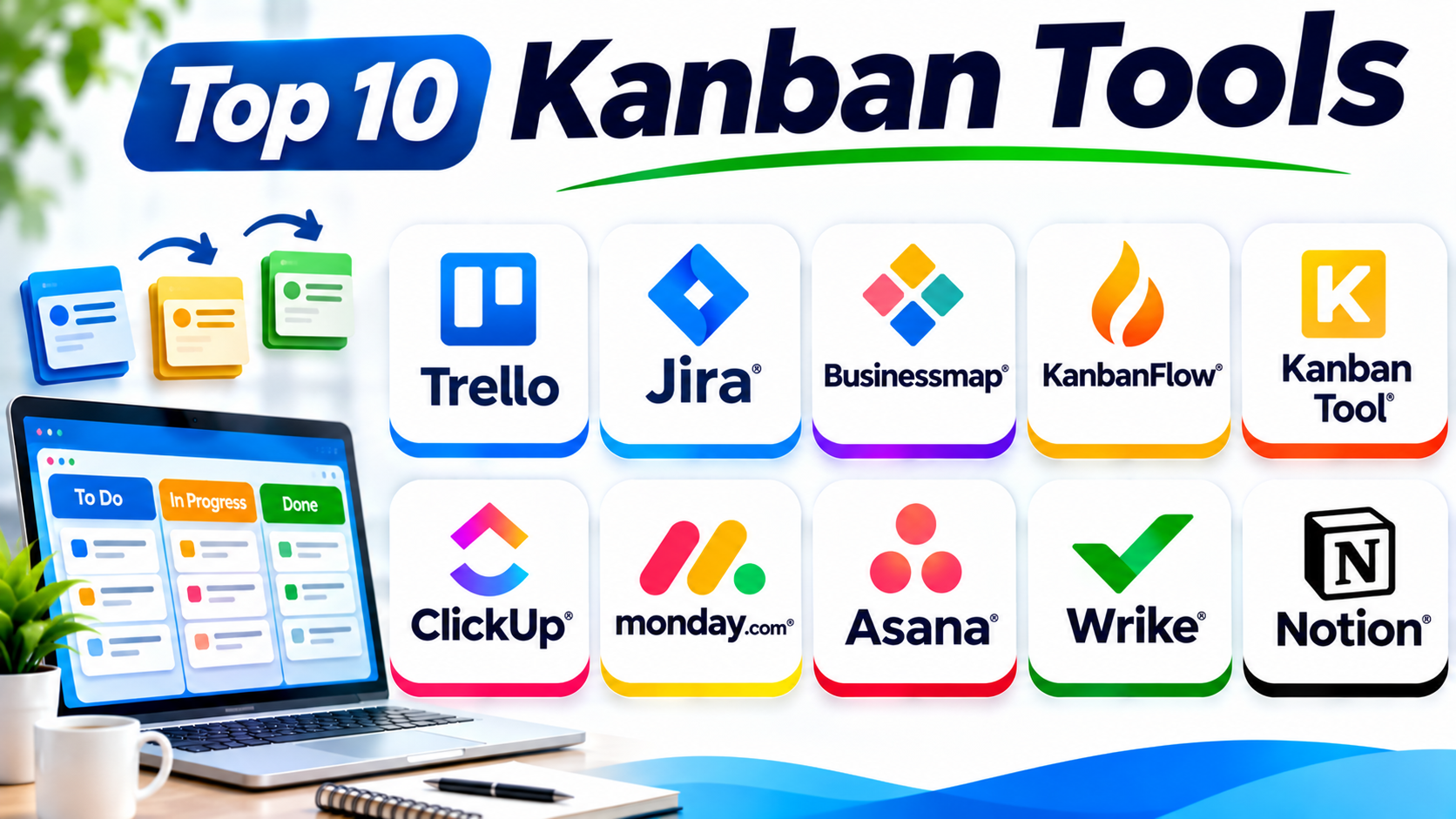
Introduction
Kanban helps teams manage work through visual boards. It uses cards and columns to show task progress. Team members can quickly see what needs attention.
A Kanban board often includes three simple columns:
- To Do
- In Progress
- Done
Teams can add more columns to match their workflows. They can also set limits on active tasks. These limits help prevent too much work from piling up.
Today, many software platforms offer Kanban boards. Some focus on simple task tracking. Others provide advanced reports, automation, and team planning.
This guide covers ten popular Kanban tools. It explains their features, Pros, Cons, and best uses.
What Is Kanban Software?
Kanban software helps teams plan and track work with visual boards. Each task appears as a card. Each column shows a stage in the workflow.
For example, a marketing team may use these stages:
- Ideas
- Ready
- Writing
- Review
- Published
Team members move cards as work progresses. This gives everyone a clear view of current tasks.
Good Kanban software also supports work-in-progress limits. These limits control how many tasks can stay in one stage. They help teams focus on finishing work before starting more tasks.
Why Do Teams Use Kanban Tools?
Kanban tools help teams manage daily work. They also make project progress easier to understand.
Common benefits include:
- Clear task tracking: Teams can see every task and its status.
- Better teamwork: Members can share updates and comments.
- Less confusion: Everyone can understand task ownership.
- Faster decisions: Boards show delays and unfinished work.
- Flexible workflows: Teams can create columns that match their needs.
- Improved focus: Work-in-progress limits reduce task overload.
- Better planning: Teams can organize priorities and deadlines.
Top 10 Kanban Tools
1. Trello
Trello is a popular visual task management platform. It uses boards, lists, and cards to organize work. Teams can create a board for each project or workflow.
Users can move cards between columns with drag-and-drop actions. They can add checklists, due dates, labels, files, and comments. This makes daily task tracking simple.
Trello also offers automation through Butler. Teams can create rules for repeated actions. Power-Ups add extra features and integrations.
Trello works well for simple Kanban workflows. However, teams with complex processes may need more advanced reporting and control.
Key Features
- Visual Kanban boards.
- Drag-and-drop task cards.
- Custom lists and labels.
- Checklists and due dates.
- File attachments and comments.
- Butler workflow automation.
- Power-Ups and integrations.
- Board templates.
Pros
- Very easy to learn.
- Clean and simple interface.
- Quick board setup.
- Useful for small teams.
- Offers a free starting plan.
Cons
- Advanced reporting is limited.
- Complex workflows need extra setup.
- Some features require Power-Ups.
- Large boards can become crowded.
Best For: Individuals, small businesses, and teams that need simple visual task tracking.
2. Jira
Jira is a project management platform from Atlassian. It supports software teams that manage issues, tasks, and development work.
Its Kanban boards help teams track work across custom stages. Teams can set work-in-progress limits and manage issue workflows. They can also use swimlanes to group related tasks.
Jira offers reports that help teams understand their workflow. Cycle time and cumulative flow reports can reveal delays. These insights help teams improve how work moves through the board.
Jira also connects with development tools. This makes it useful for software teams that need detailed task tracking.
Key Features
- Custom Kanban boards.
- Work-in-progress limits.
- Issue and bug tracking.
- Custom workflows.
- Swimlanes and quick filters.
- Cycle time reports.
- Cumulative flow diagrams.
- Development tool integrations.
Pros
- Strong Kanban features.
- Useful workflow reports.
- Supports complex software projects.
- Offers flexible issue tracking.
- Connects with developer tools.
Cons
- New users may need training.
- Advanced setup can take time.
- Some workflows feel complex.
- Non-technical teams may prefer simpler tools.
Best For: Software developers, IT teams, and organizations with detailed workflows.
3. Businessmap (formerly Kanbanize)
Businessmap is a platform built around the Kanban method. It helps organizations manage work across teams and departments.
Teams can create boards with different workflow stages. They can also connect related boards to show larger work processes. This helps managers understand how work moves across an organization.
Businessmap supports work-in-progress limits and flow metrics. Its reports help teams identify bottlenecks and delays. Teams can also use automation to manage repeated actions.
The platform suits organizations that want more than simple task boards. It supports structured Kanban practices across multiple teams.
Key Features
- Visual Kanban boards.
- Work-in-progress limits.
- Connected boards.
- Swimlanes and workflow policies.
- Flow metrics and analytics.
- Process automation.
- Portfolio-level visibility.
- Team performance reports.
Pros
- Designed around Kanban practices.
- Supports large workflows.
- Provides useful flow analytics.
- Connects work across teams.
- Helps identify bottlenecks.
Cons
- New users may need training.
- Advanced features require careful setup.
- Smaller teams may not need every feature.
- Pricing may not suit every budget.
Best For: Medium and large organizations that want to scale Kanban across teams.
4. KanbanFlow
KanbanFlow is a focused Kanban tool for managing tasks and improving workflow. It offers a simple board layout with useful productivity features.
Teams can create columns and move task cards between stages. They can also set work-in-progress limits. This helps control unfinished work.
KanbanFlow includes a Pomodoro timer. This timer helps users divide work into focused sessions. Teams can also track time spent on tasks.
The platform offers useful reports for reviewing productivity. Its simple design makes it suitable for individuals and small teams.
Key Features
- Visual Kanban boards.
- Work-in-progress limits.
- Task and subtask management.
- Pomodoro timer.
- Time tracking.
- Swimlanes.
- Workflow analytics.
- Task filters and reports.
Pros
- Simple Kanban interface.
- Includes time tracking.
- Supports work-in-progress limits.
- Offers a Pomodoro timer.
- Useful for focused daily work.
Cons
- Fewer advanced project features.
- Interface looks basic.
- Large organizations may need more controls.
- Integrations are more limited than broad platforms.
Best For: Freelancers, small teams, and users who want Kanban with time tracking.
5. Kanban Tool
Kanban Tool helps teams manage tasks through visual boards. It supports both simple workflows and more structured Kanban processes.
Users can create custom columns and task cards. They can assign work, set due dates, and add comments. Teams can also use swimlanes to organize tasks by category or owner.
The platform offers time tracking and workflow analytics. These features help teams understand how long tasks take. They can also identify stages where work slows down.
Kanban Tool suits teams that want a dedicated Kanban workspace without a large project management system.
Key Features
- Visual Kanban boards.
- Custom columns and cards.
- Work-in-progress limits.
- Swimlanes.
- Time tracking.
- Workflow analytics.
- Task comments and attachments.
- Board templates.
Pros
- Focuses on Kanban workflows.
- Easy-to-use visual boards.
- Supports work-in-progress limits.
- Offers time tracking.
- Provides useful workflow reports.
Cons
- Fewer all-in-one project features.
- Advanced reporting may need paid plans.
- Large teams may need more integrations.
- The interface may feel basic to some users.
Best For: Teams that want dedicated Kanban boards with time tracking and analytics.
6. ClickUp
ClickUp is an all-in-one work management platform. It helps teams manage tasks, documents, goals, and projects.
Its Board View supports Kanban-style task tracking. Teams can create custom columns and move tasks between stages. They can also group work by status, priority, or assignee.
ClickUp offers dashboards and automation. These features help teams track progress and reduce repeated work. Its other views include lists, calendars, and timelines.
The platform offers many features in one workspace. Teams should plan their setup carefully to avoid unnecessary complexity.
Key Features
- Custom Kanban boards.
- Drag-and-drop task management.
- Custom statuses and fields.
- Work-in-progress controls.
- Task dependencies.
- Dashboards and reports.
- Workflow automation.
- Documents and team collaboration.
Pros
- Offers many tools in one place.
- Supports flexible workflows.
- Provides multiple project views.
- Includes dashboards and automation.
- Useful for different team types.
Cons
- Many features can confuse new users.
- Setup needs careful planning.
- Large workspaces may feel crowded.
- Some advanced features require paid plans.
Best For: Teams that want Kanban boards alongside documents, goals, and project management.
7. monday.com
monday.com is a visual work management platform. It helps teams organize projects, tasks, and business processes.
Its Kanban view displays tasks as cards across workflow stages. Teams can customize boards with columns, labels, owners, and deadlines. They can also switch between different project views.
monday.com offers automation for repeated actions. Dashboards help managers review work progress. Teams can also connect boards with other business processes.
Its flexible setup makes it useful for many departments. Marketing, operations, product, and service teams can all use it.
Key Features
- Visual Kanban view.
- Custom boards and columns.
- Task ownership and deadlines.
- Workflow automation.
- Custom dashboards.
- Multiple project views.
- Team collaboration.
- App integrations.
Pros
- Attractive visual interface.
- Easy-to-understand boards.
- Flexible workflow design.
- Useful automation features.
- Supports cross-team projects.
Cons
- Advanced features may cost more.
- Board setup can take time.
- Some plans have seat limits.
- Complex boards need regular maintenance.
Best For: Business teams that want visual task management and flexible workflows.
8. Asana
Asana helps teams organize projects, tasks, and daily work. It offers Board View for Kanban-style task management.
Teams can create columns for different workflow stages. They can move tasks across the board and assign owners. Each task can include comments, attachments, deadlines, and subtasks.
Asana also offers rules and automation. Teams can use these features to manage repeated actions. Timeline and reporting features help managers understand project progress.
It works well for teams that manage work across different departments. However, software development teams may need more specialized tools.
Key Features
- Kanban-style Board View.
- Task and subtask management.
- Custom project fields.
- Task ownership and deadlines.
- Workflow rules.
- Project dashboards.
- Timeline and calendar views.
- Team collaboration.
Pros
- Easy-to-use interface.
- Clear task ownership.
- Useful for cross-functional teams.
- Supports multiple project views.
- Offers workflow automation.
Cons
- Advanced reporting may require higher plans.
- It is less developer-focused than Jira.
- Complex workflows need planning.
- Some features have plan restrictions.
Best For: Marketing, operations, product, and business teams that need clear task coordination.
9. Wrike
Wrike is a work management platform for teams that handle many projects. It offers Kanban boards, task tracking, reporting, and collaboration features.
Teams can create custom boards and organize work by status. They can also assign tasks and set deadlines. Dashboards help managers track progress across projects.
Wrike supports workflow automation and custom request forms. These features help teams manage incoming work. Its reporting tools also help managers understand workloads and project performance.
The platform suits organizations with complex workflows. It offers more project management depth than a simple Kanban board.
Key Features
- Kanban boards.
- Custom workflows.
- Task assignments and deadlines.
- Workload management.
- Project dashboards.
- Workflow automation.
- Request forms.
- Reports and analytics.
Pros
- Supports complex projects.
- Offers detailed reporting.
- Helps manage team workloads.
- Provides flexible workflows.
- Useful for large organizations.
Cons
- New users may need training.
- The interface can feel complex.
- Advanced features may cost more.
- Setup takes time for large teams.
Best For: Medium and large organizations managing multiple teams and projects.
10. Notion
Notion combines documents, databases, and project management in one workspace. Teams can use its database board view to build Kanban workflows.
Users can create task cards and group them by status. They can also add owners, due dates, tags, and other properties. Each card can open as a page with notes and supporting information.
Notion works well for teams that want project boards and documentation together. It is flexible, but teams may need to build their own workflow structure.
Its board view suits simple task tracking. Teams with advanced flow metrics may need a more specialized Kanban platform.
Key Features
- Database board view.
- Custom task properties.
- Drag-and-drop cards.
- Task owners and due dates.
- Linked databases.
- Project templates.
- Documents and team wikis.
- Workspace collaboration.
Pros
- Combines documents and task boards.
- Offers flexible databases.
- Easy to customize.
- Useful for team knowledge sharing.
- Supports many project templates.
Cons
- Advanced Kanban controls are limited.
- Teams need to build their own workflows.
- Large databases may need careful organization.
- Flow analytics are less specialized.
Best For: Small teams and businesses that want Kanban boards with notes and documentation.
Kanban Tools Comparison Table
| Tool | Best For | Main Strength | Key Capability |
|---|---|---|---|
| Trello | Small teams | Simple visual boards | Cards and automation |
| Jira | Software teams | Advanced workflows | WIP limits and flow reports |
| Businessmap | Large organizations | Scaled Kanban | Connected boards and analytics |
| KanbanFlow | Individuals and small teams | Focused productivity | Timer and time tracking |
| Kanban Tool | Dedicated Kanban teams | Workflow control | Swimlanes and analytics |
| ClickUp | Cross-functional teams | All-in-one workspace | Boards, dashboards, and documents |
| monday.com | Business teams | Visual customization | Automation and multiple views |
| Asana | Business projects | Team coordination | Task ownership and rules |
| Wrike | Large organizations | Project oversight | Workload and reporting |
| Notion | Small teams | Flexible workspace | Database boards and documents |
How to Choose the Right Kanban Tool
Choosing a Kanban tool depends on your team’s workflow. A simple board may suit a small team. A large organization may need reports and advanced controls.
Consider these points before making a choice.
1. Understand Your Workflow
First, list the stages your work follows. A basic workflow may use To Do, In Progress, and Done.
Other teams may need review, testing, approval, and delivery stages. Choose a tool that supports your process.
2. Check Work-in-Progress Limits
Work-in-progress limits control how many tasks can stay in one stage. They help teams avoid starting too much work.
Choose a tool that supports these limits if your team follows the Kanban method closely.
3. Review Reporting Features
Reports help teams find delays and improve workflow. Look for cycle time, lead time, and cumulative flow reports when needed.
Simple teams may only need basic dashboards.
4. Check Automation Options
Automation can reduce repeated work. It can assign tasks, send alerts, and move cards.
Choose automation features that match your daily needs.
5. Consider Team Size
Small teams often need simple boards. Large teams may need connected projects, permissions, and advanced reports.
Choose software that can grow with your organization.
6. Review Integrations
Your Kanban tool should work with your existing apps. Check support for chat, calendars, file storage, and development tools.
Good integrations reduce manual updates.
7. Compare Costs and Plans
Review free and paid plans before choosing. Check user limits, board limits, automation, storage, and reports.
Do not pay for features your team will not use.
8. Test the Tool Before Buying
Create a sample board with real tasks. Ask team members to use it for a short trial.
Check whether they can update cards and understand the workflow. Their feedback can help you make a better choice.
Common Uses of Kanban Tools
Kanban supports many types of work. Teams can use it in business, technology, and daily operations.
Common examples include:
- Software development: Track bugs, features, testing, and releases.
- Marketing: Manage content, campaigns, and approvals.
- Human resources: Track hiring and employee tasks.
- Customer support: Manage service requests and open issues.
- Sales: Track leads and customer follow-ups.
- Website projects: Organize design, writing, testing, and launch tasks.
- Education: Manage assignments and group projects.
- Business operations: Track requests and repeated processes.
Benefits and Challenges of Kanban Software
Benefits
- Makes work progress easy to understand.
- Helps teams manage daily tasks.
- Improves communication between team members.
- Shows delays and unfinished work.
- Supports flexible workflow changes.
- Helps teams control active tasks.
- Reduces the need for repeated status meetings.
- Supports remote and distributed teams.
Challenges
- Poor board design can confuse users.
- Too many cards can make boards difficult to read.
- Teams must update tasks regularly.
- Weak work-in-progress rules can reduce focus.
- Advanced tools may need training.
- Some platforms charge extra for useful features.
- Basic boards may lack detailed workflow reports.
Questions and Answers About Kanban Tools
1. What are Kanban tools?
Kanban tools help teams manage work through visual boards. They use cards and columns to show task progress. They also support collaboration and workflow tracking.
2. Which Kanban tool is best?
The best tool depends on your needs. Trello suits simple boards. Jira supports software teams. Businessmap helps organizations scale Kanban. ClickUp and monday.com offer broader work management features.
3. What is a Kanban board?
A Kanban board shows tasks as cards across different columns. Each column represents a stage of work. Team members move cards as tasks progress.
4. What are work-in-progress limits?
Work-in-progress limits control the number of active tasks in a workflow stage. They help teams avoid taking on too much work. This can improve focus and task completion.
5. Is Trello a Kanban tool?
Yes. Trello uses boards, lists, and cards to manage tasks. It offers a simple way to follow Kanban-style workflows.
6. Is Jira good for Kanban?
Yes. Jira offers Kanban boards, work-in-progress limits, and workflow reports. It works well for software and IT teams.
7. Can small businesses use Kanban software?
Yes. Small businesses can use Trello, KanbanFlow, Kanban Tool, and ClickUp. These platforms help organize daily work and team tasks.
8. What is the difference between Kanban and Scrum?
Kanban focuses on continuous work and visual task flow. Scrum organizes work into fixed periods called sprints. Both methods help teams manage work and improve delivery.
9. Can Kanban tools improve productivity?
Yes. Kanban tools make tasks and priorities easier to understand. They also help teams find delays and manage active work. Teams must keep their boards updated to gain these benefits.
10. Are free Kanban tools available?
Yes. Several platforms offer free plans or free starting options. Trello, Jira, ClickUp, and Notion are examples. Check each plan for limits before choosing.
Final Thoughts
Kanban tools help teams organize work and understand progress. They make daily tasks easier to track. They also help teams find delays and improve workflows.
Trello is a good choice for simple visual boards. Jira suits software teams that need detailed workflow controls. Businessmap helps organizations manage Kanban across many teams.
KanbanFlow and Kanban Tool offer focused Kanban features. ClickUp, monday.com, Asana, and Wrike support wider project needs. Notion works well for teams that want boards and documents together.
Before choosing, understand your workflow and team size. Test a few tools with real tasks. Then select the platform that makes work clear and easy to manage.
The best Kanban tool should support your team’s process. It should help people finish work without adding extra complexity.