Introduction
Game development takes more than a powerful game engine. Developers also need a good place to write, test, and fix code. A game development IDE brings many coding tools into one workspace.
The right IDE can make daily work much easier. It can help developers find errors, manage large projects, test code, and work with other tools. However, no single IDE fits every game project.
Some IDEs work well with Unity and Unreal Engine. Others suit native C++, Android games, or Apple platforms. A few offer a lighter setup for small teams and independent developers.
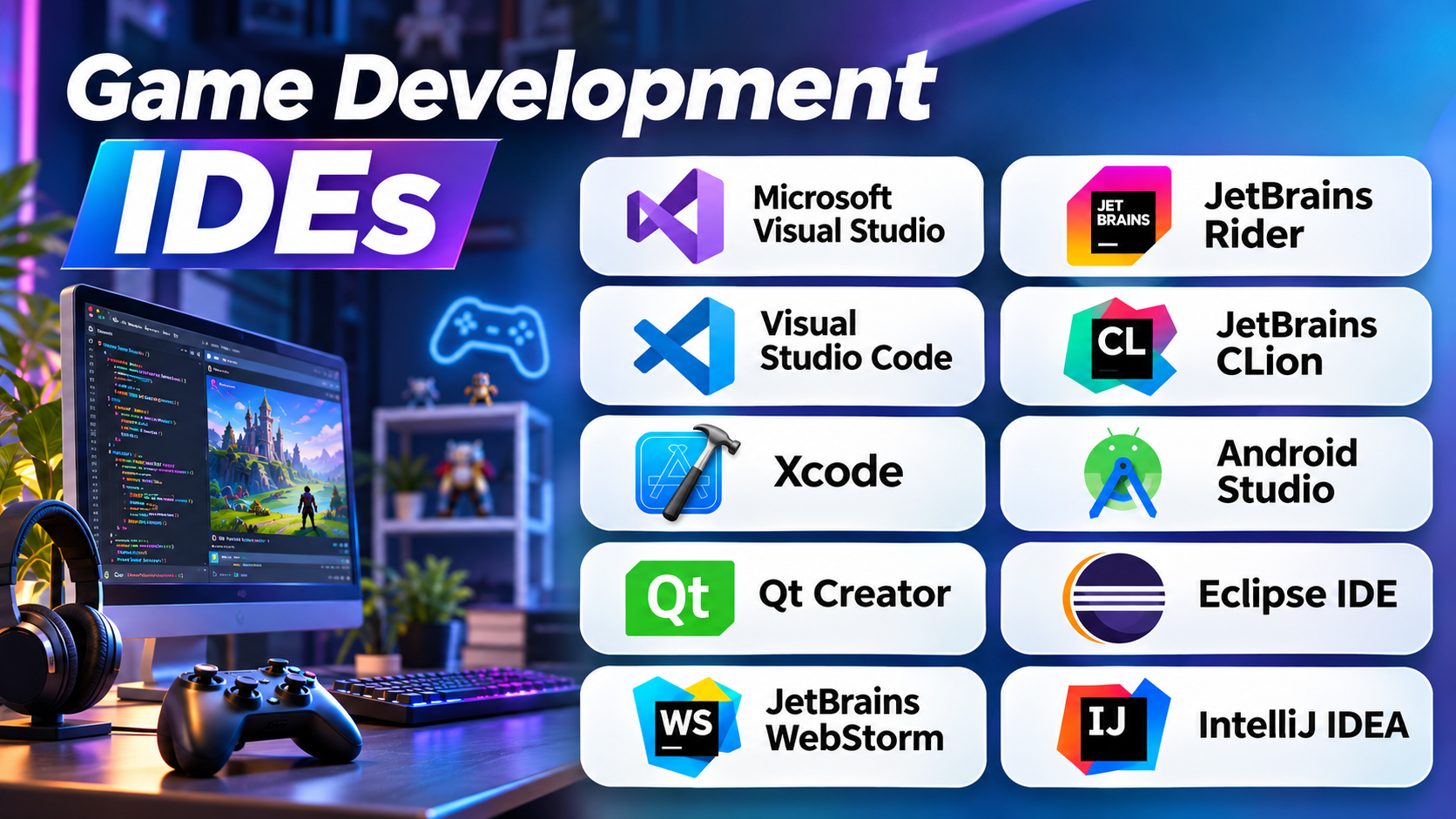
This guide explores ten useful game development IDEs. It explains their strengths, limits, and best uses. It also compares them to help you choose the right coding environment.
What Makes a Good Game Development IDE?
An integrated development environment, or IDE, combines tools for writing and managing code. Most IDEs include a code editor, error checks, and debugging tools. Many also support project files, testing, and build tasks.
A game IDE does not replace a game engine. A game engine handles tasks like graphics, sound, physics, and input. An IDE helps developers write and maintain the code behind those systems. Some engines include their own editors. Developers can also connect an external IDE for deeper coding support. Android Developers+1
Before choosing an IDE, check these points:
- Language support: Does it support C++, C#, Java, Kotlin, or JavaScript?
- Engine support: Does it work with your chosen engine?
- Debugging: Can you pause the game code and inspect errors?
- Build tools: Can it work with your compiler and build system?
- Platform support: Does it run on your computer and target devices?
- Team workflow: Does it support source control and shared projects?
The best choice depends on your engine, language, and target platform. A small 2D game may need a simple setup. A large C++ game may need advanced code analysis and debugging.
10 Game Development IDEs Worth Considering
1. Microsoft Visual Studio
Best for: Unity, Unreal Engine, and Windows-based C++ game projects
Main languages: C#, C++, and other supported languages
Development focus: Full IDE with code editing, debugging, and build tools
Microsoft Visual Studio offers a broad set of tools for game programmers. It supports C++ projects and C# workflows. Developers can use it with popular engines such as Unity and Unreal Engine.
Its code editor provides IntelliSense. This feature suggests code and helps developers find errors while typing. The debugger lets developers pause a running program. They can inspect values, follow code, and track down problems.
Visual Studio also supports game-focused workflows. Its Unity tools help developers work with scripts and project files. Its Unreal support helps C++ developers navigate engine code and debug projects. Developers can also work with DirectX when building Windows games.
The IDE suits teams that need a complete coding environment. It can handle large projects and complex build setups. However, its many features may feel heavy for small projects. Developers should also check which edition and workload their project needs.
Pros
- Strong C++ and C# support.
- Useful debugging and code navigation tools.
- Supports Unity and Unreal workflows.
- Offers project and build management features.
Cons
- Can feel complex to new users.
- The full desktop IDE is mainly suited to Windows.
- Large installations may use significant system resources.
Visual Studio is a strong option for developers who want a full-featured IDE. It makes particular sense for Windows-based game teams. Visual Studio IDE+1
2. JetBrains Rider
Best for: Unity, Unreal Engine, Godot, and C# development
Main languages: C#, C++, and other supported languages
Development focus: Cross-platform coding and engine-aware tools
JetBrains Rider gives game developers a focused coding workspace. It supports projects built with Unity, Unreal Engine, and Godot. It can also work with custom game engines.
Rider understands many game project structures. It can help developers navigate scripts, generated code, and engine files. Its code analysis tools can find possible problems before developers run the game. Refactoring tools also help teams change code with less risk.
The IDE includes debugging and testing support. Developers can run supported tests from the same workspace. It also works with version control tools such as Git and Perforce. These features can help teams manage large codebases.
Rider is useful when a project uses several technologies. Developers can work across gameplay code, tools, shaders, and build tasks. It runs on Windows, macOS, and Linux.
However, teams should check its license terms before commercial use. Some advanced workflows may also need extra setup. Developers who only need a simple text editor may find Rider more than they need.
Pros
- Strong support for Unity, Unreal, and Godot.
- Runs on Windows, macOS, and Linux.
- Offers smart code analysis and refactoring.
- Includes debugging and test tools.
Cons
- Commercial teams may need a paid license.
- Its broad feature set can take time to learn.
- Some project workflows need extra configuration.
Rider suits developers who want one IDE for several game engines. It is especially useful for teams that work with C# and C++. JetBrains+1
3. Visual Studio Code
Best for: Flexible game coding, scripting, and lightweight projects
Main languages: C++, C#, JavaScript, TypeScript, and more through extensions
Development focus: Lightweight editor with an extension-based workflow
Visual Studio Code offers a flexible coding environment. It works well for developers who prefer to choose their own tools. Its core editor stays relatively simple. Extensions add language support, debugging, and other features.
Game developers can use it for C++ and web-based game projects. The Microsoft C/C++ extension adds code completion and error checking. Developers can also add extensions for other languages and engines.
VS Code works across Windows, macOS, and Linux. It also supports integrated terminals and source control features. Developers can run command-line build tools without leaving the editor.
However, VS Code does not provide every game development tool by default. Developers must install suitable extensions, compilers, and debuggers. The C/C++ extension itself does not include a compiler or debugger. Users must set up those tools separately.
This approach gives experienced developers more control. But beginners may need time to configure the workspace. Extension quality and support can also vary.
Pros
- Free to use.
- Runs on Windows, macOS, and Linux.
- Supports many languages through extensions.
- Offers an integrated terminal and source control tools.
Cons
- Needs setup for many game development workflows.
- Some tools depend on third-party extensions.
- Does not include a C++ compiler by default.
VS Code is a good choice for developers who want a light and flexible editor. It works best when users feel comfortable setting up their own toolchain. Visual Studio Code+1
4. JetBrains CLion
Best for: Native C and C++ game development
Main languages: C and C++
Development focus: Native code, build systems, and debugging
JetBrains CLion focuses on C and C++ development. This makes it useful for developers who build game engines or write performance-heavy game systems. It can also support projects that use native code with an existing engine.
CLion understands C and C++ project structures. It offers code completion, navigation, and refactoring tools. Developers can inspect large codebases and trace how functions connect. These tools help when a project contains many files and modules.
The IDE supports common build systems. These include CMake, Makefiles, and Meson. It also works with debuggers such as GDB and LLDB. Developers can use these tools to inspect memory, threads, and program flow.
CLion does not replace a game engine or provide a full game editor. Teams still need their own graphics, asset, and gameplay tools. They must also configure a suitable compiler and build environment.
Its strongest value appears in native development. It may be excessive for a small script-based game. Developers who mainly write C# may prefer Rider or Visual Studio.
Pros
- Strong C and C++ code support.
- Works with common build systems.
- Includes debugging and testing tools.
- Runs on Windows, macOS, and Linux.
Cons
- Focuses mainly on native programming.
- Requires a separate game engine or framework.
- Needs a configured compiler and toolchain.
CLion suits developers who build custom engines or write native game systems. It is a practical option for teams with large C++ projects. JetBrains+2
5. Xcode
Best for: Games built for Apple devices
Main languages: Swift, Objective-C, and C++
Development focus: Apple platform development and testing
Xcode is Apple’s integrated development environment. Developers use it to build software for Apple platforms. It also provides tools for creating and testing games for devices such as iPhone, iPad, and Mac.
Xcode includes a code editor, debugger, and project management tools. Developers can use its simulator to test apps without a physical device. Its Instruments tools help examine performance and system use.
Game developers can use Xcode with Apple’s graphics technology. Metal gives developers access to graphics processing features. Teams can also use Swift or C++ when building their own game technology.
Xcode is important for teams that target Apple’s ecosystem. It can also help developers bring existing games to Apple devices. However, it does not offer the same general-purpose engine support as some cross-platform IDEs.
The main limitation is its platform focus. Developers need a Mac to use Xcode. Teams building mainly for Windows or Android may need another IDE.
Pros
- Official development environment for Apple platforms.
- Includes simulators and debugging tools.
- Supports Swift, Objective-C, and C++.
- Offers performance tools through Instruments.
Cons
- Requires macOS.
- Focuses on Apple’s platforms.
- May need a separate game engine or framework.
Xcode is a natural choice for native Apple game development. It also plays an important role in testing and preparing games for Apple devices. Apple Developer Documentation+2
6. Android Studio
Best for: Native Android game development
Main languages: Kotlin, Java, and C++
Development focus: Android coding, testing, and performance checks
Android Studio is Google’s official IDE for Android development. Game developers can use it to build native Android games. It also supports projects that use C or C++ through the Android Native Development Kit.
The IDE includes tools for managing Android projects. Developers can use its editor to write code and inspect errors. Its emulator lets them test games on virtual devices. They can also connect real Android devices for testing.
Android Studio supports build and project tools. It uses Gradle for build tasks. It also supports CMake for native C and C++ projects. These features help teams manage code that uses Android-specific functions.
Android Studio is useful when a game needs direct access to Android features. It can help developers work with device settings, app packaging, and platform services. Teams can also use it to profile and test performance.
However, Android Studio is not a general-purpose game engine. Developers often pair it with a game engine or native graphics framework. It is less suitable for teams that mainly build games for desktop or consoles.
Pros
- Official IDE for Android development.
- Supports Kotlin, Java, and C++.
- Includes emulator and device testing tools.
- Supports native builds through CMake and NDK.
Cons
- Focuses on Android projects.
- Can use substantial system resources.
- Usually needs a game engine or graphics framework.
Android Studio suits developers who want to build native Android games. It is also useful for testing and preparing Android game releases. Android Developers+1
7. Qt Creator
Best for: C++ applications, custom tools, and cross-platform projects
Main languages: C++ and QML, with other supported languages
Development focus: Project management, UI design, building, and debugging
Qt Creator is a cross-platform IDE for building desktop, mobile, and embedded applications. Game developers may use it to build custom tools, launchers, editors, and applications around a game.
It supports C++ development and works with build systems such as CMake. Its project tools help developers organize source files and manage build settings. The debugger can work with GDB, LLDB, and other supported tools.
Qt Creator also supports Qt Quick and QML. These technologies can help developers create user interfaces. A game studio could use them for tools such as level editors, configuration panels, or asset management software.
Qt Creator is not a dedicated game engine IDE. It does not provide a complete game scene editor or built-in physics system. Developers must connect it to their own engine or framework.
Its value depends on the project. It can help teams that already use Qt or need custom C++ tools. It may not be the easiest option for someone starting a simple game.
Pros
- Cross-platform development environment.
- Strong C++ and CMake support.
- Includes debugging and project tools.
- Useful for building custom development tools.
Cons
- Not a dedicated game development environment.
- Requires a separate game engine or framework.
- Qt features may add extra learning work.
Qt Creator is worth considering for custom C++ game tools. It also fits teams that already use the Qt ecosystem. Qt Creator Documentation+2
8. Eclipse IDE with C/C++ Development Tools
Best for: C and C++ projects that use the Eclipse ecosystem
Main languages: C and C++ through Eclipse CDT
Development focus: Code editing, project navigation, building, and debugging
Eclipse IDE is a flexible development environment that supports many programming workflows. Developers can add the C/C++ Development Tooling package, often called CDT, for native game code.
CDT adds C and C++ features to the Eclipse workbench. It provides a code editor and project navigation tools. It can also work with external build and debugging utilities.
Game developers can use Eclipse for native C++ projects. It may suit teams that already use Eclipse for other software. Its plugin model also gives developers room to shape their workspace.
However, Eclipse does not provide a dedicated game development workflow out of the box. Users must configure compilers, build tools, and debuggers. They may also need extra plugins for their preferred engine.
The setup can take time. Some developers may prefer an IDE with deeper support for their chosen engine. Still, Eclipse can be useful for teams with an established C++ toolchain.
Pros
- Supports C and C++ through CDT.
- Works with external build and debug tools.
- Flexible plugin ecosystem.
- Useful for teams already using Eclipse.
Cons
- Needs setup for game development.
- Engine-specific features may be limited.
- The plugin ecosystem can add complexity.
Eclipse is a reasonable option for native game code. It is most useful when a team already relies on its development ecosystem. help.eclipse.org
9. JetBrains WebStorm
Best for: Browser games and JavaScript-based game projects
Main languages: JavaScript and TypeScript
Development focus: Web coding, code analysis, and project tools
JetBrains WebStorm is an IDE for JavaScript and TypeScript development. It can support browser game projects that use web technologies. Developers can use it with libraries and frameworks for 2D and 3D games on the web.
WebStorm helps developers understand large JavaScript projects. It provides code completion, navigation, and refactoring tools. These features can help teams manage game logic, menus, user interfaces, and browser-based systems.
The IDE also includes tools for working with version control. Developers can manage code changes and review differences. Its debugging workflow can help track problems in supported web projects.
WebStorm does not include a game engine. Developers still need a framework or engine for rendering, animation, and physics. They also need to configure the project build and deployment process.
It is not the best fit for native C++ or C# game projects. Its main value comes from web development. Teams building browser games with JavaScript or TypeScript may find it useful.
Pros
- Focuses on JavaScript and TypeScript.
- Offers code completion and refactoring.
- Useful for browser game projects.
- Includes project and version control tools.
Cons
- Not designed for native C++ game development.
- Requires a separate game framework or engine.
- Commercial use may require a paid plan.
WebStorm suits developers who build games for web browsers. It can make large JavaScript and TypeScript projects easier to manage. JetBrains+1
10. IntelliJ IDEA
Best for: Java and Kotlin game projects
Main languages: Java and Kotlin
Development focus: JVM coding, testing, and debugging
IntelliJ IDEA is a development environment for Java and Kotlin. These languages appear in some game projects, tools, and supporting services. IntelliJ IDEA can help developers manage the code behind those systems.
The IDE offers code completion and code navigation. It can help developers understand classes, methods, and project dependencies. Its debugger helps inspect program behavior. Developers can also run tests from the IDE.
IntelliJ IDEA may suit projects that use Java-based game frameworks. It can also help teams build game launchers, backend services, and development utilities. Kotlin support gives developers another option for JVM-based projects.
However, IntelliJ IDEA is not a dedicated game engine editor. It does not provide built-in scene design, animation, or physics tools. Developers need a separate game framework or engine for those features.
Its value depends on the language used by the project. Teams that write most game code in C++ or C# may prefer another IDE. Java and Kotlin developers may find IntelliJ IDEA a more natural fit.
Pros
- Strong Java and Kotlin support.
- Includes debugging and testing tools.
- Helps manage large codebases.
- Useful for game services and supporting tools.
Cons
- Not a dedicated game development IDE.
- Focuses on JVM languages.
- Needs a separate game engine or framework.
IntelliJ IDEA is a good fit for Java and Kotlin game projects. It also works well for the tools and services that support a game. IntelliJ IDEA Documentation+1
Comparison of Game Development IDEs
The table below shows how these IDEs differ. Their best use depends on the language and game platform.
| IDE | Main languages | Best use | Main strength | Main limitation |
|---|---|---|---|---|
| Visual Studio | C#, C++ | Unity and Unreal | Full coding and debugging tools | Mainly suited to Windows |
| JetBrains Rider | C#, C++ | Unity, Unreal, Godot | Engine-aware coding tools | Commercial license for teams |
| Visual Studio Code | Many languages | Flexible game projects | Lightweight and customizable | Needs extensions and setup |
| JetBrains CLion | C, C++ | Native game development | Strong C++ tools | Needs a separate game engine |
| Xcode | Swift, Objective-C, C++ | Apple games | Apple testing and development tools | Requires macOS |
| Android Studio | Kotlin, Java, C++ | Android games | Android testing and build tools | Focuses on Android |
| Qt Creator | C++, QML | Custom tools and native projects | Cross-platform C++ workflow | Not a game engine editor |
| Eclipse IDE with CDT | C, C++ | Native code projects | Flexible plugin system | Needs manual setup |
| JetBrains WebStorm | JavaScript, TypeScript | Browser games | Web coding tools | Not for native game code |
| IntelliJ IDEA | Java, Kotlin | JVM-based game projects | Strong Java and Kotlin support | Needs a separate game framework |
How to Choose the Right Game Development IDE
Your game engine and programming language should guide your choice. Think about the work you do every day. Then choose an IDE that supports those tasks.
For Unity developers
Consider Visual Studio or Rider. Both support C# workflows. Rider also offers tools for several other game engines. Your team should test both before choosing one.
For Unreal Engine developers
Visual Studio and Rider are strong options. Both support Unreal development workflows. CLion may also suit teams that focus on native C++ code.
For Android game developers
Android Studio is a useful choice for native Android work. It supports Java, Kotlin, and native C++ projects. Teams using another engine may still need that engine’s own editor.
For Apple game developers
Xcode provides Apple’s development and testing tools. It supports work with Swift, Objective-C, and C++. It also helps teams test games on Apple devices.
For browser game developers
WebStorm and Visual Studio Code support JavaScript and TypeScript workflows. VS Code offers a flexible extension-based setup. WebStorm provides a more focused web development environment.
For custom game engines
CLion, Visual Studio, and Qt Creator can support native C++ work. Choose based on your compiler, build system, debugger, and team workflow.
10 Common Questions About Game Development IDEs
1. What is a game development IDE?
A game development IDE is software for writing and managing game code. It often includes a code editor, debugger, and project tools. Developers use it to build, test, and fix game software.
2. Is a game IDE the same as a game engine?
No. A game engine provides systems for graphics, sound, physics, and input. An IDE helps developers write and manage code. Many developers use both tools together.
3. Which IDE is best for beginners?
Visual Studio Code can suit beginners who want a simple starting point. It supports many languages through extensions. However, beginners may need help setting up compilers and debugging tools.
4. Which IDE works best with Unity?
Visual Studio and JetBrains Rider are strong options for Unity developers. Both support C# workflows. The right choice depends on your operating system, team setup, and preferred tools.
5. Can I use Visual Studio Code for game development?
Yes. Developers can use VS Code for C++, C#, JavaScript, and TypeScript projects. They need suitable extensions and external tools. It does not provide a complete game engine.
6. Which IDE should I use for Unreal Engine?
Visual Studio and Rider both support Unreal Engine workflows. They help developers write and debug C++ code. Choose based on your team’s workflow and preferred development environment.
7. Do I need an IDE to make a game?
Not always. Some game engines include built-in code editors. Developers can also use external editors or command-line tools. A full IDE becomes more useful as projects grow.
8. Which IDE is best for Android games?
Android Studio is Google’s official IDE for Android development. It supports Kotlin, Java, and C++. Developers can also use it with native Android game projects and other game tools.
9. Can I use Xcode for game development?
Yes. Xcode supports game development for Apple platforms. It includes code editing, debugging, simulators, and performance tools. Developers can use it with Swift, Objective-C, and C++.
10. What should I check before choosing a game IDE?
Check language support, engine compatibility, debugging, and build tools. Also review system needs and licensing. Try a small project before using the IDE for a large game.
Final Thoughts
The right game development IDE can make coding easier. It can also help teams find bugs and manage complex projects. But the most popular IDE may not suit every developer.
Visual Studio and Rider suit many Unity and Unreal workflows. CLion fits native C++ development. Xcode supports Apple games, while Android Studio focuses on Android. WebStorm works well for browser-based projects.
Start by choosing your game engine and programming language. Then test an IDE with a small project. Check how well it handles debugging, builds, and daily coding tasks.
A good IDE should fit your workflow. It should help you work with less friction. Choose the one that helps your team build, test, and improve games with confidence.