Introduction
A realistic visual effect needs more than a good 3D model or filmed scene. Artists must combine many visual elements into one believable image. They may add digital characters, remove unwanted objects, replace backgrounds, or blend computer-generated images with live footage.
This process is called VFX compositing. It helps filmmakers create scenes that cameras cannot capture in real life.
The right compositing software can make this work faster and more accurate. However, each tool follows a different workflow. Some use node-based systems, while others focus on layers, timelines, or specialist tasks.
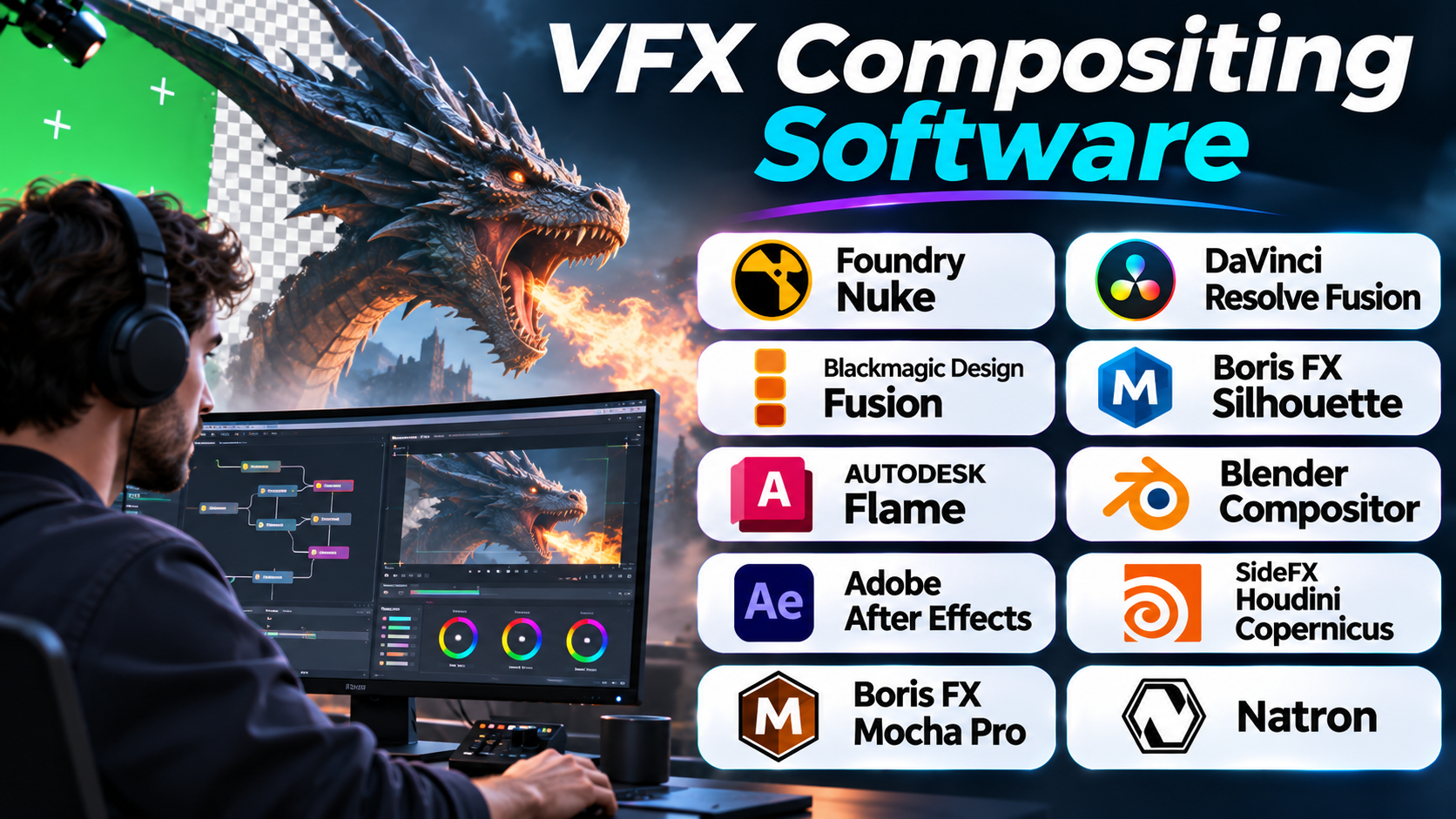
This guide explores 10 useful VFX compositing tools. It explains their features, uses, Pros, and Cons. It also compares their main strengths to help you choose the right option.
What Is VFX Compositing Software?
VFX compositing software combines two or more visual elements into one finished image or video. These elements may come from live cameras, 3D software, stock footage, or digital artwork.
For example, a film crew may record an actor in front of a green screen. A compositor can remove the green background and place the actor inside a digital city. The artist then adjusts light, shadows, color, and edges. These changes help the actor look like part of the scene.
Compositing software also helps artists:
- Remove objects, wires, and unwanted marks.
- Replace skies and backgrounds.
- Add smoke, fire, sparks, and other effects.
- Combine live footage with 3D renders.
- Create clean masks around people and objects.
- Track moving objects and match camera movement.
- Correct colors and blend different image sources.
- Build realistic digital environments.
Most professional compositing tools use one of two main workflows.
Node-based compositing connects image operations through a visual graph. Each node performs a task, such as keying, color correction, or merging images. This approach gives artists strong control over complex shots.
Layer-based compositing places visual elements on separate layers. Artists can arrange, animate, and adjust each layer. This method often feels familiar to video editors and motion designers.
Some applications combine both methods. Your choice should depend on the type of work, team size, budget, and production needs.
10 VFX Compositing Software Tools
1. Foundry Nuke
Foundry Nuke is a professional node-based compositing application. Film, television, and animation teams use it for complex visual effects work. It gives artists detailed control over how images combine and change.
Nuke works well with large projects that contain many visual elements. Artists can build a node graph for each shot. They can use separate nodes for color correction, masking, tracking, keying, blur, and image merging. This makes it easier to understand how each effect changes the final image.
One important strength is its support for deep compositing. Deep images store more than simple color and transparency data. They can also hold depth samples for different points along a camera ray. This helps artists combine computer-generated elements with complex scenes.
Nuke also offers a 3D workspace. Artists can place 2D images on geometry and work with camera projections. This helps with set extensions and other shots that need 2D and 3D elements together.
The software supports formats and color workflows used in professional production. It also offers Python tools and a C++ development kit. Studios can use these features to build custom tools and connect Nuke with their own pipelines.
Nuke suits experienced compositors and studios that need precise control. New users may need time to understand its node-based workflow.
Pros
- Offers advanced node-based compositing tools.
- Supports deep compositing for complex 3D scenes.
- Includes a 3D workspace for projection work.
- Supports OpenEXR and professional color workflows.
- Provides Python and C++ tools for custom pipelines.
- Handles detailed film and television effects work.
Cons
- Requires time and practice to master.
- Professional licensing can cost a lot.
- Complex node graphs may become difficult to manage.
- Beginners may find the interface challenging.
- High-resolution projects need capable hardware.
2. Blackmagic Design Fusion
Blackmagic Design Fusion is a node-based tool for visual effects and motion graphics. It works as part of DaVinci Resolve and also comes in a standalone Fusion Studio form.
Fusion gives artists a large collection of tools for combining images. They can build node trees to control keying, masks, tracking, color changes, and visual effects. Each node handles a specific operation. Artists can connect these operations in a clear workflow.
The software also includes a 3D workspace. Users can combine live footage, 3D models, cameras, lights, and other elements. This makes Fusion useful for set extensions, title sequences, and digital scenes.
Fusion includes tools for chroma keying and matte control. These help artists remove green or blue backgrounds while keeping fine details. Its tracking tools can follow moving objects, stabilize footage, and help place new elements into a shot.
Fusion also supports rotoscoping. Artists can draw and animate shapes around people or objects. They can use these shapes to isolate parts of a frame and apply effects only where needed.
A major benefit is its connection with DaVinci Resolve. Editors can move between editing, compositing, color correction, and finishing in one application. This can reduce the need to move files between separate tools.
Fusion suits independent filmmakers, video editors, motion designers, and VFX artists. Its free DaVinci Resolve edition gives users a way to learn the workflow before choosing a paid Studio license.
Pros
- Provides a powerful node-based workflow.
- Offers a 3D workspace for visual effects.
- Includes keying, tracking, masking, and rotoscoping.
- Works closely with DaVinci Resolve.
- Supports 2D and 3D compositing.
- Offers a free DaVinci Resolve edition.
Cons
- The node workflow may confuse new users.
- Large compositions can need strong hardware.
- Some advanced tools require the paid Studio edition.
- Complex projects need careful node organization.
- Users may need extra training for advanced effects.
3. Autodesk Flame
Autodesk Flame is a professional finishing and visual effects application. It combines compositing, editing, color work, and finishing tools in one environment. Post-production teams often use it for commercials, films, and television work.
Flame gives artists both timeline-based and node-based tools. Its Batch and Batch FX environments help users combine 2D and 3D elements. Artists can build effects step by step and adjust individual operations.
The Action environment supports 3D compositing. Artists can place objects, images, cameras, and other elements in a 3D space. This helps them create complex shots without moving every task to a separate application.
Flame also includes camera tracking and keying tools. Artists can track camera movement and place digital objects into live footage. Its keying tools help remove backgrounds and create mattes for selected subjects.
The software also focuses on finishing work. Artists can edit shots, adjust color, isolate objects, and prepare final output. Its machine-learning tools can help isolate skies, faces, and bodies. These tools can reduce some manual work, but artists still need to review the results.
Flame suits professional finishing artists and post-production facilities. Its broad toolset can help teams handle many final-shot tasks in one place. However, its cost and learning demands may make it unsuitable for small projects.
Pros
- Combines compositing, editing, and finishing tools.
- Offers 2D and 3D compositing.
- Includes camera tracking and keying.
- Provides timeline and node-based workflows.
- Supports color grading and final delivery tasks.
- Includes machine-learning tools for image isolation.
Cons
- Can be expensive for individual creators.
- Takes time to learn and manage.
- May offer more features than small projects need.
- Requires suitable hardware for demanding work.
- Professional workflows may need trained artists.
4. Adobe After Effects
Adobe After Effects is a popular application for motion graphics and visual effects. It uses layers, masks, effects, and animation tools to create moving images. Many video creators use it for titles, screen replacements, green-screen work, and short visual effects shots.
After Effects follows a layer-based workflow. Artists can place footage, images, text, and other assets on separate layers. They can then animate each layer and apply effects to selected parts of a composition.
The software includes tools for keying and background removal. Artists can use these tools to separate a subject from a green screen. They can then place the subject over another image or video.
Tracking tools help users attach text, graphics, and other elements to moving objects. This is useful for screen replacements, product shots, and motion graphics. After Effects also includes masking and rotoscoping features for isolating parts of a frame.
Another useful feature is Content-Aware Fill. It can help remove unwanted objects from footage by filling the selected area across frames. Artists should still inspect the result, especially when the background contains complex movement.
After Effects supports many third-party plugins. These plugins can add effects, tracking options, and other creative tools. It also works with other Adobe applications, which helps teams move assets through their production process.
After Effects is a strong choice for motion designers, editors, and creators who work with layered compositions. It may not replace a dedicated node-based compositor for every large film project.
Pros
- Offers a familiar layer-based workflow.
- Provides strong motion graphics tools.
- Includes keying, masking, and tracking features.
- Supports many third-party plugins.
- Works with other Adobe creative applications.
- Helps create titles, effects, and screen replacements.
Cons
- Large compositions can become slow.
- Complex projects may need careful layer management.
- Some advanced workflows need paid plugins.
- Subscription costs can add up.
- Node-based compositors may suit complex film shots better.
5. Boris FX Silhouette
Boris FX Silhouette focuses on rotoscoping, digital paint, and visual effects compositing. It helps artists isolate objects, create mattes, remove unwanted details, and repair footage.
Rotoscoping means drawing shapes around objects across video frames. Artists use it when automatic keying cannot separate a subject cleanly. Silhouette offers tools for building and adjusting these shapes.
The software also provides node-based compositing. Artists can connect different operations and control how they affect an image. Its node collection covers tasks such as keying, color work, tracking, painting, and image effects.
Silhouette includes tracking tools that help artists follow objects and shapes through moving footage. It also connects with Mocha Pro tools for planar tracking. Planar tracking follows flat surfaces, such as signs, walls, or screens. This can help with object removal and screen replacement.
Its paint tools support cleanup and retouching. Artists can remove unwanted marks, repair frames, and make local image changes. The software also offers warping and morphing tools for controlled image changes.
Silhouette can work as a standalone application or as a plugin in supported host applications. This gives studios more than one way to add it to their workflow.
Silhouette is a strong specialist choice for detailed roto and paint work. It can also support wider compositing tasks, but its strongest value comes from these focused tools.
Pros
- Offers advanced rotoscoping tools.
- Includes node-based compositing.
- Provides paint and cleanup features.
- Supports planar and point tracking workflows.
- Includes keying and matte tools.
- Works as a standalone application or plugin.
Cons
- Its specialist focus may not suit every compositor.
- Advanced workflows need practice.
- Professional licensing can be costly.
- Some artists may still need a separate main compositor.
- Complex roto work can take many hours.
6. Natron
Natron is a free, open-source node-based compositing application. It gives artists a way to create visual effects without paying for a commercial compositor license.
The software uses a node graph. Artists connect image sources with operations such as keying, color correction, blur, masking, and merging. This approach gives users control over each step in a composition.
Natron supports a floating-point image pipeline. This matters when artists work with high-quality images and need more control over image values. It also supports OpenFX plugins, which can add effects from other developers.
The application includes rotoscoping and paint tools. Users can create shapes to isolate moving objects. They can also track image features and stabilize footage.
Natron supports OpenColorIO color management. This helps artists work with consistent color settings across supported tools. It also supports headless rendering, which can help with automated workflows and render farms.
The software does not provide a full 3D compositing workspace like some larger applications. Artists who need 3D scene work may need to pair it with another tool.
Natron suits students, independent artists, and small teams. It can also help experienced compositors who want an open-source option for node-based work.
Pros
- Free and open-source software.
- Provides a node-based workflow.
- Supports OpenFX plugins.
- Includes keying, rotoscoping, and paint tools.
- Supports OpenColorIO color management.
- Offers headless rendering for automation.
Cons
- Does not include a full 3D workspace.
- Has fewer built-in production tools than some paid options.
- Plugin quality and support can vary.
- Users may need to solve some issues themselves.
- Large projects may require extra pipeline setup.
7. Blender Compositor
Blender is widely known as a 3D creation application. It also includes a built-in compositor for image and video post-production. Artists can use it to finish renders without leaving the Blender environment.
The compositor uses nodes. Each node performs a task, such as combining images, adjusting colors, adding blur, or creating masks. Artists connect these nodes to build a final result.
One major strength is its link with Blender’s 3D tools. Users can send render layers into the compositor and adjust them after rendering. This helps artists combine separate render passes and make changes without rebuilding the entire scene.
Blender also supports image and video inputs. Artists can combine footage with rendered objects and effects. The compositor includes tools for color work, camera effects, and other image changes.
Blender’s motion tracking tools can also support visual effects work. Artists can track camera movement and objects in footage. They can then use this information to place 3D elements into a live-action scene.
The software is free and open source. This makes it useful for students, independent creators, and small studios. However, artists who mainly work on complex film compositing may prefer a dedicated compositor.
Pros
- Free and open-source software.
- Includes a built-in node-based compositor.
- Works directly with Blender render layers.
- Supports images, video, and multilayer OpenEXR.
- Includes camera and object tracking tools.
- Connects compositing with 3D production.
Cons
- May not match specialist tools for large film pipelines.
- Advanced compositing needs node workflow knowledge.
- Some production features may require other applications.
- Large scenes and renders can need strong hardware.
- Teams may need custom pipeline tools.
8. SideFX Houdini Copernicus
SideFX Houdini is a procedural 3D application used for effects, animation, and simulation. It also includes Copernicus, a node-based system for image processing and compositing.
Copernicus lets artists work with image data through connected nodes. They can load images, change colors, create masks, blend layers, and generate new visual results. Its nodes can also work with data used in procedural 3D workflows.
This approach suits artists who already use Houdini for simulations and digital environments. They can process images inside the same application. This can help when a shot includes smoke, fire, particles, or other generated effects.
Houdini’s procedural approach is a key difference. Artists can build systems that repeat operations across many images or tasks. They can also adjust parameters and reuse networks in other projects.
Copernicus is not simply a replacement for every traditional film compositor. Its role is closely tied to Houdini’s wider procedural workflow. Teams should check the features and pipeline needs before using it as their main compositing system.
Houdini suits technical artists, FX teams, and studios that build complex procedural scenes. It may feel demanding for users who only need simple video compositing.
Pros
- Connects image processing with procedural 3D work.
- Uses a flexible node-based workflow.
- Supports image blending and color operations.
- Helps process data from effects and simulations.
- Offers reusable procedural networks.
- Fits teams already using Houdini.
Cons
- Has a steep learning curve.
- May be excessive for simple compositing jobs.
- Its workflow differs from traditional compositing tools.
- Teams may need Houdini pipeline knowledge.
- It may not replace a dedicated finishing application.
9. DaVinci Resolve Fusion Page
DaVinci Resolve is an all-in-one post-production application. It combines editing, color correction, audio work, and visual effects. Its Fusion page provides node-based compositing and motion graphics tools.
Fusion inside Resolve gives editors access to visual effects without leaving the main application. Users can move from editing to compositing and then to color correction. This can help small teams manage projects with fewer software changes.
The Fusion page includes tools for keying, tracking, rotoscoping, and image merging. Artists can also build titles, particles, and 3D compositions. Its node graph helps users control the order of operations.
Resolve also supports a wide range of finishing tasks. Artists can review their shots in the edit timeline and adjust the final look in the color page. This makes it useful for projects where compositing and color work happen together.
The free version of DaVinci Resolve includes many editing and Fusion features. The Studio edition adds further tools and effects. Users should compare the editions before choosing one for a production.
Resolve suits video editors, independent filmmakers, and post-production teams. It offers a broad workflow, although large specialist VFX projects may still need a dedicated compositor.
Pros
- Combines editing, effects, and color correction.
- Includes node-based compositing through Fusion.
- Offers keying, tracking, and rotoscoping.
- Supports 2D and 3D visual effects.
- Provides a free version.
- Helps reduce movement between separate applications.
Cons
- Advanced Fusion work takes time to learn.
- Large projects can need strong hardware.
- Some advanced features require the Studio edition.
- The all-in-one interface may feel complex.
- Specialist film pipelines may need other tools.
10. Mocha Pro
Mocha Pro is a specialist tracking and masking application from Boris FX. It is not a full general-purpose compositor like Nuke or Fusion. However, it plays an important role in many VFX compositing workflows.
Its main strength is planar tracking. This method follows the movement of a flat surface in footage. Artists can use it to track signs, screens, walls, and other surfaces.
Mocha Pro also includes tools for masking and rotoscoping. Artists can create shapes around objects and track those shapes through a shot. This can reduce the need to adjust every frame by hand.
The software offers object removal tools. Artists can use them to remove unwanted items from footage. It also supports stabilization and lens correction tasks. These features help prepare shots before they enter a main compositor.
Mocha Pro can work as a standalone application or as a plugin in supported host software. It can share tracking and shape data with applications such as Nuke, After Effects, Fusion, and Flame.
Mocha Pro suits artists who need reliable planar tracking and masking. It works best as a specialist part of a larger compositing workflow.
Pros
- Offers strong planar tracking tools.
- Supports masking and rotoscoping.
- Includes object removal and stabilization tools.
- Works as a standalone application or plugin.
- Shares tracking data with major VFX applications.
- Helps reduce manual tracking work.
Cons
- Is not a full general-purpose compositor.
- Complex tracking still needs artist review.
- Requires another application for many final composites.
- Professional use may add licensing costs.
- Beginners may need time to understand tracking methods.
Comparison Table: VFX Compositing Software
| Software | Main Workflow | Best Use | Main Strength |
|---|---|---|---|
| Foundry Nuke | Node-based | Film and television VFX | Advanced compositing and deep images |
| Blackmagic Fusion | Node-based | VFX and motion graphics | 2D and 3D compositing |
| Autodesk Flame | Nodes and timeline | Professional finishing | Integrated VFX and color work |
| Adobe After Effects | Layer-based | Motion graphics and video effects | Animation and plugin support |
| Boris FX Silhouette | Node-based | Rotoscoping and paint | Detailed masks and cleanup |
| Natron | Node-based | Open-source compositing | Free tools and OpenFX support |
| Blender Compositor | Node-based | 3D render compositing | Direct link with Blender scenes |
| Houdini Copernicus | Procedural nodes | Procedural image work | Image processing inside Houdini |
| DaVinci Resolve Fusion | Node-based | Editing and post-production | Compositing with color and editing |
| Mocha Pro | Tracking and masking | Planar tracking and cleanup | Surface tracking and object removal |
How to Choose the Right VFX Compositing Software
The best choice depends on your work. A film studio may need deep compositing and pipeline tools. A solo creator may need affordable software with editing and effects.
Think about these points before you choose.
1. Match the Software to Your Work
Start with the type of projects you create.
- Choose Nuke for complex film and television compositing.
- Choose Fusion for node-based effects and 3D compositing.
- Choose Flame for professional finishing and integrated VFX work.
- Choose After Effects for motion graphics and layered effects.
- Choose Silhouette for detailed rotoscoping and paint.
- Choose Natron for open-source node compositing.
- Choose Blender for compositing 3D renders.
- Choose Houdini Copernicus for procedural image work.
- Choose DaVinci Resolve for editing, color, and effects in one application.
- Choose Mocha Pro for planar tracking and masking.
These suggestions describe common strengths. Your own project needs may lead to a different choice.
2. Understand Node-Based and Layer-Based Workflows
Node-based tools connect operations through a graph. They offer clear control over complex effects. However, artists need time to understand how nodes work together.
Layer-based tools arrange elements in a stack. Many video editors find this approach easier to understand. It can work well for titles, simple effects, and motion graphics.
Try both workflows before making a long-term choice.
3. Check File Format Support
A compositor must work with the files used by your team. Check support for formats such as OpenEXR, DPX, and common video files.
Also review color management. A poor color workflow can create differences between footage, renders, and final output.
4. Review Hardware Needs
High-resolution footage and complex node graphs can use large amounts of memory. Some effects also rely on GPU power.
Check the software’s system needs before buying a license. Test it with your own footage if possible.
5. Consider Plugins and Pipeline Support
Plugins can add tracking, keying, cleanup, and other tools. But they can also add cost and create compatibility issues.
Check whether the software works with the other applications your team uses. Also review its scripting and automation options if you plan to build a larger pipeline.
6. Compare the Full Cost
Do not look only at the starting price. Consider subscription fees, plugins, training, hardware, and support.
Free software can reduce costs. But a team may still need paid tools for certain production tasks.
Common Mistakes When Choosing Compositing Software
A poor software choice can slow down production. Avoid these common mistakes.
- Choosing only by popularity: A popular tool may not fit your workflow.
- Ignoring the learning curve: Advanced software can take time to master.
- Overlooking file formats: Check that your team can share project files and renders.
- Buying too many plugins: Add only the tools your projects need.
- Ignoring hardware: Large compositions can strain older computers.
- Expecting one tool to do everything: Specialist applications often work best with a main compositor.
- Skipping a real project test: Try the software with actual footage before you commit.
Questions and Answers About VFX Compositing Software
1. What is VFX compositing software?
VFX compositing software combines different visual elements into one image or video. Artists use it to add effects, replace backgrounds, remove objects, and blend 3D renders with live footage.
2. Which software do professional VFX artists use?
Many professional teams use tools such as Nuke, Fusion, and Autodesk Flame. The right choice depends on the studio’s pipeline and project needs.
3. What is the difference between node-based and layer-based compositing?
Node-based compositing connects image operations through a graph. Layer-based compositing places elements in a stack. Both methods can create visual effects, but they suit different workflows.
4. Is Adobe After Effects good for VFX compositing?
Yes. After Effects works well for motion graphics, keying, tracking, and layered effects. Large film projects may need a dedicated node-based compositor.
5. Is Natron free to use?
Yes. Natron is free and open-source software. It offers node-based compositing, keying, tracking, and rotoscoping tools.
6. Can Blender handle VFX compositing?
Yes. Blender includes a built-in compositor. Artists can combine render layers, images, and video while working with Blender’s 3D tools.
7. What is the best software for green-screen compositing?
Nuke, Fusion, Flame, After Effects, and Silhouette all offer tools for keying and matte work. The best option depends on the footage and the level of control you need.
8. Do I need a powerful computer for compositing?
A powerful computer helps with high-resolution footage and complex effects. Check the software’s hardware needs and test your own project before upgrading.
9. What does Mocha Pro do in a VFX workflow?
Mocha Pro focuses on planar tracking, masking, and related tasks. Artists often use it with a main compositor for screen replacements, object removal, and tracking work.
10. Can beginners learn VFX compositing?
Yes. Beginners can start with accessible tools such as DaVinci Resolve, Blender, or After Effects. They should learn masks, keying, tracking, color matching, and image blending first.
Final Thoughts
VFX compositing software helps artists turn separate images into believable scenes. But no single tool fits every project.
Nuke offers deep control for demanding film work. Fusion combines compositing with a wider post-production workflow. Flame supports professional finishing. After Effects suits motion graphics and layered effects. Silhouette and Mocha Pro focus on specialist tasks. Natron, Blender, and Houdini offer useful options for different technical needs.
Before you choose, test the software with real footage. Check its file support, hardware needs, workflow, and total cost. The right tool should help your team create clean effects without adding needless steps.