Introduction
Remote desktop tools help people control computers from different locations. Users can open programs, manage files, and view remote screens.
Businesses use these tools to support remote workers. IT teams use them to solve computer problems. Individuals use them to reach home and office computers.
Each tool offers different features. Some focus on business support. Others focus on personal access, high-performance work, or self-hosting.
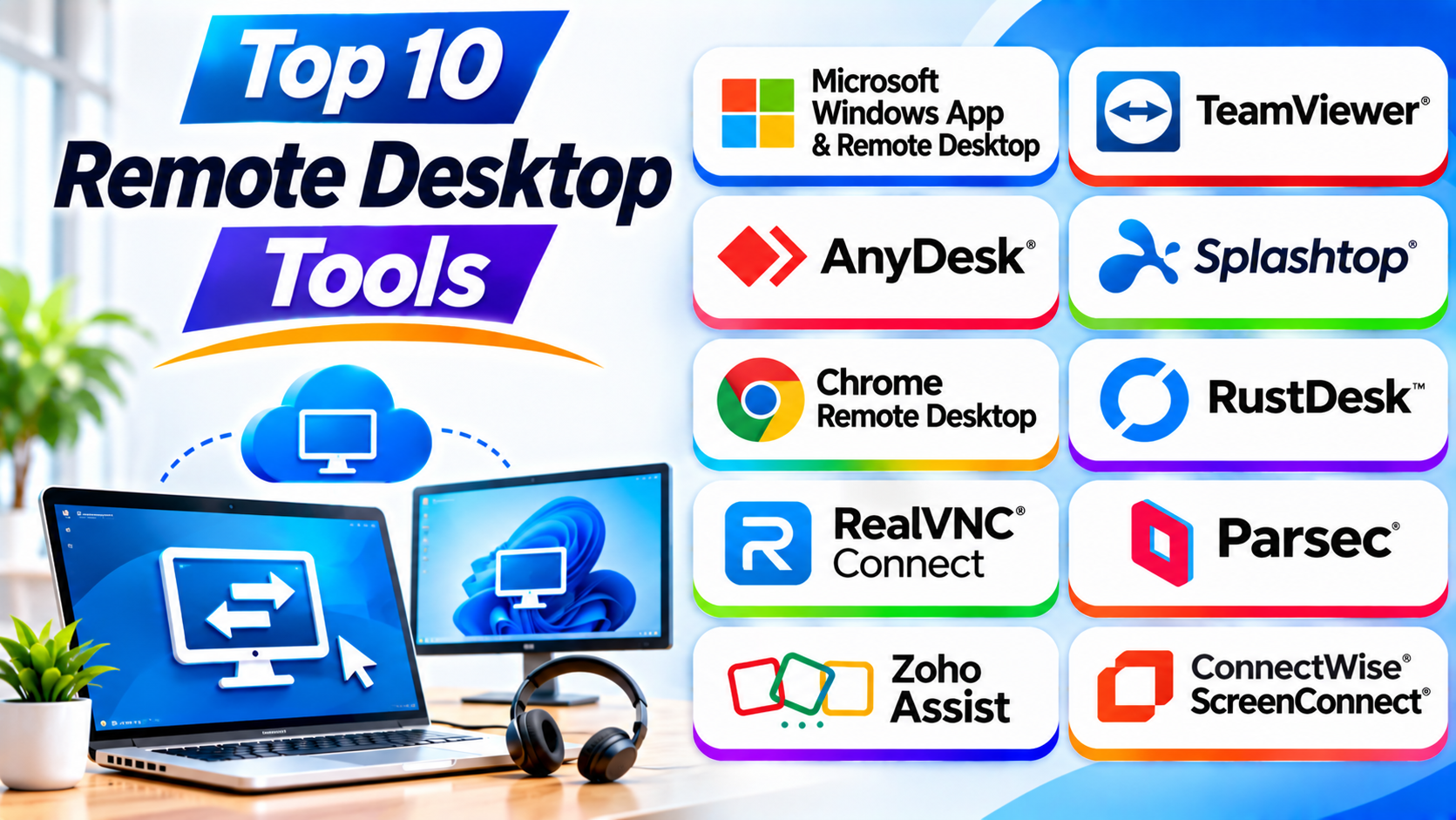
This guide explores ten popular remote desktop tools. It explains their features, Pros, Cons, and best uses.
What Is Remote Desktop Software?
Remote desktop software connects one computer to another. It lets users view and control a remote computer.
The remote computer runs the programs and stores the files. The connecting device sends keyboard and mouse commands. It also receives screen updates from the remote machine.
Users can work as if they sit in front of the remote computer. They can open documents, use applications, and manage system settings.
Remote desktop software can support different connection methods. Some tools use Remote Desktop Protocol (RDP). Others use VNC or their own connection technology.
Types of Remote Desktop Tools
1. Personal Remote Desktop
These tools help people reach their own computers. They work well for home and office access.
2. Business Remote Desktop
These tools help employees connect to work computers. They often include user management and security controls.
3. Remote Support Software
These tools help technicians control another person’s computer. They often support session invitations and unattended access.
4. Open-Source Remote Desktop
These tools provide access to their source code. Some also let users host their own connection servers.
5. High-Performance Remote Desktop
These tools focus on smooth screen updates and low delay. They suit creative work, design, and interactive applications.
Top 10 Remote Desktop Tools
1. Microsoft Windows App and Remote Desktop
Best For: Windows environments, business desktops, and Microsoft cloud desktops.
Microsoft provides remote desktop access through its Remote Desktop technology. Windows App gives users a modern way to connect to supported Windows devices and services.
Users can connect to remote PCs and virtual desktops. They can also access services such as Windows 365 and Azure Virtual Desktop. This makes the solution useful for organizations that already use Microsoft systems.
Remote Desktop uses the Remote Desktop Protocol (RDP). This protocol sends screen updates and user commands between devices. It also supports features such as audio and device redirection.
Windows App supports several platforms. Users can access supported services through Windows, macOS, mobile devices, and web browsers. Exact connection support depends on the platform and Microsoft service.
Windows Remote Desktop also has an important host requirement. Windows Professional, Enterprise, and Education editions can accept incoming remote desktop connections. Windows Home cannot act as an RDP host.
Key Features
- Supports remote Windows PC connections.
- Connects to Windows 365 and Azure Virtual Desktop.
- Supports Remote Desktop Services.
- Offers multi-monitor support in supported environments.
- Supports audio and device redirection.
- Provides secure sign-in options.
- Supports several client platforms.
- Works with Microsoft business environments.
Pros
- Fits Microsoft-based organizations.
- Supports Windows virtual desktops.
- Provides strong Windows integration.
- Supports several device types.
- Offers useful enterprise connection options.
- Works well for Windows-focused teams.
Cons
- Windows Home cannot host standard incoming RDP sessions.
- Setup may require network and account knowledge.
- Features differ across connection types.
- Secure external access needs careful network planning.
Best Use Cases
- Connecting to office Windows computers.
- Accessing Windows 365 desktops.
- Using Azure Virtual Desktop.
- Supporting Windows Server environments.
- Working with Microsoft business systems.
2. TeamViewer Remote
Best For: Businesses, IT support teams, and cross-platform remote access.
TeamViewer Remote is a popular remote desktop and support platform. It helps users connect to computers and mobile devices from different locations.
The software supports attended and unattended access. A support agent can connect after a user approves a session. IT teams can also configure devices for future access.
TeamViewer offers remote control, file transfer, and session tools. Users can manage remote screens and work with multiple monitors. These features help technicians solve problems without visiting the computer.
Businesses can also manage users and devices. Administrators can control permissions and organize remote connections. Integrations can help teams connect support work with other business systems.
TeamViewer supports many operating systems. This makes it useful for companies with mixed device environments.
Key Features
- Supports attended and unattended remote access.
- Provides remote screen control.
- Offers file transfer.
- Supports multiple monitors.
- Provides user and device management.
- Offers session security controls.
- Supports mobile device access.
- Provides business integrations.
Pros
- Supports many operating systems.
- Offers broad remote support features.
- Works for personal and business access.
- Provides useful device management.
- Supports unattended connections.
- Fits organizations with mixed devices.
Cons
- Business licensing can be costly.
- Plan choices may confuse new buyers.
- Advanced features may need higher plans.
- Administrators must manage permissions carefully.
Best Use Cases
- Remote employee support.
- IT help desk operations.
- Customer technical assistance.
- Unattended computer access.
- Cross-platform device management.
3. AnyDesk
Best For: Users who want lightweight remote desktop connections.
AnyDesk provides remote desktop access for personal and business users. It helps people connect to computers from different locations.
The platform focuses on responsive remote control. Its connection technology aims to keep sessions smooth under different network conditions. This can help users work with remote applications.
AnyDesk supports attended and unattended access. Users can invite someone to a session. They can also configure trusted devices for future connections.
The software includes file transfer and permission controls. Administrators can manage access to remote devices. The platform also supports several operating systems.
AnyDesk suits users who want a focused remote desktop application. It can support personal access, remote support, and business workflows.
Key Features
- Supports attended and unattended access.
- Provides remote keyboard and mouse control.
- Offers file transfer.
- Supports multiple operating systems.
- Provides session permission settings.
- Offers device management features.
- Supports remote printing in supported environments.
- Provides business licensing options.
Pros
- Lightweight application.
- Simple connection process.
- Supports several operating systems.
- Useful for remote troubleshooting.
- Offers unattended access.
- Provides flexible session controls.
Cons
- Advanced administration depends on the plan.
- Some business features require paid licensing.
- Users must protect access credentials.
- Large deployments need careful policy management.
Best Use Cases
- Remote computer access.
- Small business IT support.
- Unattended device connections.
- Remote troubleshooting.
- Cross-platform desktop control.
4. Splashtop
Best For: Remote workers, creative professionals, and IT support teams.
Splashtop provides remote desktop access for individuals and businesses. It helps users reach work computers from other devices.
The platform focuses on remote screen access and performance. Users can run applications installed on their office computers. This helps them work from home or while traveling.
Splashtop offers different products for different needs. Remote Access focuses on reaching computers. Remote Support helps technicians assist users and manage devices.
The platform includes file transfer and remote printing features on supported plans. It also supports multiple monitors and remote reboot options. These features help teams manage remote work.
Splashtop can suit businesses that want to give employees access to office computers. IT teams can also use its support products for troubleshooting.
Key Features
- Supports remote desktop access.
- Offers attended and unattended access options.
- Provides file transfer.
- Supports multiple monitors on selected plans.
- Offers remote printing on supported plans.
- Provides remote reboot features.
- Supports several operating systems.
- Offers products for remote support and access.
Pros
- Useful for remote work.
- Offers products for different support needs.
- Supports access to office computers.
- Provides helpful IT support features.
- Offers multi-monitor support on selected plans.
- Fits distributed teams.
Cons
- Product choices may confuse new buyers.
- Some features depend on the selected plan.
- Advanced management may need higher plans.
- Users should compare licensing before buying.
Best Use Cases
- Remote employee desktop access.
- IT support and troubleshooting.
- Access to office workstations.
- Creative work on remote computers.
- Business remote desktop deployments.
5. Chrome Remote Desktop
Best For: Individuals who need simple and free remote computer access.
Chrome Remote Desktop is Google’s remote access service. It helps users connect to another computer through a browser or supported app.
Users can set up a computer for regular remote access. They can then connect from another device. This makes it useful for reaching a home or office computer.
The service also supports remote support sessions. A user can share an access code with someone who needs to help. This makes basic troubleshooting easier.
Chrome Remote Desktop offers a simple interface. It does not require a complex business deployment. Users can connect from supported desktop and mobile devices.
However, it focuses on basic remote access. It does not offer the advanced technician management found in enterprise support platforms.
Key Features
- Provides remote computer access.
- Supports remote support sessions.
- Works through Chrome and supported apps.
- Supports major desktop operating systems.
- Offers unattended access setup.
- Provides keyboard and mouse control.
- Supports mobile access through available apps.
Pros
- Free to use.
- Simple setup process.
- Useful for personal remote access.
- Supports major desktop platforms.
- Does not need a complex IT deployment.
- Works well for basic support tasks.
Cons
- Offers limited business administration.
- Lacks advanced help desk workflows.
- Does not provide a full enterprise device management system.
- Offers fewer advanced support controls.
Best Use Cases
- Personal computer access.
- Family technical support.
- Basic remote troubleshooting.
- Access to a home computer.
- Small teams with simple needs.
6. RustDesk
Best For: Technical users and organizations that want open-source remote desktop access.
RustDesk is an open-source remote desktop solution. It lets users connect to computers from other devices.
The software provides remote screen control and file transfer. Users can connect through public services or set up their own server infrastructure.
Self-hosting gives organizations more control over their connection systems. They can manage their own server environment. This may help teams with special privacy or infrastructure needs.
RustDesk supports several operating systems. This makes it useful for mixed-device environments.
However, self-hosting requires technical knowledge. Administrators must manage server security, updates, network access, and backups. A poorly secured server can create risks.
RustDesk suits users who want more control over their remote desktop setup.
Key Features
- Offers open-source remote desktop software.
- Supports remote screen control.
- Provides file transfer.
- Supports multiple operating systems.
- Offers self-hosted server options.
- Supports unattended access.
- Provides keyboard and mouse control.
- Offers configuration choices for technical users.
Pros
- Open-source client availability.
- Offers self-hosting options.
- Gives teams more infrastructure control.
- Supports different operating systems.
- Useful for technical users.
- Can reduce dependence on a hosted service.
Cons
- Self-hosting requires technical skills.
- Users must secure and maintain their servers.
- Business administration needs extra planning.
- Advanced needs may require paid services or additional setup.
Best Use Cases
- Self-hosted remote access.
- Personal computer connections.
- Technical teams.
- Small organizations with IT skills.
- Environments that need infrastructure control.
7. RealVNC Connect
Best For: Businesses and technical teams that need VNC-based remote access.
RealVNC Connect provides remote access through VNC technology. It helps users view and control remote computers.
VNC stands for Virtual Network Computing. It sends screen information from one computer to another. The remote user can then control the computer’s keyboard and mouse.
RealVNC Connect supports remote access and support workflows. Organizations can use it to manage devices and assist users. It can also support different operating systems.
The platform offers security and administration features. Businesses can manage users and access permissions. Available features depend on the selected plan.
RealVNC Connect can suit organizations with mixed device environments. It is also useful for teams that already use VNC-based systems.
Key Features
- Provides VNC-based remote desktop access.
- Supports remote screen control.
- Offers secure connection options.
- Provides user and access management.
- Supports file transfer on selected plans.
- Offers cross-platform access.
- Supports business and enterprise use.
- Provides administration options.
Pros
- Established VNC technology.
- Useful for mixed-device environments.
- Offers remote access and support options.
- Supports business administration features.
- Fits technical and enterprise environments.
Cons
- Some features depend on the plan.
- Users may need to learn VNC concepts.
- Advanced administration requires planning.
- Licensing may not suit every small team.
Best Use Cases
- Remote server access.
- IT support.
- VNC-based environments.
- Cross-platform remote access.
- Business device management.
8. Parsec
Best For: Creative professionals, game developers, and users who need low-latency remote desktop access.
Parsec focuses on fast remote desktop streaming. It helps users connect to powerful computers from other devices.
The platform suits tasks that need smooth screen updates. Creative professionals can use it to access applications on remote workstations. Game developers can also use it to test interactive projects.
Parsec focuses on responsive input and visual quality. This makes it different from many basic remote support tools. It aims to deliver a more direct desktop experience.
Teams can use Parsec for collaborative work. Some business plans provide administration and security controls. Features depend on the product and plan.
Parsec is not a full replacement for every IT support platform. It is better suited to performance-focused remote access.
Key Features
- Provides low-latency remote desktop streaming.
- Supports high-quality screen streaming.
- Offers remote keyboard and mouse control.
- Supports multi-monitor workflows in supported setups.
- Provides team and business options.
- Supports creative and interactive applications.
- Offers collaboration features on supported plans.
Pros
- Focuses on responsive remote control.
- Useful for creative applications.
- Helps access powerful remote workstations.
- Suits interactive workloads.
- Supports team workflows.
Cons
- Not designed as a full IT help desk platform.
- Performance depends on network quality.
- Some business features require paid plans.
- Users need suitable host hardware for demanding work.
Best Use Cases
- Video and design workflows.
- Game development.
- Remote workstation access.
- Interactive applications.
- Creative team collaboration.
9. Zoho Assist
Best For: Small businesses, help desks, and customer support teams.
Zoho Assist is a cloud-based remote support platform. It helps technicians connect to customer and employee devices.
The platform supports attended and unattended access. A technician can invite a user into a support session. IT teams can also configure unattended access for regular maintenance.
Zoho Assist provides remote control and file transfer. It also offers session recording and technician management features on supported plans.
The platform works with other Zoho business services. This can help organizations that already use the Zoho ecosystem.
Zoho Assist focuses more on remote support than personal desktop streaming. It is useful when technicians need to help users and manage support sessions.
Key Features
- Supports attended remote support.
- Provides unattended computer access.
- Offers file transfer during sessions.
- Supports remote reboot and reconnect features.
- Provides session recording on supported plans.
- Offers technician and device management.
- Supports multiple operating systems.
- Provides browser-based support options.
Pros
- Easy to start remote support sessions.
- Offers a free option with limited features.
- Supports attended and unattended access.
- Fits small and medium-sized businesses.
- Works well for help desk tasks.
- Connects with other Zoho services.
Cons
- Advanced features depend on the plan.
- Large support teams may need higher plans.
- Some users may prefer a wider IT management platform.
- Administrators need to configure access carefully.
Best Use Cases
- Customer technical support.
- Small business help desks.
- Remote employee assistance.
- Unattended device maintenance.
- Zoho-based business environments.
10. ConnectWise ScreenConnect
Best For: Managed service providers, IT technicians, and professional help desks.
ConnectWise ScreenConnect is a remote support platform. It helps technicians access computers and solve technical problems.
Managed service providers can use it to support many customers. IT teams can also use it to manage remote devices.
The platform offers attended and unattended access. Technicians can join a support session when a user needs help. They can also connect to managed devices without someone sitting nearby.
ScreenConnect provides file transfer and remote management tools. Technicians can use these features to troubleshoot systems. They can also manage support sessions through its administration tools.
The platform offers customization and integration options. This helps service providers match the software to their support process.
Key Features
- Supports attended remote support.
- Provides unattended device access.
- Offers file transfer.
- Supports remote command and management tasks.
- Provides technician session controls.
- Offers customization options.
- Supports integrations with selected IT tools.
- Provides hosted and self-hosted deployment options.
Pros
- Designed for IT support workflows.
- Fits managed service providers.
- Supports unattended device access.
- Offers useful technician controls.
- Provides customization options.
- Supports flexible deployment choices.
Cons
- The interface may take time to learn.
- Advanced configuration needs technical skills.
- Licensing requires careful review.
- May offer too much for personal users.
Best Use Cases
- Managed IT services.
- Business help desk operations.
- Remote system troubleshooting.
- Customer computer support.
- IT technician workflows.
Comparison Table: Top 10 Remote Desktop Tools
| Tool | Main Strength | Best For |
|---|---|---|
| Microsoft Windows App and Remote Desktop | Windows and cloud desktop access | Microsoft environments |
| TeamViewer Remote | Broad remote access features | Businesses and IT teams |
| AnyDesk | Lightweight remote control | Small teams and support |
| Splashtop | Remote desktop performance | Remote workers and IT support |
| Chrome Remote Desktop | Simple free access | Personal use |
| RustDesk | Open-source and self-hosting | Technical users |
| RealVNC Connect | VNC-based access | Mixed-device environments |
| Parsec | Low-latency streaming | Creative professionals |
| Zoho Assist | Cloud-based support | Help desks and small businesses |
| ConnectWise ScreenConnect | Technician workflows | MSPs and IT teams |
Important Features to Check Before Choosing Remote Desktop Software
1. Security and Encryption
Choose software that protects remote sessions. Look for encrypted connections and strong authentication.
2. Multi-Factor Authentication
Multi-factor authentication adds another login step. It helps protect accounts if someone steals a password.
3. Unattended Access
Unattended access lets approved users connect without someone nearby. It helps IT teams maintain computers after working hours.
4. File Transfer
File transfer lets users move documents between devices. Check file size limits and supported transfer methods.
5. Multi-Monitor Support
Some remote computers use several screens. Choose software that supports the monitor setup your team needs.
6. Session Recording
Session recording helps teams review remote support work. It can also support audits and staff training.
7. Device Compatibility
Check support for Windows, macOS, Linux, Android, and iOS. Confirm the exact host and viewer support before buying.
8. User and Device Management
Businesses need control over users and devices. Look for role-based permissions and central management.
9. Connection Performance
A stable connection improves the remote work experience. Test the software on your real network before deployment.
10. Pricing and Licensing
Compare user limits, device limits, and session limits. Check whether you pay per user, technician, or managed device.
How to Choose the Right Remote Desktop Tool
Start by defining the main reason you need remote desktop access. Then compare the tools against your security and device needs.
- Choose Microsoft Windows App for Microsoft desktop and cloud environments.
- Choose TeamViewer for broad remote access and support.
- Choose AnyDesk for lightweight remote connections.
- Choose Splashtop for remote work and support.
- Choose Chrome Remote Desktop for simple personal access.
- Choose RustDesk for open-source and self-hosted setups.
- Choose RealVNC Connect for VNC-based remote access.
- Choose Parsec for high-performance creative work.
- Choose Zoho Assist for cloud-based help desk sessions.
- Choose ScreenConnect for MSP and technician workflows.
Test your preferred tool before buying a full license. Check its security, speed, and device support. Also confirm that the license matches your intended use.
Common Uses of Remote Desktop Tools
Remote desktop software supports many work and support tasks.
Remote Work
Employees connect to office computers from home. They can use their regular programs and files.
IT Support
Technicians fix computer problems without visiting the user’s desk. This can reduce support delays.
Server Administration
Administrators manage remote servers and systems. They can inspect settings and solve technical issues.
Customer Support
Support agents help customers solve technical problems. They can view the customer’s screen with permission.
Software Development
Developers access test systems and remote workstations. They can use tools installed on powerful computers.
Education
Teachers and students access lab computers and learning tools. This can support remote learning tasks.
Business Operations
Teams reach office applications while traveling. They can continue work from approved devices.
Device Maintenance
IT teams update and inspect remote computers. Unattended access can help with regular maintenance.
Benefits of Remote Desktop Software
- Work From Anywhere: Users can reach approved computers remotely.
- Faster Support: Technicians can solve problems without travel.
- Lower Travel Costs: Teams can fix many issues online.
- Better Productivity: Employees can use office applications remotely.
- Centralized Support: IT teams can manage remote sessions.
- Quick Troubleshooting: Technicians can inspect devices directly.
- Flexible Workflows: Teams can support different locations.
- Improved Collaboration: Users can share screens during support sessions.
Challenges of Remote Desktop Software
Remote desktop tools also create risks and management needs. Businesses should plan for these issues.
- Security Risks: Weak passwords can expose remote systems.
- Unauthorized Access: Poor permissions can give users too much control.
- Network Problems: Slow internet can affect session quality.
- Device Compatibility: Some tools do not support every device equally.
- Licensing Costs: Large deployments can increase expenses.
- User Training: Staff need to understand safe remote access.
- Policy Management: Administrators must review access rights often.
Best Practices for Secure Remote Desktop Access
- Use multi-factor authentication wherever possible.
- Create strong and unique passwords.
- Give users only the access they need.
- Enable encryption and secure connection settings.
- Keep remote desktop software updated.
- Remove access from old accounts and devices.
- Review connection logs regularly.
- Limit unattended access to approved devices.
- Avoid exposing RDP directly to the public internet.
- Train staff to identify suspicious connection requests.
For Windows RDP, use trusted networks or a properly configured VPN or gateway. Keep Network Level Authentication enabled where supported. Microsoft also recommends strong, unique passwords for accounts with remote access.
Questions and Answers About Remote Desktop Tools
1. What is a remote desktop tool?
A remote desktop tool lets users control another computer. They can view its screen and use its applications from another location.
2. What is the best remote desktop software?
TeamViewer, AnyDesk, and Splashtop are popular choices. The best option depends on your devices, security needs, and budget.
3. Is remote desktop software safe?
It can be safe when users configure it correctly. Use encryption, multi-factor authentication, and strict access permissions.
4. Can I access my office computer from home?
Yes. Remote desktop software can connect you to an office computer. Your organization must allow and configure the connection.
5. What is the difference between remote desktop and remote support?
Remote desktop focuses on accessing another computer. Remote support focuses on helping someone solve a technical problem.
6. Is there free remote desktop software?
Yes. Chrome Remote Desktop and RustDesk offer free options. Some commercial tools also provide limited free plans.
7. Can remote desktop tools transfer files?
Many tools support file transfer. Users can move documents between local and remote computers.
8. Does remote desktop software work on mobile devices?
Some tools offer Android and iOS apps. Mobile features vary by product and plan.
9. What is RDP?
RDP means Remote Desktop Protocol. It is Microsoft’s protocol for connecting to and controlling remote computers.
10. How can businesses secure remote desktop connections?
Use strong authentication and encrypted connections. Limit permissions and review access logs. Keep software updated and remove unused accounts.
Final Thoughts
Remote desktop tools help people work and solve problems from different locations. They also help IT teams support computers without visiting them.
Microsoft Windows App suits Microsoft environments. TeamViewer offers broad remote support features. AnyDesk provides lightweight connections. Splashtop supports remote work and IT support.
Chrome Remote Desktop works well for simple personal access. RustDesk gives technical users self-hosting options. RealVNC Connect supports VNC-based environments. Parsec suits high-performance creative work.
Zoho Assist helps help desk teams. ConnectWise ScreenConnect supports professional technician workflows.
Choose a tool that matches your work. Review its security, device support, and licensing. Test it before connecting important business systems.