Introduction
Modern teams need safe and flexible ways to access work desktops. Many people now work from home, offices, and different locations. Traditional computers can make this setup costly and hard to manage.
Virtual Desktop Infrastructure offers a practical solution. It lets businesses host desktop systems on central servers or cloud platforms. Workers can then access their desktops through supported devices.
VDI also helps IT teams manage software, updates, and security. They can control many desktops from one central place. This makes daily work easier for growing businesses.
However, every VDI platform works in a different way. Some focus on cloud desktops. Others support private data centers and hybrid systems. A few also deliver individual apps instead of full desktops.
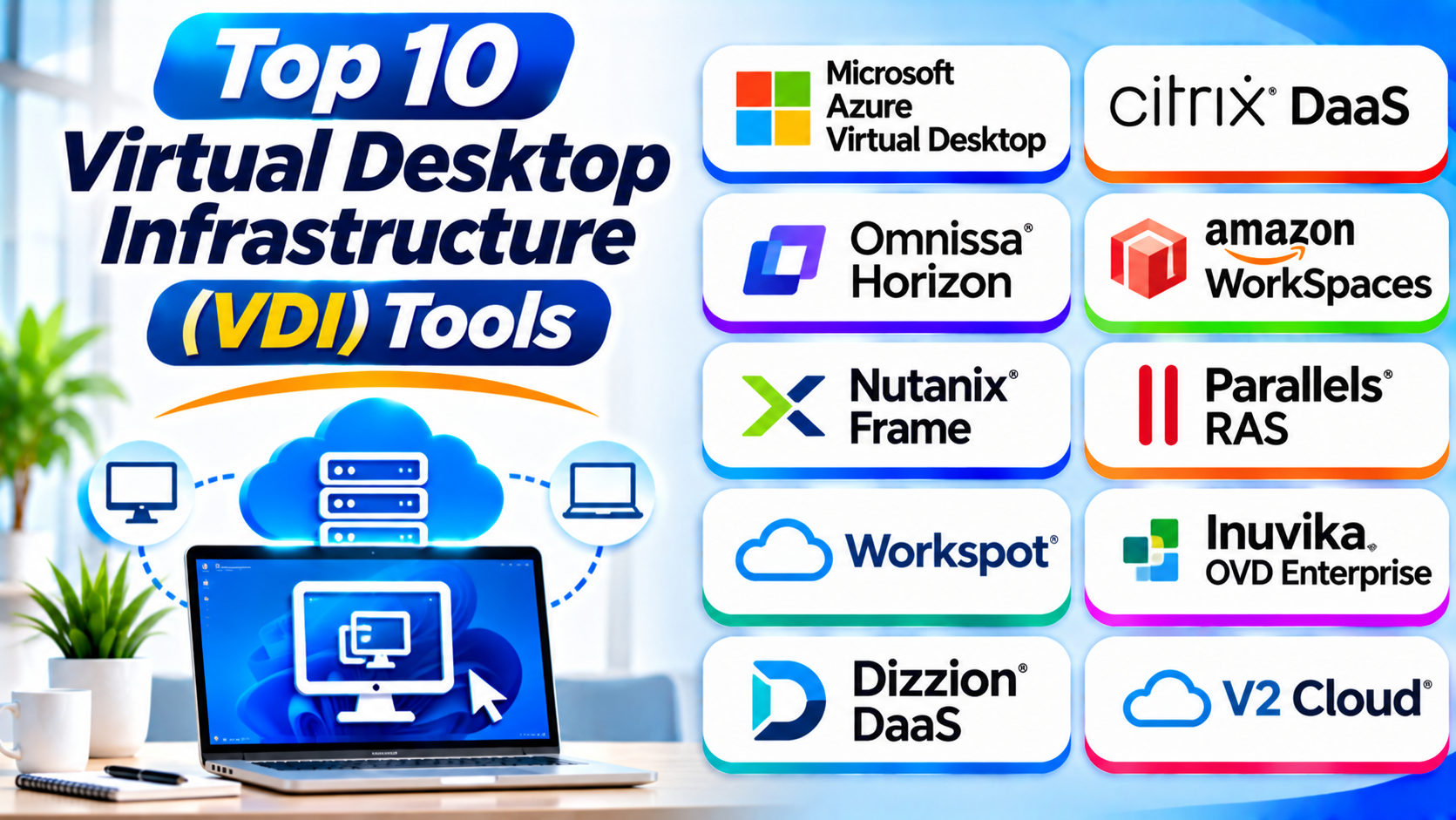
This guide explores ten leading VDI platforms. It explains their features, strengths, weaknesses, and best uses. It also includes a comparison table to help you choose.
What Is Virtual Desktop Infrastructure?
Virtual Desktop Infrastructure, or VDI, hosts desktop computers on central servers. These servers run virtual machines with their own operating systems. Users connect to these desktops through a network.
A virtual desktop looks and feels like a normal computer. Users can open apps, save files, and complete daily tasks. However, the main computing work happens on remote infrastructure.
VDI can run in a company data center or cloud environment. Some businesses also use a mix of both.
How Does VDI Work?
VDI uses several parts to deliver a desktop to each user.
- Central servers: These servers provide the computing power for virtual desktops.
- Virtual machines: Each virtual machine runs its own desktop environment.
- Connection broker: This service connects users to the right virtual desktop.
- Storage: Central storage holds desktop images, files, and user settings.
- Network connection: The network carries screen updates and user actions.
- Client device: A laptop, desktop, tablet, or thin client gives users access.
The user opens a VDI client or web browser. The system checks their identity and access rights. It then connects them to an available desktop.
Types of Virtual Desktop Infrastructure
VDI comes in several forms. Each type supports different business needs.
1. Persistent VDI
Persistent VDI gives each user a dedicated virtual desktop. The desktop keeps personal settings and saved changes. It works much like a regular office computer.
This option suits workers who need a stable work environment. Developers and designers may benefit from it.
2. Non-Persistent VDI
Non-persistent VDI gives users a standard desktop from a shared image. The system resets the desktop after each session. User data can remain separate through profile or file services.
This model works well for call centers and shared workspaces. It can also make desktop updates easier.
3. Desktop as a Service (DaaS)
DaaS delivers virtual desktops through a cloud provider. The provider manages some or most of the underlying infrastructure. Businesses access desktops through a subscription or usage-based plan.
This model can reduce the need for local server hardware. It still requires careful planning for cost and security.
4. Hybrid VDI
Hybrid VDI combines local infrastructure with cloud resources. Businesses can place workloads where they work best. This approach offers more control over deployment choices.
It can help companies with existing data centers. It can also support gradual cloud adoption.
Top 10 Virtual Desktop Infrastructure (VDI) Tools
The following platforms serve different VDI and cloud desktop needs. The list considers desktop delivery, deployment choices, management, and business use cases. It does not represent laboratory performance scores.
1. Microsoft Azure Virtual Desktop
Microsoft Azure Virtual Desktop is a cloud-based desktop and application service. It runs on Microsoft Azure infrastructure. Businesses can deliver Windows desktops and remote applications to users.
The platform supports personal and pooled desktop setups. Pooled desktops let multiple users share resources across separate sessions. This can help companies manage resources more efficiently.
Azure Virtual Desktop also supports Windows multi-session. This feature allows multiple users to work on one Windows virtual machine. It can help reduce infrastructure needs for suitable workloads.
IT teams can connect the service with Microsoft identity and management tools. They can also use Azure services to manage networks, storage, and virtual machines.
However, Azure Virtual Desktop needs careful setup. Companies must plan desktop images, user profiles, networking, and capacity. Azure usage costs can also change with demand.
Key Features
- Cloud-hosted virtual Windows desktops.
- Personal and pooled desktop options.
- Windows multi-session support.
- Remote application delivery.
- Integration with Microsoft Azure services.
- Support for identity and access controls.
- Flexible virtual machine sizing.
- Autoscaling options through Azure services.
Pros
- Strong fit for Microsoft-based organizations.
- Supports pooled and personal desktops.
- Offers flexible cloud resource choices.
- Works with Microsoft identity services.
- Can scale with changing business needs.
Cons
- Needs Azure knowledge for smooth management.
- Setup can involve several connected services.
- Cloud resource costs need close monitoring.
- Network quality affects the user experience.
Best For: Businesses that use Microsoft 365, Windows, and Azure services.
2. Citrix DaaS
Citrix DaaS delivers virtual desktops and applications through a cloud-managed platform. It helps businesses provide secure access to work resources. Organizations can use it across different locations and devices.
The platform supports cloud and hybrid deployment models. Companies can connect existing infrastructure with cloud-based management. This gives IT teams more flexibility when planning desktop services.
Citrix uses its HDX technology to improve remote access. HDX helps deliver responsive desktop and application sessions. It also supports different network and user conditions.
Administrators can manage user sessions and access policies. They can also monitor desktop activity and troubleshoot issues. These tools help larger IT teams manage complex environments.
Citrix DaaS offers many enterprise features. However, its wide range of settings can make deployment more complex. Businesses should plan licensing, infrastructure, and administration before rollout.
Key Features
- Cloud-managed desktop delivery.
- Virtual application delivery.
- Hybrid and multi-cloud support options.
- HDX user experience technology.
- Centralized administration.
- Access policies and security controls.
- Session monitoring and management.
- Support for different endpoint devices.
Pros
- Strong enterprise desktop capabilities.
- Supports complex hybrid environments.
- Delivers both desktops and applications.
- Offers detailed access controls.
- Provides tools for session monitoring.
Cons
- Setup can require specialist skills.
- Licensing choices may need careful review.
- Advanced environments can be complex.
- Ongoing management needs trained staff.
Best For: Large organizations with complex desktop and application delivery needs.
3. Omnissa Horizon
Omnissa Horizon is an enterprise platform for virtual desktop and application delivery. It supports organizations that need centralized desktop management. It can work across on-premises and selected cloud environments.
Horizon helps IT teams provide desktops to remote and office-based workers. Administrators can manage desktop pools and user access. They can also control how users connect to their work environments.
The platform supports different desktop deployment models. Businesses can create dedicated or shared desktop environments. This helps them match desktop resources with user needs.
Horizon also supports enterprise management and security workflows. Its deployment options depend on the chosen infrastructure and product components. Companies should review current support and licensing before making a decision.
Organizations with existing Horizon environments may find it useful. New customers should compare its architecture with cloud-native options. Migration planning also matters when moving from older systems.
Key Features
- Virtual desktop delivery.
- Application delivery options.
- Centralized desktop management.
- Dedicated and shared desktop models.
- Enterprise access controls.
- Support for on-premises environments.
- Options for selected cloud deployments.
- Integration with enterprise IT systems.
Pros
- Suitable for large desktop environments.
- Supports different desktop delivery models.
- Offers centralized administration.
- Can support existing enterprise infrastructure.
- Helps manage remote desktop access.
Cons
- Deployment can require careful planning.
- Infrastructure needs depend on the design.
- Licensing and product choices need review.
- Migration may take time in large environments.
Best For: Enterprises that need managed virtual desktops across established or hybrid infrastructure.
4. Amazon WorkSpaces
Amazon WorkSpaces is a managed virtual desktop service from Amazon Web Services. It lets businesses provide cloud-hosted desktops to their users. AWS manages much of the underlying service infrastructure.
Organizations can choose desktop bundles based on user needs. These bundles offer different computing resources and storage options. This helps businesses match desktop capacity with daily tasks.
Amazon WorkSpaces supports different access devices. Users can connect through supported desktop clients and other access methods. The service also offers different billing options, depending on the product and configuration.
The platform works well with other AWS services. Businesses can use AWS identity, networking, and security tools. This can simplify management for companies already using AWS.
However, companies must understand the service’s regional availability and pricing. They should also check application compatibility and desktop requirements. Costs can rise when users need larger desktop bundles.
Key Features
- Managed cloud desktop service.
- Desktop bundles with different resource levels.
- Integration with AWS services.
- Multiple supported client devices.
- User and desktop management.
- Flexible billing options for supported configurations.
- Centralized service administration.
- Cloud-based desktop access.
Pros
- Reduces the need to manage desktop servers.
- Fits organizations already using AWS.
- Offers different desktop resource options.
- Supports remote users and distributed teams.
- Provides managed cloud infrastructure.
Cons
- Best suited to AWS-based environments.
- Costs depend on usage and configuration.
- Some advanced needs require extra AWS services.
- Application and device support needs testing.
Best For: Businesses that want managed cloud desktops within the AWS ecosystem.
5. Nutanix Frame
Nutanix Frame is a desktop and application delivery platform. It helps businesses provide virtual workspaces through cloud and private infrastructure options. Users can access supported desktops through a browser or client.
Frame focuses on simplifying desktop delivery. Administrators can manage desktop sessions and application access. They can also choose infrastructure options that match their business needs.
The platform supports different use cases. These include office work, education, training, and specialized applications. Browser-based access can also reduce the need for complex endpoint setup.
Businesses should test their applications before deployment. Graphics-heavy workloads may need suitable computing resources. Network performance and peripheral support also affect the experience.
Nutanix Frame can suit organizations that want flexible desktop delivery. Companies should confirm current infrastructure support and product availability. They should also review how Frame fits their existing Nutanix environment.
Key Features
- Virtual desktop and application delivery.
- Browser-based access options.
- Centralized desktop management.
- Support for cloud and private infrastructure choices.
- Session management.
- Desktop image management.
- Options for different user workloads.
- Access from supported endpoint devices.
Pros
- Offers browser-based desktop access.
- Supports different infrastructure choices.
- Helps centralize desktop administration.
- Can support education and business use cases.
- Reduces some endpoint setup work.
Cons
- Advanced workloads need careful testing.
- Infrastructure choices affect overall cost.
- Peripheral support may vary.
- Businesses must confirm current deployment options.
Best For: Organizations that want browser-friendly virtual desktops and flexible infrastructure choices.
6. Parallels RAS
Parallels Remote Application Server, or Parallels RAS, provides virtual desktops and remote applications. It helps businesses deliver work tools from a central environment. Users can access these resources through supported devices.
The platform combines desktop and application delivery features. Administrators can publish applications for users. They can also provide full desktop sessions when needed.
Parallels RAS supports on-premises, cloud, and hybrid deployments. This gives businesses choices when planning their infrastructure. It can also help service providers manage desktop environments for customers.
The platform includes tools for administration and access control. Businesses can use it to manage user sessions and application delivery. Its design can suit companies that want a unified remote access platform.
However, teams should review the infrastructure and licensing requirements. They should also test application performance across their network. Larger deployments may need careful capacity planning.
Key Features
- Virtual desktop delivery.
- Remote application publishing.
- On-premises and cloud deployment options.
- Hybrid infrastructure support.
- Centralized administration.
- User access management.
- Session monitoring.
- Support for multiple endpoint types.
Pros
- Combines desktop and application delivery.
- Offers flexible deployment options.
- Suitable for different business sizes.
- Provides centralized management tools.
- Can support service provider environments.
Cons
- Setup still needs technical planning.
- Licensing needs careful review.
- Performance depends on infrastructure design.
- Large deployments need ongoing administration.
Best For: Small and medium businesses, enterprises, and service providers that need desktop and application delivery.
7. Workspot
Workspot provides cloud-based virtual desktops and enterprise workspace services. It helps organizations deliver desktops to distributed teams. Users can access their work environments from supported devices.
The platform focuses on managed cloud desktop delivery. Businesses can use it to provide desktops for office workers and technical users. It also supports workloads that need more computing power.
Workspot helps IT teams manage desktop environments centrally. This can reduce the effort involved in supporting users across different locations. It also gives organizations another option beyond managing all desktop infrastructure themselves.
The platform can suit companies with remote teams. It may also help businesses that need consistent desktop access across regions. However, organizations should test latency and application needs before deployment.
Companies should also review service coverage and pricing. The right plan depends on desktop size, user count, and workload. A pilot can help teams confirm whether the platform meets their needs.
Key Features
- Cloud-based virtual desktop delivery.
- Centralized desktop management.
- Support for distributed teams.
- Desktop options for different workloads.
- Enterprise workspace administration.
- Remote user access.
- Cloud resource management.
- Support for selected high-performance use cases.
Pros
- Designed for distributed workforces.
- Reduces some infrastructure management tasks.
- Offers centralized desktop administration.
- Can support demanding desktop workloads.
- Provides a cloud-focused delivery model.
Cons
- Cloud service costs need evaluation.
- Network latency can affect user experience.
- Workload fit requires testing.
- Pricing may require a direct vendor quote.
Best For: Enterprises that need cloud desktops for distributed and technical teams.
8. Inuvika OVD Enterprise
Inuvika OVD Enterprise provides virtual desktop and application delivery. It supports organizations that want centralized access to business applications. The platform also offers Windows and Linux workspace options.
OVD Enterprise can run in customer-managed environments. Businesses can deploy it on-premises or in supported cloud infrastructure. This gives IT teams control over where they host desktop resources.
The platform supports application publishing and shared desktop sessions. It can also support full virtual desktop use cases. This flexibility helps organizations with mixed application needs.
Inuvika may suit businesses that want an alternative to larger VDI platforms. Its Linux support can also help organizations with mixed operating systems. However, teams should check application compatibility before moving users.
Administrators should review infrastructure sizing and support needs. They should also test user profiles, printing, and peripheral access. These checks help prevent problems during rollout.
Key Features
- Virtual desktop delivery.
- Remote application publishing.
- Windows and Linux workspace support.
- On-premises and cloud deployment options.
- Centralized administration.
- Shared desktop sessions.
- User access management.
- Support for different business environments.
Pros
- Supports Windows and Linux environments.
- Offers desktop and application delivery.
- Provides flexible hosting options.
- Can suit mixed operating system needs.
- Gives organizations control over infrastructure.
Cons
- Application compatibility needs testing.
- Deployment requires technical planning.
- Smaller teams may need training.
- Infrastructure management remains a business responsibility.
Best For: Organizations that need Windows and Linux application or desktop delivery.
9. Dizzion DaaS
Dizzion provides desktop-as-a-service solutions for businesses. Its services help organizations deliver cloud-hosted desktops to users. The platform supports different business environments and desktop needs.
Dizzion focuses on managed desktop delivery. This can help companies that want to reduce the work of managing desktop infrastructure. It also offers options for organizations with different hosting requirements.
Businesses can use cloud desktops for remote teams and office workers. They can also support users who need access to standard business applications. The right setup depends on workload, location, and service design.
Dizzion’s offerings have included Frame-based desktop services. Companies should confirm the current product names and available service options. They should also review support, security, and migration requirements.
A careful pilot can help test the desktop experience. Teams should check application response, user access, and network performance. They should also compare the full service cost with other options.
Key Features
- Managed desktop-as-a-service options.
- Cloud-hosted desktop delivery.
- Support for distributed users.
- Desktop management services.
- Options for different hosting needs.
- Centralized workspace access.
- Enterprise service support.
- Desktop deployment assistance.
Pros
- Helps reduce infrastructure management work.
- Supports remote and distributed users.
- Offers managed desktop services.
- Can suit businesses seeking cloud delivery.
- Provides options for different desktop needs.
Cons
- Service details depend on the selected offering.
- Pricing may require a vendor quote.
- Businesses should confirm current product options.
- Application performance needs testing.
Best For: Organizations that want managed cloud desktop services and support.
10. V2 Cloud
V2 Cloud provides managed cloud desktop services. It helps businesses deliver Windows desktops through the internet. Users can access their work environment from supported devices.
The platform focuses on making cloud desktops easier to set up. Businesses can use it without building a large desktop server environment. This can help smaller teams that lack dedicated infrastructure staff.
V2 Cloud supports remote work and centralized application access. Businesses can provide desktops to employees in different locations. Administrators can manage users and desktop resources through the service.
The platform may suit small and medium businesses. It can also help companies that need a simple cloud desktop service. However, users should test application compatibility and performance before moving all work.
Businesses should review the service plans and resource limits. They should also understand backup, security, and support options. These details matter when desktops hold important business data.
Key Features
- Managed cloud Windows desktops.
- Remote desktop access.
- Centralized user management.
- Cloud-hosted desktop resources.
- Support for remote teams.
- Application access from different devices.
- Desktop resource options.
- Managed service approach.
Pros
- Simple approach to cloud desktop delivery.
- Reduces the need for local desktop servers.
- Can suit small and medium businesses.
- Supports remote and hybrid teams.
- Offers centralized desktop management.
Cons
- Cloud service costs need planning.
- Advanced enterprise needs may require review.
- Application compatibility must be checked.
- Internet quality affects the desktop experience.
Best For: Small and medium businesses that want managed cloud desktops.
VDI Tools Comparison Table
The table below gives a quick view of the ten platforms. Features and deployment choices can vary by plan and configuration.
| VDI Tool | Best For | Deployment Model | Main Strength |
|---|---|---|---|
| Microsoft Azure Virtual Desktop | Microsoft-based businesses | Azure cloud | Windows desktop delivery |
| Citrix DaaS | Large enterprises | Cloud and hybrid | Desktop and app delivery |
| Omnissa Horizon | Enterprise VDI environments | On-premises and selected cloud options | Centralized desktop management |
| Amazon WorkSpaces | AWS users | AWS cloud | Managed cloud desktops |
| Nutanix Frame | Browser-friendly workspaces | Cloud and private infrastructure options | Browser-based access |
| Parallels RAS | SMBs and service providers | On-premises, cloud, hybrid | Desktop and app publishing |
| Workspot | Distributed enterprises | Cloud-based | Managed enterprise desktops |
| Inuvika OVD Enterprise | Mixed Windows and Linux needs | On-premises and cloud | Desktop and app delivery |
| Dizzion DaaS | Managed desktop services | Cloud and other supported hosting options | Managed desktop delivery |
| V2 Cloud | Small and medium businesses | Cloud-based | Simple cloud desktop service |
How to Choose the Right VDI Tool
Choosing a VDI platform takes more than comparing features. You must understand your users, applications, and IT setup. These points can help you make a better choice.
1. Understand Your Business Needs
Start by listing the tasks your users perform each day. Office workers may need basic desktops and business apps. Designers may need more memory and graphics power.
Choose a platform that supports your real workloads. Avoid paying for resources that users do not need.
2. Check Deployment Options
Some platforms focus on public cloud services. Others support private data centers and hybrid setups. Choose a model that matches your current infrastructure.
Also, consider your future plans. A flexible platform may make later changes easier.
3. Review Security Features
VDI can help centralize desktop control. However, it does not provide complete security by itself.
Check identity controls, access rules, encryption, and monitoring. Also review how the platform handles user data and desktop storage.
4. Test Application Compatibility
Not every application works well in a virtual desktop. Some programs need special drivers or hardware access. Others depend on local devices and network services.
Test your most important applications first. Include printers, scanners, video calls, and USB devices.
5. Compare Total Cost
VDI costs include more than the software subscription. You may also pay for cloud resources, storage, network traffic, and support.
Check how each vendor calculates its charges. Compare costs for both normal and busy usage periods.
6. Review User Experience
A slow desktop can reduce worker productivity. Network delays can affect typing, video calls, and graphics.
Test the platform from the places where people work. Include home networks and remote offices.
7. Check Management Needs
Some platforms need skilled VDI administrators. Others offer more managed services.
Consider your IT team’s experience. Choose a platform your team can support over time.
8. Run a Pilot Project
Start with a small group of users. Test their normal work tasks and applications. Ask them to report any problems.
A pilot can reveal issues before a full rollout. It can also help you estimate real costs.
Common Uses of VDI
VDI supports many types of businesses. It can help teams manage desktops across different locations.
Remote and Hybrid Work
Employees can access company desktops from home or other locations. They can use approved devices without storing all work data locally.
Education and Training
Schools and training centers can provide standard desktops to students. They can reset shared environments between sessions.
Healthcare
Healthcare organizations can provide controlled access to approved applications. They must still follow strict rules for patient data and privacy.
Call Centers
Call centers can provide the same desktop setup to many agents. IT teams can manage updates and access from one place.
Software Development
Development teams can use desktops with specific tools and settings. They can also provide consistent environments for different projects.
Business Process Outsourcing
BPO companies can deliver controlled workspaces to large teams. This can help them manage access across different offices.
Temporary Workers and Contractors
Businesses can provide short-term desktop access to outside workers. They can remove access when the work ends.
Benefits of Virtual Desktop Infrastructure
VDI offers several useful benefits when businesses plan it well.
Centralized Management
IT teams can manage many desktops from a central system. They can update desktop images and control access more easily.
Flexible Access
Users can connect to their desktops from supported devices. This helps teams work from different locations.
Better Data Control
Businesses can keep important work data in central environments. This can reduce the amount of company data stored on endpoint devices.
Easier Desktop Updates
IT teams can update shared desktop images. This can help them keep many desktops consistent.
Flexible Resource Use
Administrators can assign resources based on user needs. They can also adjust capacity when demand changes.
Support for Remote Teams
VDI can give remote workers a familiar desktop environment. It can also help IT teams apply consistent access rules.
Challenges of VDI
VDI can improve desktop management, but it also brings challenges.
Network Dependence
Users need a reliable network connection. Poor connectivity can cause delays and interruptions.
Infrastructure Costs
VDI needs computing, storage, and network resources. These costs can grow as more users join.
Complex Setup
Large VDI systems need careful design. IT teams must plan identity, storage, images, security, and capacity.
Application Compatibility
Some applications may not work well in virtual desktops. Hardware access and special drivers can create problems.
User Experience
A poorly sized desktop can feel slow. Businesses must test workloads and assign enough resources.
Ongoing Management
VDI still needs updates, monitoring, backups, and support. Teams must plan these tasks before deployment.
Best Practices for VDI Deployment
Good planning can help businesses avoid common VDI problems.
- Study user needs: Group users by their work tasks and application needs.
- Set clear goals: Decide what the VDI project should improve.
- Choose the right model: Compare persistent, non-persistent, cloud, and hybrid options.
- Plan network capacity: Check bandwidth, latency, and remote access needs.
- Protect user accounts: Use strong identity checks and access policies.
- Test important apps: Check business software and connected devices.
- Monitor resource use: Watch processor, memory, storage, and network activity.
- Plan backups: Protect desktop images, user profiles, and important files.
- Train IT staff: Make sure administrators understand the platform.
- Review costs often: Track usage and remove unused resources.
Frequently Asked Questions (FAQs)
1. What does VDI stand for?
VDI stands for Virtual Desktop Infrastructure. It hosts desktop environments on central servers or cloud systems. Users access these desktops through supported devices.
2. How does VDI work?
VDI runs desktop systems on virtual machines. A connection service links users to their assigned desktops. Users then control the desktops through a network connection.
3. What is the difference between VDI and DaaS?
VDI describes the technology used to host virtual desktops. DaaS delivers desktops as a cloud service. DaaS providers manage some or most of the infrastructure.
4. Is VDI good for remote work?
Yes, VDI can support remote and hybrid teams. Workers can access central desktops from approved devices. A reliable network remains important.
5. Is VDI secure?
VDI can help businesses control desktop access and data storage. However, security depends on proper setup. Strong identity checks, updates, encryption, and monitoring still matter.
6. What is the difference between persistent and non-persistent VDI?
Persistent VDI keeps a dedicated desktop for each user. Non-persistent VDI gives users a desktop from a shared image. The system can reset that desktop after a session.
7. Does VDI need a fast internet connection?
VDI needs a stable network connection. The required speed depends on the applications and number of users. Video, graphics, and large files may need more capacity.
8. Can VDI run demanding applications?
Yes, some VDI platforms support graphics-heavy workloads. They may use virtual GPUs and powerful computing resources. Businesses should test their applications before deployment.
9. Is VDI expensive for small businesses?
The cost depends on users, resources, software, and support. Cloud desktop services can reduce the need for local servers. Businesses should compare the full monthly and long-term costs.
10. Which VDI tool should a business choose?
The right choice depends on your infrastructure and user needs. Azure Virtual Desktop suits many Microsoft-based environments. Citrix DaaS supports complex enterprise delivery. Amazon WorkSpaces fits AWS users. Always run a pilot before making a final choice.
Final Thoughts
Virtual Desktop Infrastructure can make desktop management easier. It gives users access to central work environments. It also helps IT teams manage desktops across many locations.
Each platform offers a different approach. Azure Virtual Desktop fits Microsoft-based businesses. Citrix DaaS supports complex enterprise needs. Omnissa Horizon serves established VDI environments. Amazon WorkSpaces suits AWS customers.
Nutanix Frame and Parallels RAS offer other flexible delivery options. Workspot focuses on cloud desktops for distributed teams. Inuvika supports Windows and Linux environments. Dizzion and V2 Cloud provide managed desktop services.
Before choosing a platform, review your real business needs. Test your applications, network, security, and user experience. Compare the full cost, not just the starting price.
A well-planned VDI setup can support flexible work. It can also help businesses manage desktops with greater control.