Introduction
Secure file transfer clients help people move files between computers and servers. They use secure protocols to protect data during transfer.
SFTP and FTPS are two common choices. SFTP uses SSH to protect file transfers. FTPS uses TLS or SSL to secure FTP connections.
The right client can make file transfers safer and easier. It can also help users manage remote files and folders. This guide compares ten popular secure file transfer clients.
SFTP vs. FTPS: Understand the Difference
Both protocols protect file transfers, but they work differently.
| Feature | SFTP | FTPS |
|---|---|---|
| Full name | SSH File Transfer Protocol | FTP Secure |
| Security | Uses SSH | Uses TLS |
| Common port | 22 | 21 or 990 |
| Connection | One secure connection | Separate control and data connections |
| Common use | Linux servers and hosting | Business and Windows servers |
SFTP and FTPS are not the same protocol. A server may support one, both, or neither. Always check the server settings before choosing a client.
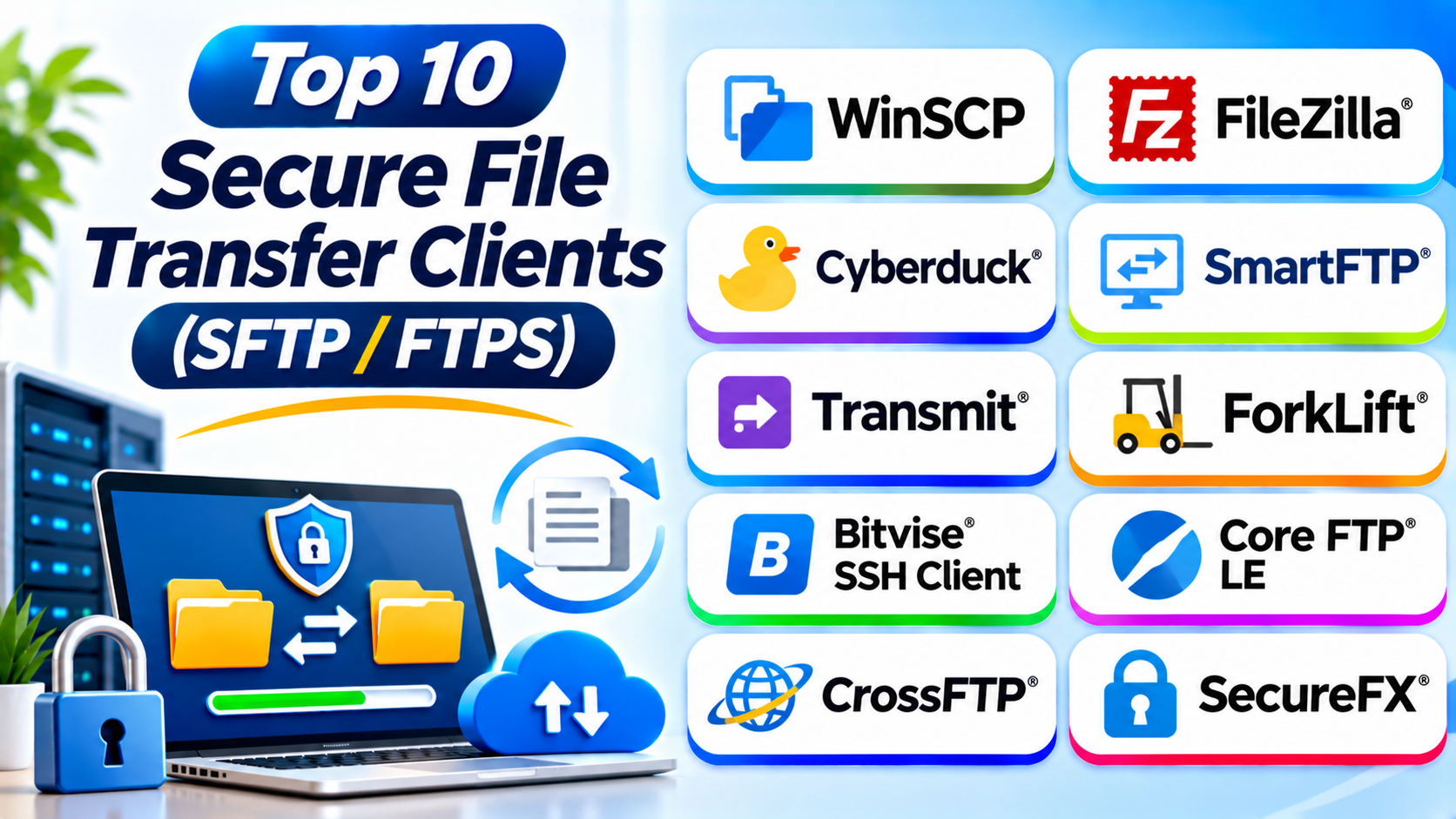
Top 10 Secure File Transfer Clients
1. WinSCP
Best for: Windows users who need powerful file management and automation.
WinSCP is a popular secure file transfer client for Windows. It supports SFTP, FTPS, FTP, SCP, WebDAV, and Amazon S3.
Its two-panel interface makes file transfers easy. One panel shows local files. The other panel shows files on the remote server.
Users can drag files between panels. They can also synchronize folders and edit remote files. WinSCP supports scripting for repeated transfer tasks.
Key Features
- Supports SFTP, FTPS, FTP, SCP, WebDAV, and S3.
- Offers two-panel and Explorer-style interfaces.
- Supports file synchronization.
- Provides scripting and automation.
- Supports SSH keys and password authentication.
- Allows remote file editing.
Pros
- Free and open-source software.
- Offers broad protocol support.
- Provides useful automation features.
- Makes remote file management simple.
Cons
- Designed mainly for Windows.
- The large feature set may confuse beginners.
- Some advanced tasks require scripting knowledge.
2. FileZilla Client
Best for: Beginners and users who need a cross-platform client.
FileZilla Client offers a familiar interface for moving files between computers and servers. It supports FTP, FTPS, and SFTP.
The interface displays local and remote folders together. Users can upload, download, rename, and delete files. The transfer queue also helps manage several tasks.
FileZilla works across Windows, macOS, and Linux. Its basic client is free. FileZilla Pro adds support for several cloud storage services.
Key Features
- Supports FTP, FTPS, and SFTP.
- Works on Windows, macOS, and Linux.
- Provides a transfer queue.
- Supports drag-and-drop transfers.
- Offers remote file management.
- Provides site connection management.
Pros
- Easy for beginners to understand.
- Supports major desktop platforms.
- Offers a free basic client.
- Provides a familiar file manager layout.
Cons
- The interface may feel dated.
- Advanced automation is limited in the basic client.
- Cloud connections require the Pro edition.
3. Cyberduck
Best for: Users who transfer files between servers and cloud storage.
Cyberduck combines secure server transfers with cloud storage connections. It supports SFTP, FTP, FTPS, and several cloud services.
Users can connect to remote servers through a simple browser-style interface. They can upload files, download folders, and edit remote documents.
Cyberduck also connects with services such as Amazon S3 and other cloud platforms. This makes it useful for people who manage files across different storage systems.
Key Features
- Supports SFTP, FTP, and FTPS.
- Connects with multiple cloud storage services.
- Supports remote file editing.
- Provides bookmark management.
- Offers file transfer history.
- Supports encryption features for supported storage workflows.
Pros
- Connects servers and cloud storage.
- Offers a simple interface.
- Supports Windows and macOS.
- Provides useful remote file tools.
Cons
- Some advanced features need extra setup.
- Large cloud workflows may need careful management.
- The interface may feel less familiar to traditional FTP users.
4. SmartFTP
Best for: Windows users who need advanced transfer management.
SmartFTP provides file transfer tools for professional and business users. It supports FTP, FTPS, and SFTP.
The client includes tools for folder synchronization and transfer scheduling. Users can manage multiple connections and transfer queues. It also supports remote editing and cloud storage connections.
SmartFTP suits users who manage regular transfers. Its advanced features can help reduce repeated manual work.
Key Features
- Supports FTP, FTPS, and SFTP.
- Provides folder synchronization.
- Supports scheduled transfers.
- Offers transfer queues.
- Supports remote file editing.
- Connects with selected cloud services.
Pros
- Offers advanced transfer controls.
- Supports synchronization and scheduling.
- Helps manage several connections.
- Suits professional workflows.
Cons
- Paid licensing applies.
- The interface may take time to learn.
- Windows users get the main desktop experience.
5. Transmit
Best for: Mac users who want a polished file transfer client.
Transmit is a file transfer application for macOS. It supports SFTP, FTP, and other remote storage connections.
The app offers a clean interface for managing local and remote files. Users can transfer files, synchronize folders, and connect to cloud services.
Transmit is designed around the Mac workflow. Its interface helps users manage several server connections without clutter.
Key Features
- Supports SFTP and FTP connections.
- Offers connections to supported cloud services.
- Provides folder synchronization.
- Supports remote file management.
- Offers connection management.
- Includes transfer controls for larger workflows.
Pros
- Clean and polished Mac interface.
- Fits macOS workflows.
- Supports several remote storage types.
- Provides useful synchronization tools.
Cons
- Available for macOS rather than Windows.
- Requires a paid license.
- Some users may need only basic transfer features.
6. ForkLift
Best for: Mac users who want a dual-pane file manager with secure transfers.
ForkLift combines local file management with remote server access. It supports secure connections such as SFTP and FTP-based transfers.
Its dual-pane layout helps users compare folders. They can move files between local storage and remote servers. It also supports synchronization and batch operations.
ForkLift works well for people who manage many files. It can also serve as a file manager for everyday Mac tasks.
Key Features
- Supports SFTP and FTP connections.
- Provides a dual-pane file manager.
- Supports folder synchronization.
- Offers batch file operations.
- Helps manage remote files.
- Connects to supported cloud services.
Pros
- Combines file management and transfers.
- Offers a useful dual-pane layout.
- Supports advanced file operations.
- Fits Mac power users.
Cons
- Designed for macOS.
- Paid features may not suit every user.
- The many controls can take time to learn.
7. Bitvise SSH Client
Best for: Windows administrators who need SSH and SFTP tools.
Bitvise SSH Client focuses on secure SSH connections. It includes an SFTP file transfer interface for moving files between local and remote systems.
Users can connect to servers with passwords or SSH keys. The client also supports terminal access and port forwarding. These features help administrators manage remote systems.
Bitvise is an SSH-focused tool. It supports SFTP, but it does not provide FTPS. Choose another client if your server requires FTPS.
Key Features
- Supports SFTP over SSH.
- Provides an SSH terminal.
- Supports public-key authentication.
- Offers port forwarding.
- Includes remote file management.
- Supports scripting and automation.
Pros
- Strong SSH-focused features.
- Includes an SFTP file manager.
- Useful for server administration.
- Offers advanced connection controls.
Cons
- Does not support FTPS.
- Designed for Windows.
- Advanced settings may confuse beginners.
8. Core FTP LE
Best for: Windows users who want a lightweight transfer client.
Core FTP LE provides basic file transfer tools for Windows. It supports FTP, FTPS, and SFTP.
The interface helps users connect to remote servers and manage files. They can upload and download content through simple file operations.
Core FTP LE suits users who want a traditional FTP client. It offers useful transfer features without the complexity of a larger enterprise platform.
Key Features
- Supports FTP, FTPS, and SFTP.
- Provides file upload and download tools.
- Supports transfer queues.
- Offers site connection management.
- Includes file permissions management.
- Provides basic transfer controls.
Pros
- Lightweight desktop client.
- Supports secure transfer protocols.
- Simple for basic file tasks.
- Offers a free LE edition.
Cons
- Windows-focused software.
- Interface looks less modern.
- Advanced features vary by edition.
9. CrossFTP
Best for: Users who need a multi-platform client with broad protocol support.
CrossFTP helps users manage remote files across different systems. It supports FTP, FTPS, and SFTP, along with selected cloud storage connections.
The interface provides tools for transferring files and managing remote folders. Users can work with multiple connections and organize transfer tasks.
CrossFTP offers different editions and features. Users should compare the available edition details before choosing it for business use.
Key Features
- Supports FTP, FTPS, and SFTP.
- Provides multi-connection management.
- Supports selected cloud storage services.
- Offers file transfer tools.
- Provides remote file browsing.
- Includes advanced features in paid editions.
Pros
- Supports several transfer protocols.
- Offers cross-platform options.
- Provides cloud connection features.
- Supports multiple remote connections.
Cons
- Some features require a paid edition.
- The interface may feel busy.
- Users should check platform support for their chosen edition.
10. SecureFX
Best for: Professional users who need secure file transfers and session management.
SecureFX is a secure file transfer client from VanDyke Software. It supports SFTP, FTP, and FTPS.
SecureFX helps users manage remote file transfers and saved connections. It supports secure authentication methods and transfer automation. It also works with other VanDyke tools.
The client suits IT teams and administrators who manage several remote systems. Its session management features can help organize repeated connections.
Key Features
- Supports SFTP, FTP, and FTPS.
- Provides saved session management.
- Supports SSH key authentication.
- Offers transfer synchronization.
- Supports automated transfer tasks.
- Integrates with other VanDyke products.
Pros
- Supports multiple secure protocols.
- Offers useful session management.
- Helps automate regular transfers.
- Fits professional IT workflows.
Cons
- Requires a paid license.
- Advanced options may need training.
- May offer more features than casual users need.
Comparison Table: Top 10 SFTP/FTPS Clients
| Tool | SFTP | FTPS | Main Platform | Best For |
|---|---|---|---|---|
| WinSCP | Yes | Yes | Windows | Automation and file management |
| FileZilla Client | Yes | Yes | Windows, macOS, Linux | Everyday transfers |
| Cyberduck | Yes | Yes | Windows, macOS | Cloud and server connections |
| SmartFTP | Yes | Yes | Windows | Advanced transfer workflows |
| Transmit | Yes | Check supported connection types | macOS | Mac file transfers |
| ForkLift | Yes | Check supported connection types | macOS | Dual-pane file management |
| Bitvise SSH Client | Yes | No | Windows | SSH and SFTP administration |
| Core FTP LE | Yes | Yes | Windows | Lightweight transfers |
| CrossFTP | Yes | Yes | Multiple platforms | Multi-protocol transfers |
| SecureFX | Yes | Yes | Windows, macOS, Linux | Professional file transfers |
Protocol support and platform availability can vary by product edition and release. Confirm the vendor documentation before deployment.
Important Features to Check Before Choosing a Client
1. Protocol Support
Check whether your server needs SFTP or FTPS. Do not assume that every client supports both.
2. Authentication Options
Look for SSH keys, passwords, and other supported authentication methods. Strong authentication helps protect server access.
3. File Synchronization
Synchronization helps keep local and remote folders aligned. It can save time when teams update files often.
4. Transfer Queue
A transfer queue helps manage several uploads and downloads. It also makes it easier to review pending tasks.
5. Remote File Editing
Some clients let users edit remote files directly. This can help developers update website files.
6. Automation
Automation can handle repeated transfers. Look for scripts, scheduled tasks, and command-line support when needed.
7. Operating System Support
Check whether the client supports Windows, macOS, or Linux. Choose software that fits your team’s devices.
8. Ease of Use
A simple interface helps new users work faster. Advanced users may prefer detailed connection and transfer controls.
9. Security Updates
Choose software that receives regular updates. Keep the client and your operating system current.
10. Licensing and Cost
Some clients are free. Others require paid licenses for advanced features. Review the terms before business use.
How to Choose the Right SFTP/FTPS Client
Your server protocol should guide your first choice. Then consider your operating system and daily workflow.
- Choose WinSCP for Windows file management and scripting.
- Choose FileZilla for simple cross-platform transfers.
- Choose Cyberduck for server and cloud connections.
- Choose SmartFTP for advanced Windows workflows.
- Choose Transmit for Mac file transfers.
- Choose ForkLift for Mac dual-pane file management.
- Choose Bitvise for SSH and SFTP administration.
- Choose Core FTP LE for lightweight Windows transfers.
- Choose CrossFTP for multi-platform protocol support.
- Choose SecureFX for professional transfer management.
Test the client with your actual server before wider use. Confirm authentication, folder access, and transfer behavior.
Common Uses of Secure File Transfer Clients
Secure transfer clients support many everyday tasks.
- Website Management: Upload website files to hosting servers.
- Software Development: Move code and project files between systems.
- Server Administration: Download logs and upload configuration files.
- Cloud Management: Transfer files to supported cloud storage.
- Data Exchange: Send files to business partners.
- Backup Tasks: Move backup files to remote storage.
- Remote Work: Access files stored on company servers.
- IT Support: Manage files on remote systems.
Benefits of SFTP and FTPS Clients
- Data Protection: Encryption protects files during transfer.
- Easy File Management: Users can browse remote folders.
- Better Access Control: Authentication helps protect server access.
- Time Savings: Queues and synchronization reduce repeated work.
- Remote Access: Users can manage files from different locations.
- Workflow Support: Automation helps with regular transfer tasks.
- Platform Choice: Many clients support more than one operating system.
Common Challenges
- Protocol Confusion: SFTP and FTPS use different connection methods.
- Connection Problems: Firewalls and server settings can block access.
- Authentication Errors: Incorrect keys or passwords can prevent login.
- Permission Issues: Users may lack access to remote folders.
- Large Transfers: Slow networks can delay big uploads.
- Security Risks: Outdated software can expose systems to threats.
Best Practices for Secure File Transfers
- Use SFTP or FTPS instead of plain FTP.
- Confirm the server’s required protocol and port.
- Use SSH keys when your SFTP server supports them.
- Verify server host keys and certificates.
- Use strong, unique passwords.
- Keep transfer clients updated.
- Limit access to required folders.
- Avoid saving passwords on shared computers.
- Review transfer logs when available.
- Test large transfers before important deadlines.
Questions and Answers About SFTP/FTPS Clients
1. What is a secure file transfer client?
It is software that moves files between computers and remote servers. It supports secure protocols such as SFTP or FTPS.
2. What is the difference between SFTP and FTPS?
SFTP uses SSH for secure file transfers. FTPS uses TLS to protect FTP connections.
3. Which SFTP client is best for Windows?
WinSCP is a strong choice for Windows users. It offers file management, synchronization, and scripting.
4. Which secure file transfer client is best for Mac?
Transmit, ForkLift, and Cyberduck are useful Mac options. Choose based on your workflow and required protocols.
5. Is FileZilla secure?
FileZilla supports SFTP and FTPS. Users should select the secure protocol required by their server.
6. Can I use SFTP and FTPS with the same client?
Yes. Several clients support both protocols. Examples include WinSCP, FileZilla, SmartFTP, and SecureFX.
7. Is SFTP safer than FTP?
SFTP encrypts file transfers through SSH. Plain FTP does not encrypt data or passwords.
8. Are free SFTP clients suitable for business use?
Yes. Some free clients offer strong transfer features. Check licensing terms and your company’s security needs.
9. Can secure file transfer clients automate uploads?
Some clients support scripts, scheduled tasks, or synchronization. These features help automate regular transfers.
10. How do I choose between SFTP and FTPS?
Check which protocol your server supports. Then choose a client that supports that protocol and your operating system.
Final Thoughts
Secure file transfer clients help users manage remote files safely. They also make daily uploads and downloads easier.
WinSCP offers strong Windows features. FileZilla works across major desktop platforms. Cyberduck connects servers and cloud storage. SmartFTP supports advanced transfer workflows.
Mac users can consider Transmit or ForkLift. Bitvise suits SSH-focused work. Core FTP LE offers a lightweight option. CrossFTP and SecureFX provide more choices.
Choose the client that matches your server protocol. Review its security features and test it before regular use.
The comparison reflects documented client capabilities and current product information. iTechGuides+4