Introduction
Virtualization helps businesses use their hardware more efficiently. It lets one physical computer run several virtual machines. Each virtual machine can run its own operating system and applications.
This technology helps companies reduce hardware needs. It also makes testing, backup, and IT management easier. However, each virtualization platform offers different features.
Some platforms focus on large data centers. Others help developers run different operating systems. A few combine virtual machines with cloud and container services.
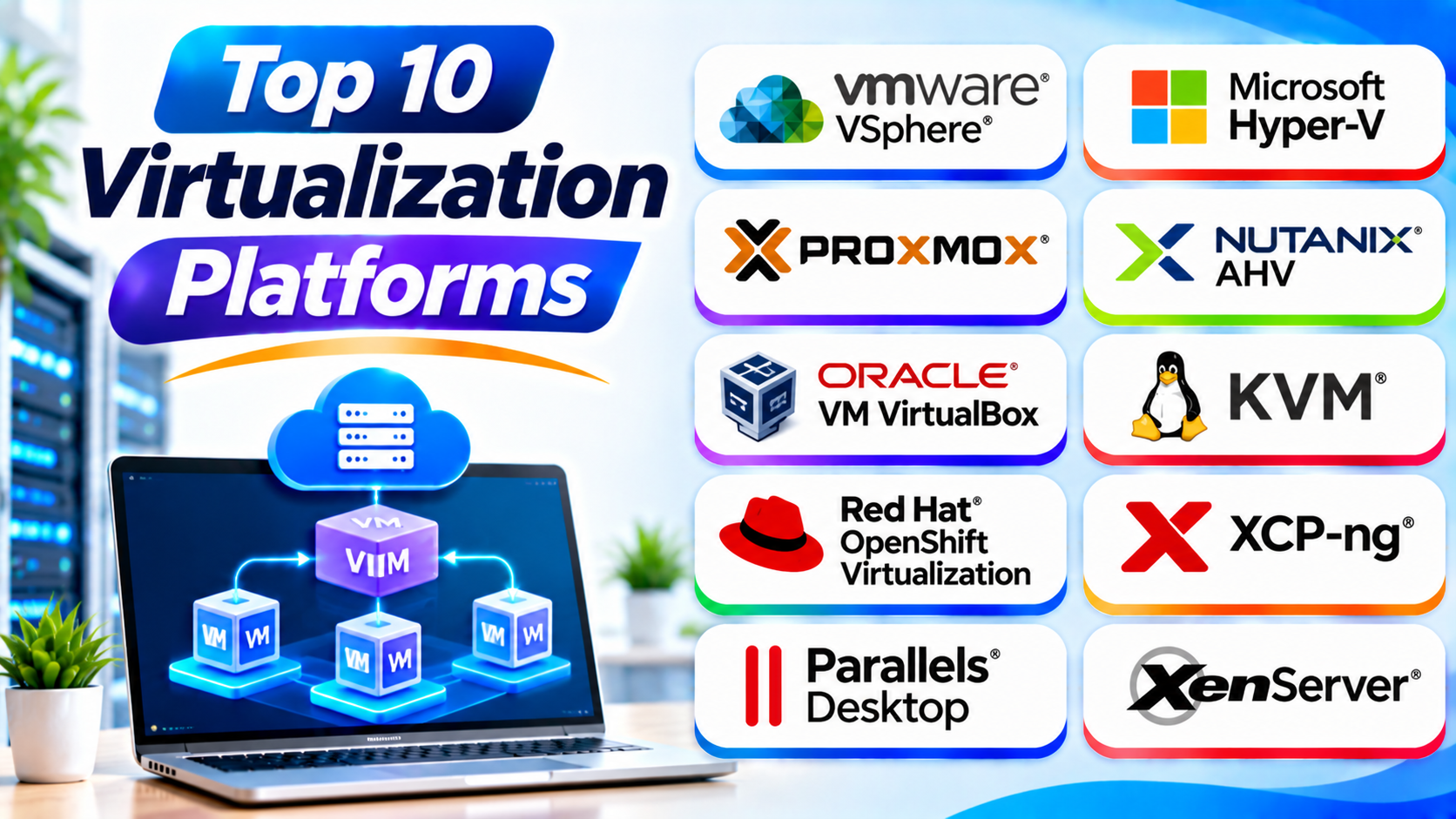
This guide compares ten popular virtualization platforms. It explains their features, Pros, Cons, and best uses. It also includes a comparison table and buying tips.
What Is a Virtualization Platform?
A virtualization platform uses software to create virtual versions of physical computing resources. These resources can include servers, storage, networks, and desktops.
The platform shares physical hardware among virtual machines. Each virtual machine works like a separate computer. It can run its own operating system and applications.
A key part of virtualization is the hypervisor. This software creates and manages virtual machines. It also shares the physical computer’s resources among them.
For example, one physical server can run several virtual machines. One machine may run Windows. Another may run Linux. Both can work at the same time.
How Does Virtualization Work?
Virtualization uses several parts to create and manage virtual machines.
- Physical hardware: The computer provides the processor, memory, storage, and network connections.
- Hypervisor: This software creates and manages virtual machines.
- Virtual machines: Each machine acts like a separate computer.
- Guest operating system: Each virtual machine runs its own operating system.
- Virtual resources: The hypervisor assigns processor time, memory, storage, and network access.
- Management tools: Administrators create, monitor, update, and control virtual machines.
The user works inside a virtual machine just like a normal computer. The hypervisor handles the connection between virtual machines and physical hardware.
Types of Virtualization
Virtualization comes in several forms. Each type solves a different IT problem.
1. Server Virtualization
Server virtualization divides one physical server into several virtual machines. Each machine can run separate applications and operating systems.
This helps businesses use server hardware more efficiently. It can also reduce the number of physical servers they need.
2. Desktop Virtualization
Desktop virtualization delivers a desktop environment through a virtual machine or remote service. Users can access their desktops from supported devices.
This model can help businesses manage desktop systems centrally. It also supports remote and hybrid work.
3. Application Virtualization
Application virtualization separates an application from the main operating system. It helps users run applications in controlled environments.
This can reduce software conflicts. It can also make application delivery easier.
4. Storage Virtualization
Storage virtualization combines storage resources into a shared pool. Administrators can manage storage without handling every physical device separately.
This can improve storage use and simplify management.
5. Network Virtualization
Network virtualization creates software-based network resources. It can separate virtual networks from physical network hardware.
This helps teams manage network access and security. It also supports complex cloud environments.
6. Operating System Virtualization
Operating system virtualization creates isolated environments on one operating system kernel. Containers are a common example.
Containers often use fewer resources than full virtual machines. However, they do not provide the same operating system isolation model.
Top 10 Virtualization Platforms
The following platforms serve different virtualization needs. Some support enterprise servers. Others focus on desktop virtualization, development, or cloud infrastructure.
1. VMware vSphere
VMware vSphere is a widely used enterprise virtualization platform. It helps businesses create and manage virtual machines on physical servers.
The platform uses the VMware ESXi hypervisor. ESXi runs directly on server hardware. Administrators can manage multiple hosts through VMware management tools.
vSphere supports important enterprise features. These include virtual machine migration, resource management, and high availability. These features help businesses keep applications running.
Companies can use vSphere to run Windows and Linux virtual machines. It also supports large server environments. Businesses should review the current VMware product bundles and subscription terms before choosing it.
VMware vSphere can suit organizations with existing VMware skills. It can also support businesses that need mature virtualization management. However, licensing costs and product packaging need careful review.
Key Features
- ESXi bare-metal hypervisor.
- Centralized virtual machine management.
- Virtual machine migration.
- High availability features.
- Resource scheduling and management.
- Virtual networking.
- Storage integration.
- Enterprise workload support.
Pros
- Mature enterprise virtualization platform.
- Supports large server environments.
- Offers advanced management features.
- Provides a broad ecosystem of integrations.
- Supports many Windows and Linux workloads.
Cons
- Licensing and subscription costs need review.
- Advanced management can require training.
- Product packaging may confuse new buyers.
- Migration can take time in large environments.
Best For: Large businesses and data centers that need enterprise server virtualization.
2. Microsoft Hyper-V
Microsoft Hyper-V is a virtualization platform built into Windows Server. It allows businesses to create and manage virtual machines on compatible hardware.
Hyper-V supports Windows and Linux guest operating systems. Administrators can use Windows Admin Center and other Microsoft tools to manage virtual machines.
The platform supports features such as checkpoints, virtual networking, and live migration in suitable configurations. These features help IT teams manage workloads and reduce service interruptions.
Hyper-V works well in Microsoft-based environments. Businesses can connect it with Windows Server and other Microsoft services. This can simplify administration for teams that already use Microsoft products.
However, organizations must plan storage, networking, and licensing. Large environments also need careful capacity management.
Key Features
- Windows Server virtualization.
- Windows and Linux guest support.
- Virtual machine checkpoints.
- Virtual networking.
- Live migration in supported setups.
- Failover clustering options.
- Windows Admin Center management.
- PowerShell automation.
Pros
- Fits Windows Server environments.
- Supports Windows and Linux virtual machines.
- Includes useful management tools.
- Offers automation through PowerShell.
- Can work with existing Microsoft skills.
Cons
- Best suited to Microsoft-focused environments.
- Advanced setups need technical knowledge.
- Licensing needs careful planning.
- Some features require extra Windows Server components.
Best For: Businesses that run Windows Server and need server virtualization.
3. Proxmox Virtual Environment
Proxmox Virtual Environment, often called Proxmox VE, is an open-source virtualization platform. It combines KVM virtual machines with Linux containers.
The platform runs on Debian Linux. Administrators can manage virtual machines, containers, storage, and networks through a web interface.
Proxmox VE supports clustering and live migration. It also offers backup and recovery features. These tools help teams manage multiple virtualization hosts.
The platform supports different storage options. These include local storage, network storage, and Ceph-based storage setups. This gives administrators flexibility when building their infrastructure.
Proxmox VE can suit home labs, small businesses, and larger environments. It offers a strong set of features without requiring a commercial license for basic use. Businesses can purchase support subscriptions when needed.
However, users need Linux and virtualization knowledge. Complex clusters also require careful planning.
Key Features
- KVM virtual machines.
- Linux container support.
- Web-based management.
- Virtual machine clustering.
- Live migration.
- Backup and restore tools.
- Software-defined storage options.
- Role-based access controls.
Pros
- Open-source platform.
- Combines virtual machines and containers.
- Offers a useful web interface.
- Supports clustering and migration.
- Provides flexible storage choices.
Cons
- Linux knowledge helps with advanced tasks.
- Complex clusters need careful setup.
- Enterprise support requires a paid subscription.
- Some third-party integrations need extra work.
Best For: IT teams, small businesses, labs, and organizations seeking flexible open-source virtualization.
4. Nutanix AHV
Nutanix AHV is a hypervisor within the Nutanix Cloud Infrastructure platform. It helps businesses run virtual machines on hyperconverged infrastructure.
Hyperconverged infrastructure combines computing, storage, and virtualization management. This design can reduce the need to manage separate hardware systems.
Nutanix AHV works with the Nutanix management environment. Administrators can manage virtual machines, storage, and infrastructure from a central interface.
The platform supports enterprise workloads. It also offers features for high availability and virtual machine management. Businesses can use it to simplify their data center operations.
Nutanix AHV can suit companies that want an integrated infrastructure platform. However, it is closely connected to the Nutanix ecosystem. Organizations should review hardware, subscription, and licensing costs before buying.
Key Features
- Enterprise hypervisor.
- Hyperconverged infrastructure integration.
- Centralized management through Nutanix Prism.
- Virtual machine management.
- High availability features.
- Storage management.
- Network integration.
- Enterprise workload support.
Pros
- Combines computing and storage management.
- Offers centralized administration.
- Supports enterprise workloads.
- Reduces some infrastructure complexity.
- Fits Nutanix-based data centers.
Cons
- Works best within the Nutanix ecosystem.
- Costs depend on the full infrastructure package.
- Migration needs careful planning.
- Some advanced features require specific configurations.
Best For: Businesses that want an integrated hyperconverged virtualization platform.
5. Oracle VM VirtualBox
Oracle VM VirtualBox is a desktop virtualization platform. It lets users run virtual machines on Windows, macOS, Linux, and other supported host systems.
The software suits developers, students, and IT professionals. Users can test different operating systems without changing their main computer setup.
VirtualBox supports virtual machine snapshots. These snapshots let users save a machine’s state and return to it later. The platform also supports shared folders and virtual networking.
Users can create virtual machines through a graphical interface. They can assign memory, processor cores, and virtual storage. They can then install a guest operating system.
VirtualBox is useful for learning and testing. It is not a direct replacement for a full enterprise server virtualization platform. Users should also check host compatibility and current extension licensing.
Key Features
- Desktop virtual machine creation.
- Windows, macOS, and Linux host support.
- Multiple guest operating systems.
- Virtual machine snapshots.
- Shared folders.
- Virtual networking.
- Command-line management.
- Import and export options.
Pros
- Easy to start using.
- Supports many guest operating systems.
- Useful for software testing.
- Offers snapshots and shared folders.
- Suitable for personal and educational use.
Cons
- Not designed for large enterprise clusters.
- Performance depends on host hardware.
- Advanced features may need extra setup.
- Some extension features have separate licensing terms.
Best For: Developers, students, testers, and users who need desktop virtualization.
6. KVM (Kernel-based Virtual Machine)
KVM is a virtualization technology built into the Linux kernel. It turns a Linux system into a platform for running virtual machines.
KVM uses hardware virtualization support from modern processors. It works with tools such as QEMU to create and run virtual machines.
Administrators can manage KVM through command-line tools or management platforms. Libvirt provides a common management layer. Other tools can add graphical controls and automation.
KVM supports Linux and Windows guest operating systems. It is also used in many cloud and enterprise infrastructure systems.
KVM offers flexibility and control. However, it is not a complete management product by itself. Teams often combine it with other tools to manage networks, storage, and virtual machines.
Key Features
- Linux kernel virtualization.
- Hardware-assisted virtualization.
- Support for Windows and Linux guests.
- QEMU integration.
- Libvirt management support.
- Virtual networking.
- Storage integration.
- Automation through command-line tools and APIs.
Pros
- Open-source technology.
- Built into the Linux kernel.
- Used in many cloud environments.
- Offers flexible configuration options.
- Supports different guest operating systems.
Cons
- Requires Linux administration skills.
- Management tools may need separate setup.
- Advanced networking can be complex.
- Support depends on the selected distribution and vendor.
Best For: Linux administrators, cloud builders, and organizations that need flexible server virtualization.
7. Red Hat OpenShift Virtualization
Red Hat OpenShift Virtualization brings virtual machines into the OpenShift platform. It uses KVM and Kubernetes-based management technology.
The platform lets businesses manage virtual machines and containers within one environment. This can help teams modernize applications over time.
Administrators can manage virtual machines through the OpenShift interface. They can also use Kubernetes tools and workflows. This gives development and operations teams a shared platform.
OpenShift Virtualization can support existing virtual machine workloads. It can also help companies move toward cloud-native applications.
However, Kubernetes knowledge is important. Businesses should also review supported hardware, storage, and networking. The platform may feel complex for teams that only need a basic hypervisor.
Key Features
- Virtual machine management in OpenShift.
- KVM-based virtualization.
- Kubernetes integration.
- Container and VM management.
- Web-based administration.
- Automation through Kubernetes tools.
- Storage and network integration.
- Application modernization support.
Pros
- Combines virtual machines and containers.
- Supports cloud-native workflows.
- Uses Kubernetes management tools.
- Can help modernize existing applications.
- Fits Red Hat enterprise environments.
Cons
- Requires Kubernetes knowledge.
- Setup can be complex.
- Needs careful storage and network planning.
- May offer more features than small teams need.
Best For: Enterprises that want to manage virtual machines and containers on one platform.
8. XCP-ng
XCP-ng is an open-source virtualization platform based on the Xen Project hypervisor. It helps businesses create and manage virtual machines on physical servers.
The platform supports centralized management through Xen Orchestra. Administrators can use it to manage hosts, virtual machines, backups, and migrations.
XCP-ng supports different guest operating systems. It can also support high availability and shared storage setups when configured correctly.
The platform offers an alternative to commercial server virtualization products. It can suit businesses that want control over their infrastructure.
However, administrators need to understand the Xen environment. They should also plan storage, networking, backup, and support before deploying production workloads.
Key Features
- Xen-based bare-metal hypervisor.
- Centralized management through Xen Orchestra.
- Virtual machine migration.
- Backup and restore options.
- Shared storage support.
- Host and VM monitoring.
- High availability options.
- Open-source platform.
Pros
- Open-source virtualization platform.
- Supports enterprise server workloads.
- Offers centralized management options.
- Provides backup and migration tools.
- Gives teams more infrastructure control.
Cons
- Requires virtualization administration skills.
- Some advanced features need paid support or services.
- Hardware compatibility needs checking.
- Smaller ecosystems may require extra research.
Best For: Businesses and service providers seeking an open-source Xen-based platform.
9. Parallels Desktop
Parallels Desktop is a desktop virtualization platform for Mac computers. It lets users run Windows and Linux virtual machines alongside macOS.
The software helps Mac users access applications that need another operating system. Users can switch between macOS and a virtual machine without restarting the computer.
Parallels Desktop offers integration features. These can include shared folders, file sharing, and different display modes. Its Coherence mode can make Windows applications appear alongside Mac applications.
The platform supports developers and business users. It can also help students who need Windows software on a Mac.
Hardware and operating system compatibility matter. Apple silicon Macs and Intel-based Macs have different guest operating system options. Users should check the current supported configurations before buying.
Key Features
- Windows and Linux virtual machines on Mac.
- macOS integration.
- Coherence mode.
- Shared folders and file access.
- Virtual machine snapshots.
- Multiple desktop display options.
- Developer and testing workflows.
- Support for Apple silicon configurations.
Pros
- Easy way to run Windows on a Mac.
- Offers smooth macOS integration.
- Supports common development workflows.
- Provides useful file-sharing features.
- Reduces the need for a second computer.
Cons
- Requires a paid license for full use.
- Performance depends on Mac hardware.
- Guest operating system support varies by processor.
- Not designed for enterprise server clusters.
Best For: Mac users who need Windows or Linux applications and testing environments.
10. XenServer
XenServer is a commercial virtualization platform based on the Xen hypervisor. It helps organizations run and manage virtual machines on server hardware.
The platform supports server virtualization and centralized administration. It can suit businesses that use Citrix-related infrastructure and virtual desktop environments.
XenServer provides tools for virtual machine management. It also supports features such as migration and resource management in supported configurations.
Organizations should review the current XenServer product and licensing model. Product names, subscription entitlements, and included features can change. Buyers should confirm the details with the vendor before deployment.
XenServer can suit businesses that want a supported Xen-based virtualization environment. However, organizations should compare it with XCP-ng and other alternatives. This helps them understand the differences in support and management.
Key Features
- Xen-based server virtualization.
- Virtual machine management.
- Centralized administration.
- Virtual machine migration.
- Resource management.
- Enterprise deployment options.
- Integration with supported Citrix environments.
- Host and guest management.
Pros
- Based on the Xen hypervisor.
- Supports enterprise virtualization.
- Offers centralized administration.
- Can fit Citrix-related environments.
- Provides commercial support options.
Cons
- Licensing and entitlements need careful review.
- Product choices may confuse new buyers.
- Advanced deployments need technical skills.
- Buyers should confirm current support details.
Best For: Organizations that need a supported Xen-based server virtualization platform.
Virtualization Platforms Comparison Table
This table gives a quick view of the ten platforms. The best choice depends on your hardware, workload, budget, and IT skills.
| Platform | Main Use | Type | Best For |
|---|---|---|---|
| VMware vSphere | Server virtualization | Type 1 | Enterprise data centers |
| Microsoft Hyper-V | Server virtualization | Type 1 | Windows Server environments |
| Proxmox VE | Servers and containers | Type 1 | Open-source infrastructure |
| Nutanix AHV | Hyperconverged virtualization | Type 1 | Integrated data centers |
| Oracle VM VirtualBox | Desktop virtualization | Type 2 | Developers and learners |
| KVM | Linux server virtualization | Type 1 | Linux and cloud environments |
| Red Hat OpenShift Virtualization | VM and container management | Kubernetes-based | Cloud-native enterprises |
| XCP-ng | Server virtualization | Type 1 | Open-source Xen environments |
| Parallels Desktop | Mac desktop virtualization | Type 2 | Mac users |
| XenServer | Server virtualization | Type 1 | Xen and Citrix-related environments |
How to Choose the Right Virtualization Platform
Choosing a virtualization platform takes more than checking its features. You must understand your workload and infrastructure. These points can help you make a better choice.
1. Understand Your Workload
Start by listing the applications you need to run. Some workloads need high processor power. Others need more memory, storage, or graphics support.
Choose a platform that supports these needs. Avoid paying for features you will not use.
2. Check Hardware Compatibility
Not every platform supports every server or computer. Check processor support, memory limits, storage devices, and network adapters.
Also review guest operating system support. This helps prevent problems after deployment.
3. Compare Management Features
Some platforms offer simple web interfaces. Others need command-line tools or separate management systems.
Choose a platform your IT team can manage. A familiar interface can reduce training time.
4. Review Security
Virtual machines still need strong security. Check access controls, updates, encryption, and network isolation.
Also review how the platform handles security patches. Keep both the hypervisor and guest systems updated.
5. Check Backup and Recovery
A virtual machine can still lose data. Choose a platform with suitable backup and recovery options.
Check snapshot support, backup integrations, and recovery processes. Test backups before relying on them.
6. Compare Performance
Virtualization adds a management layer between software and hardware. Poor resource planning can affect performance.
Test your real applications before deployment. Check processor use, memory, storage speed, and network activity.
7. Review Licensing and Support
Some platforms offer open-source versions. Others use subscriptions or commercial licenses.
Compare the full cost of ownership. Include support, hardware, storage, backup, and staff training.
8. Plan for Growth
Your virtual machine count may increase over time. Choose a platform that can grow with your business.
Check clustering, migration, and resource expansion options. These features can help as your needs change.
9. Check Cloud and Container Support
Some businesses need both virtual machines and containers. Others want to connect local servers with cloud services.
Choose a platform that supports your future plans. This can reduce the need for another major migration.
10. Run a Pilot Project
Test the platform with a small workload. Create virtual machines and install your main applications.
Check performance, backup, migration, and management. A pilot can reveal problems before a full rollout.
Common Uses of Virtualization Platforms
Virtualization supports many business and technical tasks. Here are some common examples.
Data Centers
Businesses use virtualization to run many workloads on fewer physical servers. This can improve hardware use and simplify management.
Software Development
Developers create virtual machines for different operating systems. They can test applications without changing their main computers.
Quality Testing
Testing teams use virtual machines to test software in controlled environments. They can create clean systems for each test.
Cloud Infrastructure
Cloud providers use virtualization to deliver computing resources. Customers can create virtual servers when they need them.
Disaster Recovery
Businesses can back up virtual machines and restore them on supported infrastructure. This can help reduce recovery time after a failure.
Education and Training
Schools can provide virtual machines for students. Learners can test operating systems and software without changing physical computers.
Desktop Applications
Mac and PC users can run another operating system through desktop virtualization. This helps them use applications that their main system does not support.
Server Consolidation
Companies can move several workloads onto fewer physical servers. This can reduce hardware use and simplify data center operations.
Benefits of Virtualization
Virtualization offers several benefits when businesses plan it well.
Better Hardware Use
One physical server can run several virtual machines. This helps businesses use available computing resources more efficiently.
Lower Hardware Needs
Companies may need fewer physical servers. This can reduce hardware purchases and space requirements.
Easier Testing
Teams can create virtual machines for testing. They can remove or reset them when the work ends.
Flexible Resource Management
Administrators can assign memory and processor resources. They can adjust settings when workloads change.
Faster Deployment
Teams can create virtual machines from prepared templates. This can speed up the setup of new environments.
Improved Recovery Options
Virtual machines can use snapshots and backups. These tools can help teams restore systems after problems.
Better Workload Separation
Each virtual machine runs in its own environment. This helps separate applications and operating systems.
Support for Different Operating Systems
One physical computer can run different guest operating systems. This helps teams support mixed software environments.
Challenges of Virtualization
Virtualization can improve IT operations. However, it also brings challenges that businesses must plan for.
Resource Competition
Virtual machines share physical hardware. Too many workloads can slow down the system.
Management Complexity
Large environments need careful planning. Administrators must manage virtual machines, networks, storage, and security.
Licensing Costs
Commercial platforms may use complex licensing models. Businesses should review subscriptions and support costs before buying.
Storage Requirements
Virtual machines need storage for operating systems and data. Large environments can require significant storage capacity.
Security Risks
A weak hypervisor or poorly managed virtual machine can create security risks. Teams must patch systems and control access.
Backup Planning
Virtual machines still need regular backups. Businesses must test recovery plans to protect important data.
Hardware Compatibility
Some platforms need specific processors or devices. Unsupported hardware can prevent a successful deployment.
Skills and Training
Administrators need the right technical skills. Teams may need training before managing large environments.
Best Practices for Virtualization Management
Good planning helps businesses get more value from virtualization.
- Plan capacity: Check processor, memory, storage, and network needs before creating virtual machines.
- Use templates: Create standard virtual machine templates for common workloads.
- Apply updates: Keep hypervisors and guest operating systems patched.
- Control access: Give users only the permissions they need.
- Monitor resources: Watch system performance and storage use.
- Back up regularly: Protect important virtual machines and their data.
- Test recovery: Make sure backups work before a real emergency.
- Separate workloads: Use suitable network and access controls.
- Review licenses: Track subscriptions and software use.
- Document changes: Record important settings and infrastructure updates.
Frequently Asked Questions (FAQs)
1. What is a virtualization platform?
A virtualization platform creates and manages virtual machines. It allows one physical computer to run several separate operating systems.
2. What is a hypervisor?
A hypervisor is software that creates and manages virtual machines. It shares physical hardware resources among those machines.
3. What is the difference between Type 1 and Type 2 hypervisors?
A Type 1 hypervisor runs directly on physical hardware. A Type 2 hypervisor runs as an application on an existing operating system.
4. Which virtualization platform is best for businesses?
VMware vSphere, Microsoft Hyper-V, and Nutanix AHV suit many business environments. Proxmox VE and XCP-ng offer open-source choices. The best option depends on workload, budget, and IT skills.
5. Is Proxmox VE free?
Proxmox VE is open-source software. Businesses can use it without buying a basic software license. Paid subscriptions provide access to enterprise support and repository options.
6. Can I run Windows and Linux on one computer?
Yes. VirtualBox, VMware products, and other platforms can run different guest operating systems. Your hardware must meet the required system needs.
7. Is virtualization useful for small businesses?
Yes. It can help small businesses use fewer physical servers. It can also make testing and backup easier.
8. What is the difference between virtualization and cloud computing?
Virtualization creates virtual computing resources on physical hardware. Cloud computing delivers computing services over a network. Cloud platforms often use virtualization, but the two terms do not mean the same thing.
9. Does virtualization improve security?
Virtualization can separate workloads and centralize management. However, it does not make systems secure by itself. Strong access controls, updates, and monitoring remain important.
10. Can virtualization reduce IT costs?
It can reduce hardware needs and improve resource use. However, software licenses, storage, support, and administration still cost money. Businesses should compare the full cost before deployment.
Final Thoughts
Virtualization helps businesses run more workloads with less physical hardware. It also makes testing, recovery, and IT management easier.
Each platform serves a different purpose. VMware vSphere and Hyper-V suit many enterprise server environments. Proxmox VE and XCP-ng offer flexible open-source choices.
Nutanix AHV supports integrated infrastructure. KVM gives Linux teams direct control. OpenShift Virtualization combines virtual machines with containers.
VirtualBox and Parallels Desktop suit desktop users and developers. XenServer offers another Xen-based server option.
Before choosing a platform, review your workload and hardware. Compare licensing, support, security, and management needs. Test the platform with real applications first.
The right virtualization platform can make IT operations simpler. It can also help your business build a flexible and reliable infrastructure.