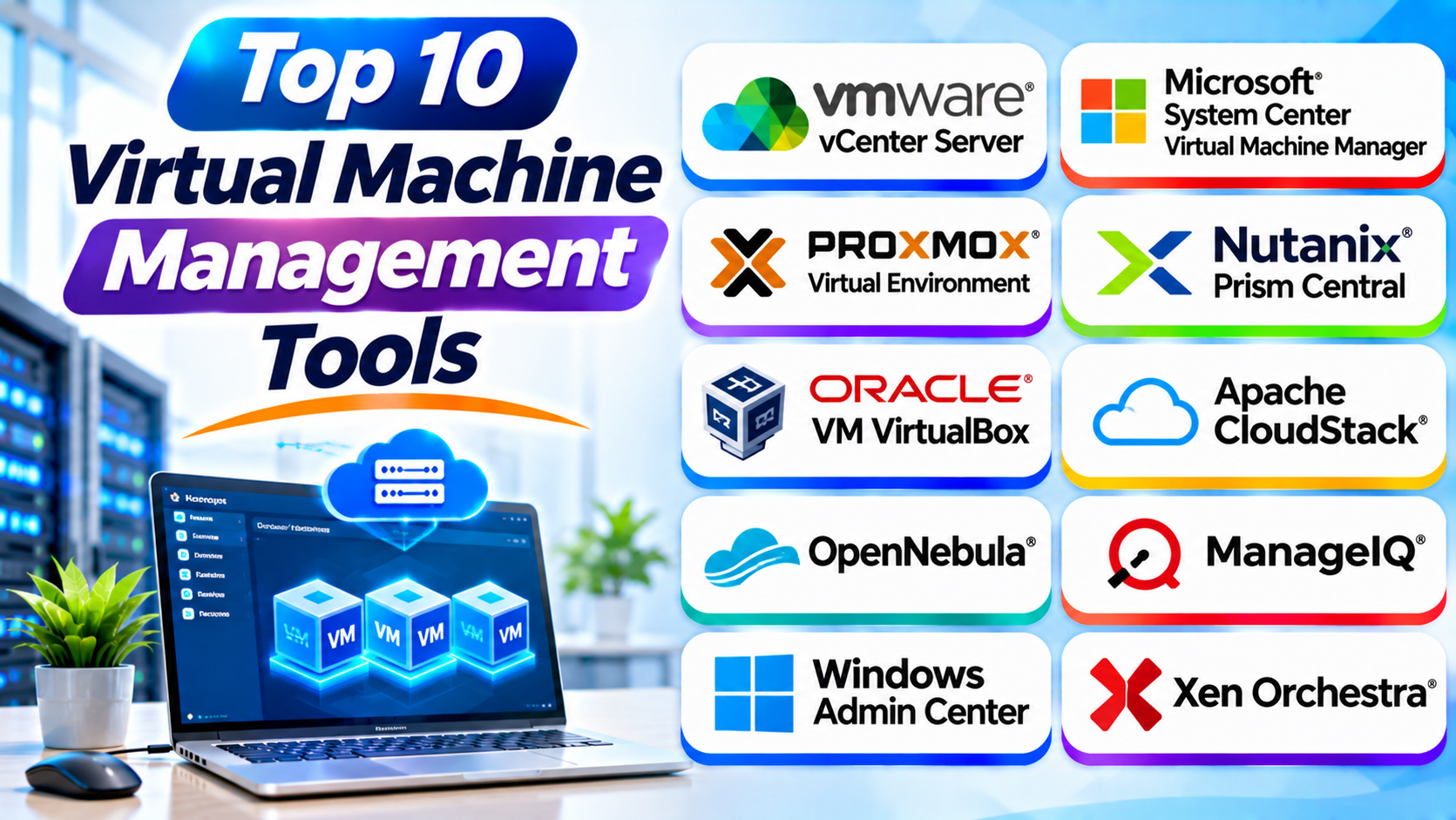
Introduction
Virtual machines help businesses run many systems on fewer physical computers. But managing them takes the right tools. IT teams must create machines, monitor performance, manage resources, and protect data.
Virtual machine management tools make these tasks easier. They help teams control virtual machines from one place. Some focus on server environments. Others support cloud platforms, automation, and complete infrastructure management.
This guide compares ten useful tools. It covers their features, Pros, Cons, and best uses. It also includes a comparison table and practical buying tips.
What Is Virtual Machine Management Software?
Virtual machine management software helps teams control virtual machines. It provides tools to create, start, stop, move, and monitor them.
Many tools also manage physical hosts and virtual networks. Some support backups, automation, and resource planning. Others manage virtual machines across different platforms.
A hypervisor runs virtual machines. A management tool helps administrators control them. Some products include both functions, while others manage hypervisors from a central console.
How Does Virtual Machine Management Work?
Virtual machine management tools connect administrators with virtual infrastructure. They help teams manage the full life of each virtual machine.
Here is how the process usually works:
- Connect hosts: The tool connects to physical servers and supported hypervisors.
- Create virtual machines: Administrators choose an operating system and assign resources.
- Set up storage: The tool connects virtual machines to suitable storage.
- Configure networks: Administrators set network access and security rules.
- Monitor performance: The tool tracks processor, memory, storage, and network use.
- Manage workloads: Teams start, stop, move, clone, or remove virtual machines.
- Protect data: Backup and recovery tools help protect important workloads.
Some platforms automate many of these tasks. Others give administrators more direct control.
Types of Virtual Machine Management Tools
1. Hypervisor Management Tools
These tools manage virtual machines on a specific hypervisor. They help administrators control hosts, storage, networks, and virtual machines.
Examples include VMware vCenter Server and Microsoft System Center Virtual Machine Manager.
2. Multi-Hypervisor Management Tools
These platforms manage virtual machines across different virtualization systems. They can help businesses that use several hypervisors.
Examples include ManageIQ and some cloud management platforms.
3. Open-Source Management Tools
Open-source tools give teams more control over their virtual infrastructure. They can also reduce software license costs.
Examples include Proxmox VE, OpenNebula, and virt-manager.
4. Cloud Infrastructure Management Tools
These tools manage virtual machines as part of private or public cloud environments. They can support user accounts, resource pools, and automated provisioning.
Examples include Apache CloudStack and OpenNebula.
5. Desktop Virtual Machine Management Tools
These tools help users manage virtual machines on personal computers. They often suit developers, testers, and system administrators.
A lightweight tool such as virt-manager can manage local KVM environments.
Top 10 Virtual Machine Management Tools
1. VMware vCenter Server
VMware vCenter Server provides centralized management for VMware vSphere environments. It helps administrators control multiple ESXi hosts and virtual machines through one interface.
The platform supports common data center tasks. Administrators can create virtual machines, assign resources, monitor workloads, and manage host settings.
vCenter Server also supports important features such as vMotion and High Availability. These features help teams move workloads and respond to certain host failures. Their availability depends on the VMware configuration and licensing.
The platform suits businesses with large VMware environments. It also helps teams that need detailed control over virtual infrastructure.
However, companies should review current VMware licensing and subscription terms. They should also plan administrator training and infrastructure costs.
Key Features
- Centralized ESXi host management.
- Virtual machine creation and control.
- Resource monitoring and allocation.
- vMotion virtual machine migration.
- High Availability management.
- Cluster and host administration.
- Role-based access control.
- Integration with VMware infrastructure tools.
Pros
- Strong centralized management.
- Suitable for large VMware environments.
- Offers advanced cluster management.
- Supports workload migration.
- Provides detailed infrastructure controls.
Cons
- Works mainly with VMware environments.
- Licensing costs need careful review.
- Advanced features require technical knowledge.
- Large deployments need careful planning.
Best For: Enterprises that use VMware vSphere and need centralized virtual machine management.
2. Microsoft System Center Virtual Machine Manager (SCVMM)
Microsoft System Center Virtual Machine Manager helps administrators manage virtual infrastructure. It focuses mainly on Microsoft Hyper-V environments. It can also manage supported VMware infrastructure.
SCVMM helps teams manage hosts, virtual machines, storage, and virtual networks. Administrators can use it to create and deploy virtual machines from templates.
The platform also supports fabric management. This means it can organize the physical and virtual resources that support virtual machines.
SCVMM suits organizations that use Windows Server and Hyper-V. It can help larger IT teams manage many hosts from one place.
However, SCVMM needs planning and Windows Server knowledge. Businesses should check licensing, supported versions, and integration requirements before deployment.
Key Features
- Centralized Hyper-V management.
- Virtual machine deployment.
- Host and cluster management.
- Virtual network configuration.
- Storage resource management.
- Virtual machine templates.
- Resource optimization.
- PowerShell automation support.
Pros
- Strong fit for Microsoft environments.
- Manages many Hyper-V hosts.
- Supports virtual machine templates.
- Offers automation options.
- Provides centralized infrastructure control.
Cons
- Requires Microsoft infrastructure knowledge.
- Setup can take time.
- Licensing can add to costs.
- Less suitable for mixed hypervisor environments.
Best For: Businesses that use Microsoft Hyper-V across multiple servers.
3. Proxmox Virtual Environment
Proxmox Virtual Environment, also called Proxmox VE, is an open-source platform for managing virtual machines and containers. It combines KVM virtualization with Linux container support.
The platform provides a web-based management interface. Administrators can create virtual machines, manage storage, configure networks, and monitor hosts.
Proxmox VE also supports clustering and live migration. These features help teams manage workloads across multiple nodes. It offers backup and recovery tools as well.
The platform supports storage technologies such as ZFS and Ceph. This gives administrators different ways to build their infrastructure.
Proxmox VE suits home labs, small businesses, and larger IT environments. Teams can use the software without a paid license. They can also buy subscriptions for enterprise support and repository access.
However, advanced deployments need Linux and networking knowledge. Teams should plan storage, backups, and cluster design carefully.
Key Features
- KVM virtual machine management.
- Linux container management.
- Web-based administration.
- Cluster management.
- Live migration.
- Backup and restore tools.
- ZFS and Ceph storage options.
- Role-based access controls.
Pros
- Open-source platform.
- Combines virtual machines and containers.
- Offers a clear web interface.
- Supports clustering and migration.
- Provides flexible storage options.
Cons
- Advanced use needs Linux knowledge.
- Complex clusters require careful planning.
- Enterprise support costs extra.
- Some integrations need manual setup.
Best For: Small businesses, IT teams, and organizations that want open-source virtual machine management.
4. Nutanix Prism Central
Nutanix Prism Central provides centralized management for Nutanix infrastructure. It helps administrators manage virtual machines, clusters, storage, and related resources.
The platform works with Nutanix Cloud Infrastructure. It gives IT teams a central view of their environment. Administrators can monitor system health and manage virtual machine operations.
Prism Central supports automation and resource management features. It can also provide insights into infrastructure use. These tools help teams understand capacity and performance.
Organizations can use Prism Central across supported Nutanix environments. Some configurations also support management of selected third-party hypervisors.
The platform suits businesses that want integrated infrastructure management. However, its value depends on the wider Nutanix environment. Companies should check supported integrations and licensing before choosing it.
Key Features
- Centralized infrastructure management.
- Virtual machine administration.
- Cluster monitoring.
- Resource and capacity insights.
- Automation and policy tools.
- Storage management.
- Health and performance monitoring.
- Support for selected hypervisor environments.
Pros
- Provides a central management interface.
- Fits Nutanix infrastructure well.
- Offers useful monitoring features.
- Helps manage multiple clusters.
- Supports infrastructure automation.
Cons
- Works best within the Nutanix ecosystem.
- Costs depend on the wider platform.
- Advanced features need training.
- Third-party support can vary.
Best For: Businesses that run Nutanix infrastructure and need centralized virtual machine management.
5. Apache CloudStack
Apache CloudStack is an open-source platform for building and managing cloud infrastructure. It helps administrators manage virtual machines, networks, storage, and users.
The platform supports several hypervisor options. These can include KVM, VMware, and Xen-based environments, depending on the supported release and configuration.
CloudStack provides a web interface and APIs. Administrators can use these tools to create virtual machines and manage cloud resources.
The platform also supports multi-tenant environments. This lets service providers offer separate resources to different customers. Businesses can use it to build private or public cloud services.
Apache CloudStack suits service providers and organizations with cloud infrastructure needs. However, deployment requires strong networking and virtualization knowledge.
Key Features
- Open-source cloud management.
- Virtual machine provisioning.
- Multi-hypervisor support.
- Network and storage management.
- Multi-tenant administration.
- Web-based management interface.
- API access and automation.
- Resource and account controls.
Pros
- Open-source platform.
- Supports different hypervisors.
- Useful for private cloud environments.
- Offers multi-tenant management.
- Provides APIs for automation.
Cons
- Setup can be complex.
- Requires cloud infrastructure knowledge.
- Network design needs careful planning.
- Advanced operations may need specialist support.
Best For: Cloud service providers and businesses building private cloud environments.
6. OpenNebula
OpenNebula is an open-source platform for managing virtualized data centers and cloud environments. It helps teams manage virtual machines, hosts, storage, and networks.
The platform supports KVM-based virtualization and container-related workflows. It can also connect with public cloud services through supported integrations.
OpenNebula provides centralized management tools. Administrators can create virtual machines and manage resources through its interface and APIs.
The platform supports private, hybrid, and edge cloud use cases. This makes it useful for businesses with different infrastructure needs.
OpenNebula can suit IT teams that want flexible cloud management. However, administrators need to understand its architecture and deployment options.
Key Features
- Virtual machine lifecycle management.
- KVM support.
- Cloud resource management.
- Storage and network control.
- Web-based administration.
- API and automation support.
- Multi-tenant capabilities.
- Hybrid and edge cloud options.
Pros
- Open-source platform.
- Supports flexible cloud environments.
- Offers centralized VM management.
- Provides automation and API tools.
- Can support distributed infrastructure.
Cons
- Setup needs technical knowledge.
- Advanced features require training.
- Some integrations need extra configuration.
- Large deployments need careful design.
Best For: Organizations building private, hybrid, or edge cloud infrastructure.
7. ManageIQ
ManageIQ is an open-source cloud and infrastructure management platform. It helps businesses manage virtual machines across supported environments.
The platform focuses on visibility, automation, and governance. Administrators can view infrastructure resources and manage different workloads from one interface.
ManageIQ supports integrations with several virtualization platforms. Supported environments can include VMware, OpenStack, and other infrastructure systems. Exact support depends on the product version and provider integration.
The platform also offers policy and automation features. These can help teams control resource use and manage routine operations.
ManageIQ can suit organizations with mixed infrastructure. It may help teams that want one management layer across several environments.
However, integration setup can take time. Administrators should check current provider support and project activity before deployment.
Key Features
- Multi-platform infrastructure management.
- Virtual machine discovery.
- Resource monitoring.
- Automation and policy controls.
- Self-service provisioning options.
- Usage and capacity insights.
- Role-based access controls.
- Integration with supported providers.
Pros
- Open-source management platform.
- Supports different infrastructure providers.
- Offers automation features.
- Helps improve resource visibility.
- Useful for mixed environments.
Cons
- Setup can be challenging.
- Provider support varies by version.
- Advanced automation needs experience.
- Teams must plan ongoing maintenance.
Best For: Organizations that manage virtual machines across different platforms.
8. Windows Admin Center
Windows Admin Center is a browser-based management tool from Microsoft. It helps administrators manage Windows Server systems and supported infrastructure.
The tool provides a central interface for server administration. It can manage Hyper-V hosts and virtual machines. It also supports common server tasks such as storage, networking, and updates.
Windows Admin Center can help smaller IT teams manage Windows infrastructure. It offers a simpler option for many routine administration tasks.
It also works with PowerShell and other Microsoft management technologies. This gives administrators more ways to automate routine work.
However, it focuses on Microsoft environments. It does not replace every feature in larger virtualization management platforms.
Key Features
- Browser-based server management.
- Hyper-V administration.
- Virtual machine management.
- Server health monitoring.
- Storage and network management.
- PowerShell integration.
- Remote server administration.
- Extension support.
Pros
- Easy access through a web browser.
- Useful for Windows Server teams.
- Supports Hyper-V administration.
- Offers common server management tools.
- Available without a separate product license.
Cons
- Focuses mainly on Microsoft environments.
- Does not replace full enterprise management suites.
- Advanced tasks may need PowerShell.
- Some features depend on server versions.
Best For: Small and medium businesses that manage Windows Server and Hyper-V.
9. Xen Orchestra
Xen Orchestra is a web-based management and backup platform for XCP-ng and XenServer environments. It helps administrators control virtual machines and hosts from one interface.
The platform supports common virtual machine operations. Administrators can create, start, stop, move, and monitor virtual machines.
Xen Orchestra also provides backup and recovery tools. These features help businesses protect virtual machine data. It supports scheduled backup tasks and other data protection workflows.
The platform offers monitoring and reporting features as well. These tools help teams understand host and virtual machine activity.
Xen Orchestra suits organizations that use XCP-ng or XenServer. It is not a general-purpose manager for every hypervisor.
Key Features
- Web-based virtual machine management.
- XCP-ng and XenServer support.
- Host and pool administration.
- Virtual machine migration.
- Backup and restore tools.
- Performance monitoring.
- User access controls.
- Automation and API support.
Pros
- Centralized Xen environment management.
- Offers backup and recovery tools.
- Provides a browser-based interface.
- Supports virtual machine migration.
- Useful for XCP-ng administrators.
Cons
- Focuses on Xen-based environments.
- Advanced features may need a paid plan.
- Large deployments need careful planning.
- Teams need Xen administration knowledge.
Best For: Businesses that use XCP-ng or XenServer and need centralized management and backup.
10. virt-manager
virt-manager is a desktop application for managing virtual machines through libvirt. It commonly works with KVM and QEMU on Linux systems.
The tool provides a graphical interface for creating and controlling virtual machines. Users can assign memory, processor resources, storage, and network settings.
Administrators can also connect to remote virtualization hosts. This helps them manage virtual machines without working directly on each server.
virt-manager suits developers, Linux administrators, and small environments. It offers a simple way to control KVM virtual machines.
However, it does not provide the same large-scale management features as enterprise platforms. Teams that manage many hosts may need another solution.
Key Features
- Graphical virtual machine management.
- KVM and QEMU support through libvirt.
- Virtual machine creation.
- CPU and memory configuration.
- Virtual storage management.
- Virtual network settings.
- Remote host connections.
- Console access.
Pros
- Open-source desktop tool.
- Easy graphical management for KVM.
- Supports remote host connections.
- Useful for development and testing.
- Provides direct access to VM settings.
Cons
- Mainly suited to Linux environments.
- Limited large-scale management features.
- Does not provide a complete cloud control plane.
- Advanced tasks may need command-line tools.
Best For: Linux users and administrators who manage KVM virtual machines.
Virtual Machine Management Tools Comparison Table
| Tool | Main Environment | Deployment | Main Strength | Best For |
|---|---|---|---|---|
| VMware vCenter Server | VMware vSphere | Self-hosted | Centralized VMware management | Large enterprises |
| Microsoft SCVMM | Hyper-V and supported VMware | Self-hosted | Microsoft infrastructure control | Windows Server teams |
| Proxmox VE | KVM and LXC | Self-hosted | Open-source VM and container management | SMBs and IT teams |
| Nutanix Prism Central | Nutanix and supported integrations | Hybrid | Integrated infrastructure management | Nutanix customers |
| Apache CloudStack | Multiple supported hypervisors | Self-hosted | Private cloud management | Service providers |
| OpenNebula | KVM and cloud infrastructure | Self-hosted and hybrid | Flexible cloud management | Private and hybrid clouds |
| ManageIQ | Multiple supported providers | Self-hosted | Multi-platform visibility and automation | Mixed environments |
| Windows Admin Center | Windows Server and Hyper-V | Self-hosted | Browser-based server management | Small and medium businesses |
| Xen Orchestra | XCP-ng and XenServer | Self-hosted | VM management and backup | Xen environments |
| virt-manager | KVM and QEMU | Desktop and remote | Simple graphical VM control | Linux administrators |
How to Choose the Right Virtual Machine Management Tool
Choosing the right tool depends on your infrastructure and daily tasks. These points can help you compare your options.
1. Check Hypervisor Support
First, identify the hypervisors your business uses. Some tools support only one platform. Others manage several virtualization systems.
Choose a tool that supports your current environment. Also consider any planned platform changes.
2. Understand Your Infrastructure Size
A small server setup has different needs from a large data center. Small teams may prefer simple management tools. Large companies may need clusters, automation, and detailed reporting.
Choose a platform that fits your current size. Make sure it can also support future growth.
3. Review Management Features
Check how the tool handles virtual machine creation and control. Also review host management, templates, migration, and monitoring.
A good management tool should reduce routine work. It should also give administrators clear control over resources.
4. Check Automation Options
Automation can save time. It can help teams create virtual machines and complete routine tasks.
Look for APIs, scripts, templates, and workflow tools. Choose features that match your team’s skills.
5. Review Security Controls
Virtual machines need strong protection. Check user roles, access policies, audit logs, and update support.
Also review how the tool connects to identity systems. Strong access control helps reduce unwanted changes.
6. Compare Backup and Recovery
Check whether the platform includes backup tools. If not, review its support for external backup products.
Test backup and restore tasks before production use. A backup that cannot restore data offers little value.
7. Consider Performance Monitoring
Good monitoring helps administrators find problems early. Check whether the tool tracks processor, memory, storage, and network use.
Also review alerts and reporting options. These features can help teams plan capacity.
8. Review Licensing and Support
Some tools are open source. Others use subscriptions, licenses, or paid support plans.
Compare the full cost. Include training, hardware, storage, maintenance, and support.
9. Check Ease of Use
A tool with many features can still be difficult to manage. Consider the skills your team already has.
Review the interface and documentation. Test the product before a full deployment.
10. Run a Pilot
Start with a small group of virtual machines. Test daily tasks and common failure cases.
Check performance, backup, migration, and access control. A pilot can help reveal problems early.
Common Uses of Virtual Machine Management Tools
Data Center Management
IT teams use management tools to control virtual machines across many servers. They can monitor resources and manage workloads from a central console.
Software Development
Developers create virtual machines for different operating systems. They can test software without changing their main computers.
Quality Assurance
Testing teams use virtual machines to create clean test environments. They can reset machines between tests.
Cloud Infrastructure
Cloud teams use management tools to create and control virtual machines. They can also manage user access and resource pools.
Disaster Recovery
Businesses use backup and migration tools to protect virtual machines. They can restore workloads after certain failures.
Remote IT Administration
Administrators can manage remote hosts through supported management interfaces. This can reduce the need to visit each server location.
Education and Training
Schools can provide virtual machines for students. Learners can test operating systems and applications safely.
Service Provider Operations
Service providers can manage virtual machines for many customers. Multi-tenant tools help separate customer resources.
Benefits of Virtual Machine Management Tools
Centralized Control
Administrators can manage many virtual machines from one interface. This can reduce the need to handle each host separately.
Faster Provisioning
Templates and automation can speed up virtual machine creation. Teams can prepare new environments more quickly.
Better Resource Use
Monitoring helps teams understand resource demand. Administrators can adjust virtual machine settings when needed.
Easier Maintenance
Centralized tools help teams manage updates and routine tasks. They can also help standardize virtual machine settings.
Improved Visibility
Dashboards and reports show host and virtual machine activity. This helps teams find problems and plan capacity.
Better Workload Movement
Some tools support live migration. This lets administrators move running virtual machines between supported hosts.
Stronger Administration
Access controls help teams decide who can manage virtual machines. Audit features can also help track important changes.
Challenges of Virtual Machine Management
Complex Infrastructure
Large environments can include many hosts and virtual machines. Managing them takes planning and technical knowledge.
Resource Competition
Virtual machines share physical resources. Poor planning can lead to slow performance.
Security Risks
Weak access controls can expose virtual infrastructure. Teams must patch systems and protect management interfaces.
Backup Requirements
Virtual machines still need regular backups. Teams must test recovery plans and protect backup copies.
Licensing Costs
Commercial platforms may have complex licensing models. Businesses should review costs before deployment.
Compatibility Issues
Not every management tool supports every hypervisor. Teams should check integrations and version support.
Skills and Training
Some tools need specialist knowledge. IT teams may need training before managing large environments.
Best Practices for Virtual Machine Management
- Use standard templates: Create approved templates for common virtual machine types.
- Monitor resource use: Track processor, memory, storage, and network activity.
- Apply security updates: Keep hosts and virtual machines updated.
- Set user permissions: Give each administrator only the access they need.
- Back up important machines: Protect virtual machines and their data.
- Test recovery plans: Confirm that backups can restore workloads.
- Remove unused machines: Clean up old virtual machines to reduce waste.
- Document changes: Record important configuration updates.
- Automate routine tasks: Use scripts and workflows where they make sense.
- Review capacity: Plan resources before adding more virtual machines.
Frequently Asked Questions (FAQs)
1. What are virtual machine management tools?
These tools help administrators create, control, monitor, and maintain virtual machines. They can also manage hosts, storage, and virtual networks.
2. What is the difference between a hypervisor and a management tool?
A hypervisor runs virtual machines on physical hardware. A management tool helps administrators control those machines and their infrastructure.
3. Which virtual machine management tool is best for businesses?
VMware vCenter Server suits many large VMware environments. Microsoft SCVMM fits Hyper-V systems. Proxmox VE offers an open-source option. The right choice depends on your infrastructure.
4. Are there free virtual machine management tools?
Yes. Proxmox VE, Apache CloudStack, OpenNebula, ManageIQ, and virt-manager offer open-source options. Some also provide paid support or services.
5. Can one tool manage different hypervisors?
Some tools support multiple hypervisors. Apache CloudStack and ManageIQ offer multi-platform management options. Always check the supported integrations and versions.
6. Can virtual machine management tools automate tasks?
Yes. Many tools support APIs, scripts, templates, or workflows. These features can automate virtual machine creation and routine administration.
7. Do virtual machine management tools support backups?
Some tools include backup features. Others connect with external backup products. Always test the backup and restore process.
8. Are virtual machine management tools suitable for small businesses?
Yes. Tools such as Proxmox VE and Windows Admin Center can suit smaller IT teams. The best choice depends on the hypervisor and team skills.
9. How do these tools improve performance management?
They help teams monitor processor, memory, storage, and network use. Administrators can use this information to adjust resources and find problems.
10. What should I check before choosing a VM management tool?
Check hypervisor support, security, automation, monitoring, backups, licensing, and ease of use. Run a small test before a full rollout.
Final Thoughts
Virtual machine management tools help businesses control their virtual infrastructure. They make it easier to create, monitor, protect, and manage virtual machines.
Each tool serves a different purpose. VMware vCenter Server and Microsoft SCVMM suit established enterprise environments. Proxmox VE offers a flexible open-source option.
Nutanix Prism Central supports Nutanix infrastructure. Apache CloudStack and OpenNebula help manage cloud environments. ManageIQ offers multi-platform visibility and automation.
Windows Admin Center suits Microsoft server teams. Xen Orchestra supports Xen-based environments. virt-manager gives Linux users a simple graphical tool.
Before choosing a platform, review your current hypervisor and workload needs. Compare management features, security, automation, and support. Test the tool with real workloads before a full rollout.
The right management platform can save time. It can also help your IT team run a more organized and reliable virtual environment.