Introduction
Android apps play a big role in daily life. People use them for shopping, banking, learning, travel, and work.
Businesses also use Android apps to reach more customers. They help companies offer better services and build stronger customer links.
But building an Android app can feel hard. It often needs the right tools, skills, and time.
Android app builders make this work easier. Some offer simple drag-and-drop tools. Others provide ready-made templates or visual design features. A few give developers full control over app development.
These tools can help beginners, startups, and large businesses. They also support many types of apps.
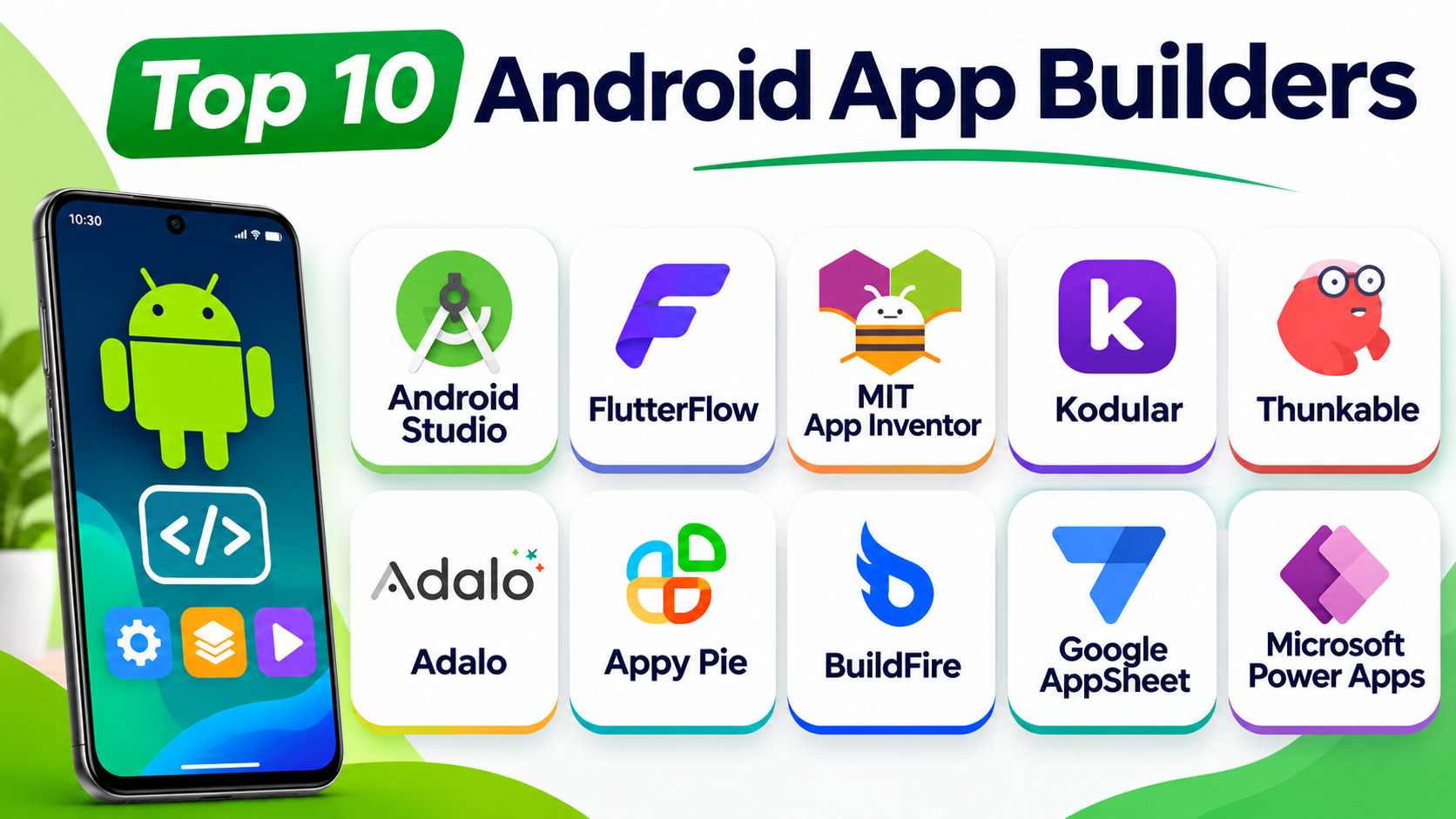
This guide covers ten popular Android app builders. It explains their features, uses, Pros, and Cons. It also helps you choose the right tool for your project.
What Is an Android App Builder?
An Android app builder is a tool for creating Android applications. It helps users design screens, add features, manage data, and prepare apps for release.
Some app builders use drag-and-drop tools. Users can add buttons, images, forms, and other parts without writing much code.
Other tools use visual blocks to set up app actions. These actions tell the app what to do when users tap a button or enter data.
Some platforms also support full coding. They give developers more control over app design and features.
The right choice depends on your skills, budget, app type, and future plans.
1. Android Studio
Android Studio is the official development tool for Android apps. Google provides it for developers who want to build native Android applications.
It supports Kotlin and Java. Developers can use these languages to create app features and manage how apps work.
Android Studio includes a code editor and visual design tools. It also offers an Android emulator. This lets developers test apps on virtual Android devices.
The platform includes tools for finding errors and checking app performance. Developers can also test how their apps work across different screen sizes.
Android Studio gives users strong control over app features. However, beginners may need time to learn its tools and programming languages.
Key Features
- Supports Kotlin and Java.
- Includes a code editor.
- Offers an Android emulator.
- Provides app testing and debugging tools.
- Includes visual layout design tools.
- Helps check app performance.
- Supports Android app packaging and release tasks.
Pros
- Offers official Android development tools.
- Provides strong control over app features.
- Supports modern Android development.
- Includes useful testing tools.
- Helps developers find and fix errors.
- Has a large learning community.
Cons
- Requires programming knowledge.
- Can use a lot of computer memory.
- Beginners may find it hard to learn.
- Large projects can take time to build.
- Developers need to manage more technical tasks.
Best For
Android Studio suits professional developers and technical teams. It works well for complex apps, games, and business applications.
2. FlutterFlow
FlutterFlow is a visual app development platform. It helps users build mobile apps through a drag-and-drop editor.
The platform uses Flutter technology. It supports Android and iOS app projects.
Users can create screens by adding buttons, text, images, menus, and other elements. They can also connect databases and set up app actions.
FlutterFlow can reduce the amount of manual coding. This makes it useful for startups and small teams.
Developers can also add custom code when they need more control. This helps them build apps with more advanced features.
FlutterFlow works well for people who want visual design tools with room to grow.
Key Features
- Offers a visual drag-and-drop editor.
- Supports Android and iOS projects.
- Uses Flutter technology.
- Provides ready-made design elements.
- Supports database connections.
- Allows users to set up app actions.
- Supports custom code for advanced features.
Pros
- Makes app design easier.
- Reduces the need for manual coding.
- Supports visual screen building.
- Helps create app prototypes quickly.
- Supports database connections.
- Offers custom code options.
Cons
- Some advanced features need coding skills.
- Users must learn its visual workflow.
- Large apps need careful planning.
- Some features may need extra setup.
- Paid plans may be needed for advanced tasks.
Best For
FlutterFlow suits startups, small businesses, and app creators. It works well for shopping, booking, education, and service apps.
3. MIT App Inventor
MIT App Inventor is a visual app development platform. It helps beginners create Android apps with simple building blocks.
Users do not need to write traditional code. Instead, they connect visual blocks to control app actions.
The platform includes a screen designer. Users can add buttons, labels, images, and other items.
It also supports phone features such as sensors and location tools. This helps users create apps that respond to device actions.
MIT App Inventor works well in schools and learning programs. It helps students understand how apps work.
The platform also suits people who want to test simple app ideas. However, it may not offer enough control for large commercial projects.
Key Features
- Uses visual programming blocks.
- Offers a simple screen designer.
- Supports Android app creation.
- Provides tools for testing apps.
- Supports device features and sensors.
- Helps users learn basic app logic.
- Works well for classroom projects.
Pros
- Easy for beginners to understand.
- Does not require traditional coding.
- Supports learning through practice.
- Offers a simple visual editor.
- Works well for small projects.
- Helps students learn app development.
Cons
- May not suit complex business apps.
- Offers less design control than advanced tools.
- Has limits for large projects.
- Some advanced features need extra work.
- May not meet every professional app need.
Best For
MIT App Inventor suits students, teachers, and beginners. It works well for learning projects and simple Android apps.
4. Kodular
Kodular is a visual Android app builder. It helps users create apps without writing traditional code.
The platform uses a drag-and-drop editor. Users can add buttons, images, lists, forms, and other screen elements.
Kodular also uses visual blocks. These blocks help users set up actions and app logic.
It offers tools for connecting data and using phone features. Users can also add extensions to support extra functions.
Kodular suits people who want to build Android apps with simple tools. It can support utility apps, education apps, and basic business projects.
However, complex apps may need more technical work. Users should test their apps before sharing them.
Key Features
- Provides a visual app editor.
- Uses block-based programming.
- Supports Android app creation.
- Offers ready-made screen elements.
- Supports app extensions.
- Allows users to connect data.
- Helps build apps without traditional coding.
Pros
- Easy to start using.
- Reduces the need for coding.
- Offers visual design tools.
- Supports many app components.
- Helps users learn app logic.
- Works well for simple Android projects.
Cons
- Focuses mainly on Android.
- Complex apps may need extra work.
- Some extensions may have limits.
- Large projects need careful testing.
- Beginners may need time to understand blocks.
Best For
Kodular suits beginners, students, and small app creators. It works well for simple tools, learning apps, and basic utility apps.
5. Thunkable
Thunkable is a visual app development platform. It helps users create mobile apps with little coding.
The platform offers a drag-and-drop editor. Users can add screen elements and connect them with visual logic blocks.
Thunkable supports Android and iOS app projects. This helps users build apps for more than one mobile system.
It also offers tools for testing app screens and actions. Users can check their work as they build.
Thunkable suits beginners and people with simple app ideas. It can also help teams create early app versions.
Some advanced projects may need extra technical skills. Users should review its publishing options before choosing a plan.
Key Features
- Provides a drag-and-drop editor.
- Supports Android and iOS projects.
- Uses visual logic blocks.
- Offers app testing tools.
- Supports device features.
- Helps users create app screens.
- Allows users to build without much coding.
Pros
- Beginner-friendly design.
- Reduces the need for coding.
- Supports Android and iOS.
- Offers visual app logic.
- Helps test apps during development.
- Works well for simple app ideas.
Cons
- Advanced features may need extra work.
- Some publishing options require paid plans.
- Complex apps can be harder to manage.
- Users may face platform limits.
- Custom design needs can take more time.
Best For
Thunkable suits beginners, teachers, and small teams. It works well for learning apps, simple business tools, and early app ideas.
6. Adalo
Adalo is a no-code app development platform. It helps users create apps through a visual editor.
Users can build screens by placing and arranging design elements. They can also connect data and create app actions.
Adalo supports database-driven apps. This means users can store and manage information inside their projects.
The platform works well for business tools and customer apps. It can also support booking systems, directories, and simple online services.
Adalo helps users create app designs without deep coding skills. However, large apps may need more planning and testing.
Before choosing a plan, users should check its publishing and data limits.
Key Features
- Offers a visual app builder.
- Supports drag-and-drop design.
- Includes database tools.
- Supports app actions and workflows.
- Helps build business applications.
- Supports mobile and web app projects.
- Offers ready-made design elements.
Pros
- Easy for beginners to use.
- Reduces the need for manual coding.
- Helps create database-based apps.
- Supports visual screen design.
- Works well for business projects.
- Speeds up early app development.
Cons
- Complex apps may need extra planning.
- Advanced features may have limits.
- Performance needs testing as apps grow.
- Publishing may require a paid plan.
- Some projects may need external services.
Best For
Adalo suits small businesses and people who want to build apps without coding. It works well for booking, directory, and customer service apps.
7. Appy Pie
Appy Pie is a no-code app development platform. It helps people create mobile apps with ready-made tools and templates.
Users can choose a starting design and change it to match their needs. They can add pages, images, menus, forms, and other features.
The platform focuses on simple app creation. It helps users build apps without learning a programming language.
Appy Pie can support business apps and customer service tools. It may also suit shops, schools, and local service providers.
The platform can save time for people with basic app needs. But users should check its design options and plan limits before starting.
Key Features
- Offers ready-made app templates.
- Provides visual design tools.
- Supports Android app projects.
- Helps users add pages and features.
- Offers tools for business apps.
- Reduces the need for coding.
- Supports app management features.
Pros
- Simple for beginners.
- Offers ready-made templates.
- Helps build apps quickly.
- Reduces the need for coding.
- Works well for basic business apps.
- Offers a visual app creation process.
Cons
- Custom design options may be limited.
- Advanced features may need paid plans.
- Complex apps may need other tools.
- Users should check publishing costs.
- Platform limits may affect future growth.
Best For
Appy Pie suits small businesses and first-time app creators. It works well for service apps, local shops, and simple customer apps.
8. BuildFire
BuildFire is a no-code mobile app development platform. It helps businesses create and manage mobile apps.
The platform offers a visual app builder. Users can add features through ready-made tools and modules.
BuildFire supports apps for business and customer use. It can help companies create loyalty apps, event apps, and employee tools.
The platform also offers support for app features and integrations. Businesses can use these tools to match their app with daily needs.
BuildFire may suit teams that want help with app creation. However, users should review the cost and available features before choosing it.
Key Features
- Offers a visual app builder.
- Provides ready-made app modules.
- Supports Android app projects.
- Helps build business and customer apps.
- Offers app feature integrations.
- Supports app management.
- Provides options for custom development support.
Pros
- Helps businesses build apps without much coding.
- Offers ready-made features.
- Supports many business use cases.
- Makes app management easier.
- Helps teams create customer apps.
- Offers room for custom features.
Cons
- Pricing may not suit every small business.
- Some features depend on selected plans.
- Advanced changes may need technical help.
- Users should review platform limits.
- Complex projects may need extra support.
Best For
BuildFire suits businesses that need customer or employee apps. It works well for loyalty programs, events, and company services.
9. Google AppSheet
Google AppSheet is a no-code app development platform. It helps users create apps for business tasks.
Users can build apps from data sources such as spreadsheets and other connected services. They can create forms, reports, and simple workflows.
AppSheet works well for teams that manage daily business tasks. It can help track stock, record visits, manage orders, and collect information.
The platform also supports automation. Users can set actions that run when certain events happen.
AppSheet focuses more on business tools than complex consumer apps. It may not suit projects that need a fully custom mobile design.
Key Features
- Offers no-code app development.
- Connects with Google Sheets and other data sources.
- Supports forms and data views.
- Helps create business workflows.
- Offers automation features.
- Supports mobile and web access.
- Helps teams manage business information.
Pros
- Easy for many business users.
- Works with common data sources.
- Reduces manual data entry.
- Supports business process automation.
- Helps teams manage daily tasks.
- Requires little traditional coding.
Cons
- Design options may be limited.
- Focuses mainly on business apps.
- Complex apps may need other tools.
- Some features depend on plan access.
- Users must manage data carefully.
Best For
Google AppSheet suits businesses that need simple work apps. It works well for stock tracking, field reports, order forms, and team workflows.
10. Microsoft Power Apps
Microsoft Power Apps is a low-code app development platform. It helps businesses create apps for daily work.
Users can build apps with visual tools. They can also connect apps with data from Microsoft services and other systems.
Power Apps supports forms, dashboards, and business workflows. It can help teams manage tasks and reduce manual work.
The platform works with the wider Microsoft system. This can help companies that already use Microsoft 365 and other business tools.
Power Apps offers options for both simple and advanced projects. Some tasks may need formulas or technical skills.
Key Features
- Offers low-code app development.
- Includes visual design tools.
- Connects with business data sources.
- Supports forms and dashboards.
- Works with Microsoft services.
- Helps create business workflows.
- Supports mobile and web access.
Pros
- Works well with Microsoft tools.
- Helps build business apps.
- Reduces manual work.
- Supports data connections.
- Offers visual app design.
- Helps automate business tasks.
Cons
- Beginners may need time to learn it.
- Some features need technical skills.
- Licensing can be complex.
- Advanced apps need careful planning.
- It may not suit every public app project.
Best For
Microsoft Power Apps suits companies that use Microsoft services. It works well for staff apps, approval systems, forms, and business workflows.
Comparison Table: Top 10 Android App Builders
| Tool | Development Type | Coding Needed | Best For |
|---|---|---|---|
| Android Studio | Native development | Yes | Professional Android apps |
| FlutterFlow | Low-code visual builder | Optional | Custom Android apps |
| MIT App Inventor | Visual block builder | No traditional coding | Students and beginners |
| Kodular | No-code visual builder | No traditional coding | Simple Android apps |
| Thunkable | Visual app builder | Little to no coding | Beginner-friendly apps |
| Adalo | No-code app builder | Little to no coding | Business and database apps |
| Appy Pie | No-code app builder | No traditional coding | Small business apps |
| BuildFire | No-code app builder | Little to no coding | Business and customer apps |
| Google AppSheet | No-code app builder | No traditional coding | Business workflow apps |
| Microsoft Power Apps | Low-code app builder | Optional | Business applications |
How to Choose the Best Android App Builder
Choosing an Android app builder can affect your whole project. So, review your needs before you start.
Here are some points to help you make a good choice.
1. Understand Your App Idea
First, decide what your app should do. A simple calculator app has different needs from an online shopping app.
Write down the main features. This will help you choose a suitable platform.
2. Check Your Coding Skills
Some tools need programming knowledge. Android Studio is a good example.
Other tools offer visual design and block-based features. MIT App Inventor, Kodular, and Thunkable can help beginners.
Choose a platform that matches your current skills.
3. Review the Design Tools
Your app should be easy to use. So, check the screen design options before choosing a builder.
Look for buttons, menus, forms, images, and layout controls. Also, check whether you can change colors and screen styles.
4. Check Data and Integration Support
Many apps need to store user details and other information. Some also connect with payment services or business systems.
Check whether the platform supports the data sources you need. Also, review its connection options.
5. Compare Costs
Some app builders offer free plans. Others charge for advanced features or publishing.
Check the full cost before you start. Review storage, user limits, app exports, and support costs.
6. Review Publishing Options
Building an app is only one part of the process. You also need a way to share it with users.
Check whether the platform can create an Android app package. Also, review the steps for publishing on Google Play.
7. Think About Future Growth
Your app may gain more users and features over time. So, choose a tool that can support future changes.
Check its support, updates, integrations, and export options. This can help you avoid problems later.
Common Uses of Android App Builders
Android app builders support many types of projects. Here are some common examples.
- Shopping apps help customers browse products and place orders.
- Education apps provide lessons, tests, and learning tools.
- Booking apps help users schedule services and events.
- Business apps help teams manage daily tasks.
- Travel apps support trip planning and bookings.
- Restaurant apps display menus and accept orders.
- Fitness apps help users track daily activity.
- Inventory apps help businesses track stock.
- Event apps share schedules and ticket details.
- Customer service apps help users contact businesses.
The right platform depends on the features each app needs.
Questions and Answers
1. What is the best Android app builder?
The best tool depends on your project and skills. Android Studio suits developers who know coding. FlutterFlow, Adalo, and Thunkable offer visual app-building tools.
2. Can I build an Android app without coding?
Yes. Tools such as MIT App Inventor, Kodular, and Appy Pie help users create apps without traditional coding.
Some advanced features may still need technical help.
3. Which Android app builder is best for beginners?
MIT App Inventor and Kodular suit beginners. They use visual blocks and simple design tools.
Thunkable also offers a visual way to create mobile apps.
4. Is Android Studio free?
Android Studio is available as a free development environment. However, developers may still face other costs when testing, managing, or publishing an app.
5. Can I publish apps made with no-code builders?
Many no-code builders support Android app publishing. However, publishing may depend on the selected plan and platform rules.
Always check the export and publishing options first.
6. What is the difference between no-code and low-code app builders?
No-code tools let users build apps with visual tools. They need little or no traditional coding.
Low-code tools also use visual features. But they may need some coding for advanced tasks.
7. Can I create business apps with Android app builders?
Yes. Many platforms support business apps. You can create booking tools, forms, stock systems, and customer apps.
Google AppSheet and Microsoft Power Apps focus strongly on business tasks.
8. Are Android app builders suitable for large projects?
Some platforms can support larger projects. However, the right choice depends on app size, features, data needs, and performance.
Large projects may need professional developers and extra testing.
9. Can I make money from an Android app?
Yes. You can earn money through paid services, subscriptions, ads, or product sales.
Your app must offer real value to users. You should also review the platform’s rules for payments and ads.
10. What should I check before choosing an Android app builder?
Check its features, cost, design tools, data support, and publishing options. Also, review its limits and future growth options.
A small test project can help you make a better choice.
Final Thoughts
Android app builders make app creation easier for many people. They support beginners, businesses, and professional developers.
Android Studio offers strong control for native app development. FlutterFlow provides visual tools with room for custom work.
MIT App Inventor and Kodular suit beginners. Thunkable and Adalo help users build apps through visual tools.
Appy Pie and BuildFire support business app creation. Google AppSheet and Microsoft Power Apps focus on work tools and business tasks.
Before choosing, think about your app idea, skills, budget, and future plans. Also, test the platform before starting a large project.
The right Android app builder can save time and reduce effort. It can also help you turn a useful idea into a working app.