Introduction
Businesses handle many tasks every day. Teams send emails, update records, manage orders, and share reports.
Doing these tasks by hand takes time. It can also lead to mistakes and delays.
Workflow automation platforms help solve this problem. They connect apps and run tasks when certain events happen.
For example, a new customer can trigger several actions. A platform can save the customer details, send a welcome email, and alert the sales team.
These tools help businesses save time and work better. They can also reduce repeated tasks across different teams.
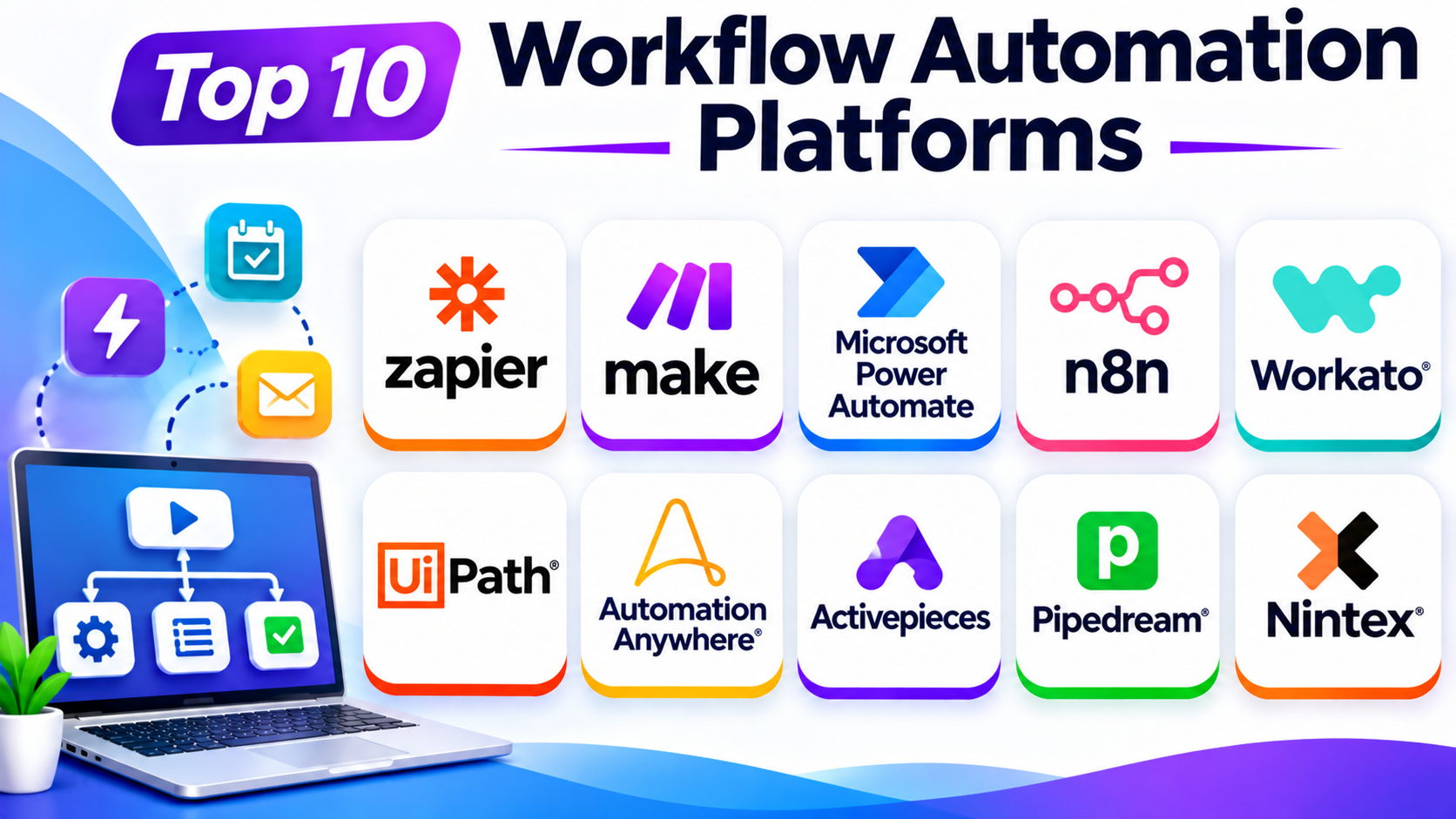
This guide covers ten useful workflow automation platforms. It explains their features, Pros, Cons, and best uses. It also includes a comparison table to help you choose.
What Is a Workflow Automation Platform?
A workflow automation platform helps people automate tasks across apps and systems.
A workflow usually starts with a trigger. A trigger is an event that starts a task.
For example, a new order can start an order workflow. The platform can then update stock, create an invoice, and send a message.
A workflow automation platform can help teams:
- Connect different apps and services.
- Move data between systems.
- Send automatic emails and alerts.
- Manage approvals and requests.
- Update customer records.
- Create reports and notifications.
- Reduce manual data entry.
- Track tasks and workflow results.
Some platforms use visual builders. Others offer advanced tools for developers and IT teams.
Top 10 Workflow Automation Platforms
1. Zapier
Zapier is a popular no-code workflow automation platform. It helps users connect apps and automate tasks without building complex systems.
Users create workflows called Zaps. Each Zap starts with a trigger and then runs one or more actions.
For example, a new form entry can start a Zap. The platform can add the details to a spreadsheet and send a team notification.
Zapier supports a large range of app connections. This makes it useful for teams that use many online services.
Key Features
- No-code workflow builder.
- Large app integration library.
- Trigger and action automation.
- Multi-step workflows.
- Filters and conditional paths.
- AI-powered automation options.
- Workflow history and task tracking.
- Team and business controls.
Pros
- Easy for beginners to use.
- Connects many popular apps.
- Saves time on repeated tasks.
- Offers a clear visual setup.
- Works well for small teams and businesses.
Cons
- Task limits depend on the plan.
- Complex workflows can become costly.
- Advanced custom logic may need extra work.
- Some app connections offer limited actions.
Best For: Small businesses and teams that want simple app-to-app automation.
2. Make
Make is a visual workflow automation platform. It helps users build workflows by connecting apps and actions on a visual canvas.
Users create scenarios that show how data moves between services. They can add filters, conditions, and different paths.
For example, an online order can start a scenario. Make can check the order value and send different messages based on the result.
Its visual design gives users more control over complex workflows. It can also help teams understand each step.
Key Features
- Visual workflow canvas.
- App and service connections.
- Conditional routes.
- Data filters and transformation.
- Multi-step scenarios.
- Scheduling options.
- Error handling tools.
- Workflow history and monitoring.
Pros
- Clear visual workflow design.
- Supports complex automation paths.
- Offers useful data controls.
- Helps users build detailed scenarios.
- Works with many online services.
Cons
- The visual builder may take time to learn.
- Large scenarios can become hard to manage.
- Usage limits depend on the plan.
- Advanced workflows need careful testing.
Best For: Teams that want visual control over detailed workflows.
3. Microsoft Power Automate
Microsoft Power Automate helps users automate tasks across apps and business systems. It works closely with Microsoft products and services.
Users can build cloud flows and desktop flows. Cloud flows connect online services, while desktop flows can automate actions on a computer.
For example, a user can create a flow that saves email attachments to cloud storage. The flow can then notify a team member.
Power Automate also supports approval processes. This makes it useful for companies that use Microsoft 365 and other Microsoft services.
Key Features
- Cloud workflow automation.
- Desktop automation.
- Microsoft 365 connections.
- Ready-made connectors.
- Approval workflows.
- Scheduled and event-based flows.
- Robotic process automation.
- Workflow monitoring and management.
Pros
- Strong connection with Microsoft products.
- Supports cloud and desktop automation.
- Useful for business approval tasks.
- Offers many ready-made connectors.
- Fits many office workflows.
Cons
- Some advanced features need paid plans.
- Complex flows can be difficult to manage.
- Desktop automation needs careful setup.
- The full platform may feel complex to beginners.
Best For: Businesses that use Microsoft 365 and want to automate office tasks.
4. n8n
n8n is a workflow automation platform for technical and business teams. It connects apps, APIs, and services through visual workflows.
Users build workflows by joining different nodes. Each node performs an action, such as receiving data, checking information, or sending a message.
n8n also supports custom logic. This gives developers more control over how workflows behave.
The platform offers cloud and self-hosted options. Self-hosting can help teams keep more control over their systems and data.
Key Features
- Visual node-based workflow builder.
- App and API connections.
- Custom workflow logic.
- Data transformation.
- Webhook triggers.
- AI workflow features.
- Error handling and execution history.
- Self-hosted and cloud options.
Pros
- Offers flexible workflow design.
- Supports self-hosting.
- Gives developers more control.
- Connects apps and APIs.
- Supports advanced automation needs.
Cons
- Advanced workflows may need technical skills.
- Self-hosting requires maintenance.
- Complex workflows need clear planning.
- New users may need time to learn the platform.
Best For: Technical teams that want flexible automation and hosting control.
5. Workato
Workato is an enterprise automation and integration platform. It helps businesses connect apps and automate processes across departments.
The platform uses recipes to build workflows. A recipe starts with an event and then performs actions across connected services.
For example, a new employee record can start a workflow. Workato can notify HR, create accounts, and update other business systems.
Workato also supports advanced business processes. Its tools help teams manage integrations, data movement, and workflow activity.
Key Features
- Recipe-based workflow builder.
- Enterprise app connectors.
- Business process automation.
- Data mapping and transformation.
- API integration.
- Workflow monitoring.
- Error handling.
- Team and governance controls.
Pros
- Strong enterprise automation features.
- Connects many business systems.
- Supports complex workflows.
- Helps teams reduce manual work.
- Offers tools for managing integrations.
Cons
- Pricing may not suit small businesses.
- Advanced setups need training.
- Large projects may take time to deploy.
- Some workflows need technical support.
Best For: Mid-sized and large businesses that need connected workflows across departments.
6. UiPath
UiPath is a robotic process automation platform. It helps businesses automate tasks that people usually perform on computers.
Its software robots can work with websites, desktop apps, and business systems. They can copy data, fill forms, move files, and process records.
UiPath also offers workflow tools that help manage automation tasks. Businesses can use these tools to coordinate software robots and people.
This makes UiPath useful for companies with repeated tasks across older systems. It can also help teams automate work that lacks direct app connections.
Key Features
- Robotic process automation.
- Visual automation design.
- Desktop and web task automation.
- Document processing.
- Workflow orchestration.
- Robot management.
- Process discovery tools.
- Monitoring and reporting.
Pros
- Automates tasks across many apps.
- Useful for older systems.
- Reduces repeated computer work.
- Supports large automation projects.
- Offers tools for managing software robots.
Cons
- Complex automation may need skilled developers.
- Robot setup can take time.
- Some workflows need regular maintenance.
- Enterprise features may increase costs.
Best For: Large businesses that want to automate repeated computer-based tasks.
7. Automation Anywhere
Automation Anywhere is an automation platform for business processes. It combines robotic process automation with workflow and AI-based features.
Businesses can use it to automate tasks across different systems. These tasks may include data entry, document handling, invoice processing, and customer record updates.
The platform also offers tools for managing software bots. Teams can monitor their work and manage automation across departments.
Automation Anywhere suits companies that need more than simple app connections. It can help automate longer processes that involve people, documents, and software systems.
Key Features
- Robotic process automation.
- Visual bot development.
- Workflow automation.
- Document processing.
- AI-powered automation features.
- Bot management.
- Process monitoring.
- Enterprise controls.
Pros
- Supports large automation projects.
- Helps automate document-based tasks.
- Connects work across business systems.
- Offers tools for managing bots.
- Supports complex business processes.
Cons
- May be too complex for small teams.
- Advanced automation needs training.
- Setup can take time.
- Enterprise pricing may require a larger budget.
Best For: Large companies that need robotic automation across business departments.
8. Activepieces
Activepieces is an open-source workflow automation platform. It helps users connect apps and automate tasks through visual workflows.
Users build flows with triggers and actions. They can connect services and move data between them.
Activepieces also offers self-hosting options. This gives teams more control over their automation environment.
Its visual design can help people create workflows without writing much code. Technical users can also extend workflows when needed.
Key Features
- Visual workflow builder.
- Open-source platform.
- App connections.
- Trigger and action steps.
- Data handling tools.
- AI workflow options.
- Self-hosting support.
- Workflow monitoring.
Pros
- Offers an open-source option.
- Supports self-hosting.
- Provides a visual workflow builder.
- Helps automate repeated tasks.
- Gives teams more control over deployment.
Cons
- Some advanced tasks need technical skills.
- Self-hosting requires setup and care.
- Connector options may differ by app.
- Large workflows need careful management.
Best For: Teams that want open-source automation and more control over hosting.
9. Pipedream
Pipedream is a workflow automation platform with a strong focus on developers. It helps connect APIs, apps, and services.
Users can start workflows with events or webhooks. They can then add steps that process data and send it to other systems.
Pipedream also supports custom code steps. This gives developers more control when ready-made actions do not meet their needs.
The platform can help teams build integrations quickly. It is useful when workflows need direct API access and custom data handling.
Key Features
- Event-based workflows.
- API and app connections.
- Webhook triggers.
- Custom code steps.
- Data transformation.
- Workflow testing tools.
- Event inspection.
- Integration management.
Pros
- Strong tools for developers.
- Makes API connections easier.
- Supports custom workflow logic.
- Useful for webhook-based tasks.
- Helps build integrations quickly.
Cons
- Less suitable for users who want only no-code tools.
- Custom steps need coding knowledge.
- Complex workflows need testing.
- Usage limits depend on the plan.
Best For: Developers who need API-focused automation and custom workflow steps.
10. Nintex
Nintex is a business process automation platform. It helps companies design, manage, and automate business workflows.
Teams can use it to build approval processes and document workflows. It can also help manage forms, requests, and business tasks.
For example, an employee can submit a purchase request. Nintex can send it to a manager for approval and notify the finance team after approval.
The platform focuses on business processes that involve people and systems. This makes it useful for companies that need structured workflows.
Key Features
- Visual process design.
- Workflow automation.
- Forms and document tools.
- Approval management.
- Business process mapping.
- Integration options.
- Task tracking.
- Process monitoring.
Pros
- Useful for approval workflows.
- Helps manage business processes.
- Supports document-based tasks.
- Offers visual process design.
- Can reduce manual office work.
Cons
- Advanced workflows may need training.
- Pricing may not suit small teams.
- Some setups need technical support.
- Complex processes need careful planning.
Best For: Businesses that need to automate approvals, forms, and document-based processes.
Comparison Table of the Top 10 Workflow Automation Platforms
| Platform | Main Strength | Key Feature | Best For |
|---|---|---|---|
| Zapier | Simple app automation | Large app connection library | Small businesses and beginners |
| Make | Visual workflow design | Branching and visual scenarios | Detailed workflow builders |
| Microsoft Power Automate | Microsoft automation | Cloud and desktop flows | Microsoft 365 users |
| n8n | Flexible automation | Self-hosting and custom logic | Technical teams |
| Workato | Enterprise automation | Recipe-based business workflows | Large businesses |
| UiPath | Robotic process automation | Software robots | Computer-based task automation |
| Automation Anywhere | Enterprise RPA | Bot and process management | Large organizations |
| Activepieces | Open-source automation | Self-hosted visual workflows | Teams that want control |
| Pipedream | Developer automation | API and custom code steps | Developers |
| Nintex | Business process automation | Forms and approval workflows | Operations and office teams |
How to Choose the Right Workflow Automation Platform
The right platform depends on your team and the tasks you want to automate. Consider these points before choosing.
1. List Your Repeated Tasks
Start by finding tasks that take too much time. These may include data entry, email alerts, approvals, or report updates.
Choose a platform that can handle those tasks. Start with one simple workflow before automating more work.
2. Check App Connections
Make sure the platform supports your current apps. Check whether it can connect your CRM, email, payment, and business tools.
A ready-made connection can save setup time. Custom API support can help when a direct connector is not available.
3. Review Ease of Use
Some platforms target beginners. Others focus on developers and IT teams.
Choose a tool that matches your team’s skills. A visual builder may help business users create workflows more easily.
4. Check Workflow Complexity
Simple tasks may need only a trigger and an action. Larger processes may need conditions, approvals, and several paths.
Make sure the platform supports the steps your business needs. Also, check how it handles failed tasks.
5. Review Security and Access
Automation tools may handle customer and business data. Check user roles, access controls, and data protection features.
Also, make sure your team can review who created and changed each workflow.
6. Consider Hosting Needs
Some platforms run fully in the cloud. Others offer self-hosted options.
Cloud tools can reduce maintenance work. Self-hosting can give teams more control, but it also needs technical care.
7. Compare Pricing and Usage Limits
Many platforms charge based on tasks, actions, users, or workflow runs. These costs can grow as your business adds more automation.
Check the full pricing model before you decide. Also, review limits on app connections and workflow activity.
Common Uses of Workflow Automation Platforms
Workflow automation can support many business tasks. Here are some common examples.
Sales and Lead Management
A new lead can start a workflow. The platform can save the contact, alert a salesperson, and schedule a follow-up task.
Marketing Tasks
A new customer can enter an email campaign. The system can also update customer details across marketing tools.
Customer Support
A new support request can create a ticket. The platform can assign the ticket and notify the right team.
Finance and Payments
A payment event can update a record. A workflow can also send an invoice or alert the finance team.
Human Resources
A new employee record can start an onboarding process. The system can send forms and notify the right teams.
Document Approvals
An employee can submit a document for review. The platform can send it to a manager and track the approval result.
IT Operations
A system alert can create a support ticket. The workflow can notify staff and start the right response process.
Questions and Answers
1. What is a workflow automation platform?
It is software that connects apps and runs tasks automatically. It helps people reduce repeated manual work.
2. How does workflow automation work?
A workflow starts when an event happens. The platform then runs the actions set by the user.
3. What is a trigger in workflow automation?
A trigger is an event that starts a workflow. Examples include a new form entry or a received payment.
4. Do workflow automation tools need coding?
Not always. Many tools offer visual builders and ready-made actions. Developer-focused platforms may need coding for advanced tasks.
5. Which workflow automation platform is best for beginners?
Zapier is a useful starting point for beginners. Make also offers visual tools for building workflows.
6. Which platform is best for Microsoft users?
Microsoft Power Automate is a strong choice for Microsoft users. It connects with many Microsoft services and supports desktop automation.
7. Which workflow automation tool supports self-hosting?
n8n and Activepieces offer self-hosted options. These can suit teams that want more control over their systems.
8. What is the difference between workflow automation and RPA?
Workflow automation connects tasks and systems through rules and events. RPA uses software robots to perform actions on computer screens and apps.
9. Can workflow automation help small businesses?
Yes. Small businesses can automate emails, customer records, and repeated office tasks. This can save time and reduce errors.
10. Is workflow automation secure?
It can be secure when teams use the right controls. Review access rules, data protection, and workflow permissions before use.
Final Thoughts
Workflow automation platforms help businesses save time. They connect apps and manage repeated tasks with less manual work.
Zapier suits teams that want simple app connections. Make offers more visual control. Microsoft Power Automate fits businesses that use Microsoft services.
n8n and Activepieces give teams more hosting control. Workato supports complex business workflows. UiPath and Automation Anywhere focus on robotic process automation.
Pipedream gives developers more control over APIs and custom steps. Nintex helps companies manage approvals and document-based work.
Before choosing, list the tasks you want to automate. Then compare app connections, ease of use, security, and pricing.
The best workflow automation platform is the one that fits your team’s needs. Start with a small task, test the results, and grow your automation step by step.