Introduction
Great web design does more than make a website look good. It helps people find what they need. It also makes each page easy to use.
Web design software helps users plan, create, and improve websites. Some tools focus on visual design. Others help with coding, page layouts, graphics, and team work.
The right tool depends on your skills and goals. Some suit beginners and small teams. Others offer deeper control for professional designers and developers.
This guide covers ten popular web design tools. You will learn what each tool does. You will also find its key features, pros, and cons.
What Is Web Design Software?
Web design software helps people create the look and layout of websites. It can help with page designs, images, menus, buttons, and mobile layouts.
Some tools create visual plans before development starts. Others help users build and publish live websites. A few focus on graphics or code.
So, web design software does not always mean a website builder. Designers often use several tools together. For example, they may design a page in Figma. Then they may build it with Webflow or WordPress.
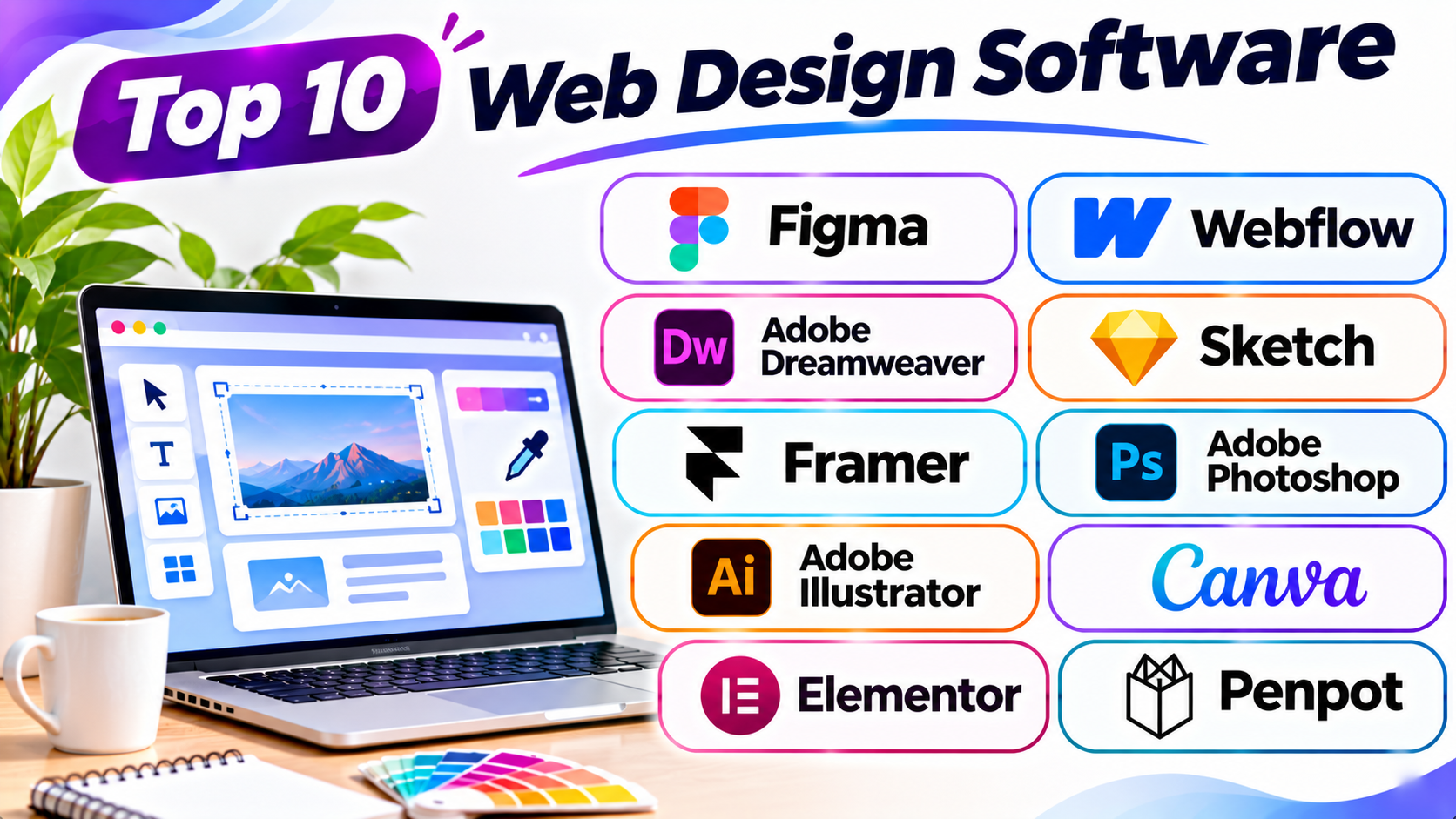
Top 10 Web Design Software
1. Figma
Figma is a popular tool for website and interface design. It helps designers plan how websites and apps should look and work.
Users can create page layouts, buttons, menus, and other design parts. They can also build interactive prototypes. A prototype shows how a website may behave before development begins.
Figma works in a web browser and offers desktop apps. Teams can work on the same design file. They can leave comments and share feedback.
Its component and design system tools help teams keep pages consistent. A component is a reusable design part. Teams can use it across many pages.
Figma suits UI designers, UX teams, freelancers, and agencies. It works especially well during the planning and design stages.
Key Features
- Collaborative design workspace.
- Website wireframes and page layouts.
- Interactive prototypes.
- Reusable design components.
- Shared design libraries.
- Comments and team feedback.
- Developer handoff tools.
Pros
- Easy to share design files.
- Supports live team collaboration.
- Useful for website prototypes.
- Helps keep designs consistent.
- Offers a free starting plan.
Cons
- Does not replace every website development tool.
- Large design files can become complex.
- New users may need time to learn advanced features.
- Some team features require paid plans.
2. Webflow
Webflow combines visual web design with website building. It helps users create and publish websites without writing every line of code.
Its visual editor gives designers control over page structure and style. Users can adjust spacing, colors, fonts, and layouts. They can also create responsive designs for different screen sizes.
Webflow includes a content management system. This system helps users manage blogs and other website content. It also supports animations and interactive page elements.
The platform creates website code from visual design choices. This helps designers build professional websites without handling every coding task.
Webflow suits agencies, freelancers, startups, and design teams. It works well for custom marketing websites and content-based projects.
Key Features
- Visual website design editor.
- Responsive layout controls.
- Content management system.
- Custom animations and interactions.
- Website hosting and publishing.
- SEO settings.
- Ecommerce features.
Pros
- Offers strong design control.
- Supports responsive websites.
- Combines design and publishing.
- Includes useful content tools.
- Helps create custom website layouts.
Cons
- Beginners may find the editor difficult.
- Advanced layouts require design knowledge.
- Ecommerce features may not suit every large store.
- Some features need paid plans.
3. Adobe Dreamweaver
Adobe Dreamweaver is a website design and coding tool. It helps users create and edit website files.
The software combines a code editor with visual page tools. Users can work with HTML, CSS, and JavaScript. These languages control website structure, design, and behavior.
Dreamweaver offers code suggestions and syntax highlighting. These tools help users write and review code. Its live preview also lets users check page changes.
Designers and developers can use it to manage website files. It supports custom website projects that need direct code control.
Dreamweaver suits users who understand basic web development. It may feel less simple than a drag-and-drop website builder.
Key Features
- HTML, CSS, and JavaScript editing.
- Code suggestions and highlighting.
- Live website preview.
- Visual page editing.
- Responsive design support.
- File management tools.
- Integration with other Adobe products.
Pros
- Combines coding and visual editing.
- Supports common web languages.
- Offers useful code tools.
- Helps manage website files.
- Works well for custom projects.
Cons
- Beginners may face a learning curve.
- Requires knowledge of web coding for advanced work.
- It does not offer the same workflow as modern no-code builders.
- Subscription costs may not suit every user.
4. Sketch
Sketch is a design tool for websites, apps, and digital products. It helps designers create clear and detailed interface layouts.
Users can design page sections, icons, buttons, and other interface elements. They can also create reusable components. These parts help keep a website’s design consistent.
Sketch supports prototypes and design sharing. Teams can review work and pass design details to developers. Its tools help designers prepare layouts before development begins.
Sketch is mainly known for its Mac design workflow. It suits UI designers, product teams, and agencies.
Key Features
- Vector-based interface design.
- Reusable symbols and components.
- Website wireframes.
- Interactive prototypes.
- Shared design libraries.
- Developer handoff tools.
- Design collaboration features.
Pros
- Clean interface for design work.
- Useful for website and app layouts.
- Supports reusable components.
- Offers strong vector design tools.
- Helps teams share design work.
Cons
- Mainly targets Mac users.
- Some features require a paid plan.
- It does not build and host full websites by itself.
- Teams may need other tools for development.
5. Framer
Framer is a visual design and website publishing platform. It helps users create modern websites with interactive elements.
Its editor gives users a flexible design canvas. They can create page layouts, add text, and place images. They can also add animations and interactive effects.
Framer offers templates for business websites and portfolios. It also includes content tools for publishing website updates. Users can preview designs across different screen sizes.
The platform connects design and publishing in one workflow. This makes it useful for teams that want to launch websites quickly.
Framer suits designers, startups, freelancers, and marketing teams. It works well for landing pages and brand websites.
Key Features
- Visual website editor.
- Responsive page design.
- Animation and interaction tools.
- Ready-made website templates.
- Content management features.
- Website publishing.
- Team collaboration.
Pros
- Modern design experience.
- Helps create polished landing pages.
- Supports animations and interactions.
- Combines design and publishing.
- Offers useful templates.
Cons
- Advanced features need practice.
- Not ideal for every complex website.
- Large stores may need another platform.
- Some functions depend on paid plans.
6. Adobe Photoshop
Adobe Photoshop is an image editing and graphic design tool. Web designers use it to prepare images and visual content.
Users can edit photographs, remove backgrounds, and adjust colors. They can also create banners, website graphics, and promotional images. Its layers help users organize different parts of a design.
Photoshop supports many image formats. It also offers tools for image retouching and detailed visual edits. Designers can prepare images for website pages and marketing campaigns.
Photoshop does not build a complete website by itself. It works best as part of a wider web design process.
It suits graphic designers, photographers, marketing teams, and web designers.
Key Features
- Photo editing and retouching.
- Layer-based design.
- Background removal tools.
- Image effects and filters.
- Website banner creation.
- Text and graphic editing.
- Image export options.
Pros
- Powerful image editing tools.
- Useful for custom website graphics.
- Offers detailed design control.
- Supports many image formats.
- Works with other Adobe products.
Cons
- Takes time to master.
- Does not publish live websites.
- Subscription costs may be high for some users.
- Large files may need a capable computer.
7. Adobe Illustrator
Adobe Illustrator is a vector graphic design tool. It helps designers create images that stay sharp at different sizes.
Web designers use it to create logos, icons, diagrams, and illustrations. Its vector tools allow users to edit shapes and paths. They can also change colors and sizes without losing image quality.
Illustrator supports detailed graphic work. Designers can prepare visual assets for website headers and page sections. They can also create brand elements for digital projects.
The software works well with other Adobe tools. Users can move artwork between design and image editing projects.
Illustrator suits graphic designers, branding teams, and web professionals. It is most useful for creating website graphics, not full website pages.
Key Features
- Vector drawing tools.
- Logo and icon creation.
- Shape and path editing.
- Typography controls.
- Color and gradient tools.
- Illustration features.
- Export options for web graphics.
Pros
- Creates sharp vector graphics.
- Useful for logos and icons.
- Offers precise design controls.
- Supports detailed illustrations.
- Works with other Adobe tools.
Cons
- Beginners may need training.
- Does not create complete websites.
- Subscription costs can add up.
- Complex artwork may take time.
8. Canva
Canva is an easy-to-use graphic design platform. It helps users create website graphics and simple visual layouts.
Users can work with ready-made templates. They can create banners, icons, presentations, and social media images. The editor uses simple drag-and-drop controls.
Canva also offers website creation features. Users can create simple websites and publish them through its platform. However, it does not offer the same deep design control as professional web tools.
Its templates help beginners create attractive designs quickly. Teams can also share files and work together.
Canva suits small businesses, content creators, marketers, and beginners. It is useful for visual content and simple web projects.
Key Features
- Drag-and-drop design editor.
- Ready-made templates.
- Website and landing page creation.
- Image and text editing.
- Brand design tools.
- Team collaboration.
- Graphic export options.
Pros
- Easy for beginners.
- Offers many design templates.
- Helps create website graphics quickly.
- Supports team collaboration.
- Includes a free plan.
Cons
- Advanced design control is limited.
- Complex websites may need another platform.
- Some templates and assets require payment.
- Large design projects may need careful file management.
9. Elementor
Elementor is a visual page builder for WordPress websites. It helps users design pages without editing every part of the code.
Users can add text, images, buttons, forms, and other elements. They can arrange these parts through a visual editor. This makes it easier to create custom page layouts.
Elementor offers templates and reusable design sections. It also supports responsive editing. Users can adjust how pages appear on phones, tablets, and computers.
The platform includes tools for landing pages and website layouts. Some features depend on the free or paid version.
Elementor suits WordPress users, freelancers, agencies, and small businesses. It works well for users who want more control over WordPress page design.
Key Features
- Drag-and-drop page editor.
- Ready-made page templates.
- Responsive design controls.
- Reusable page sections.
- Form and popup tools.
- Theme design features.
- WordPress integration.
Pros
- Makes WordPress page design easier.
- Offers flexible page layouts.
- Includes many templates.
- Supports responsive editing.
- Helps users build pages without coding.
Cons
- Requires a WordPress website.
- Some features need a paid plan.
- Too many extra features can affect site speed.
- Users need to manage WordPress updates and security.
10. Penpot
Penpot is an open-source design and prototyping platform. It helps teams create website layouts and user interface designs.
Users can create wireframes, page designs, and interactive prototypes. They can also work with vector shapes and reusable components. Its browser-based workspace supports team collaboration.
Penpot uses open web standards. This makes it useful for teams that want an open design workflow. It also offers options for self-hosting.
The platform supports design systems and shared libraries. Teams can use these tools to keep their website designs consistent.
Penpot suits designers, developers, agencies, and open-source teams. It offers a useful option for people who want an alternative to closed design platforms.
Key Features
- Open-source design platform.
- Website wireframing.
- Interactive prototyping.
- Vector design tools.
- Shared design libraries.
- Team collaboration.
- Self-hosting options.
Pros
- Open-source platform.
- Supports browser-based design work.
- Useful for team collaboration.
- Offers vector editing tools.
- Supports self-hosting.
Cons
- Some workflows may feel different from other design tools.
- Advanced features may need practice.
- Its ecosystem is smaller than some major rivals.
- It does not publish complete websites by itself.
Web Design Software Comparison Table
| Software | Best For | Main Purpose | Skill Level |
|---|---|---|---|
| Figma | UI and UX teams | Design and prototyping | Beginner to Advanced |
| Webflow | Professional web designers | Visual website building | Intermediate to Advanced |
| Adobe Dreamweaver | Designers who code | Website coding and editing | Intermediate to Advanced |
| Sketch | Mac-based designers | Interface design | Beginner to Advanced |
| Framer | Landing pages and modern websites | Design and publishing | Beginner to Intermediate |
| Adobe Photoshop | Graphic designers | Image editing | Intermediate to Advanced |
| Adobe Illustrator | Brand and web graphics | Vector design | Intermediate to Advanced |
| Canva | Beginners and marketers | Visual content and simple sites | Beginner |
| Elementor | WordPress users | Visual page building | Beginner to Intermediate |
| Penpot | Open-source design teams | Interface design and prototyping | Beginner to Advanced |
How to Choose the Right Web Design Software
Choosing software becomes easier when you know your project needs. Think about the work you want to do. Then compare the tools that match those needs.
1. Decide What You Want to Create
First, identify your main task. Do you want to design a website layout? Do you need to edit images? Or do you want to publish a complete website?
Figma and Sketch help with interface design. Photoshop and Illustrator help with graphics. Webflow and Framer help users build live websites.
2. Check Your Skill Level
Some tools offer simple editing features. Others require design or coding knowledge.
Canva and Elementor can suit beginners. Figma offers room to learn more advanced design skills. Dreamweaver suits people who want direct control over website code.
3. Review the Main Features
Make a list of the features your project needs. You may need responsive layouts, prototypes, animations, or image editing.
Choose software that covers your main tasks. Avoid paying for features you will not use.
4. Compare the Cost
Some tools offer free plans. Others use monthly or yearly subscriptions. Some also charge for team seats or extra features.
Check the full cost before you decide. Include any extra tools you may need.
5. Check Team Collaboration
Team projects need clear ways to share work. Look for comments, shared files, and design libraries.
Figma and Penpot offer collaborative design workflows. These features can help teams review changes and share feedback.
6. Consider Website Publishing
Some tools only create designs. Others can publish live websites.
If you want to launch a website from the same tool, review Webflow, Framer, or Elementor. If you only need design files, Figma or Sketch may be enough.
7. Think About Future Needs
Your design needs may grow over time. You may later need more pages, team members, or custom features.
Choose a tool that can support your future work. Also, check how easily you can export or move your files.
Common Mistakes to Avoid
A poor software choice can slow down a web project. Avoid these common mistakes before you begin.
- Choosing only by price: A low-cost tool may lack features you need.
- Ignoring the learning curve: Complex tools may take time to master.
- Mixing up design and website building: Some tools create prototypes, not live websites.
- Forgetting mobile layouts: Always check how designs look on small screens.
- Using too many design effects: Extra effects can make pages harder to use.
- Ignoring image quality: Poor images can weaken a website’s look.
- Skipping team feedback: Review designs before development starts.
- Not checking export options: Some tools limit how you move your work.
- Ignoring accessibility: Use clear text, good contrast, and simple navigation.
- Buying tools you do not need: Start with the features your project requires.
Questions and Answers
1. What is the best web design software for beginners?
Canva is a simple starting point for visual design. Elementor can help beginners build WordPress pages. Figma also offers useful tools for learning website layout design.
2. Which web design software do professionals use?
Many professionals use Figma, Webflow, Sketch, and Adobe tools. Their choice depends on the project and team workflow.
3. Is Figma used for web design?
Yes. Figma helps designers create website layouts and prototypes. Teams can also share designs and collect feedback.
4. What is the difference between web design software and a website builder?
Web design software can help create layouts and graphics. A website builder helps users create and publish live websites. Some platforms, such as Webflow and Framer, support both tasks.
5. Can I design a website without coding?
Yes. Tools such as Figma, Webflow, Framer, and Elementor offer visual editing features. You can create many designs without writing code.
6. Which software is best for WordPress web design?
Elementor is a popular visual page builder for WordPress. It helps users create custom page layouts through a visual editor.
7. Is Adobe Dreamweaver still useful?
Dreamweaver can help users edit website code and preview pages. It suits people who want direct control over HTML, CSS, and JavaScript.
8. Which tool is best for website graphics?
Adobe Photoshop works well for image editing. Adobe Illustrator suits logos, icons, and vector graphics. Canva offers a simpler option for basic visual content.
9. Is Penpot free to use?
Penpot offers an open-source platform and free access options. Users should check its current plans for team and hosting needs.
10. Can I use more than one web design tool?
Yes. Many designers use several tools in one project. They may use Figma for layouts, Photoshop for images, and Webflow for publishing.
11. Which tool is best for website prototypes?
Figma and Sketch offer strong prototyping features. Penpot also supports interactive prototypes. The right choice depends on your design workflow.
12. Is Webflow suitable for professional websites?
Yes. Webflow offers visual design, responsive layouts, content tools, and publishing features. It can support many business and marketing websites.
13. Does Canva work for website design?
Yes. Canva offers simple website creation features. It also helps users create banners, images, and other website graphics.
14. What should I check before choosing web design software?
Check the editor, features, price, and learning curve. Also, review collaboration and export options. Make sure the tool supports your project needs.
15. Do web designers need coding skills?
Not always. Visual design tools can handle many tasks without code. However, coding knowledge helps with custom features and advanced website work.
Final Thoughts
Web design software helps turn ideas into clear and useful website experiences. But no single tool handles every design task.
Figma and Sketch help teams plan website layouts. Webflow and Framer help users build and publish websites. Dreamweaver offers direct coding control.
Photoshop and Illustrator support strong visual design. Canva gives beginners a simple way to create graphics. Elementor helps WordPress users build custom pages. Penpot offers an open-source design option.
Start by listing your project needs. Then test a few tools before making a choice. The best software is the one that fits your work, skills, and budget.